A user lost/broke their phone?
If a user has lost, broken, or had their phone stolen and needs to migrate to a new device, VaultysHub allows sending them a link for VaultysID replacement.
This action is equivalent to a password reset in a traditional system: the old device is permanently replaced once the new one is linked.
The replacement can be initiated:
| By | From | Safeguard |
|---|---|---|
| An organization administrator | the VaultysHub admin console (below) | the user must provide a verification code received by email |
| Vaultys support | the Vaultys console (see below) | the operator must enter a reason, visible in your logging |
In both cases, the replacement link is sent only to the user's email address: the person initiating the procedure never receives it.
Step 1: Open the action menu
From the user list, click on the ⋮ button to the right of the concerned user's row.
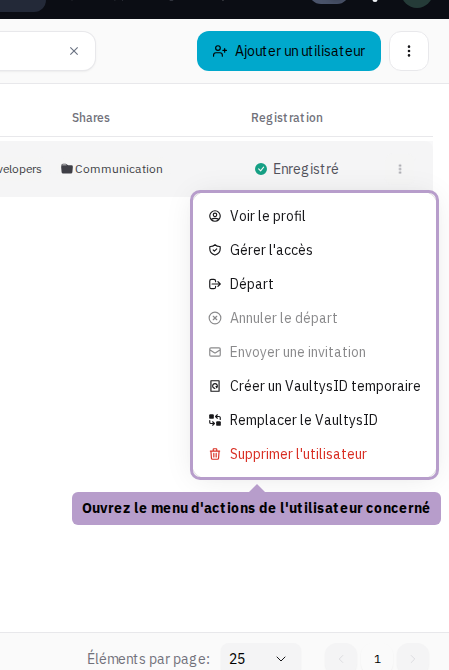
The action is also available from the user's profile, Devices tab, Replace VaultysID button. It is only offered for a user who has already activated their account.
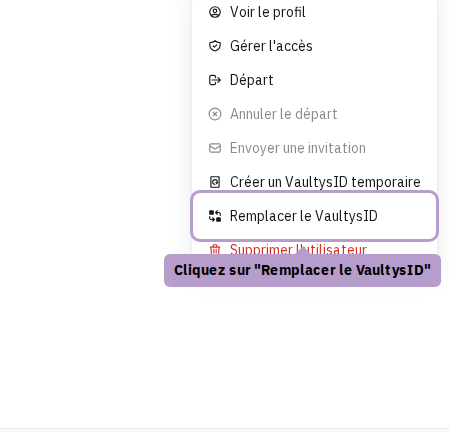
Step 2: Select "Replace VaultysID"
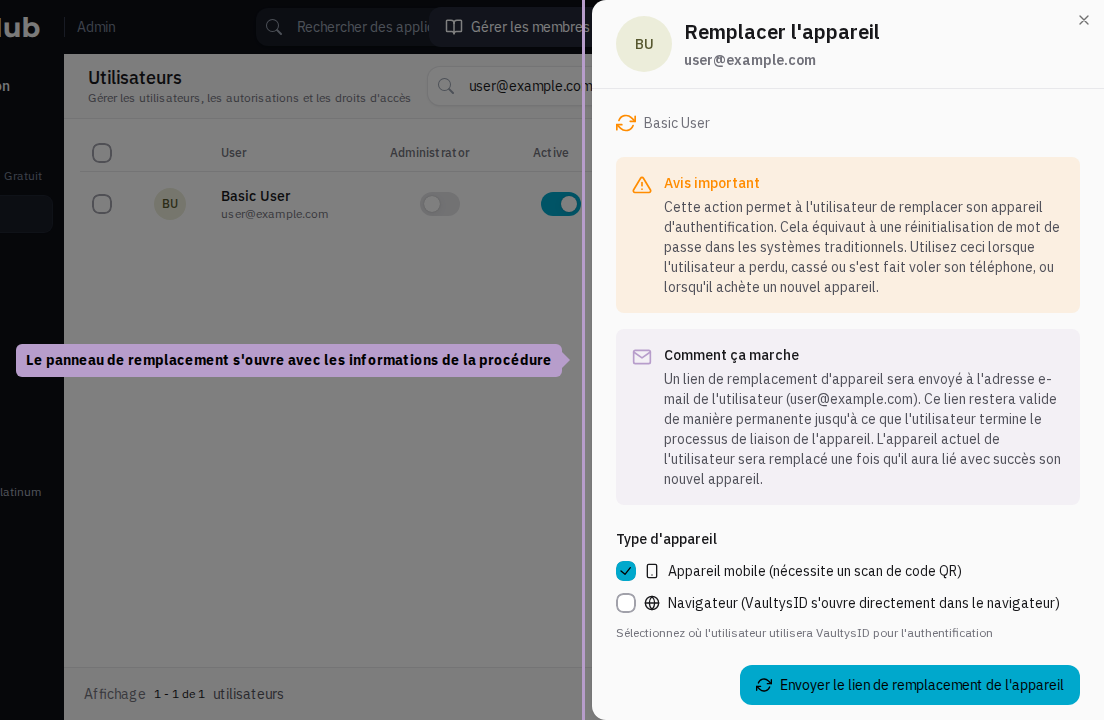
Step 3: Replacement panel
A panel opens with the procedure information. An email will be sent to the user's address containing a replacement link valid until they complete the procedure.
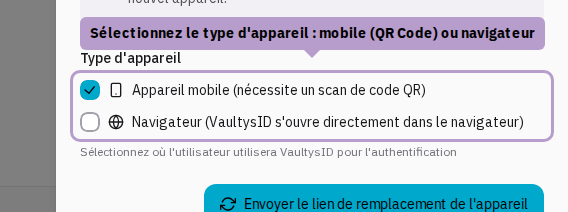
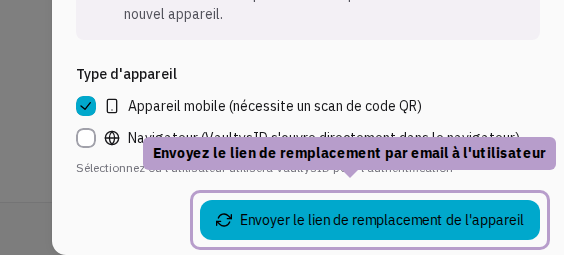
Step 4: Select the type of device
Choose how the user will authenticate on their new device:
- Mobile device — the user will need to scan a QR Code from their new phone.
- Browser — VaultysID will open directly in the browser, no scan needed.
Step 5: Send the replacement link
Click on Send the device replacement link.
Step 6: Enter the user's consent code
Before sending the link, VaultysHub requests the user's consent: a 6-digit verification code is sent to them by email. Ask them to communicate it to you (by phone, in person…), enter it in the User consent required window, then click on Confirm.
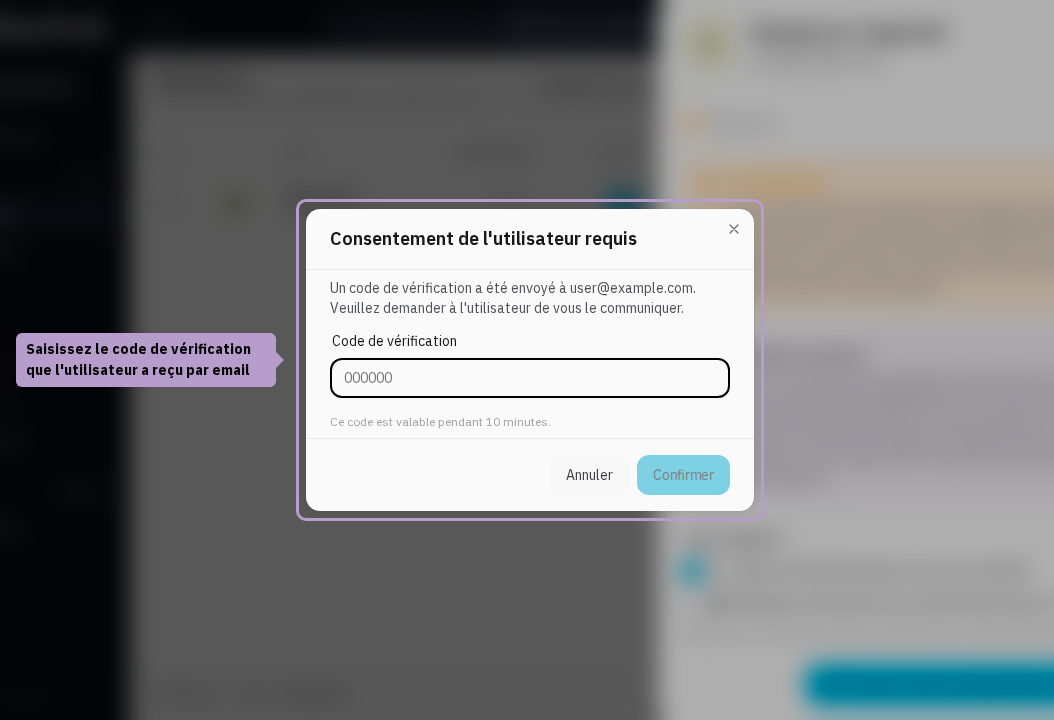
The code is valid for 10 minutes and can only be used once. After several incorrect codes, it becomes invalid: restart the procedure to obtain a new one.
Once the code is validated, the replacement email is sent to the user, and a message confirms the sending. The request is recorded in the logging (“… initiated a device replacement for …”); the code itself is never recorded.
What the user sees
The user receives an email “Resetting your connection device” indicating who initiated the procedure. The link it contains opens the Reset connection device page:
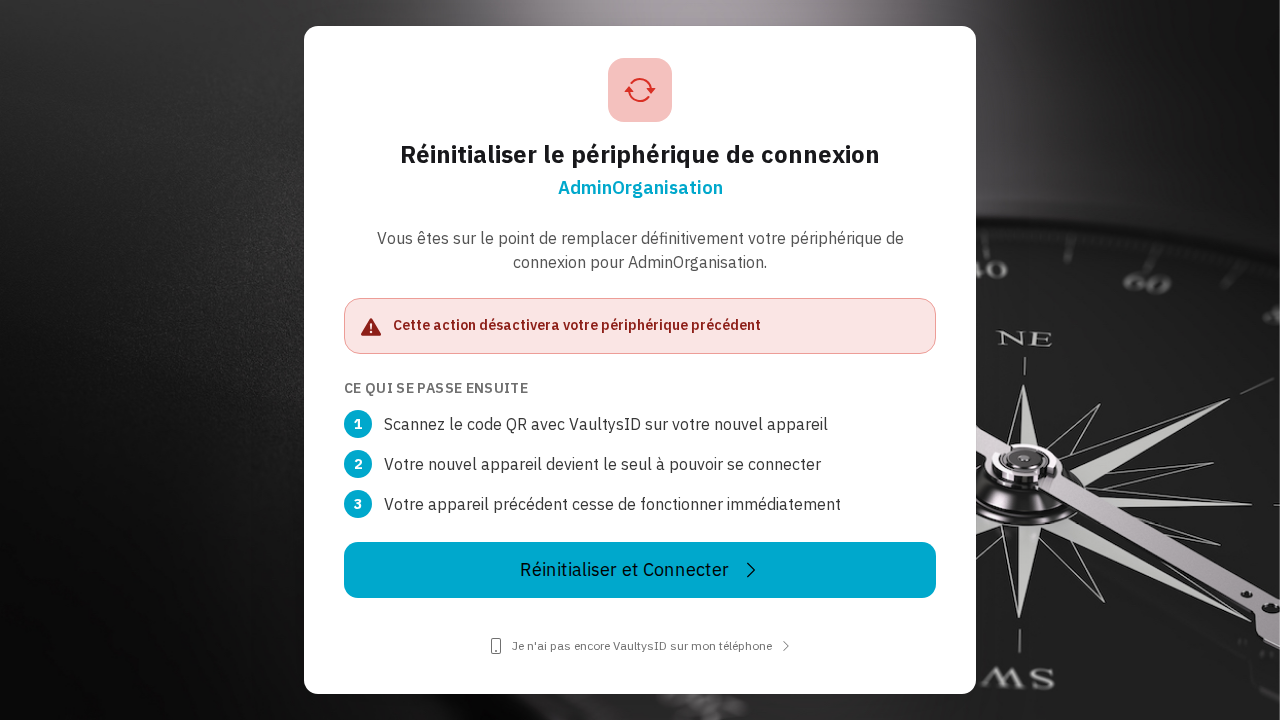
- They click on Reset and Connect.
- They scan the QR code with VaultysID on their new phone (or confirm the connection in the VaultysID window that opens, if they chose Browser).
- As soon as the new device is linked, they become the only one who can connect: the user's previous VaultysIDs are removed from the organization and immediately cease to function. Their access (applications, folders, passwords) is retained.
As long as the user has not linked their new device, the old one continues to function. In case of theft, ensure they complete the procedure quickly.
User member of multiple organizations
The same VaultysID can be used to connect to multiple VaultysHub organizations (for example, a parent company and a subsidiary). Each organization maintains its own list of devices: a replacement initiated in one organization does not automatically apply to others.
It is the user who chooses, on the replacement page. If the replaced VaultysID is also used in other organizations, the page displays a box This device is also used in other organizations, with a checkbox for each organization, all checked by default:
- in the checked organizations, the new VaultysID replaces the old one in the same way;
- in the unchecked organizations, nothing changes: the old device continues to function there.
In each checked organization:
- the access rules of that organization apply to the new VaultysID: if they deny it, the replacement does not occur in that organization;
- only the replaced VaultysID is deleted; the other devices the user has there are retained;
- the association of the new VaultysID is recorded in the organization's logging.
Only the administrators of the organization that initiated the replacement are involved (sending the link, consent code). Administrators of other organizations have no action to take and only see the procedure through the added device and the logging event.
If the phone has been stolen, advise the user to leave all organizations checked: an unchecked organization would continue to accept the old device.
Replacement initiated by Vaultys support
If no administrator from your organization is available — for example, when the administrator themselves has lost their phone — Vaultys support can initiate the same procedure from their admin console:
- the operator opens the user, Devices tab, and clicks on Replace VaultysID (action possible only for a user who has activated their account and has an email address);
- they choose the type of device (Mobile device or Browser) and must enter a reason;
- no consent code is requested: the link is sent only to the user's email address on your organization's main domain, and the operator never has access to it.
For the user, the process is the same: same email, same replacement page, same choice of other organizations.
In your logging, the request appears attributed to Vaultys support, with the operator's name, and the reason entered is viewable in the event detail.