User Devices
The Devices tab of a user's profile lists all the devices associated with their account: their VaultysID, browsers, extensions, Windows Hello PCs… It indicates for each its last usage, and allows cleaning up those that are no longer in use.
Accessing the Tab
From Users, open the collaborator's profile, then the Devices tab.
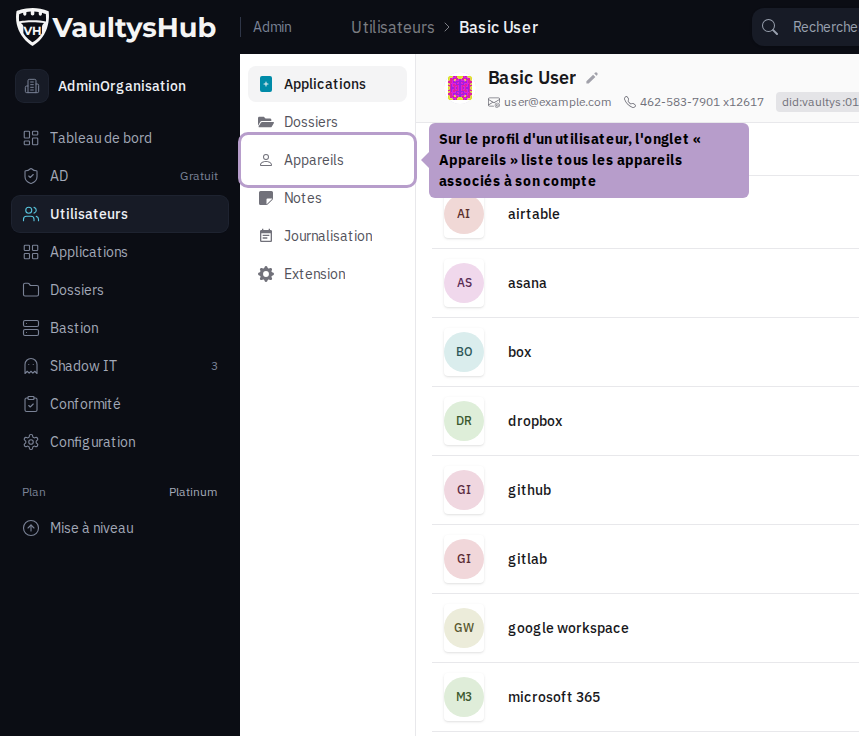
Devices Grouped by Type
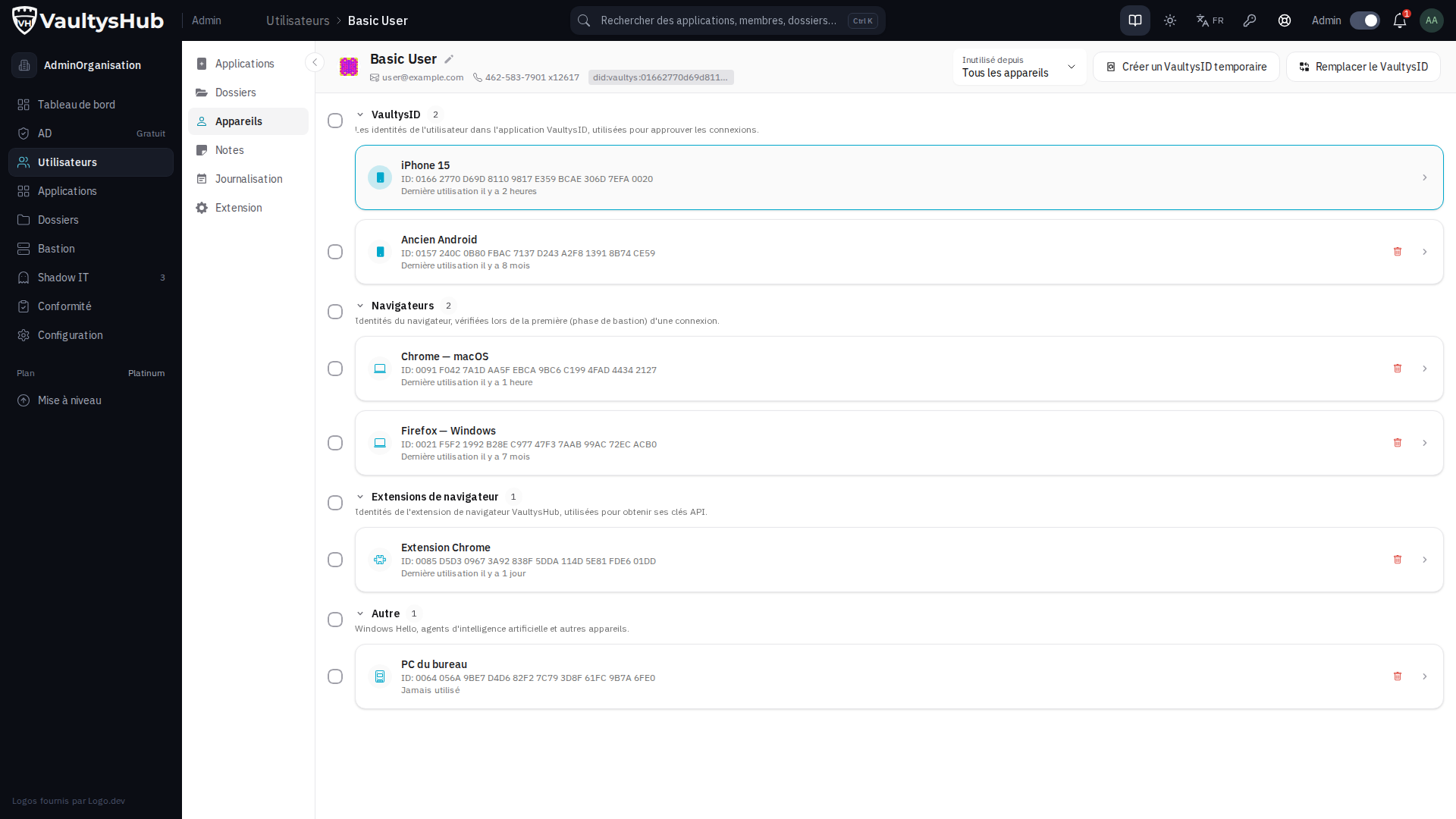
Devices are grouped into four sections, each with its number of devices and a brief explanation of its role:
| Section | Content |
|---|---|
| VaultysID | The identities of the VaultysID application, which validate connections |
| Browsers | The browser identities, verified during the first phase (bastion) of a connection |
| Browser Extensions | The identities of the VaultysHub extension, which allow it to obtain its API keys |
| Other | Windows Hello, AI agents, and other devices |
In each section, the most recently used device appears first. A click on the title of a section collapses or expands it.
Last Usage
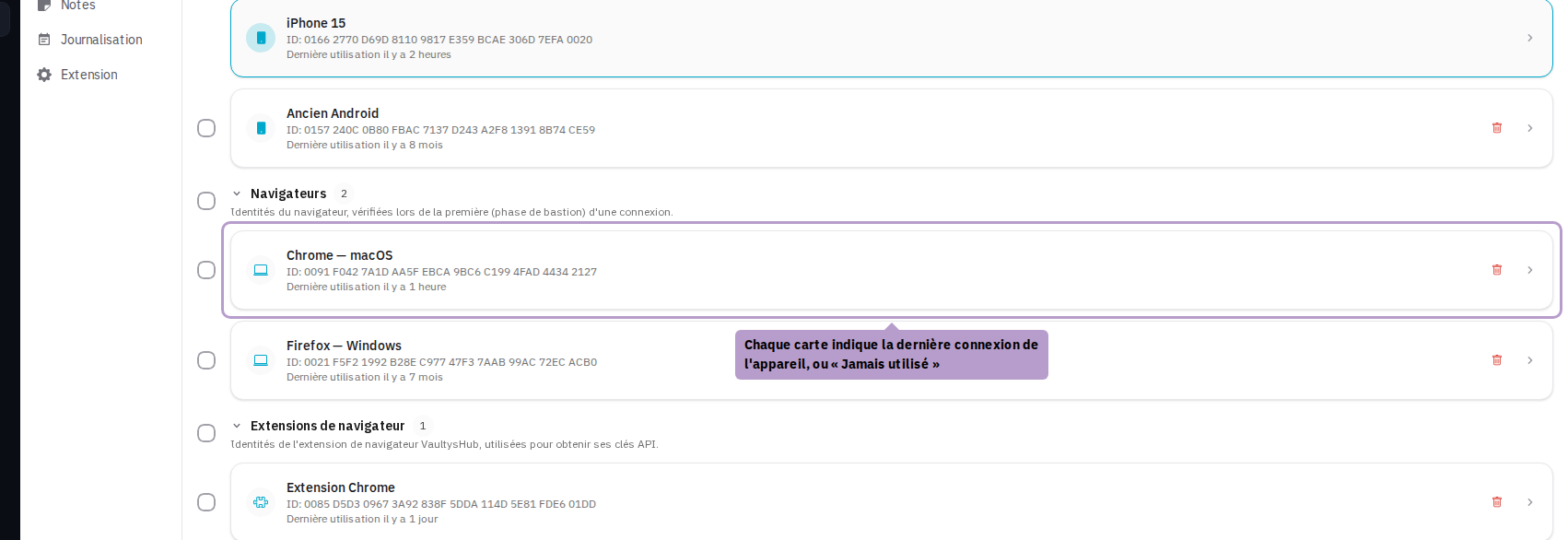
Each card reminds the name of the device, its identifier, and the date of its last connection — or Never used if it has never been used to connect. A temporary device also displays its expiration date; once expired, it appears struck through.
The user's default device is highlighted: it is the one that guarantees they can always authenticate, and it cannot be deleted from here.
Device Details
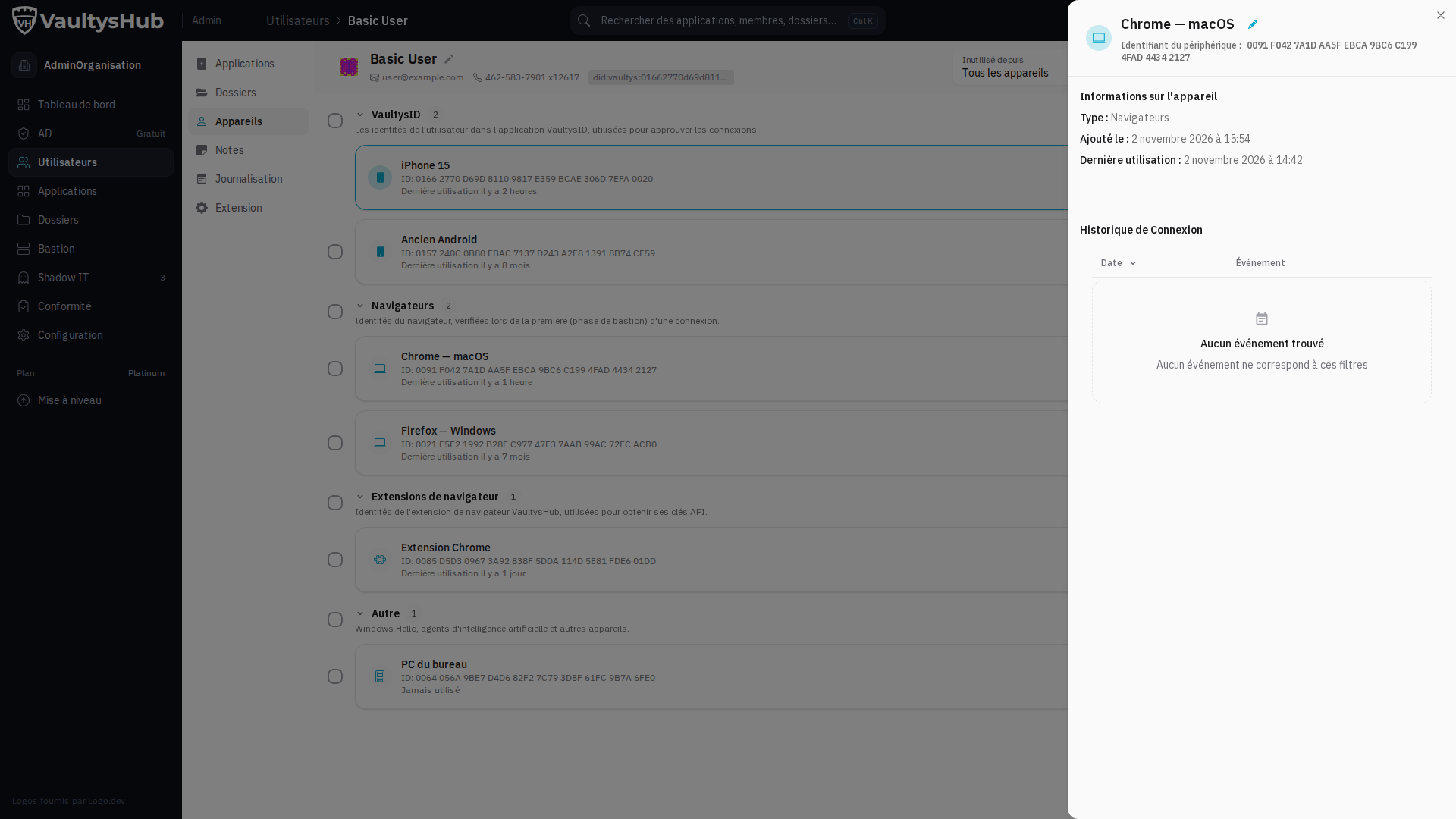
Click on a card to open the device details: its type, date of addition, last usage, and its connection history. The pencil icon, next to its name, allows renaming it.
Finding Unused Devices
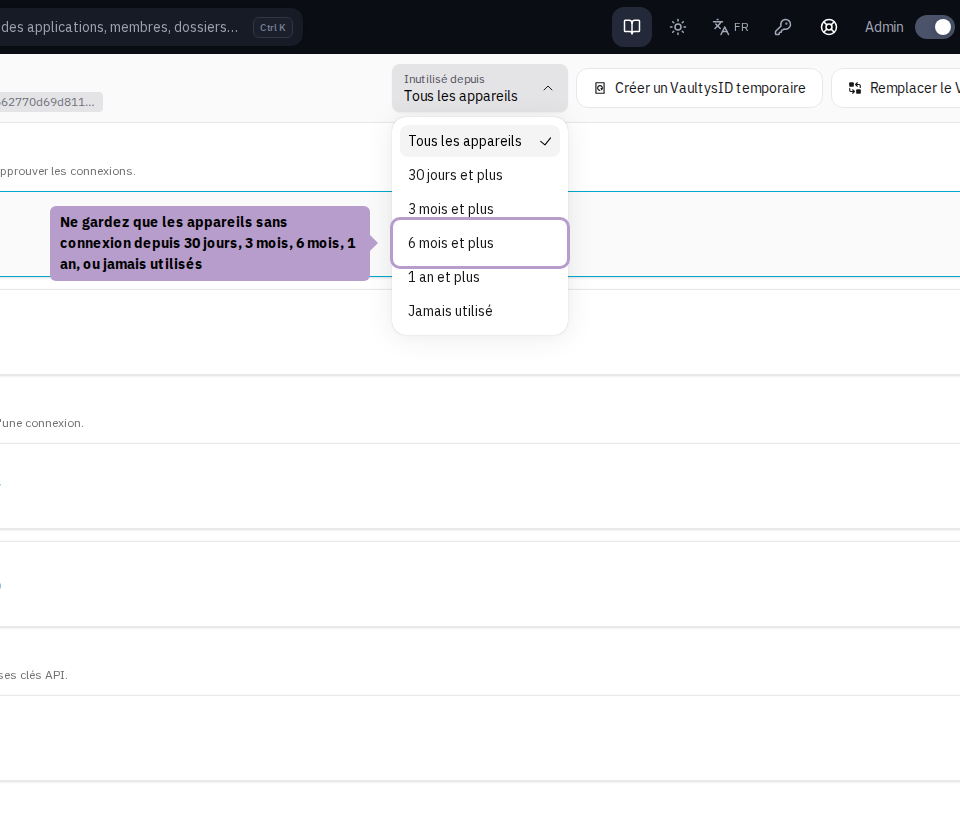
The Unused since filter in the toolbar keeps only devices without connection for 30 days, 3 months, 6 months, 1 year, or those that have never been used.
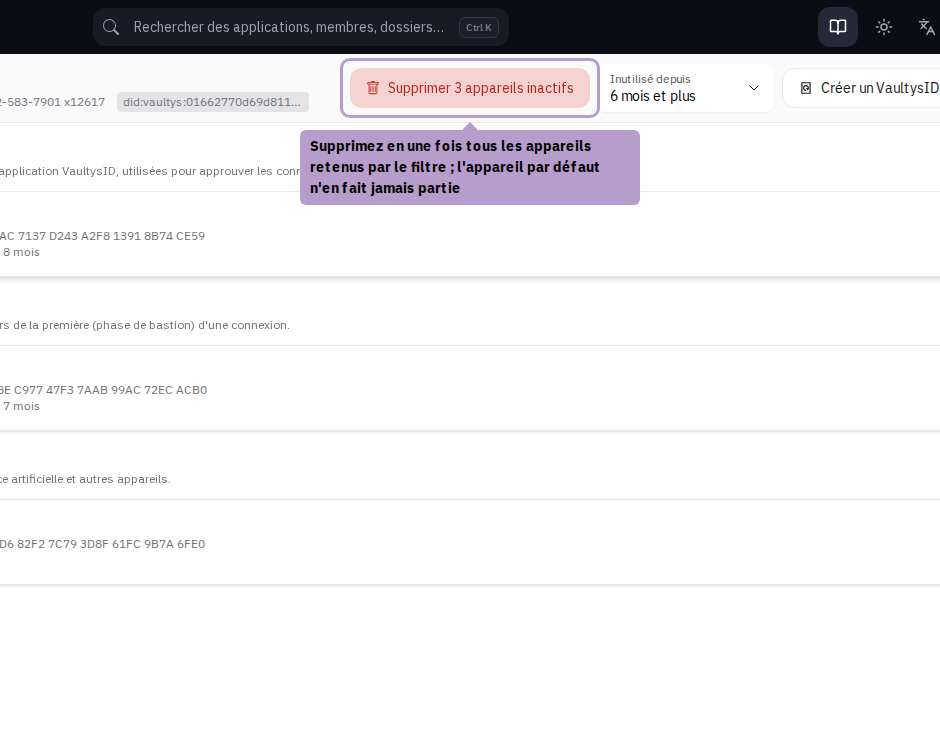
The Delete N inactive devices button deletes all devices retained by the filter at once, after confirmation.
The default device is never offered for deletion, regardless of its last usage.
Deleting a Selection of Devices
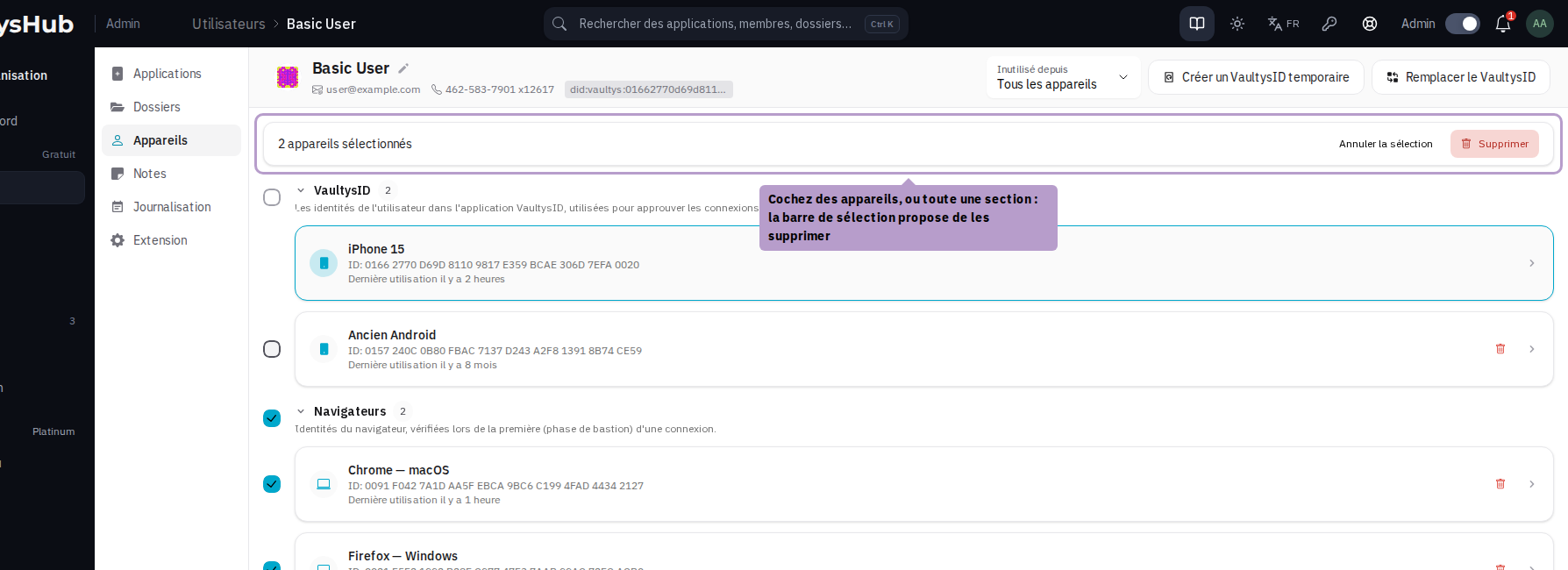
Check the devices to delete, or the box of a section to select all its devices. A bar indicates the number of selected devices and offers to Delete them.
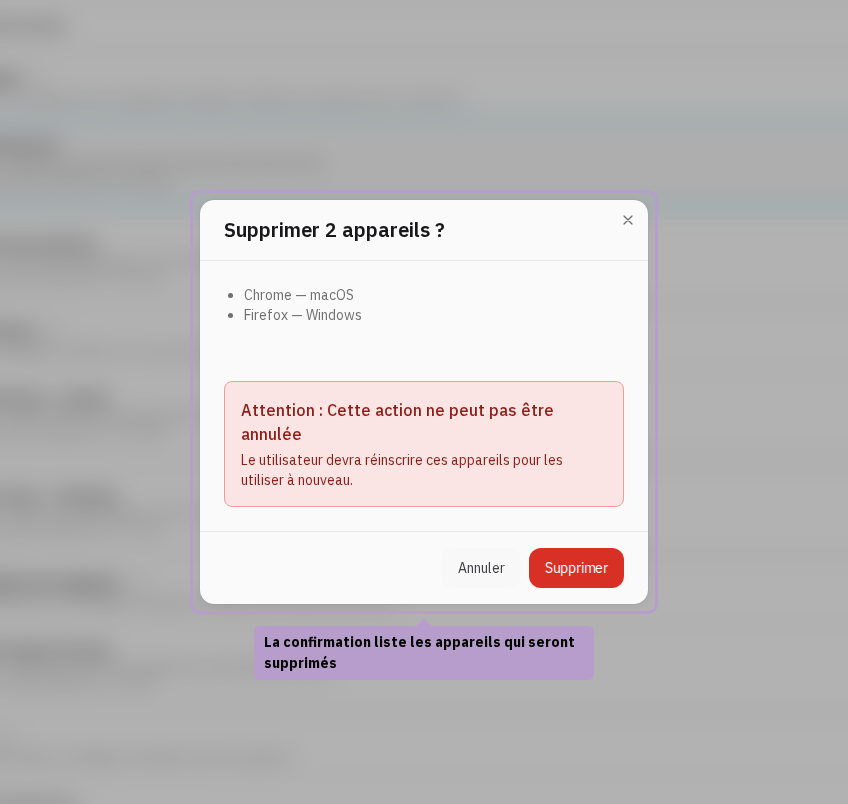
A confirmation lists the devices concerned before deletion.
Deletion is permanent: the user will have to register these devices again to connect with them.
To replace the VaultysID of a user who has lost their phone, or to provide them with a temporary VaultysID, the Replace VaultysID and Create Temporary VaultysID buttons in the toolbar follow the procedures described in A user lost/broke their phone? and Temporary VaultysID.