Shadow IT
Shadow IT refers to the use of software, applications, or IT services within a company without the approval or control of the IT department. This can include cloud tools, storage solutions, messaging services, or applications used autonomously by employees. While this can enhance productivity, Shadow IT poses risks regarding security, compliance, and data management.
Through its browser extension, VaultysHub is capable of automatically detecting Shadow IT within your organization.
This feature is part of the Shadow IT module. Without this module, the menu appears locked, with a presentation of the module. See Pricing and Modules.
Accessing Shadow IT
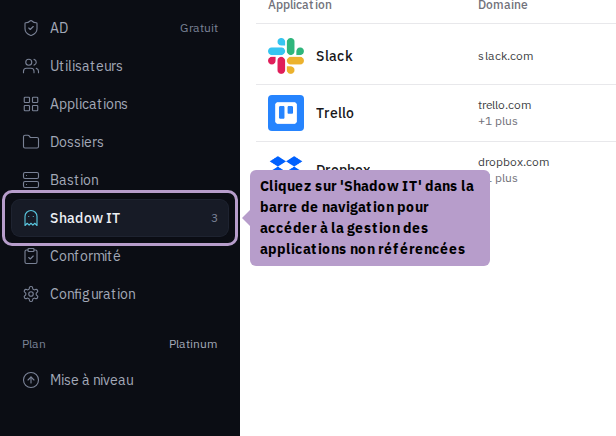
In the sidebar navigation, click on Shadow IT.
You arrive at the list of applications detected by the extension. By default, only Pending applications are displayed, from the most recently detected to the oldest.
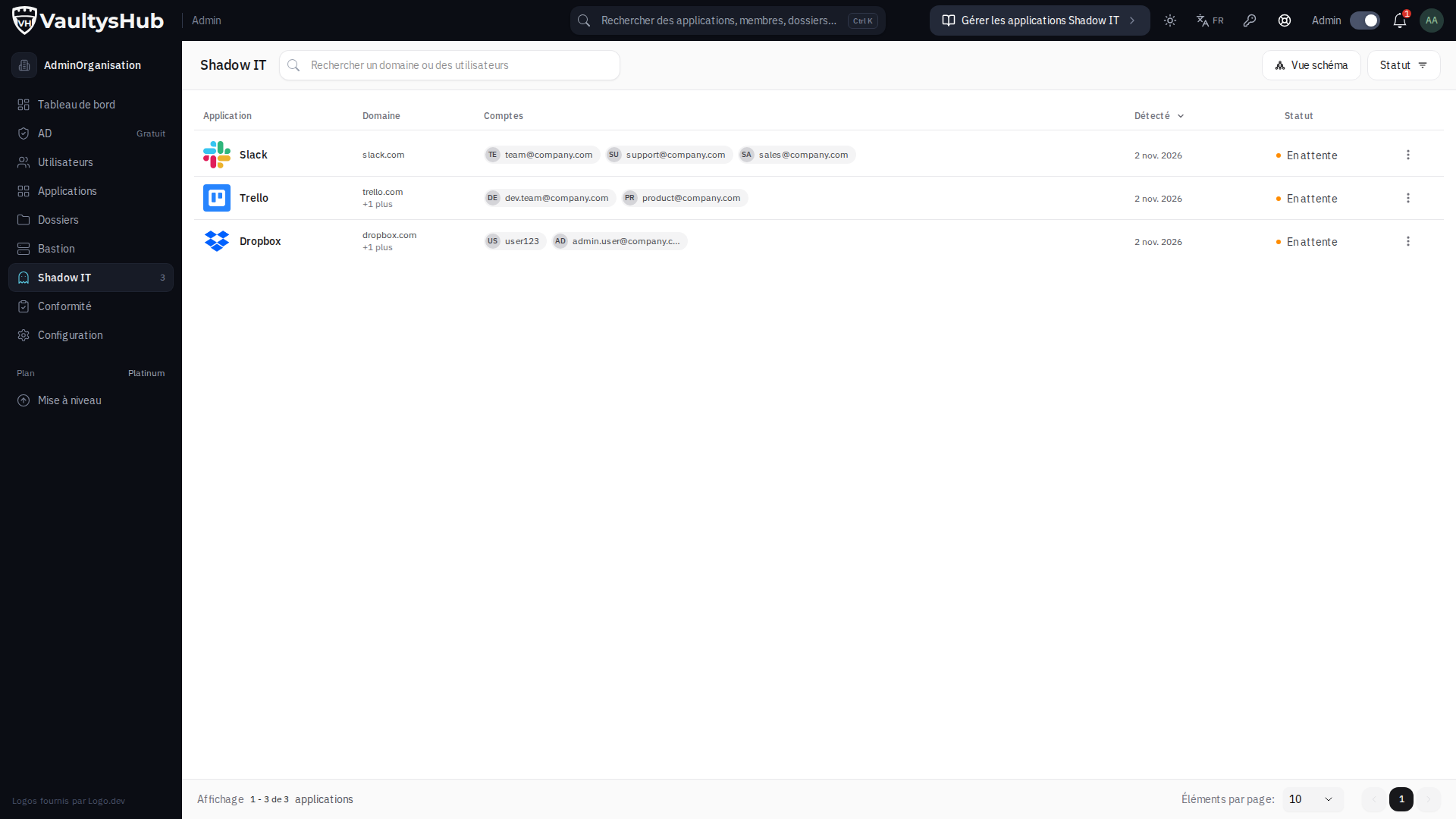
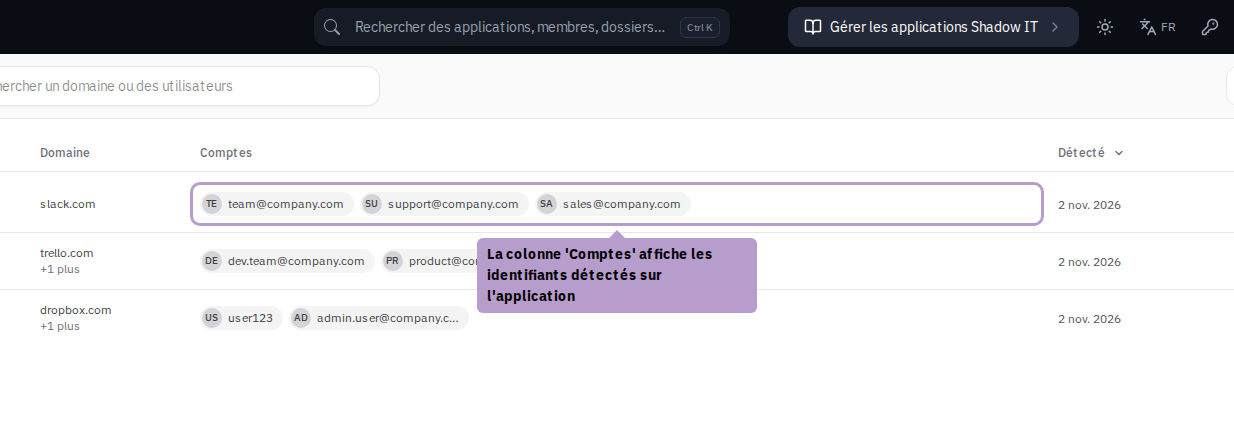
The Accounts column displays the identifiers (emails or usernames) entered on the application and reported by the extension: the first three are displayed, and the following are grouped in a +N badge that you can hover over to list them. An application on which no identifier has been entered displays No detection.
Filter by Status
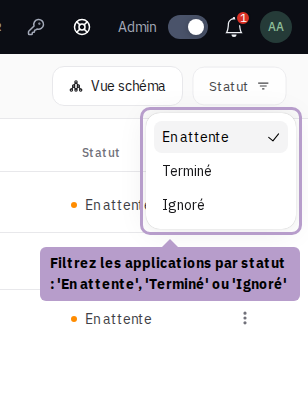
Use the Status menu in the toolbar to display applications according to their processing state.
| Status | Description |
|---|---|
Pending (PENDING) | Application detected, awaiting a decision from the administrator |
Done (DONE) | The application has been added to the VaultysHub applications |
Ignored (IGNORED) | Events related to this application will no longer be reported |
The search bar filters applications by domain or by user.
Available Actions
Hover over a Pending application and click on the ⋮ menu to access available actions.
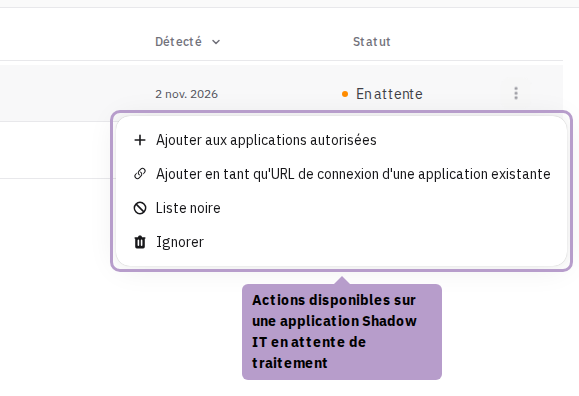
| Action | Description |
|---|---|
| Add to allowed applications | Creates a VaultysHub application from this Shadow IT. The status automatically changes to Done. Don't forget to configure the shares of the new application. |
| Add as a login URL of an existing application | Links the detected domains to an existing password application already in VaultysHub (see below). The status automatically changes to Done. |
| Blacklist | Adds the domain to the anti-phishing blacklist and blocks access for your users |
| Ignore | Permanently ignores events related to this application. This is equivalent to approving it without integrating it into VaultysHub. |
A Done or Ignored application only offers Restore, which puts it back Pending.
Add as a login URL of an existing application
Sometimes the extension flags a login page of an application you already manage as Shadow IT: a regional subdomain, a separate login portal, an old domain name… Rather than creating a second application, link these domains to the existing application.
- In the
⋮menu, choose Add as a login URL of an existing application (the action Add as a login URL is also available from the Shadow IT application page). - In the Application card, search for and select the relevant application. Only password applications are offered: these are the only ones with login URLs.
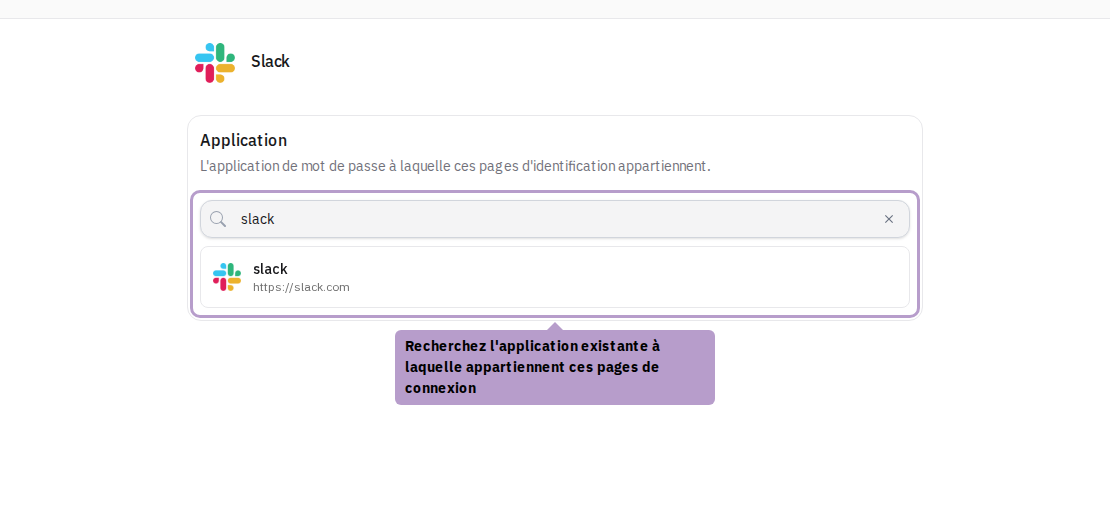
- The Login URL card displays the current login URLs of the application, to which the Shadow IT domains have been added. Review the list: you can modify or remove a URL, enter a new one, or add one of the suggested options (including the generic domain
*.domain). The Change button allows you to choose another application.
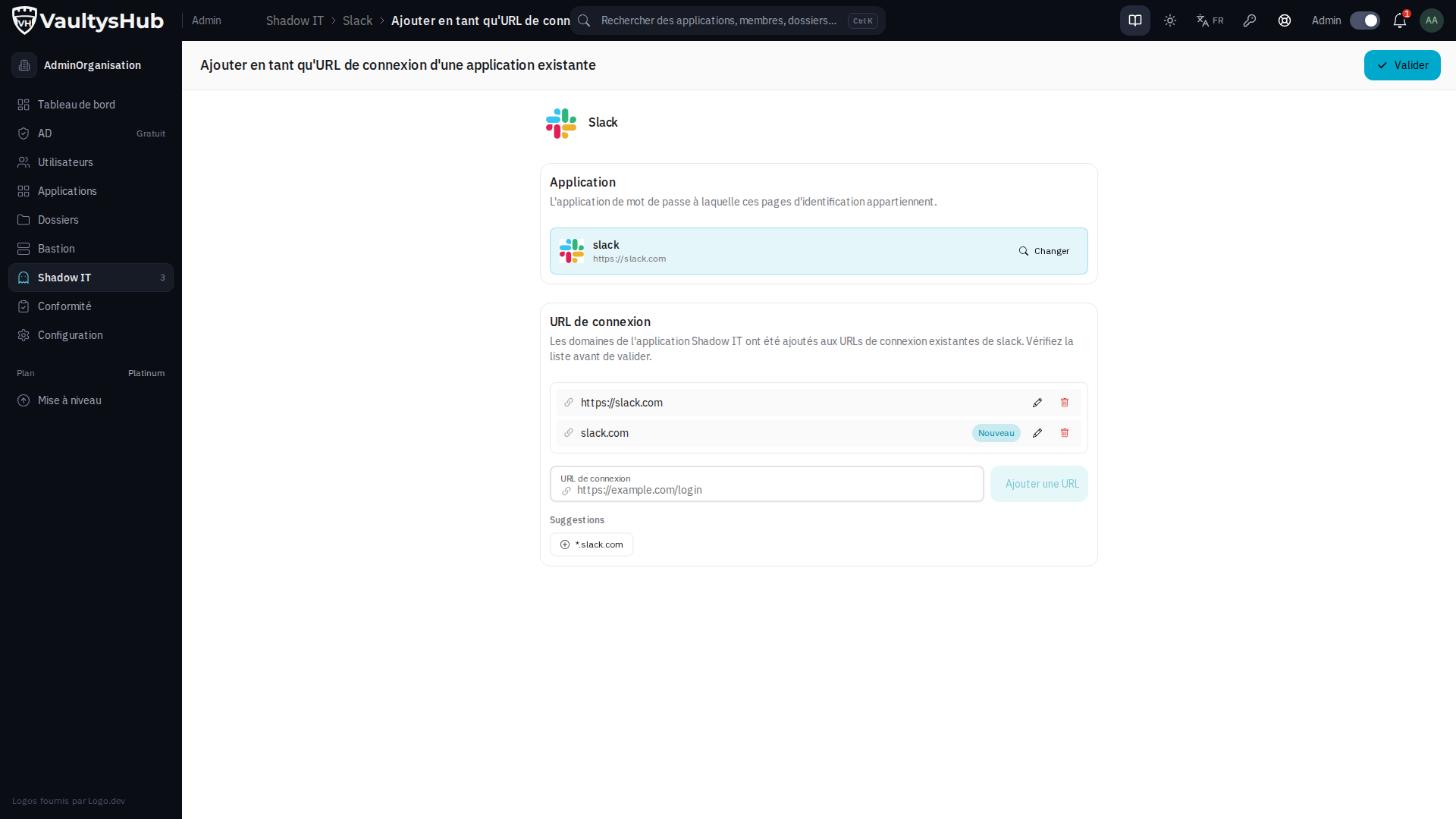
- Click on Validate in the toolbar.
The list of login URLs for the application is replaced by the one you validated. The passwords saved by your users on the Shadow IT application are transferred to the existing application (except for a user who already has a password there), and the Shadow IT application changes to Done status. The extension now recognizes these pages as login pages of the application.
Graph View
The Graph View button in the toolbar replaces the list with a map: Shadow IT applications on the left, detected accounts on these applications on the right, and an arrow for each account → application pair indicating the number of events. The color of an arrow reflects the highest severity of its events, and an account used by multiple members or via an identity provider (SSO) is indicated under its name. Detections reported by an extension to which no one was connected are grouped under Unknown Account.
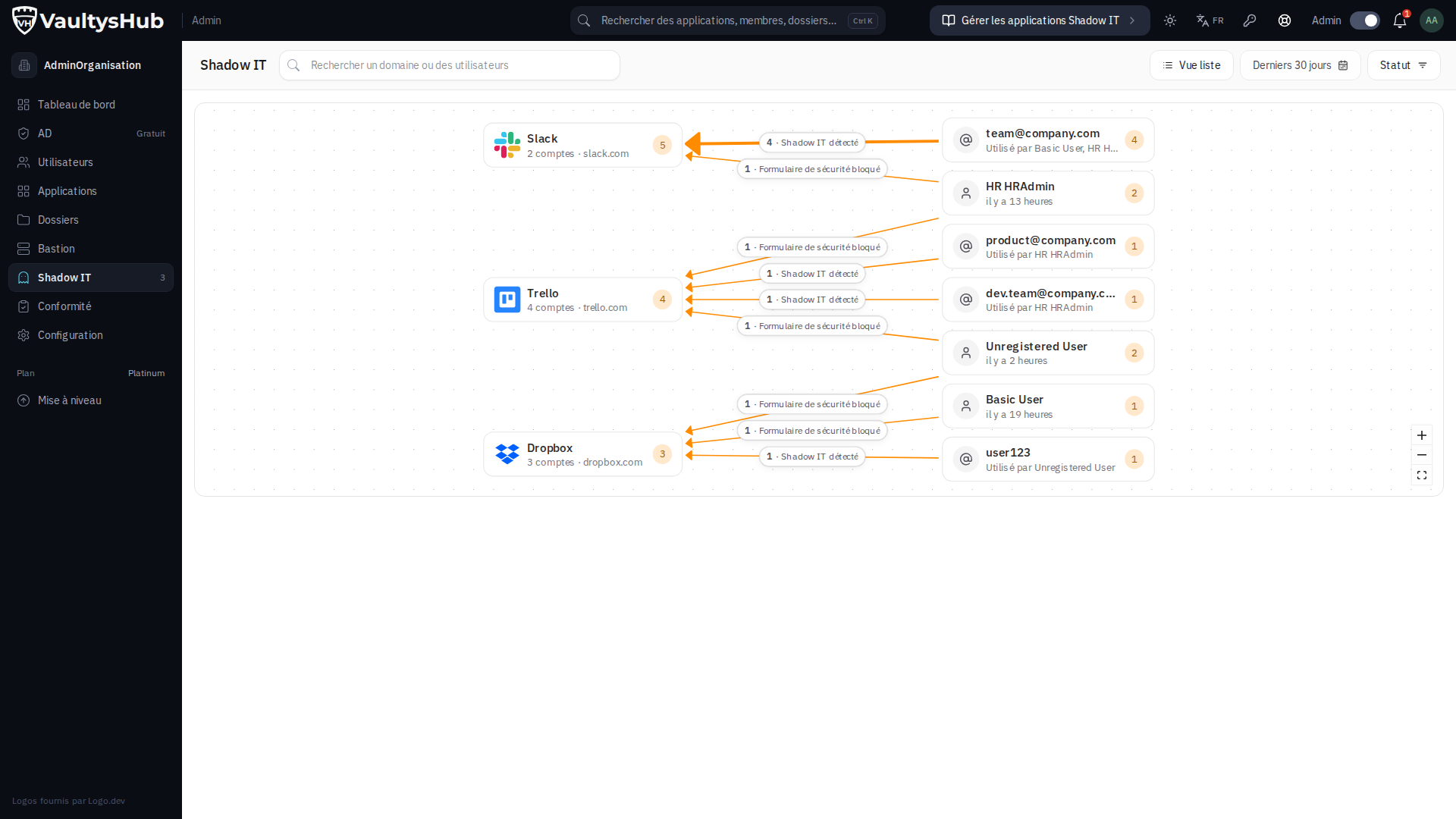
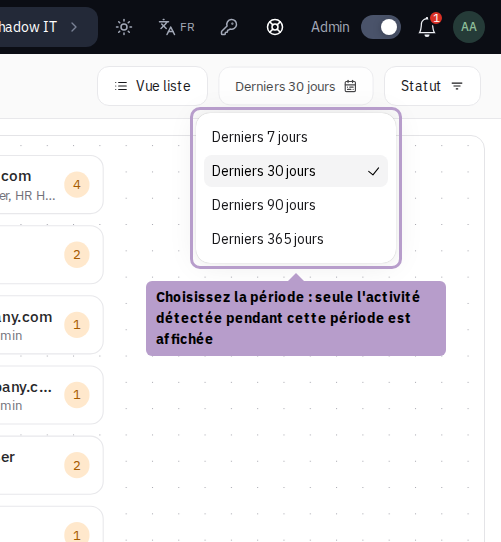
The graph view is limited to the selected period: choose it from the menu in the toolbar (Last 7, 30, 90, or 365 days, 30 by default). Only applications and accounts with detected activity during this period appear; a known but unused application during the period is not displayed. The Status filters and the search also apply to the map.
- Click on an application to open its detail page.
- Click on an account or an arrow to list, in a side panel, the corresponding events over the period. This exploration relies on logging and requires the Compliance module; without it, the map remains viewable.
Beyond a certain volume, only the most active applications and accounts are drawn, and a message indicates how many are hidden: reduce the period then. The List View button returns to the list; your view choice is remembered.
Application Detail
Click on an application to display its detail panel on the right.
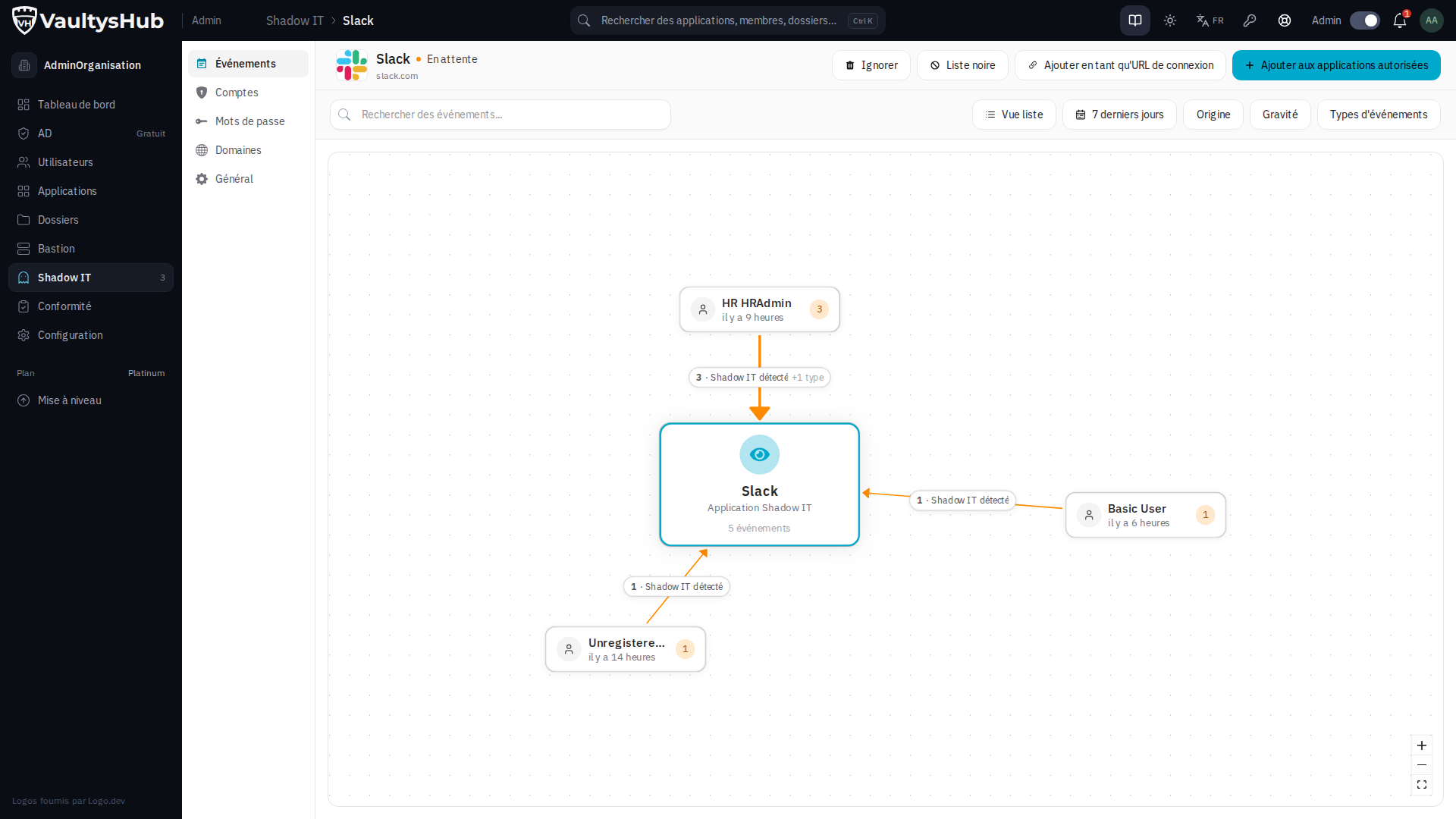
The panel displays the name, main domain, status, and quick actions (add to allowed applications, add as a login URL, blacklist, ignore). Several tabs allow you to explore the available information.
Events Tab
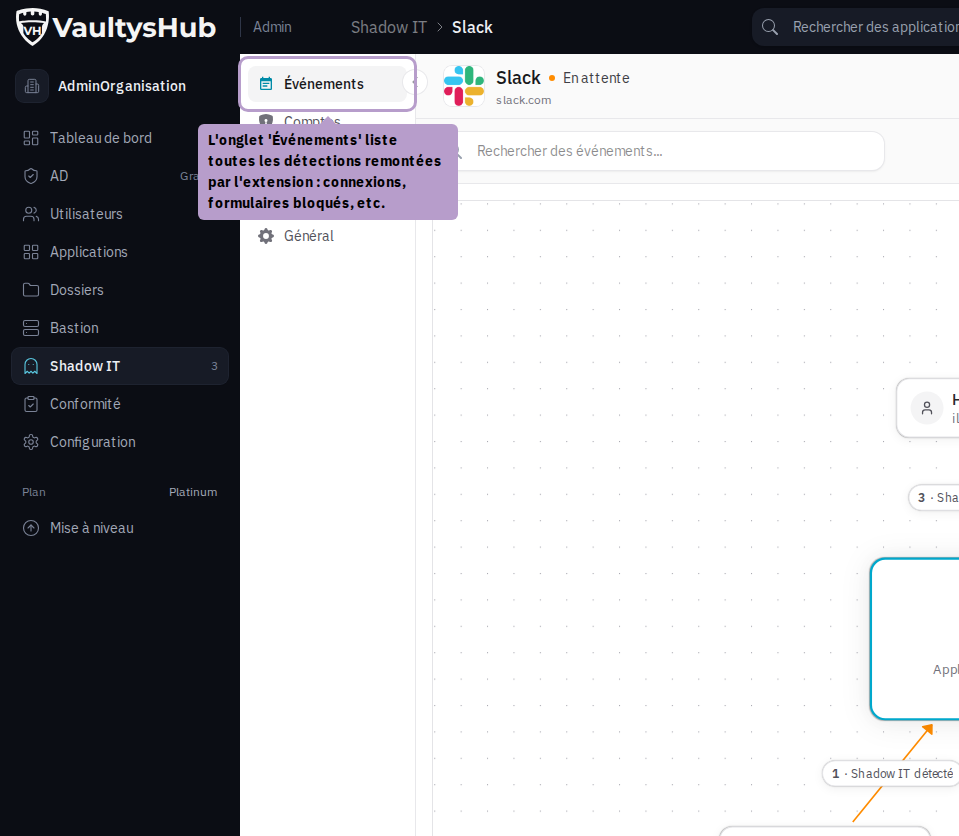
The Events tab lists everything that has been reported by the extension related to this application: detected logins, intercepted forms, etc.
Accounts Tab
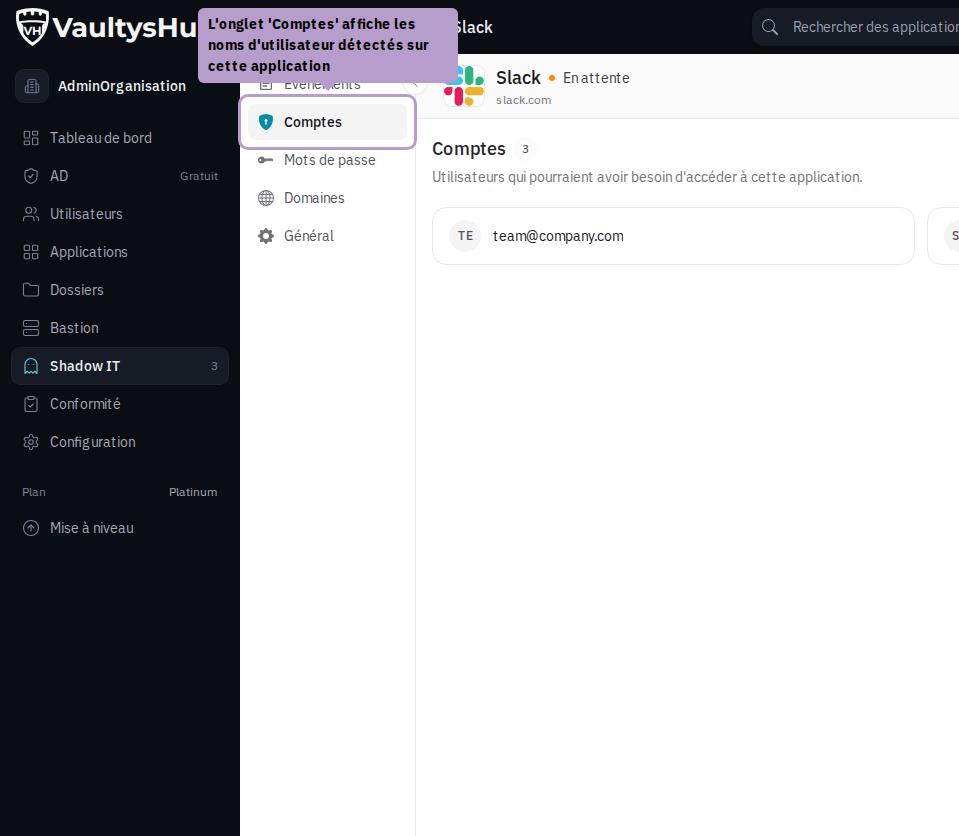
The Accounts tab displays the usernames (emails or identifiers) that have logged into the application via the browser.
Domains Tab
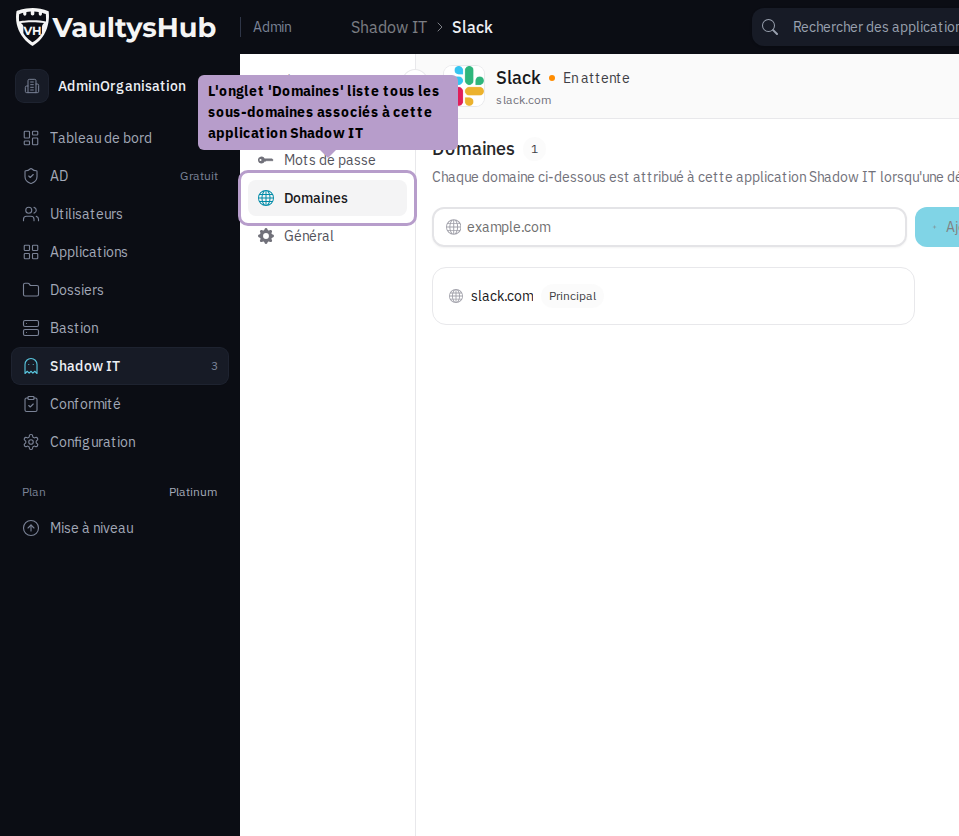
The Domains tab lists all the subdomains associated with this application. An application can indeed cover multiple domains (e.g. dropbox.com, www.dropbox.com). You can manually add or remove them.
General Tab
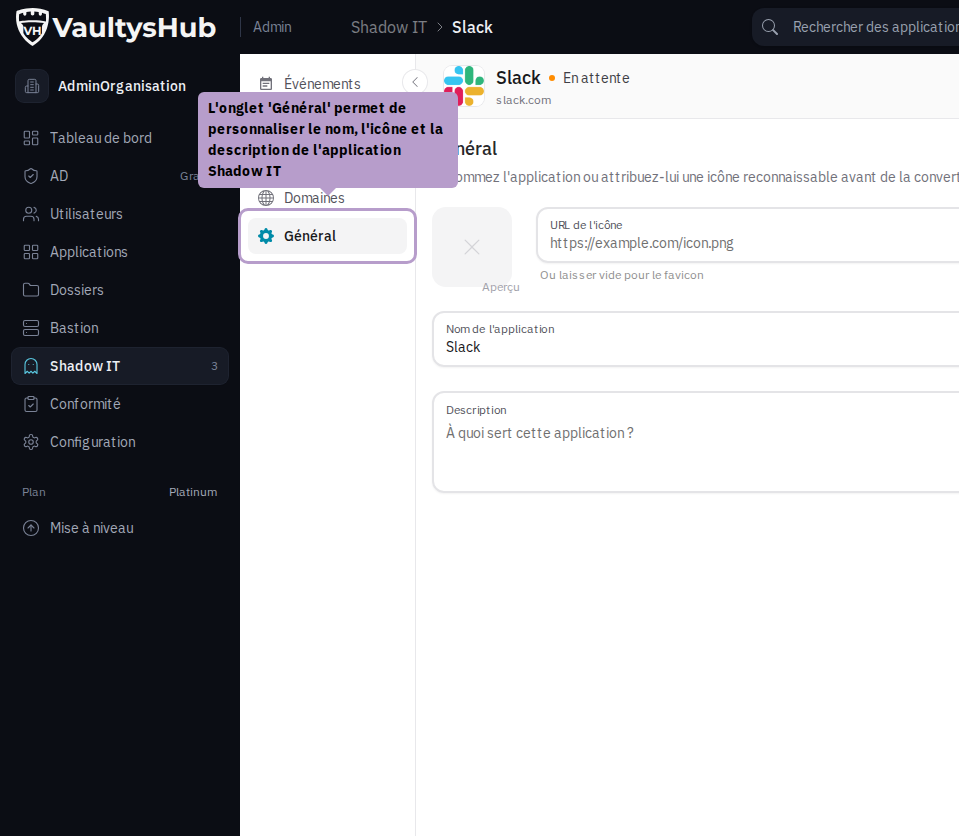
The General tab allows you to customize the information of the Shadow IT application: displayed name, icon, and description. These changes only affect the display in VaultysHub and do not create an official application.