Cost Management
VaultysHub allows you to estimate the monthly cost of your SaaS applications based on the number of users and their licenses. This feature helps you identify underused applications and optimize your spending.
The Estimated Monthly Cost tile on the dashboard requires the Integration module. The detailed report, opened from this tile, is part of the reports and requires the Compliance module. See Pricing and Modules.
Accessing the Cost Report
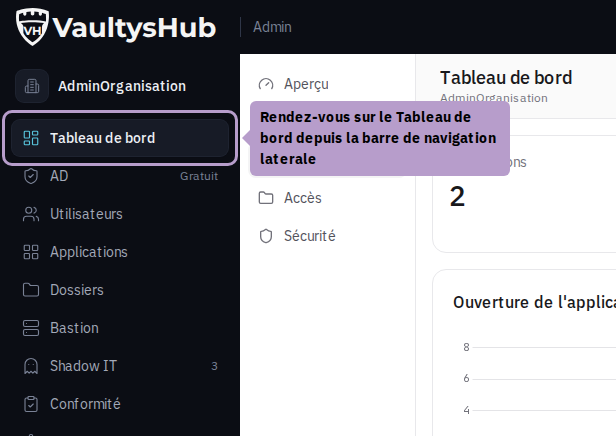
Go to the Dashboard from the sidebar navigation.
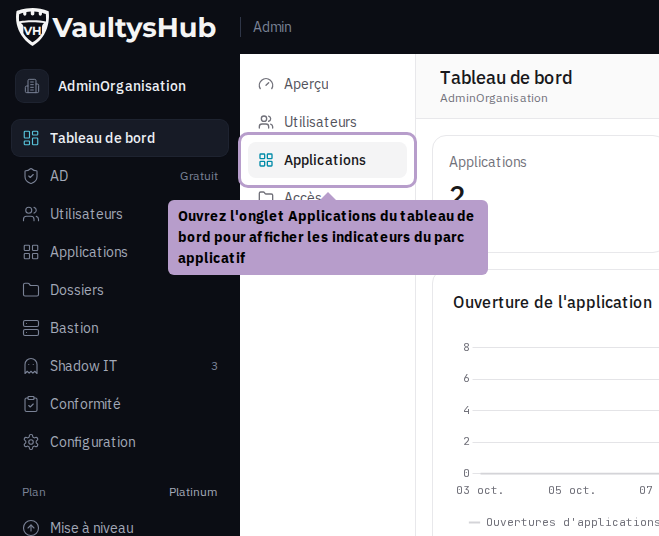
Open the Applications tab, which groups the indicators of the application portfolio.
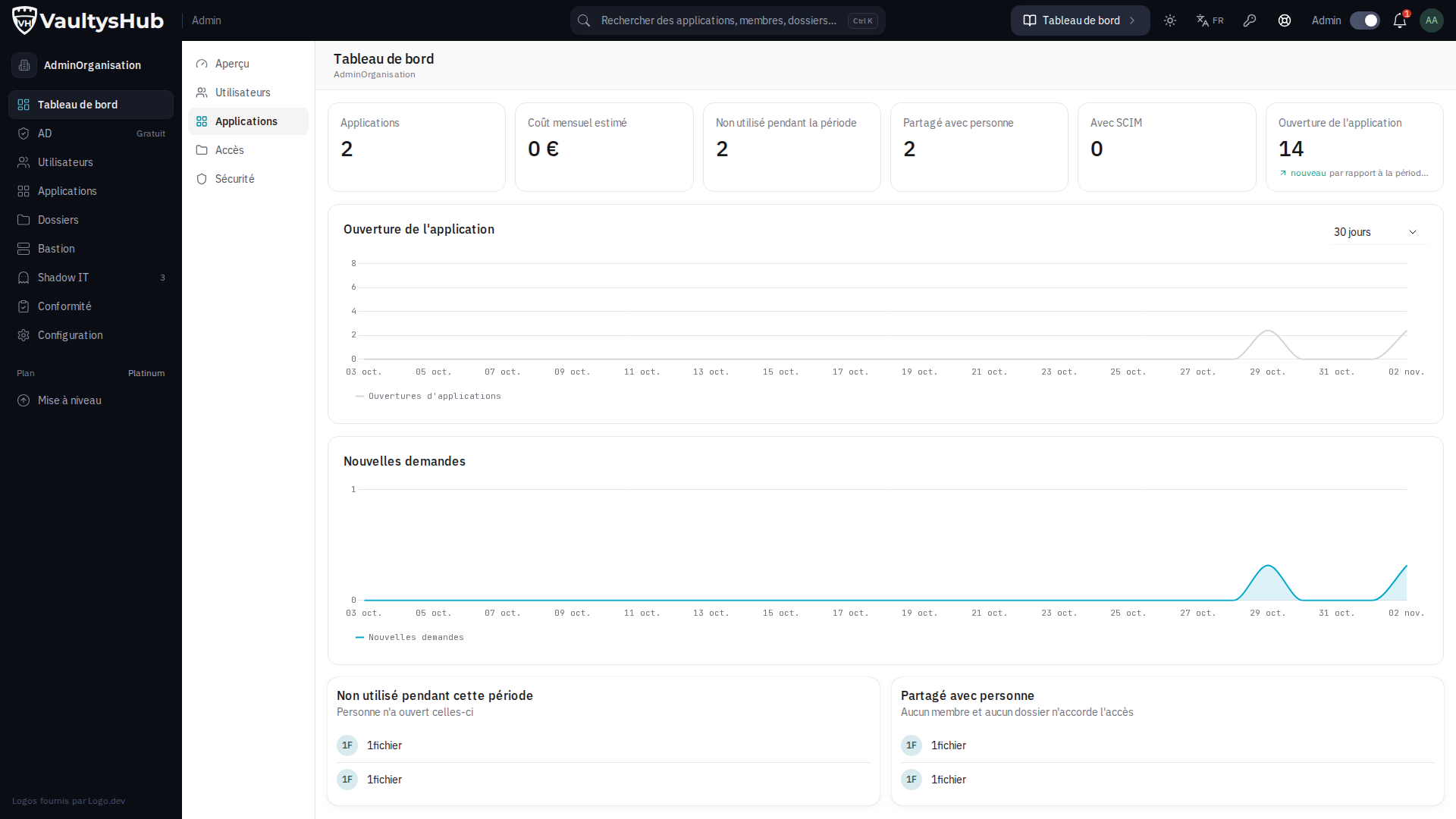
The Estimated Monthly Cost tile displays the summary of the cumulative cost. Click on it to open the detailed report.
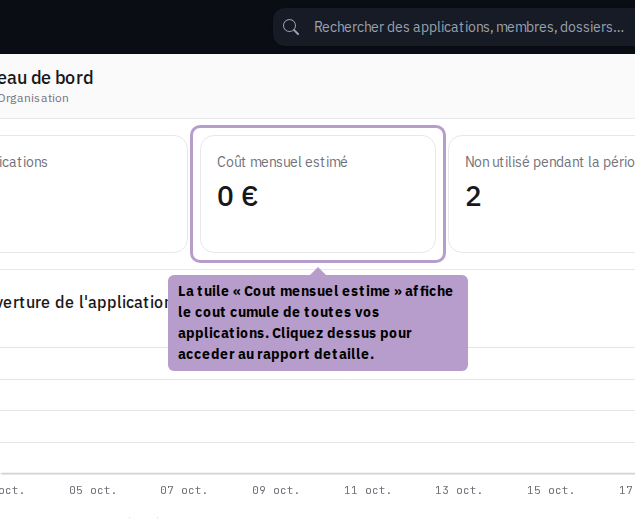
The amount on the tile covers all declared applications, while the banner of the report only counts those with cost tracking enabled. The two figures will differ as soon as an application is excluded from the calculation.
Cost Report
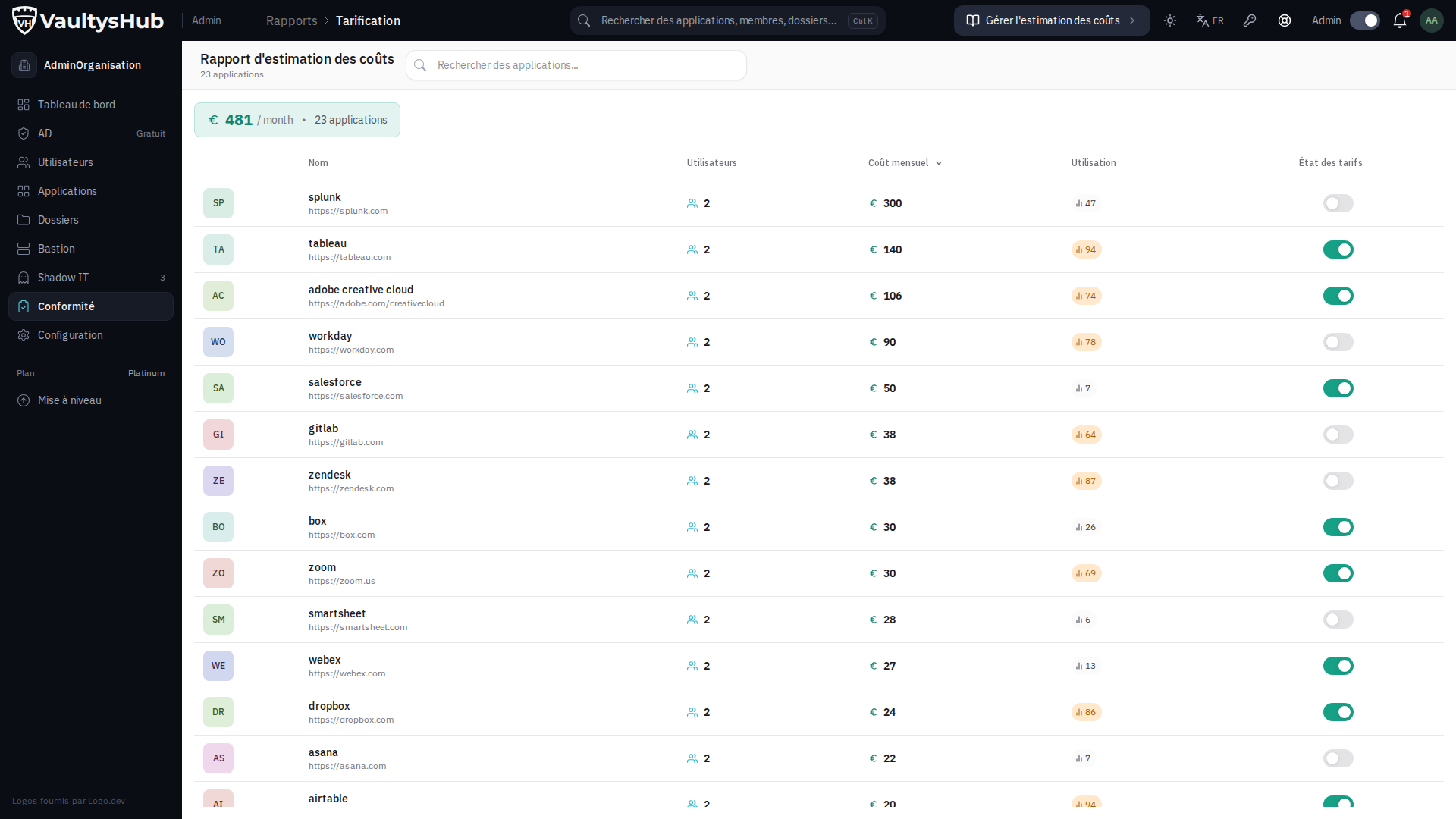
The report lists all your applications with, for each:
| Column | Description |
|---|---|
| Name | Name and URL of the application |
| Users | Number of active users |
| Monthly Cost | Estimated cost in euros per month |
| Usage | Usage rate measured by the extension |
| Pricing Status | Active or not tracking cost for this app |
Total Cost
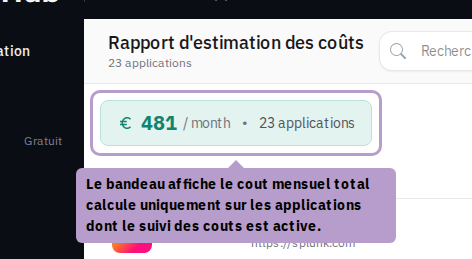
The banner at the top of the table displays the total monthly cost, calculated only on applications with cost tracking enabled.
List of Applications
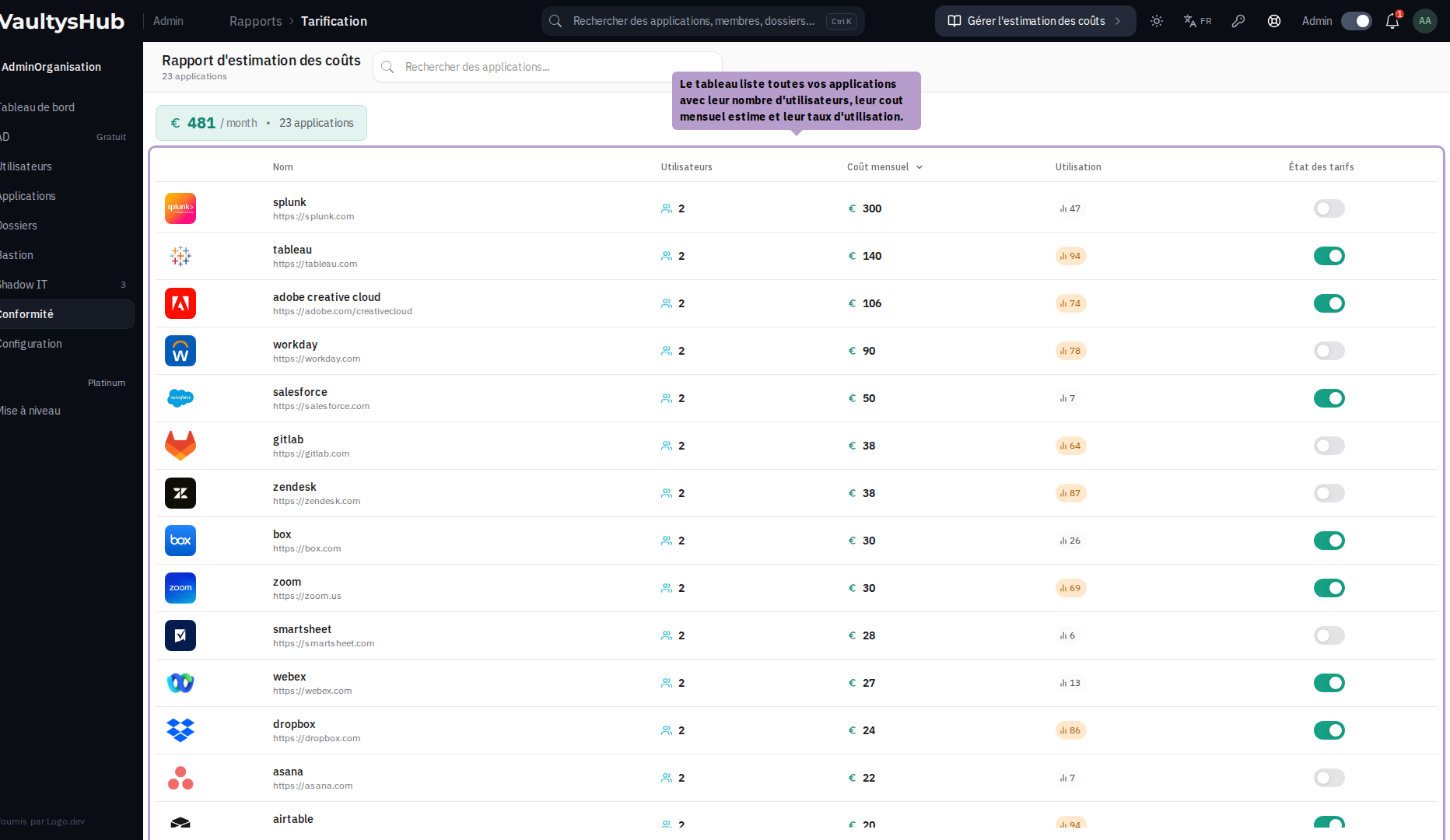
Click on a row to directly access the license settings of the application.
Include or Exclude an Application from the Calculation
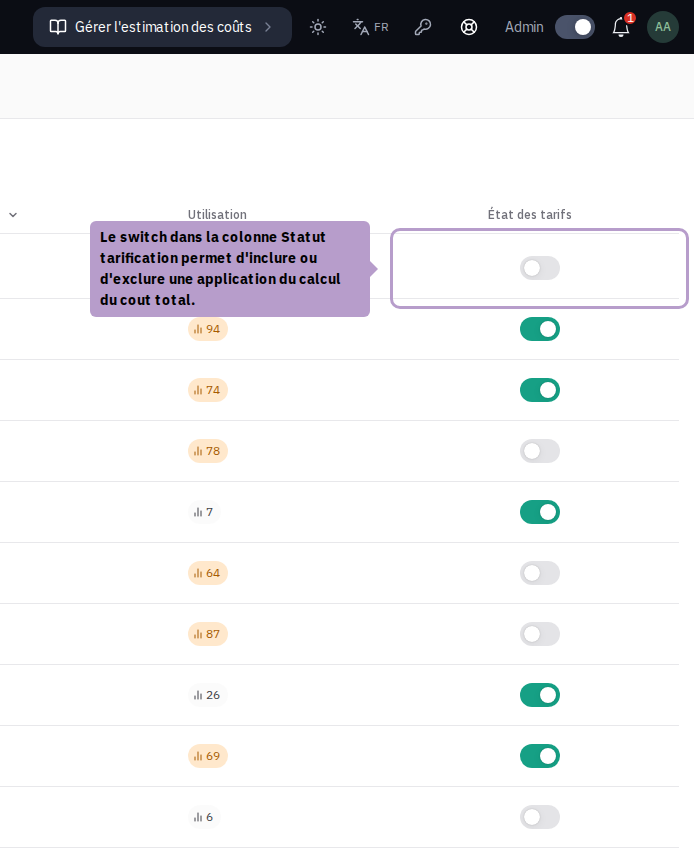
The switch in the Pricing Status column allows you to include or exclude an application from the total cost calculation. Disable this switch for applications you do not wish to consider (e.g., free applications or out of scope for tracking).