Notes
Notes are an internal comment thread that administrators attach to an application, a user, or a folder. They serve to convey context to your fellow administrators: why this application was configured in a certain way, what was decided for this collaborator, what remains to be done on this folder.
Notes are never visible to end users. Only the administrators of the space have access to them — and a folder administrator only sees those of the entities in their folder.
Where to find notes
Each configuration page exposes a Notes tab.
On an application
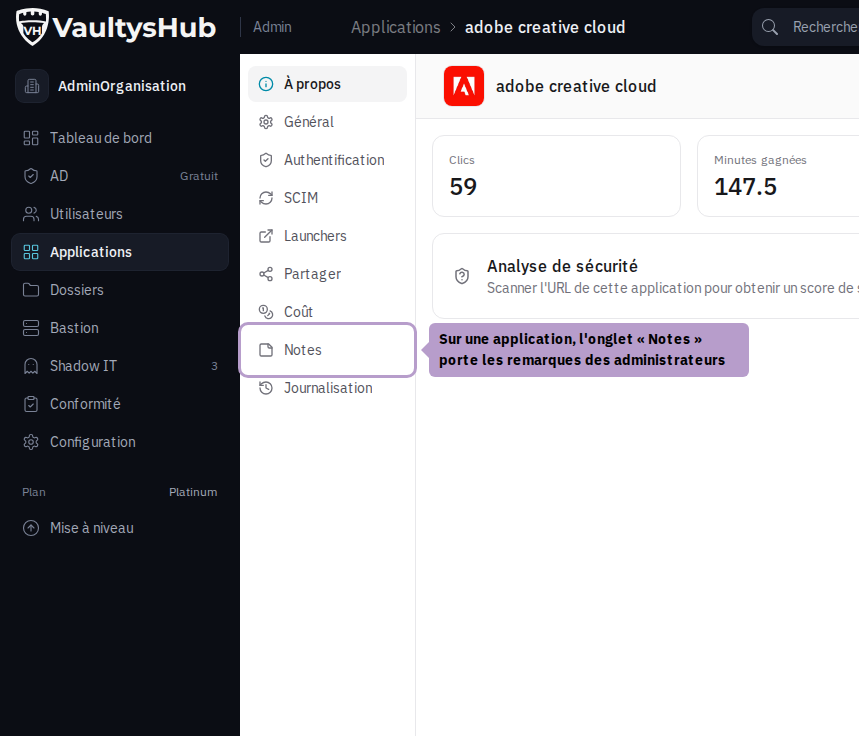
Open an application from Applications, then the Notes tab.
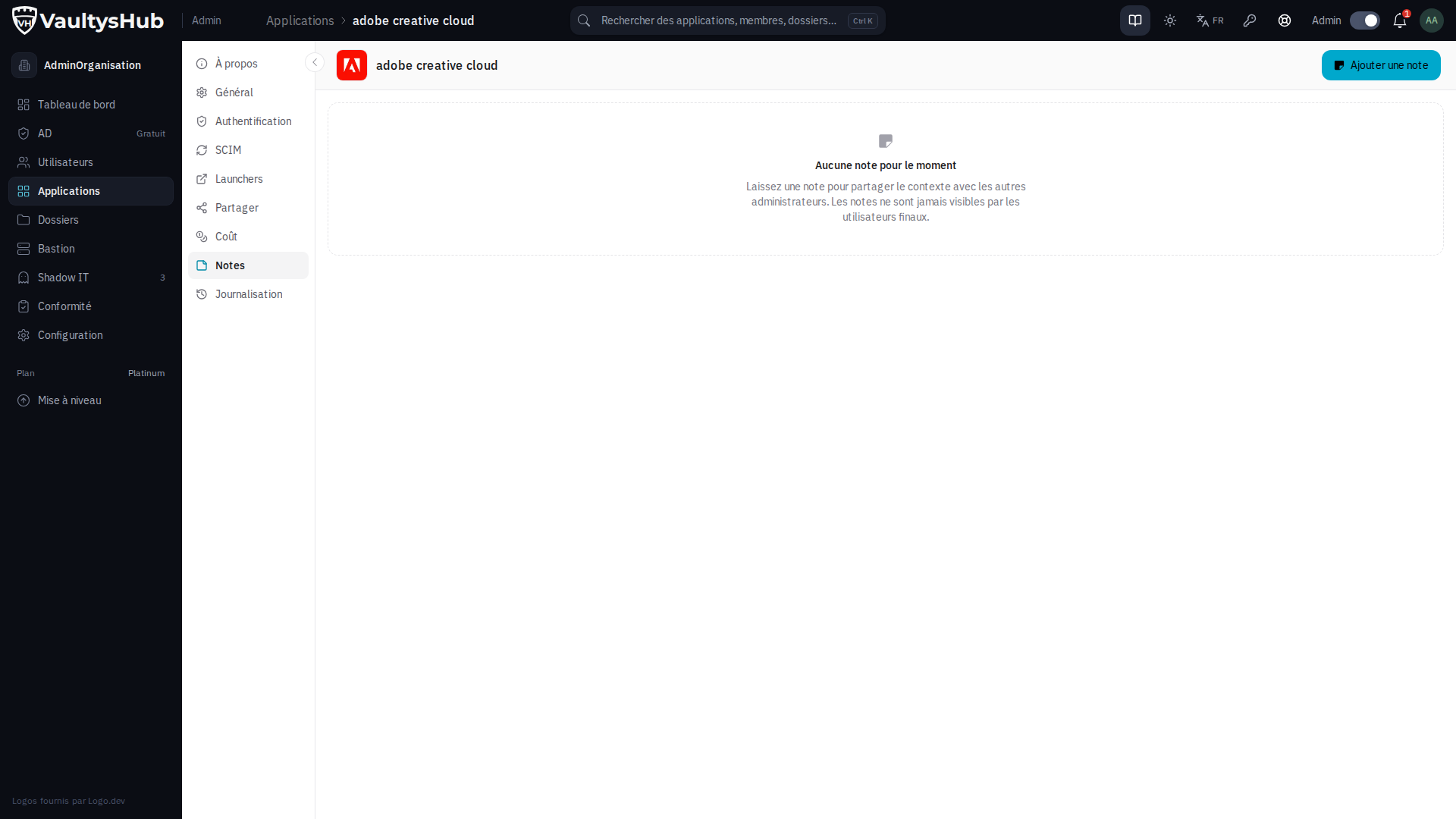
As long as no note exists, the page invites you to write one. The thread is then displayed from the most recent to the oldest.
On a user
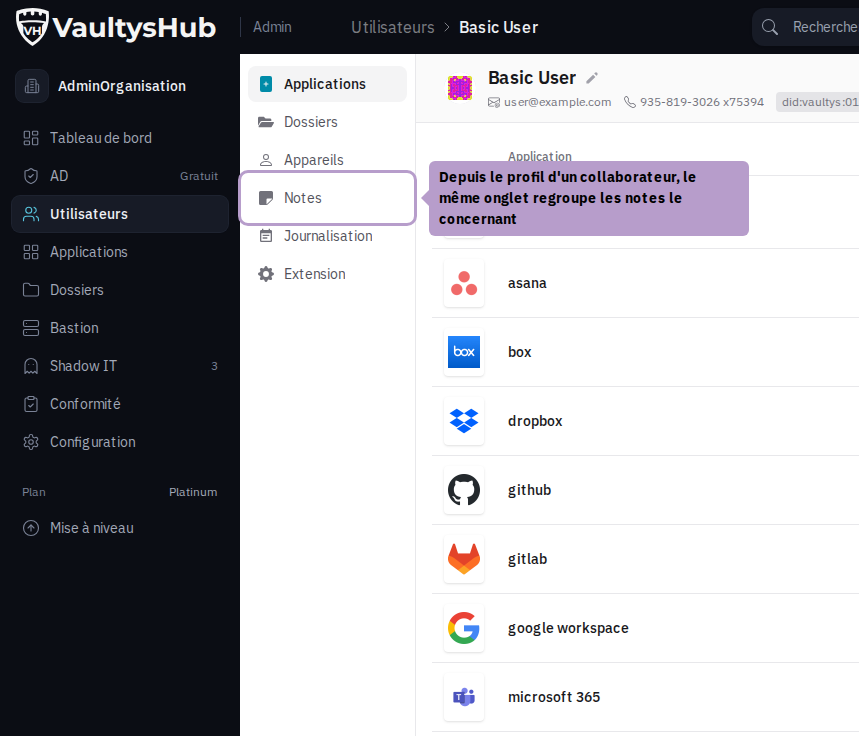
From a user's profile (Users then select the collaborator), the Notes tab groups the remarks that concern them.
On a folder
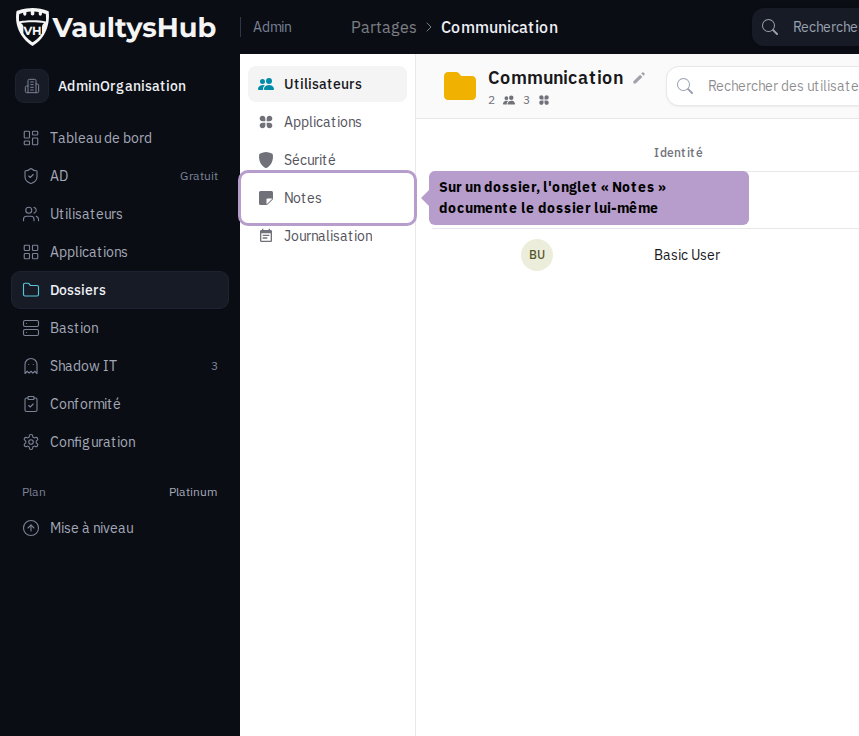
From the page of a folder, the same Notes tab documents the folder itself.
A folder administrator finds exactly these tabs for the applications and folders they are responsible for; the notes they read and write remain confined to their scope.
Adding a note
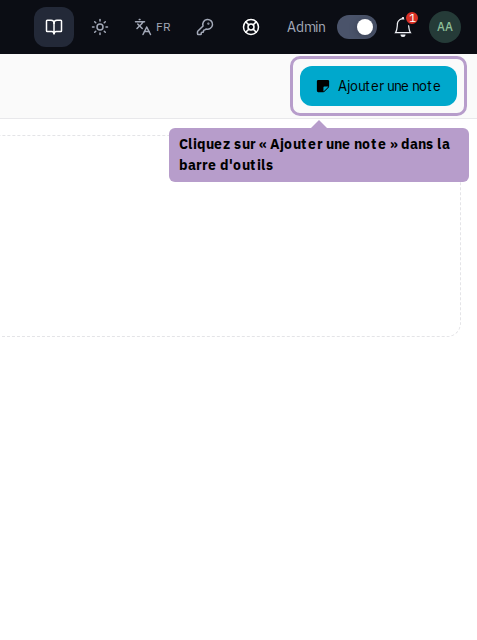
Click on Add a note in the toolbar.
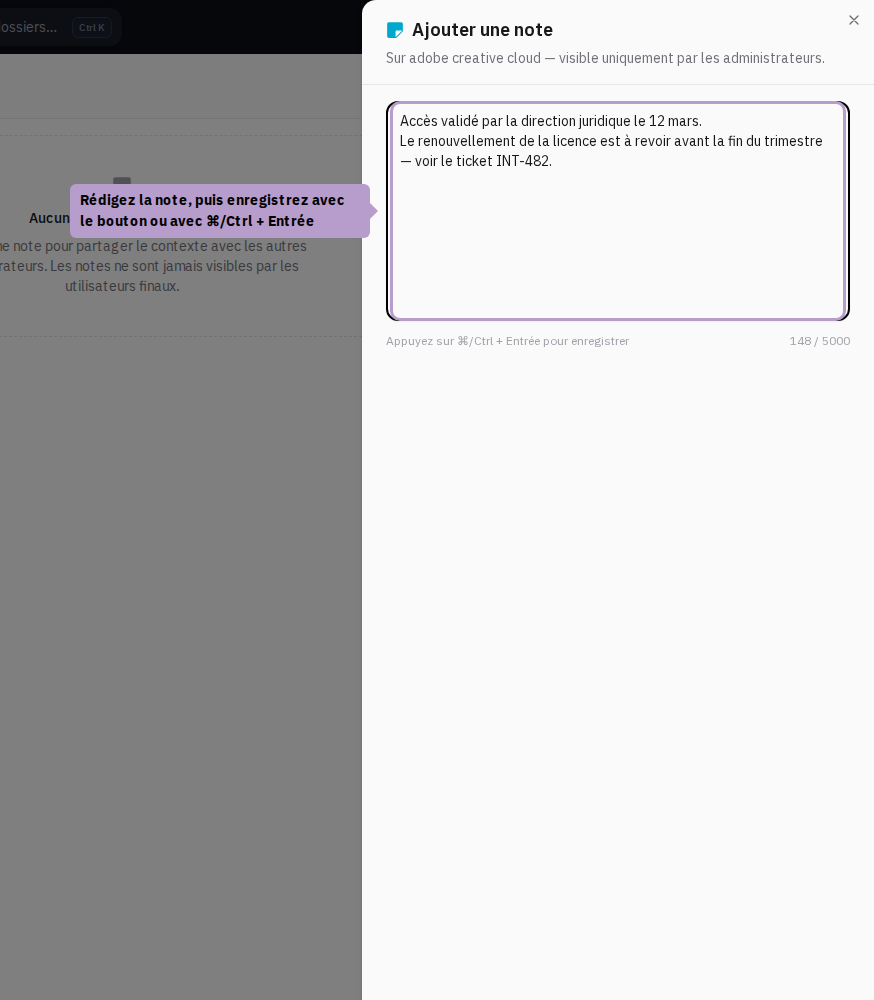
A drawer opens on the right. Its header reminds you of the annotated entity and that the note is visible only to administrators.
- Enter your text: line breaks are preserved.
- The counter at the bottom right indicates the length; a note is limited to 5,000 characters.
- The shortcut ⌘/Ctrl + Enter saves without leaving the keyboard.
Click on Add a note to publish.
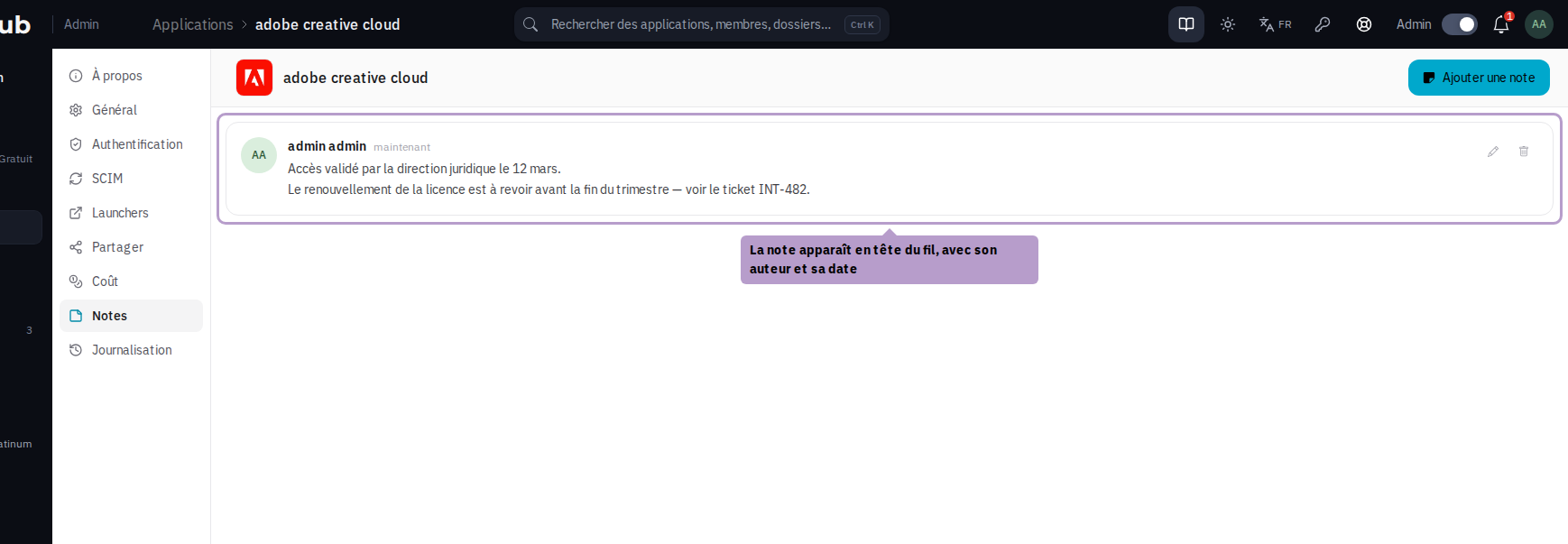
The note immediately appears at the top of the thread, with its author and date. Hover over the date to get the full timestamp.
Mentioning an item
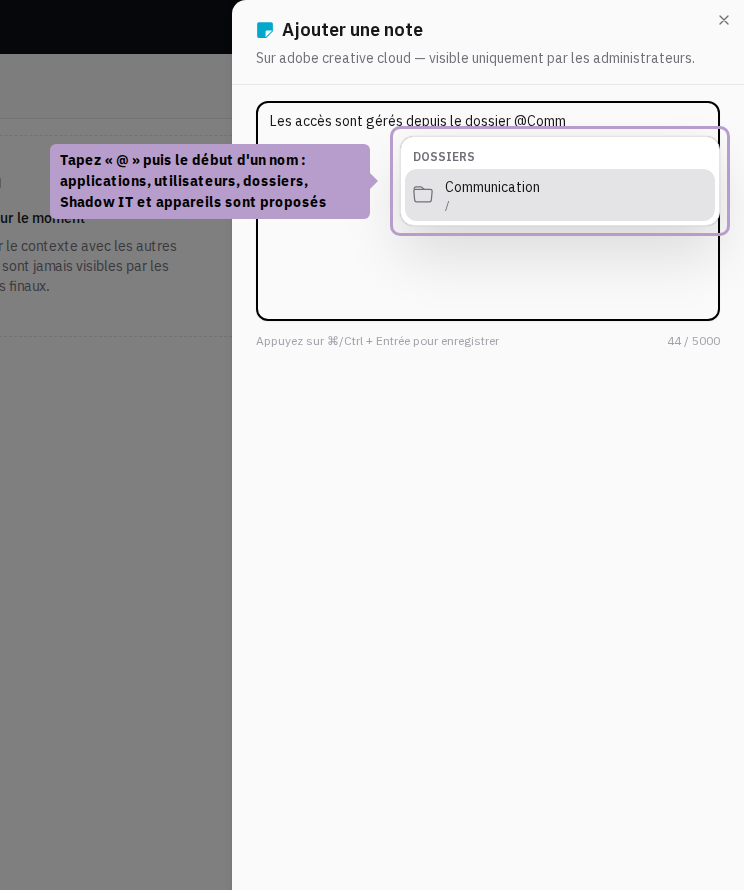
In a note, type @ followed by at least two characters: a list suggests the applications, users, folders, Shadow IT applications, and devices in the space that match. Choose one with the mouse or with the arrows then Enter (or Tab); Escape closes the list.
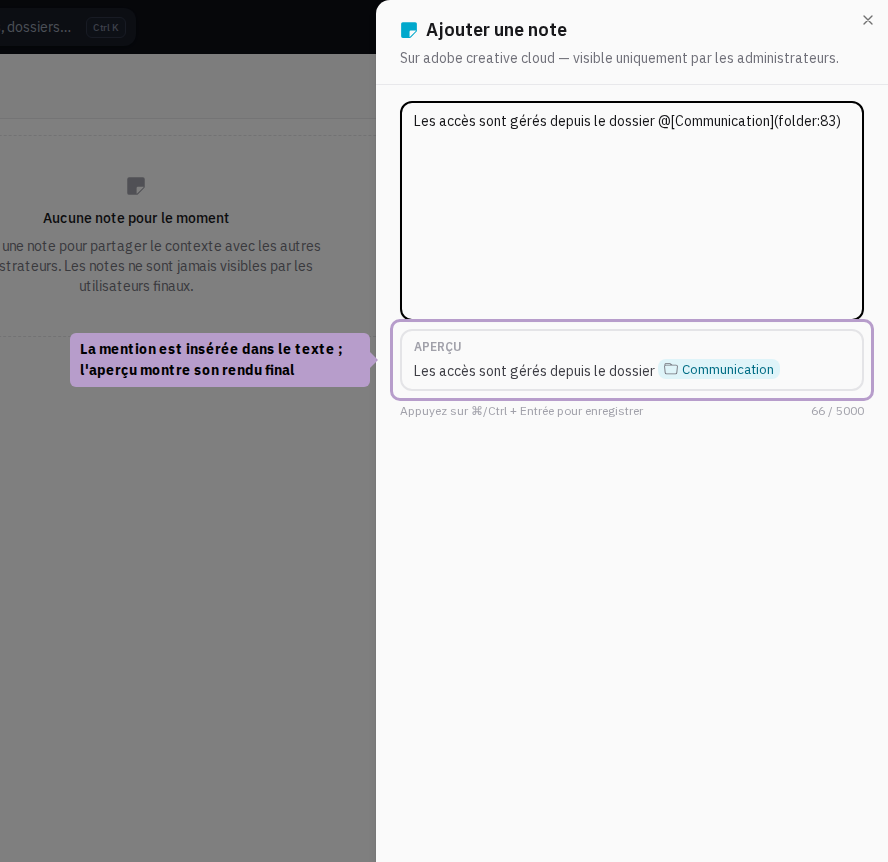
- In the field, the mention is written in the form
@[Name](type:identifier); a preview below the field shows the final rendering. Backspace right after a mention completely removes it. - Once the note is published, the mention appears as a pill: a click directly opens the item's page (user profile, folder configuration, application page…).
- The pill always displays the current name of the item, even if it has been renamed since; a deleted item appears struck through.
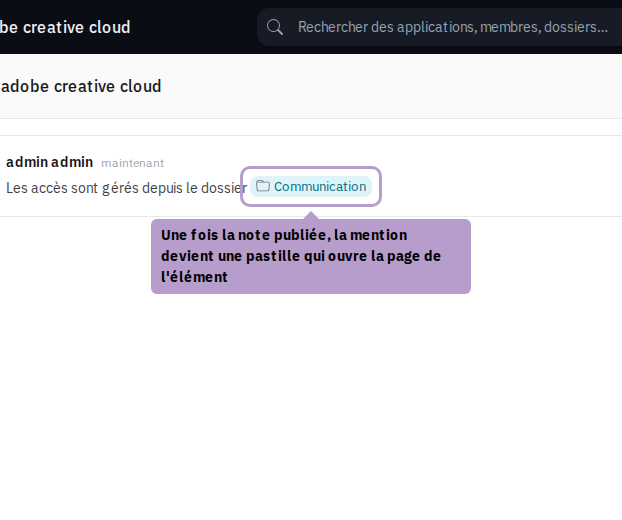
Mentions work the same way in the description of an application, a Shadow IT application, and a launcher. An end user or a folder administrator reading a description sees the pill but cannot open it: only space administrators access these pages, and only they can insert a mention.
Modifying a note
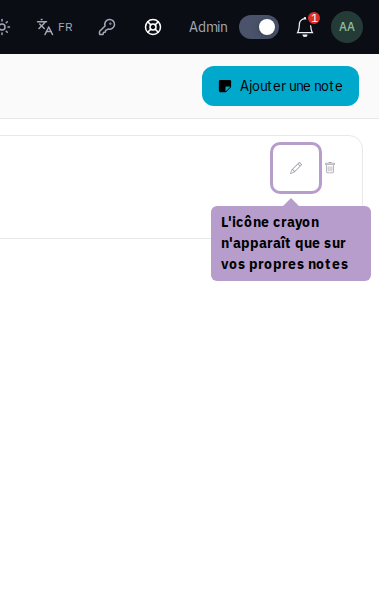
Click on the pencil icon of the note.
The pencil only appears on your own notes: a note can only be rewritten by its author.
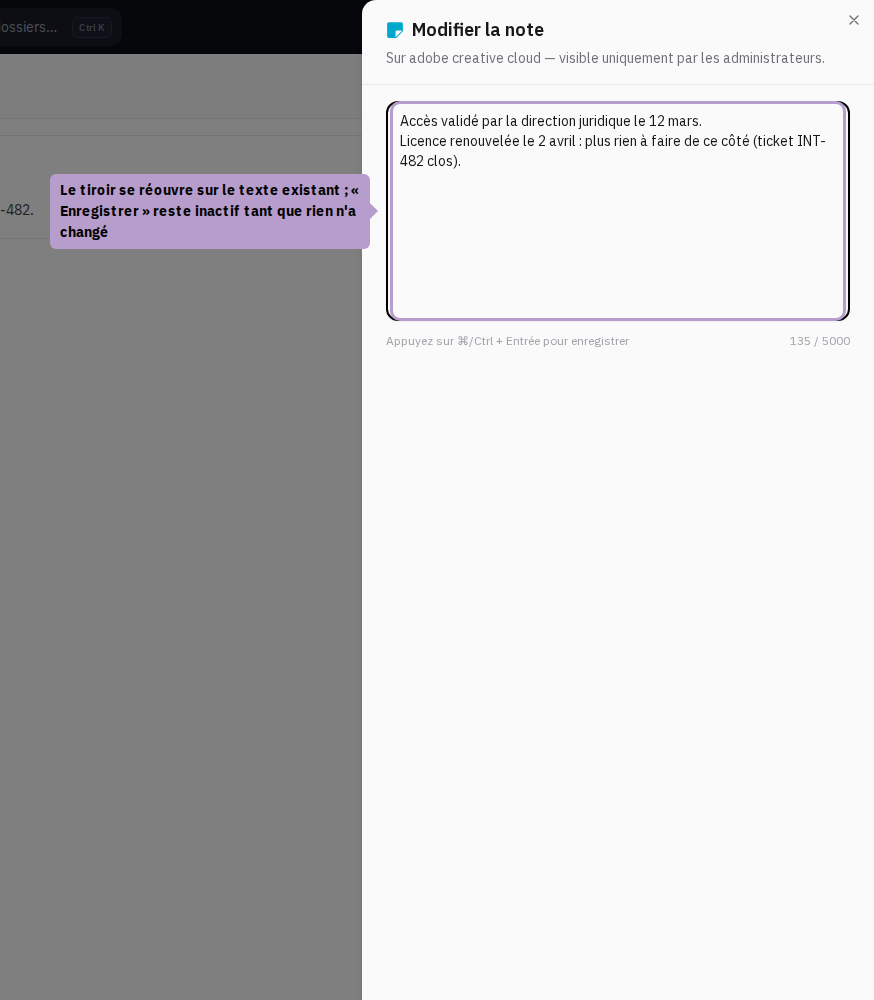
The drawer reopens with the existing text. Modify it then click on Save. The button remains inactive as long as the text has not changed.
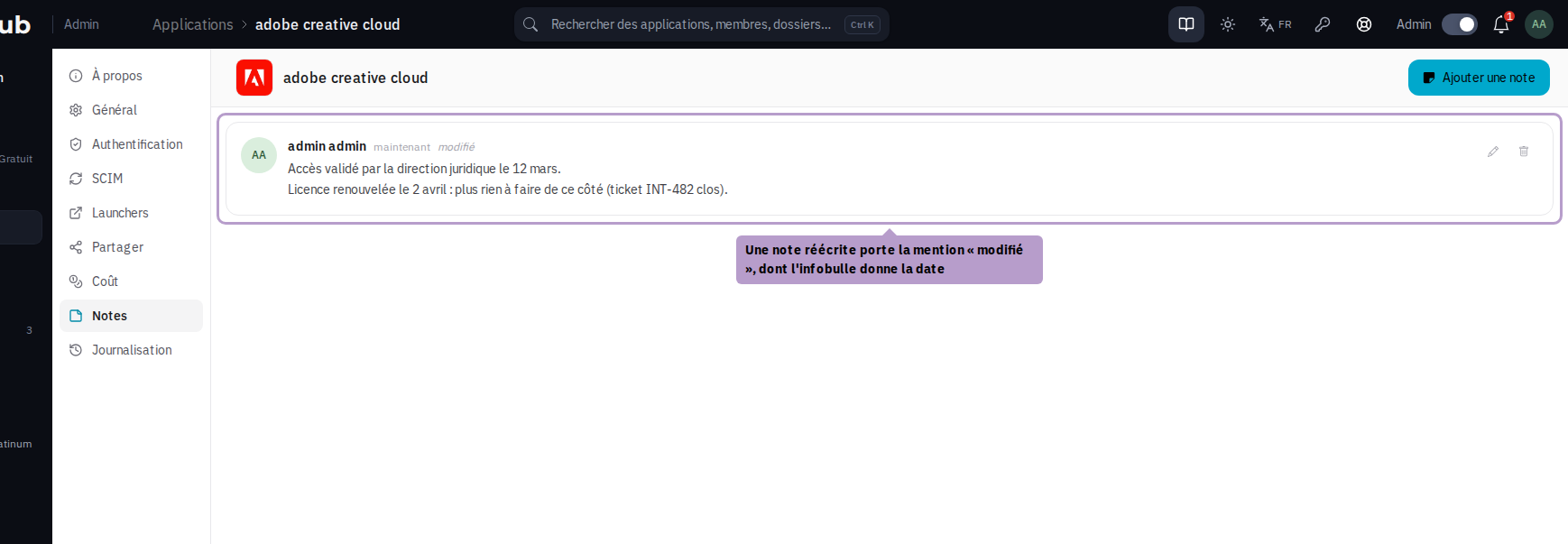
The modified note now carries the mention edited; its tooltip gives the date of the last modification.
Deleting a note
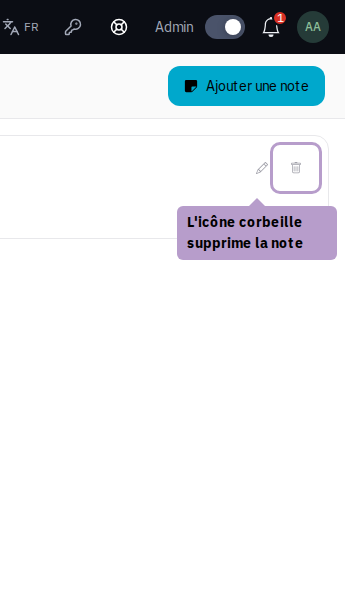
Click on the trash icon of the note.
You can delete your own notes; the owner of the space can delete any note, without being able to rewrite someone else's words.
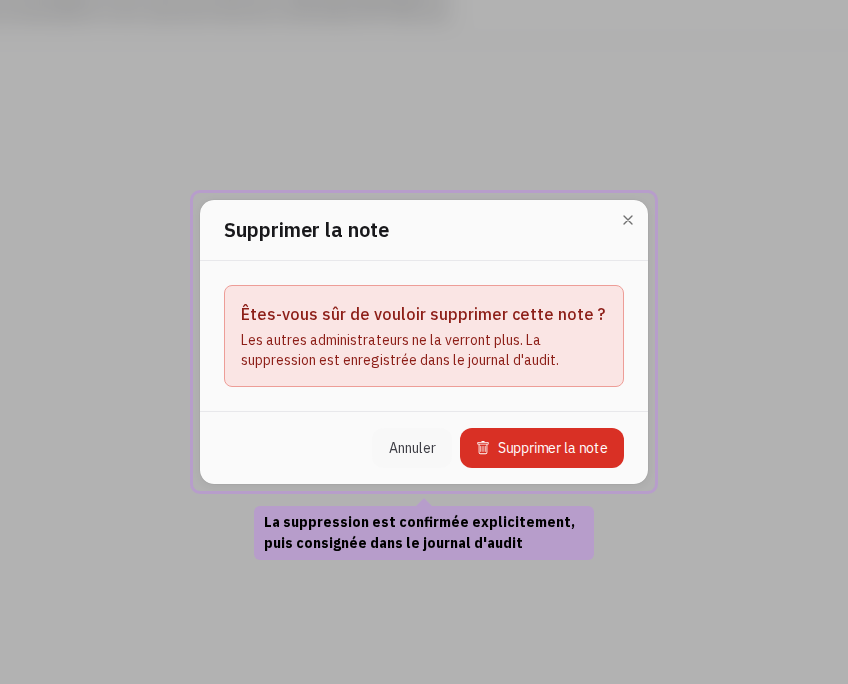
A confirmation is requested: the deletion is permanent, other administrators will no longer see the note, and the operation is logged in the audit log.
Traceability
Any note added, modified, or deleted:
- notifies other administrators in the application (events Note created, Note updated, Note deleted) — each can adjust what they wish to receive from their notification settings;
- is recorded in the audit log, with its author, date, and the concerned entity.