Notifications
The Notifications tab in the settings determines what VaultysHub alerts you about and how. Each event on the platform is a line, and each line has two checkboxes: By email and In the app.
Accessing the tab
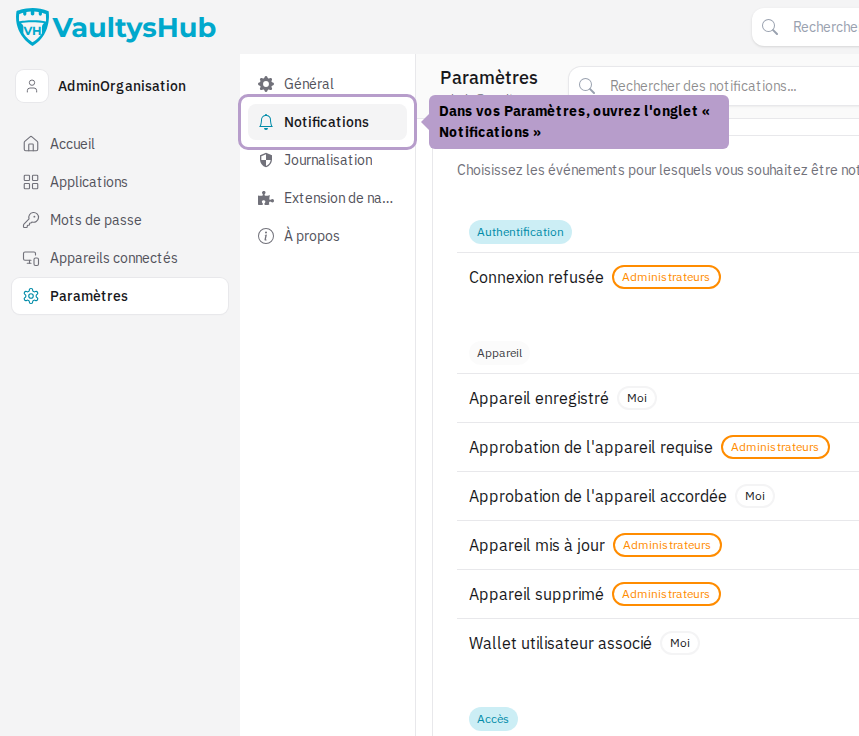
Open your Settings from your avatar in the top right, then select the Notifications tab.
Overview
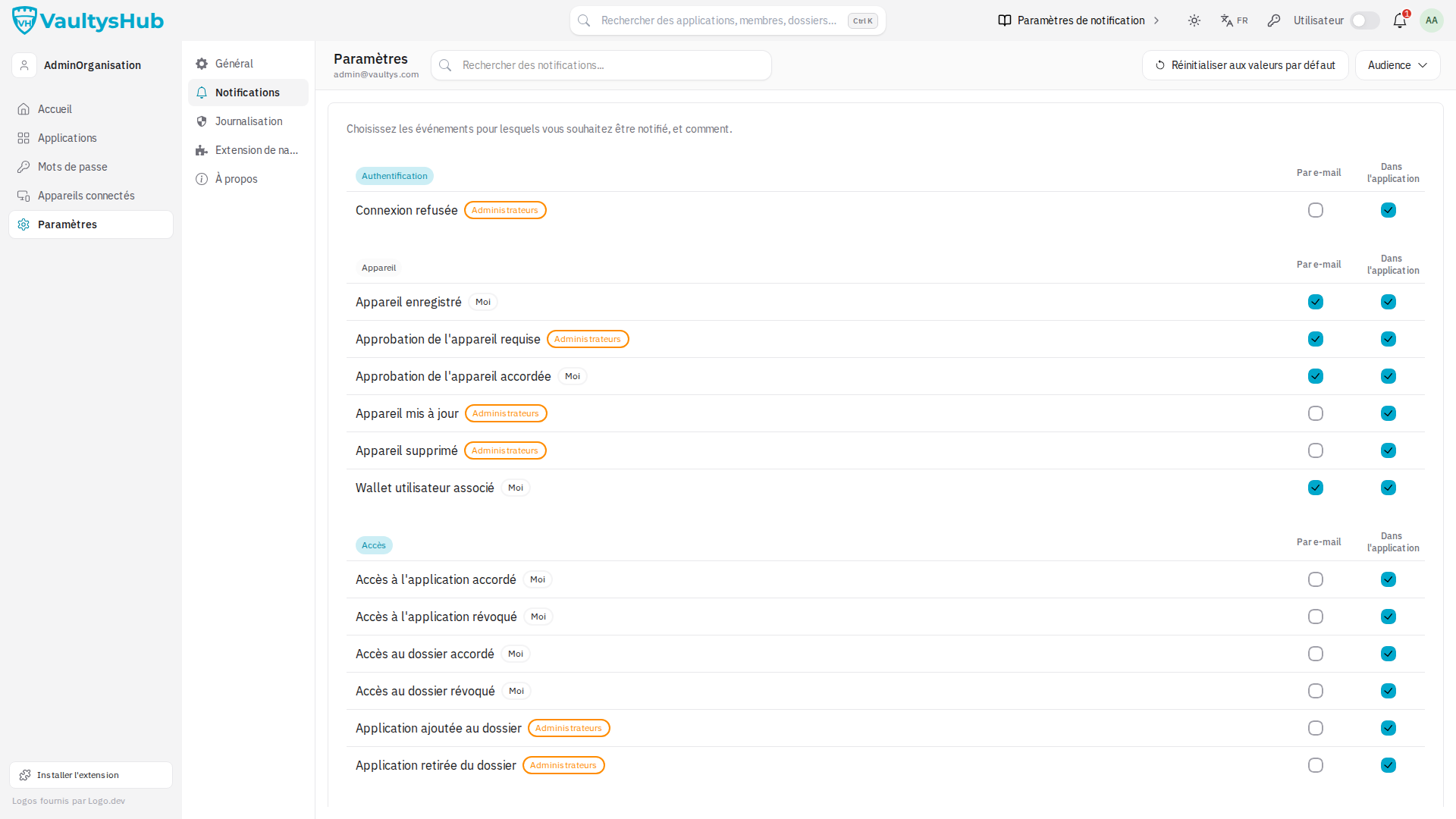
The page groups notifications by category (Device, Access, Secrets, Administration, Billing…). Each line also indicates its audience:
- Me — events that concern your own account (a new registered device, a password shared with you, access granted or revoked).
- Administrators — events that concern the entire organization (a device pending approval, a user created or deleted, detected Shadow IT). These lines only appear if you are an administrator.
- Owner — events related to the subscription and license. These lines only appear for the space owner.
You will only see the notifications that your role allows you to receive: a standard user only has the Me lines, an administrator adds the Administrators lines, and the owner sees everything.
The toolbar offers a search, an Audience filter to display only one audience, and a Reset to default values button that restores all channels to their original state.
Choosing your channels
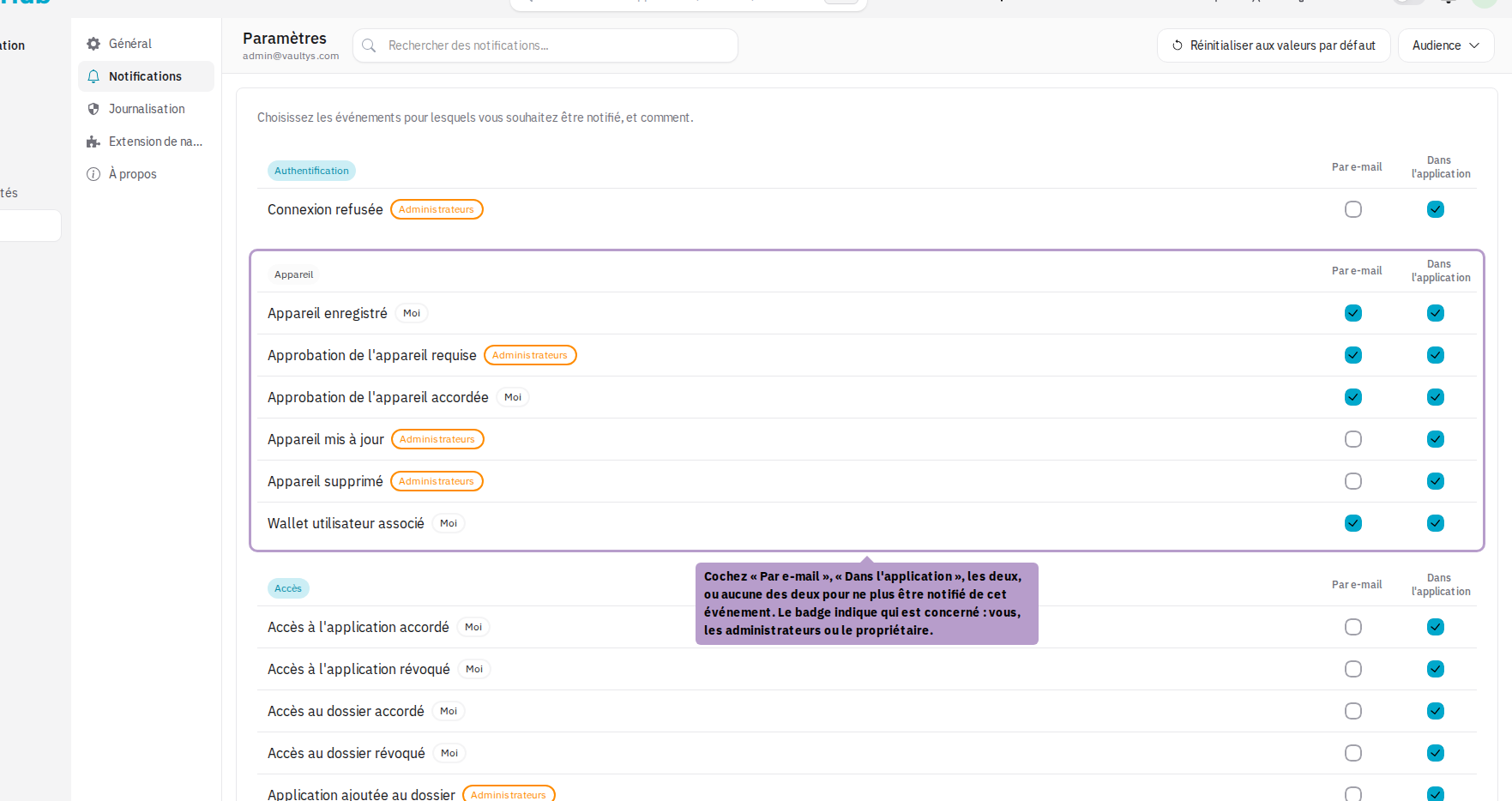
For each event, check the desired channel(s):
- By email only — you receive a message in your inbox, with no trace in the app.
- In the app only — the notification appears on the bell and on your home screen.
- Both — email and internal notification.
- None — uncheck both boxes and the event will no longer be reported to you. It will still be recorded in the audit trail, which is not affected by these preferences.
Each modification is saved immediately; there is no save button.
Some notifications require action on your part (approving a device, processing an application request, SCIM provisioning). For those, the In the app box is checked and locked: the request must remain visible somewhere. You still have the choice for email.
Available notifications
The sections below follow the order of the page.
Authentication
| Notification | Audience | Default channels |
|---|---|---|
| Login denied | Administrators | In the app |
Device
| Notification | Audience | Default channels |
|---|---|---|
| Device registered | Me | Email + app |
| Device approval required | Administrators | Email + app |
| Device approval granted | Me | Email + app |
| User wallet associated | Me | Email + app |
Access
| Notification | Audience | Default channels |
|---|---|---|
| Access to the application granted | Me | In the app |
| Access to the application revoked | Me | In the app |
| Access to the folder granted | Me | In the app |
| Access to the folder revoked | Me | In the app |
Secrets
| Notification | Audience | Default channels |
|---|---|---|
| Password shared | Me | Email + app |
Shadow IT
| Notification | Audience | Default channels |
|---|---|---|
| Shadow IT detected | Administrators | Email + app |
Administration
| Notification | Audience | Default channels |
|---|---|---|
| User created | Administrators | In the app |
| Users created in bulk | Administrators | In the app |
| User deleted | Administrators | In the app |
| Memberships deleted in bulk | Administrators | In the app |
| Application created | Administrators | In the app |
| Applications created in bulk | Administrators | In the app |
| Application deleted | Administrators | In the app |
| Applications deleted in bulk | Administrators | In the app |
| Folder created | Administrators | In the app |
| Folder deleted | Administrators | In the app |
| Note created | Administrators | In the app |
| Note updated | Administrators | In the app |
| Note deleted | Administrators | In the app |
| Organization reports available | Administrators | Email + app |
| Application suggestion requested | Administrators | Email + app — action required |
| Suggested application login URL | Administrators | Email + app — action required |
| SCIM provisioning required | Administrators | In the app — action required |
| SCIM deprovisioning required | Administrators | In the app — action required |
| SCIM activation required | Administrators | In the app — action required |
| SCIM user update required | Administrators | In the app — action required |
Lifecycle
| Notification | Audience | Default channels |
|---|---|---|
| User registered | Administrators | In the app |
Billing
| Notification | Audience | Default channels |
|---|---|---|
| The organization's license is expiring | Owner | Email + app |
Where internal notifications arrive
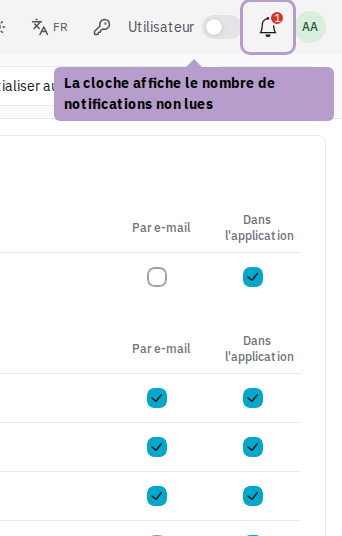
The bell in the top right has a red badge with the number of unread notifications.
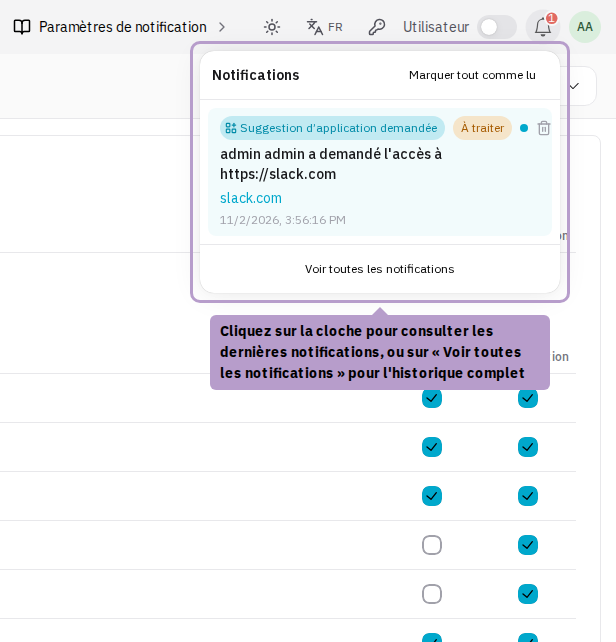
It opens the latest received notifications. Click on one of them to open the corresponding page or action, or on See all notifications for the complete list.
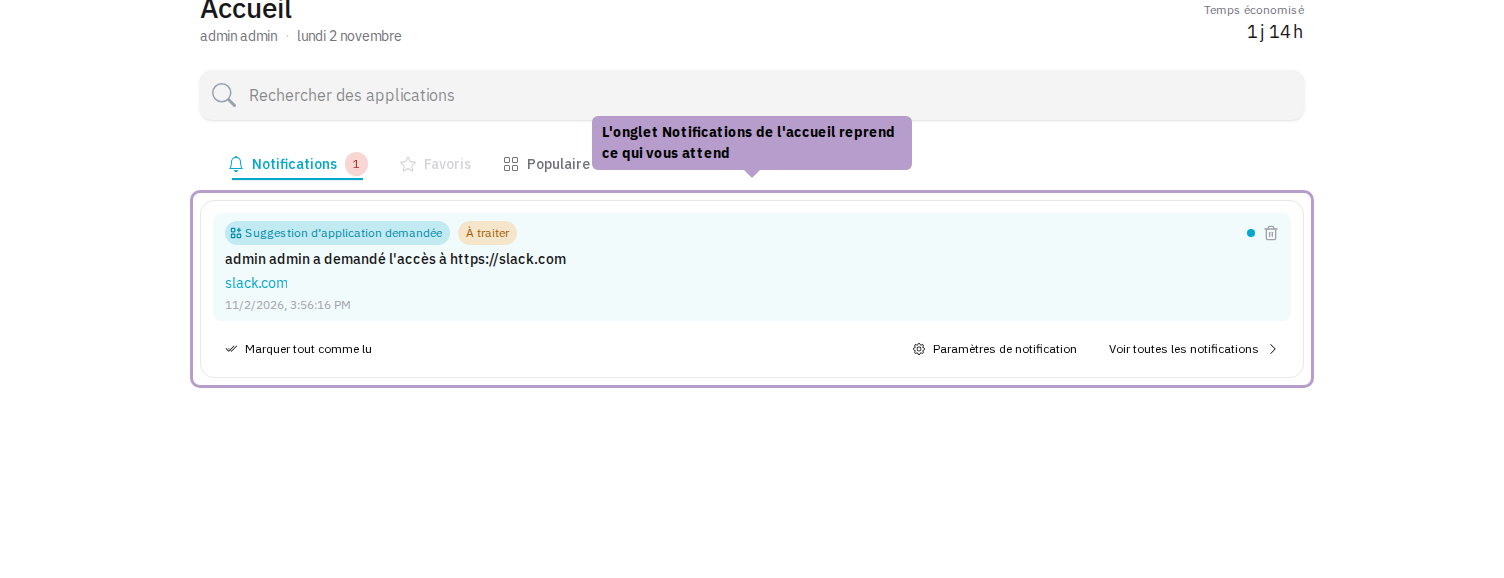
On your home screen, a Notifications tab shows what awaits you. It only appears if you have at least one notification.
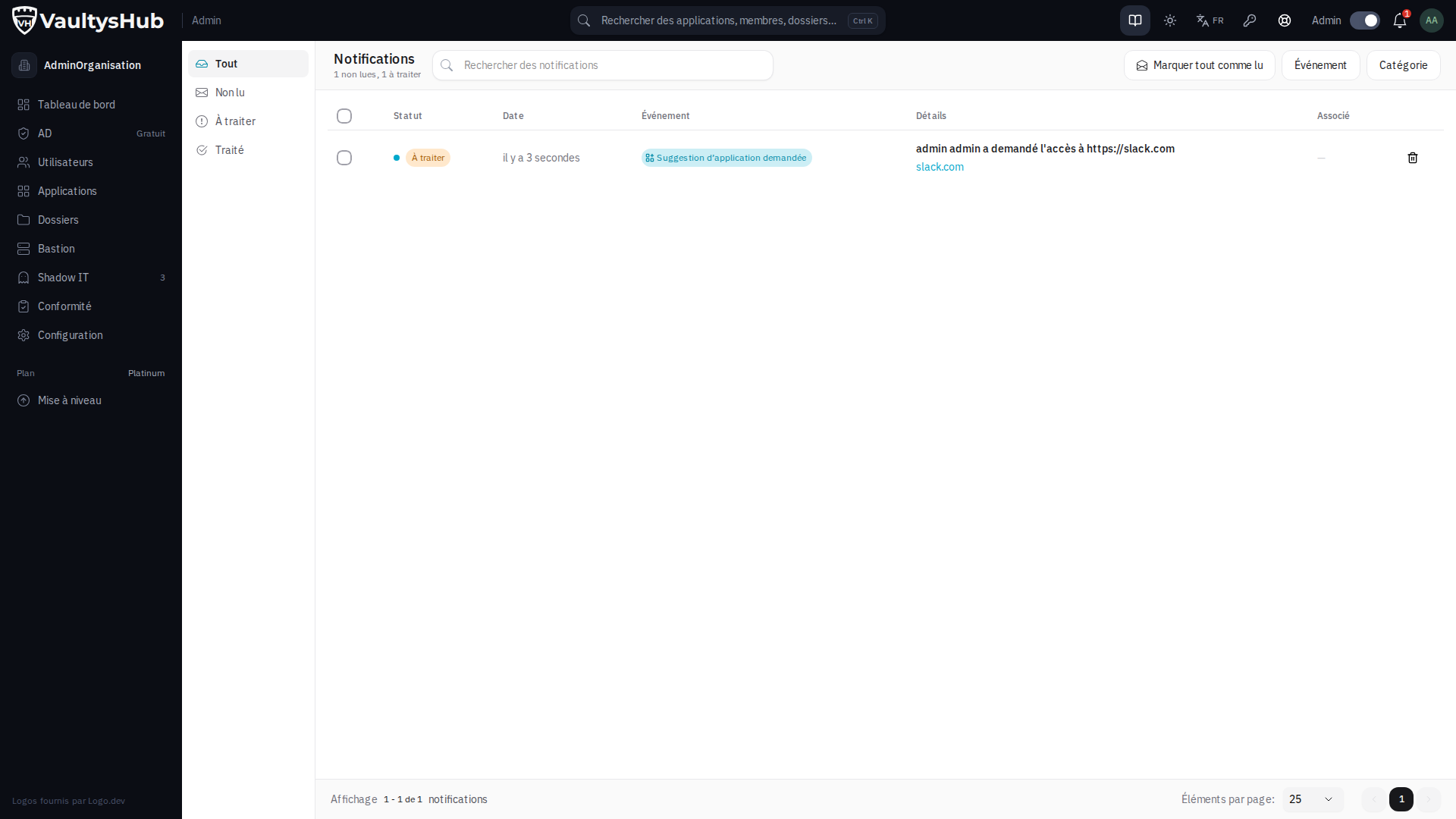
The Notifications page lists the entire history. Its tabs — All, Unread, To process, Processed — allow you to isolate what remains to be done, and the toolbar offers search, Event and Category filters, as well as "Mark all as read".