Dashboard
The dashboard is your entry point into VaultysHub. It brings together all your authorized applications and allows you to open, organize, and manage access to them in just a few clicks.
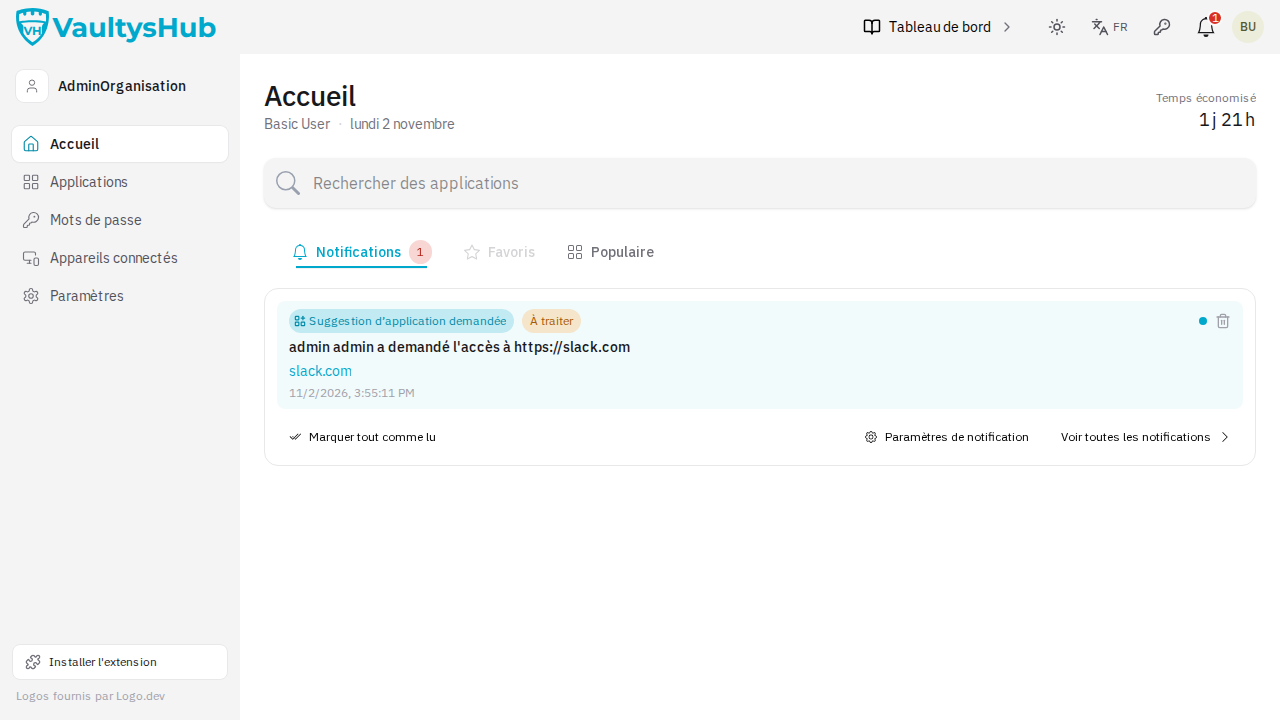
Popular and Favorite Applications
Your applications are organized into two tabs.
Popular Tab
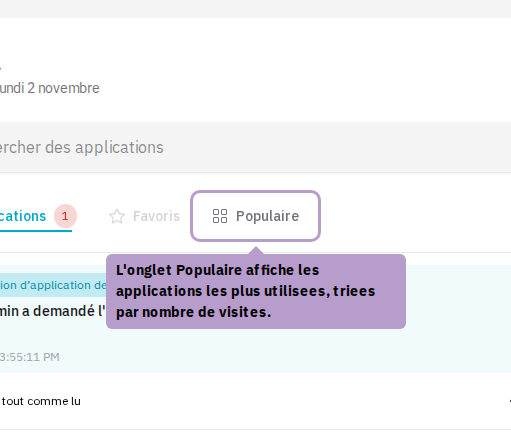
The Popular tab displays your most used applications, sorted by number of visits. This is the default tab displayed.
Open an Application
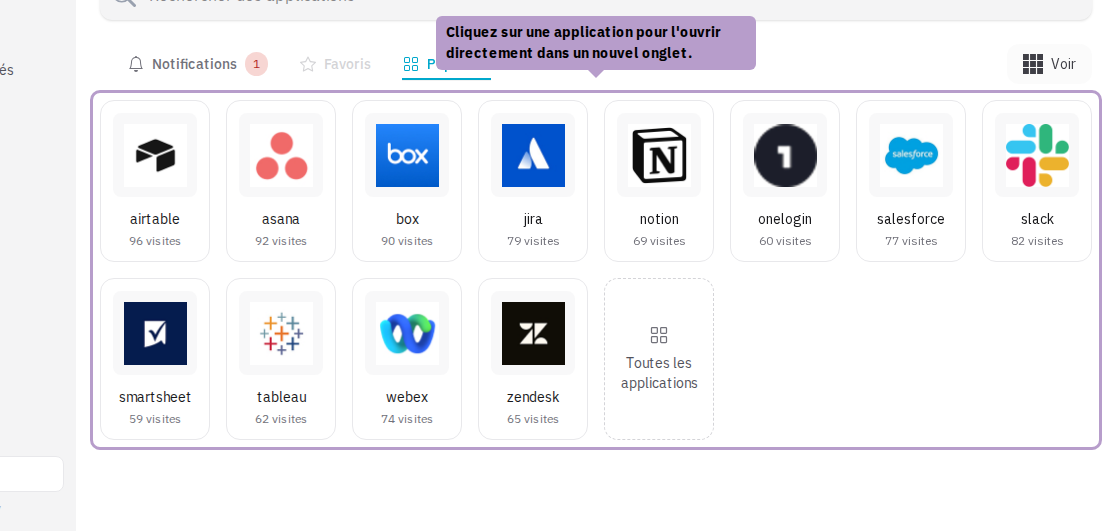
Click on an application to open it directly in a new tab. If the application is configured with a password managed by VaultysHub, the password manager opens instead.
If the application offers launchers (a badge indicates this on the tile), a menu allows you to choose between its main page and its launchers. See Application Launchers.
Icon Size
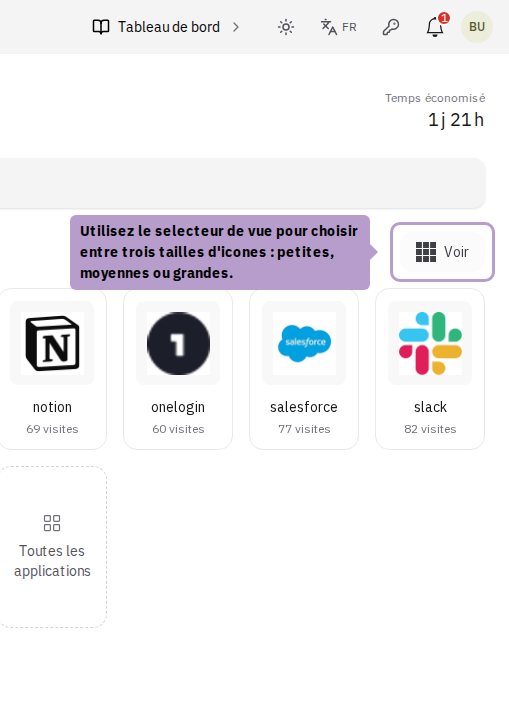
Use the View button at the top right of the grid to choose the display size of the icons.
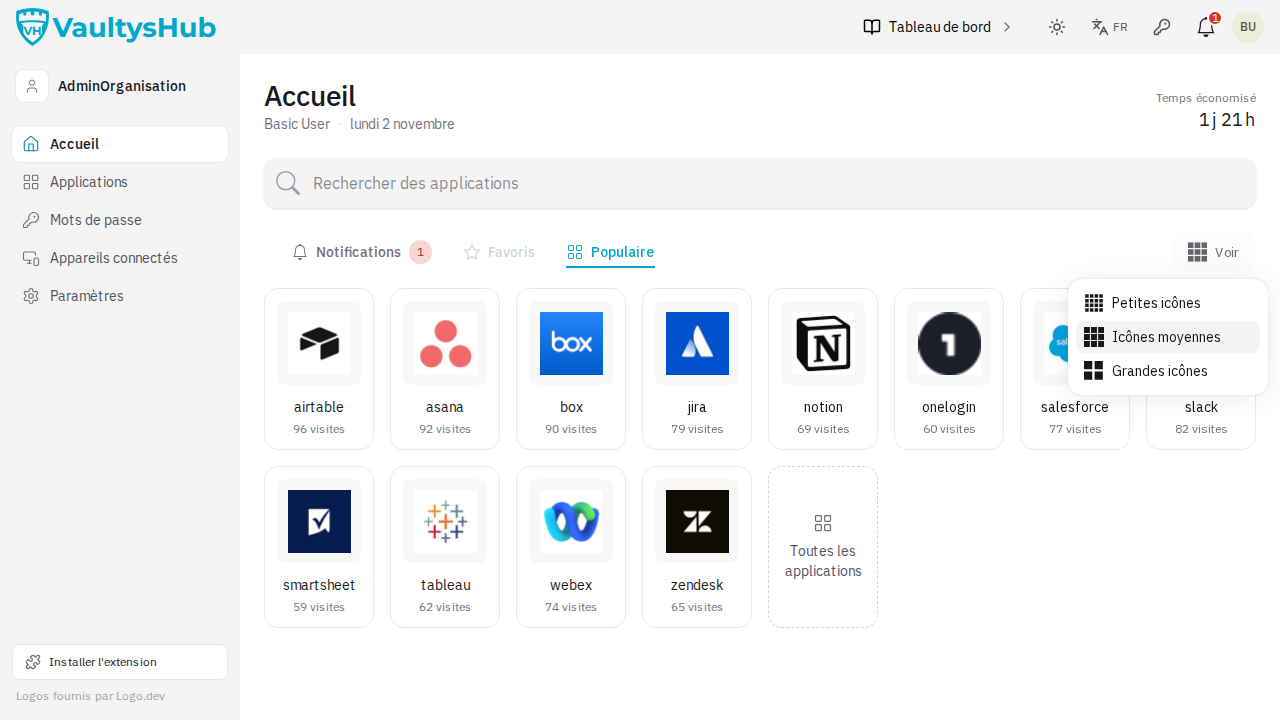
Three sizes are available: small, medium, or large. Your preference is automatically saved.
Search for an Application
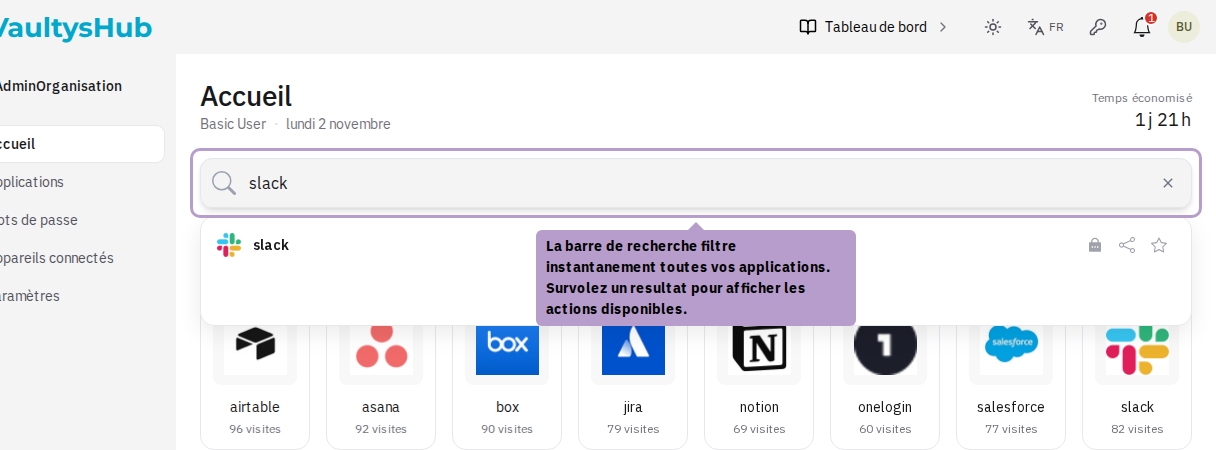
The search bar instantly filters all your applications as you type.
Add to Favorites from Search
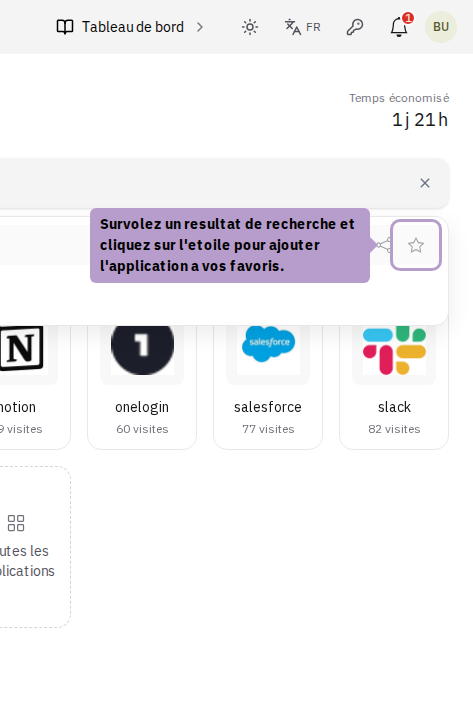
Hover over a search result to reveal the star button, then click it to add the application to your favorites.
Favorites Tab
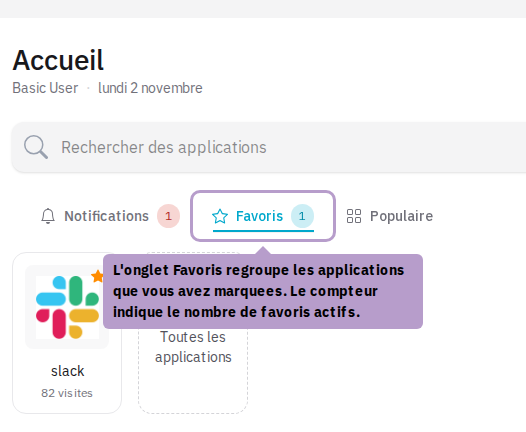
The Favorites tab groups the applications you have marked. The displayed counter indicates the number of active favorites.
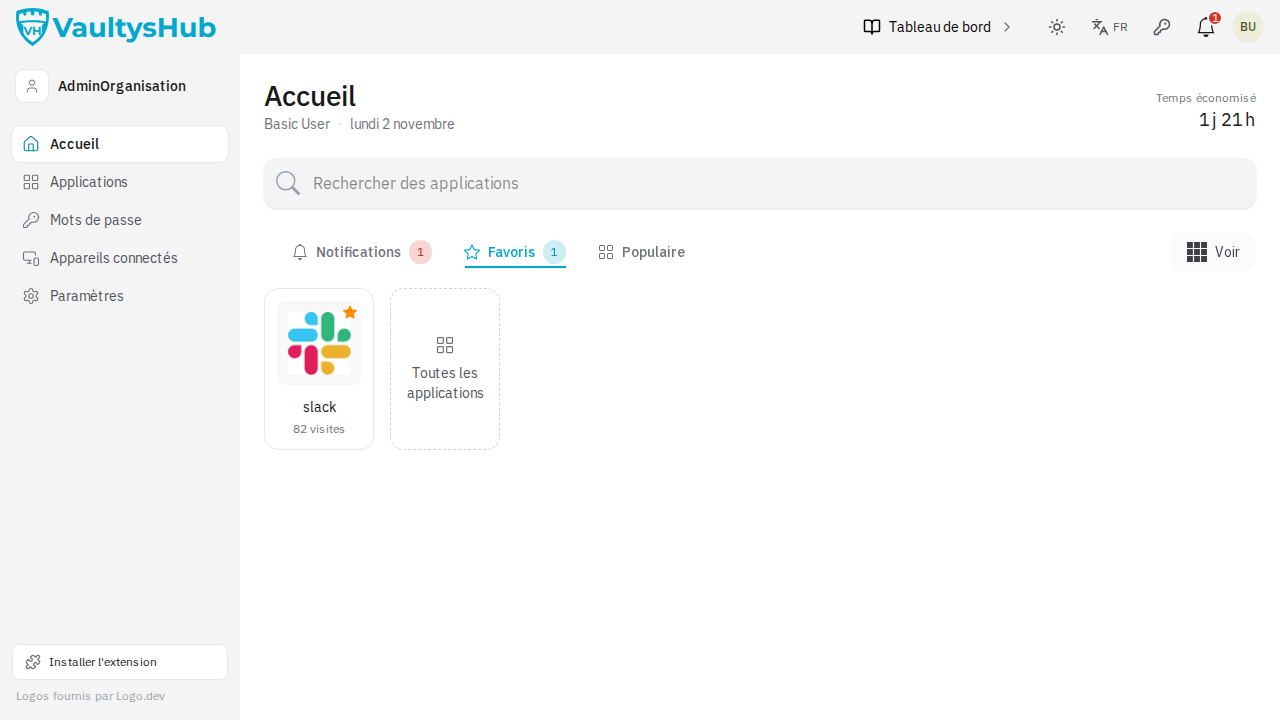
Manage Favorites from the Grid
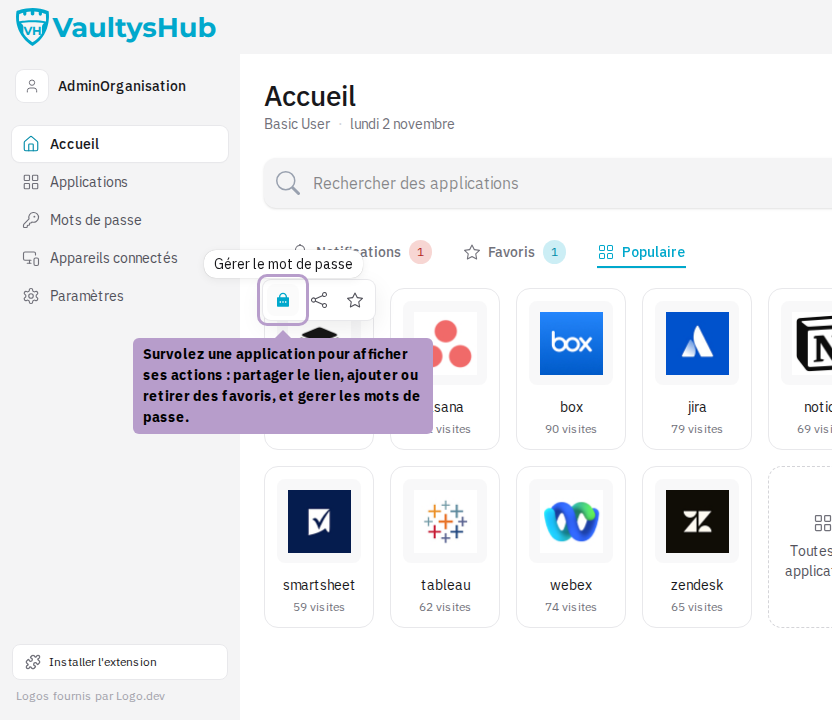
Hover over an application in the grid to display its actions: share the link, add or remove favorites, and manage passwords. Click on the star to toggle the favorite status of the application.