Connected Devices
A VaultysHub account can be used from multiple devices: the VaultysID wallet on your phone, the browsers you have registered, the browser extension, Windows Hello. The Connected Devices page lists all those associated with your account and allows you to manage them.
This list was previously found in your Settings. It has been promoted to the main sidebar.
Accessing the List
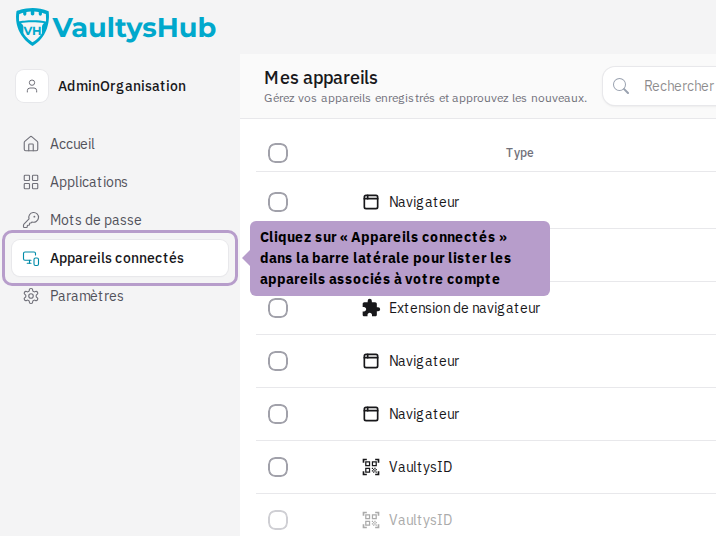
In the sidebar, click on Connected Devices.
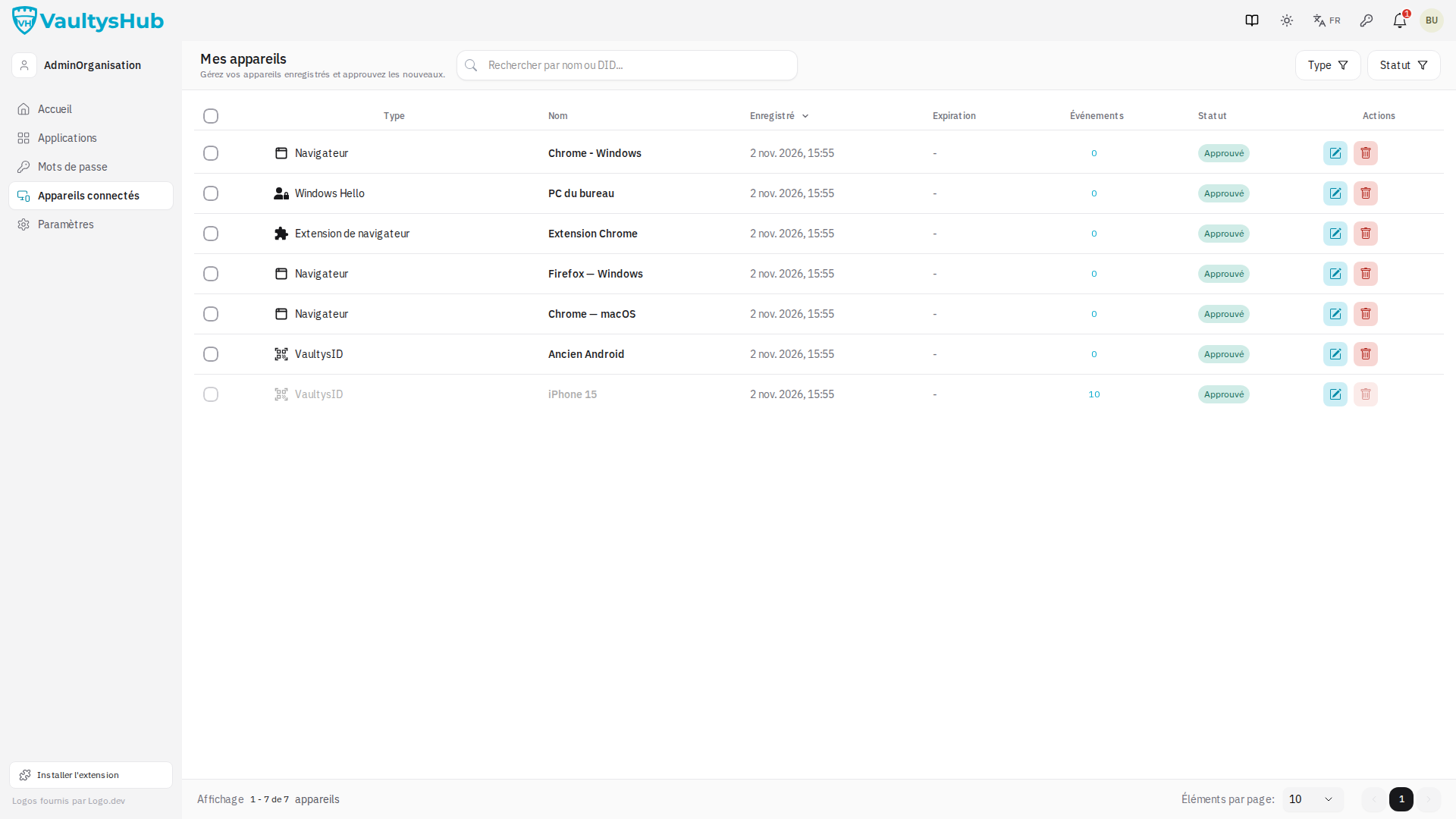
The table presents one row per device:
| Column | Content |
|---|---|
| Type | Browser, Browser Extension, Windows Hello, AI Agent… |
| Name | The name you have given to the device |
| Registered | Date the device was associated with your account |
| Expiration | Expiration date, for a temporary device |
| Events | Number of events recorded for this device |
| Status | Approved, Your approval is required, Administrator approval pending |
| Actions | Rename, delete, and approve if applicable |
Filtering the List
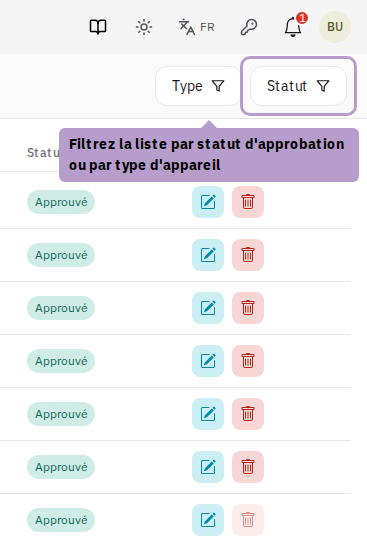
The toolbar filters allow you to narrow the display by status or by device type. A shortcut Your approval is required isolates devices awaiting your validation.
Renaming or Deleting a Device
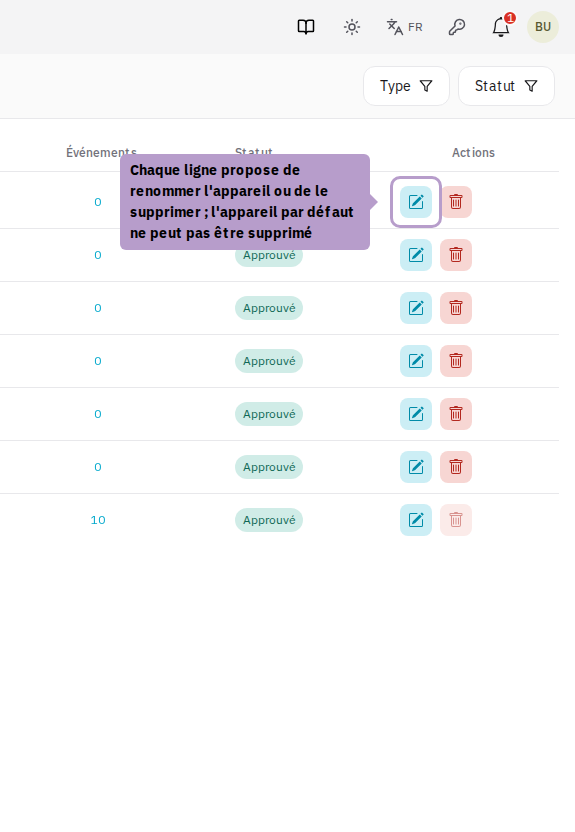
Each row offers two actions.
Your default device cannot be deleted: it is the one that ensures you have a means of authenticating. The delete button is disabled on this row.
Device History
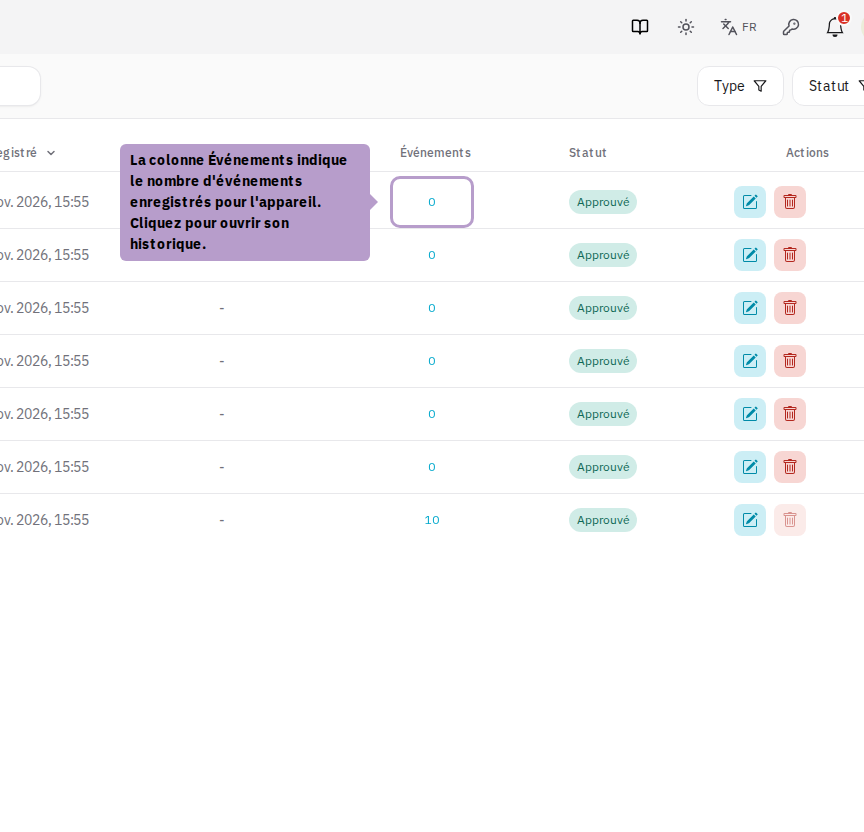
The Events column displays the number of events recorded for the device. Click on this counter to open its history.
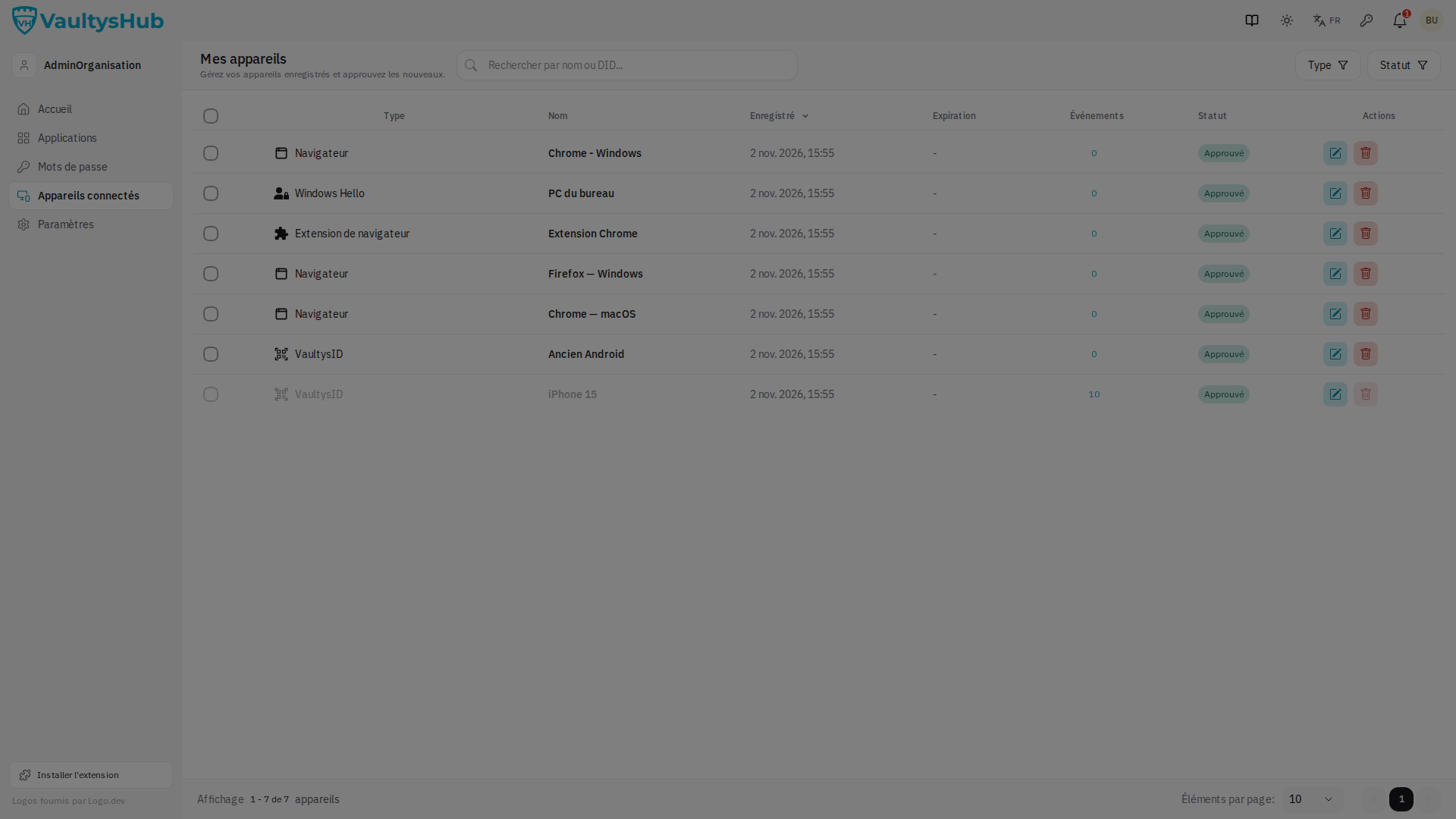
The sidebar lists the authentication and device events associated with it: registration, successful logins, denials, approval requests. This is the most direct way to verify that no unknown device has been used to access your account.
Renaming a Device
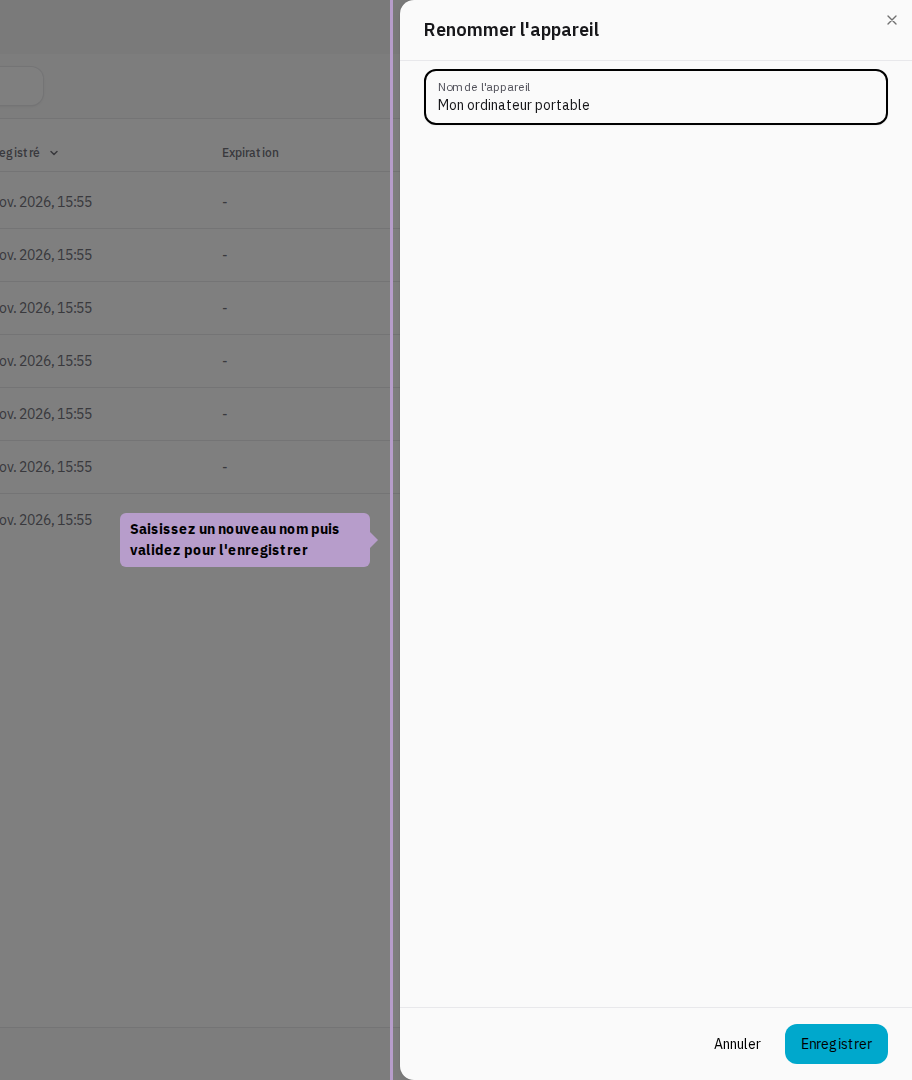
Click on the pencil icon of a row, enter a new name, and then confirm. A descriptive name — "Office Laptop", "Personal Phone" — makes the history much more readable.
Approving a Device
When a new device attempts to join your account, it appears with the status Your approval is required and an Approve button in the Actions column. As long as you have not approved it, this device cannot be used to authenticate you.
Only approve a device if you initiated the request. If an unknown device appears in this list, do not approve it and notify your organization's administrator.