Getting Started with VaultysHub
Getting started for the first time on VaultysHub to access all useful information
Preparing Your Computer
To get started with VaultysHub, you need an up-to-date browser installed on your computer. VaultysHub is compatible with Google Chrome, Safari, and Firefox. Other types of browsers should also support VaultysHub even if not all tests have been conducted.
In addition to a browser, you will need an internet connection to run VaultysHub. The VaultysHub application is not very bandwidth-intensive.
Online Registration
To register, please go directly to the website https://go.vaultys.com where you can select either the demo option or create a free organization directly.
Demo Site
If you go directly to the link https://start.vaultys.com/demo, fill out the online form. Email validation is required before you can proceed to log into the demo environment. You will then be able to explore the application and possibly create your own organization directly from the "my VaultysHub" menu.
Create Your Own Organization for Free
If you go directly to the link https://go.vaultys.com, fill out the online form. Email validation is required before you can proceed to the final registration. A personalized URL will then be provided to you. This is your access point to your new VaultysHub.
First Login
After your registration, you will have a special page that explains how to log in without a password.
You will then need to download the VaultysID application on your smartphone. This application, independent of VaultysHub, will allow you to create your credentials. More information can be found on the page Install VaultysID
Navigating VaultysHub
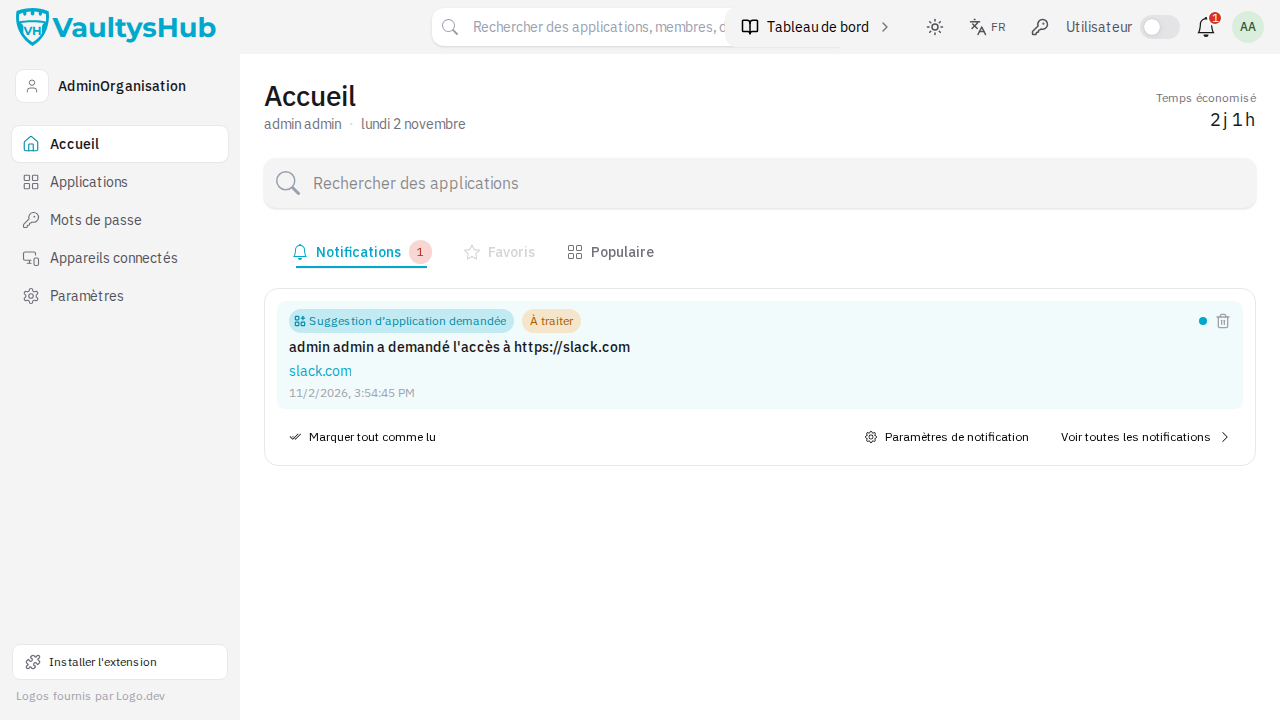
Once logged in, you will be welcomed by your organization's dashboard. Here, you can access all your information, manage your settings, and navigate through the different sections of the application. Take the time to familiarize yourself with the interface to facilitate your use of VaultysHub.
Access to User and Administrator Menus
As the owner of VaultysHub, you have access to two types of menus: the user menu and the administrator menu.
User Menu
The user menu provides you with full access to the essential features of VaultysHub. In this menu, you can access your applications, manage your passwords, and create new VaultysHubs as needed.
Administrator Menu
If you have administrator rights, you can also access the administrator menu. This menu allows you to manage all aspects of your organization on VaultysHub. You can add or remove users, applications, or groups and manage the organization's settings, and more.
Profile Menu
Located at the top right of the interface, the profile menu is your personal control center on VaultysHub. By clicking on this menu, you can access a number of information and settings related to your profile.
First, you will find your personal settings. These settings allow you to customize your experience on VaultysHub, including modifying your personal information and display preferences and languages. Available languages are French, English, Chinese, and German.
Next, you have your login ID. Here, you can manage all the information associated with your VaultysHub account.
Finally, you have the management of your browser extension. This section allows you to add, modify, or remove the VaultysHub extension from your browser. This is a key feature that will allow you to quickly access your VaultysHubs without having to open the application each time.