Dashboard
The Dashboard is a summary of your organization's activity. It consists of five tabs: Overview, Users, Applications, Access, and Security. The first provides an overview, while the other four delve into each specific area.
Accessing the Dashboard
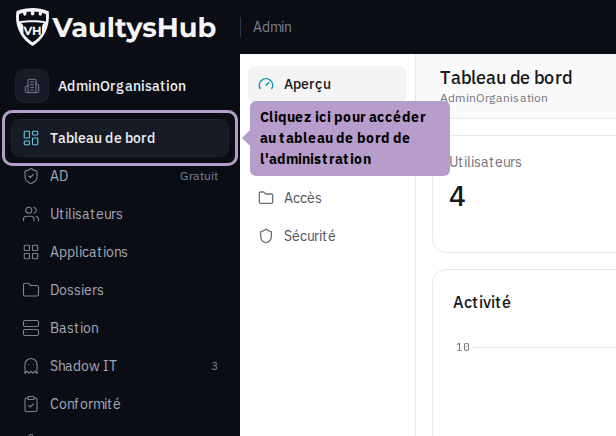
In the sidebar navigation, click on Dashboard.
Overview
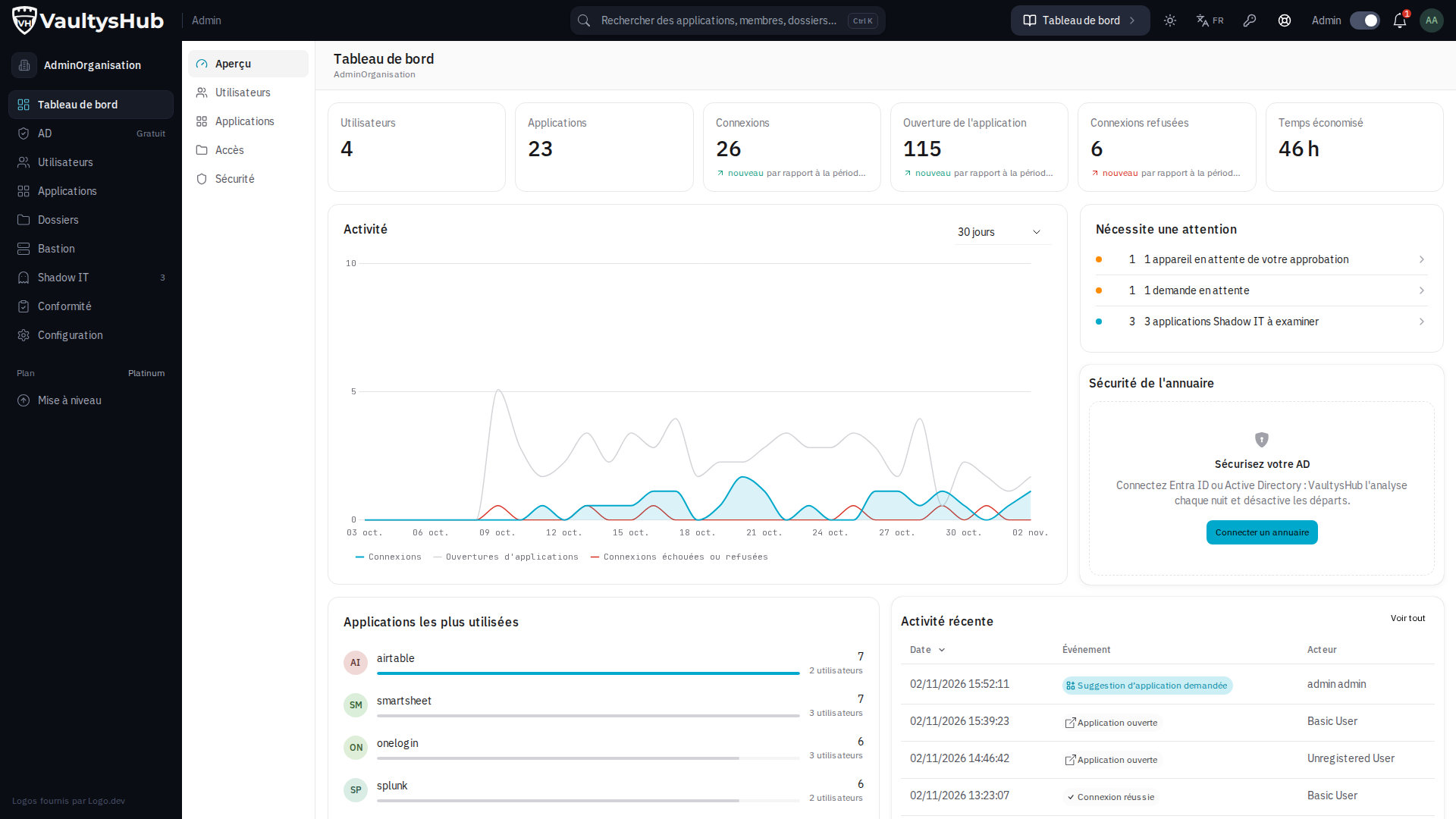
The Overview tab answers the most frequently asked questions at a glance: how many members and applications, how many connections, and what requires action.
The Indicators
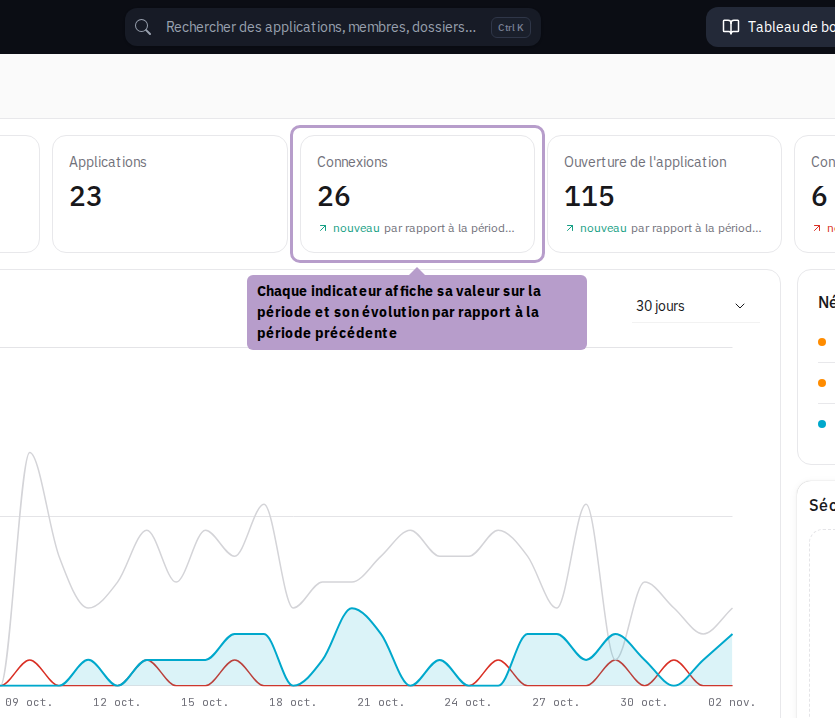
The row of indicators displays six key values, each accompanied by its trend compared to the previous period.
| Indicator | Meaning |
|---|---|
| Users | Members of the organization, reported against your license quota |
| Applications | Applications reported in VaultysHub |
| Connections | Successful authentications during the period |
| Application Opens | Application openings from the portal or extension |
| Denied Connections | Rejected attempts — a rising number warrants examination |
| Time Saved | Time that passwordless authentication has saved your teams |
An indicator with a link is clickable: it leads directly to the screen that details the value. This is the case for the Estimated Monthly Cost in the Applications tab, which opens the pricing report.
Observation Period
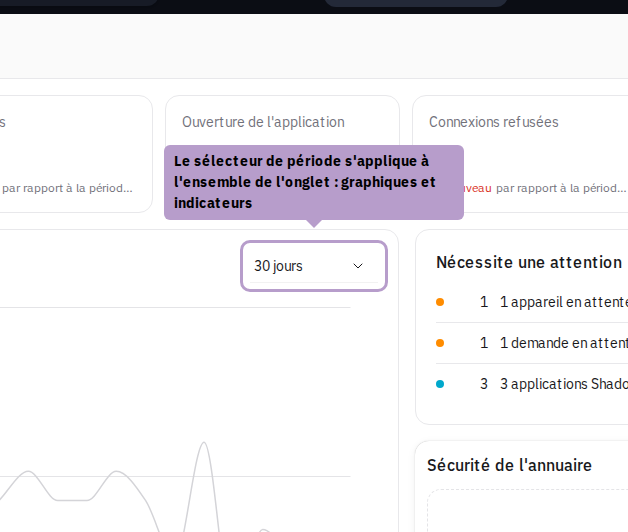
The period selector controls the entire tab: both the graphs and the indicators and their trends.
The displayed history is limited by the retention period of your organization's audit events (30 days by default). Absolute values and quota gauges are always up to date.
Requires Attention
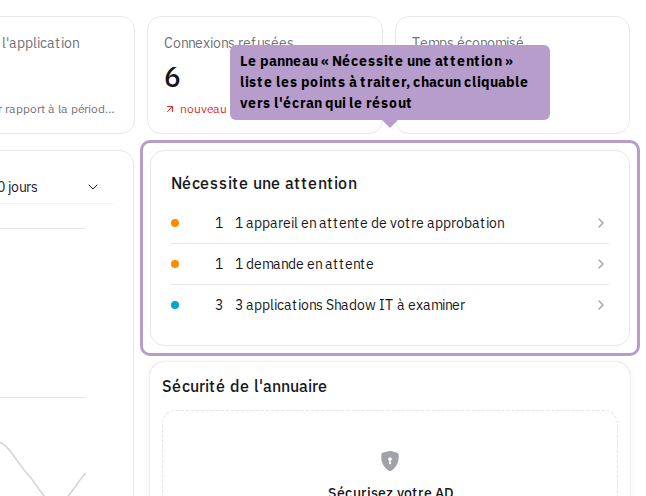
The Requires Attention panel gathers items that need addressing — incomplete files, members without access, applications that no one is using. Each line links to the screen that allows for resolution.
Directory Security
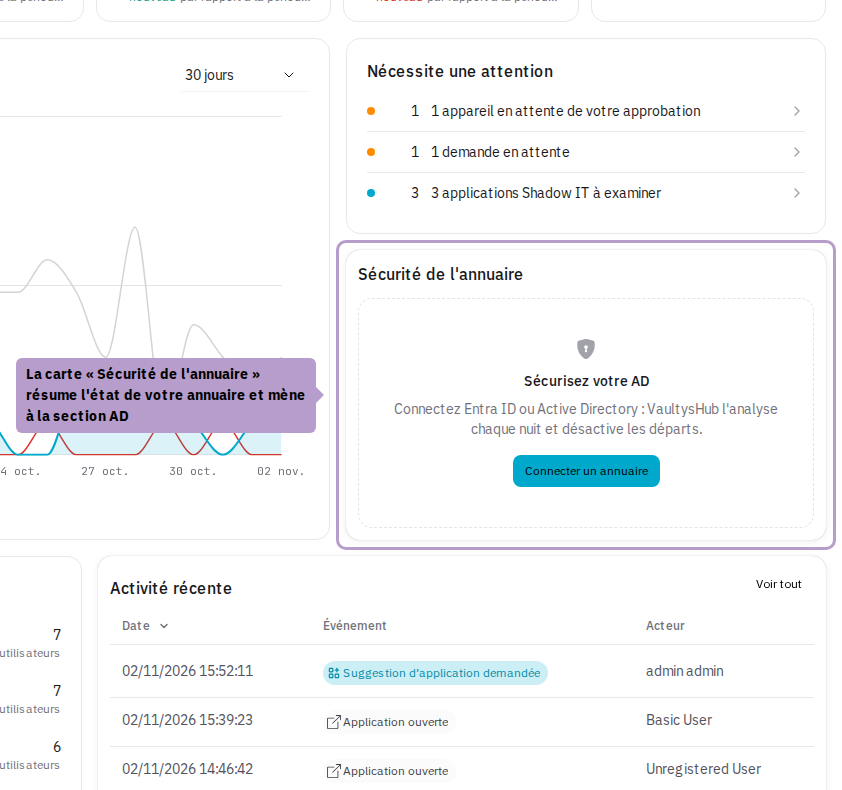
Under the attention panel, the Directory Security card summarizes the status of your Microsoft Entra ID or Active Directory:
- without a connected directory, it offers to connect one (Connect a directory);
- once the directory is connected, it displays its score (from A to F), its score out of 100, and its trend since the last analysis, as well as the three most serious issues. Each line, like the Open button, leads to the AD section.
Critical or serious issues in the directory, and accounts that have left the directory but are still active in VaultysHub, also appear in Requires Attention.
The connection of the directory, its nightly analysis, and the automatic deactivation of departures are described in Active Directory.
The AD section is currently offered to all organizations, outside of modules: it is marked Free in the menu.
Users
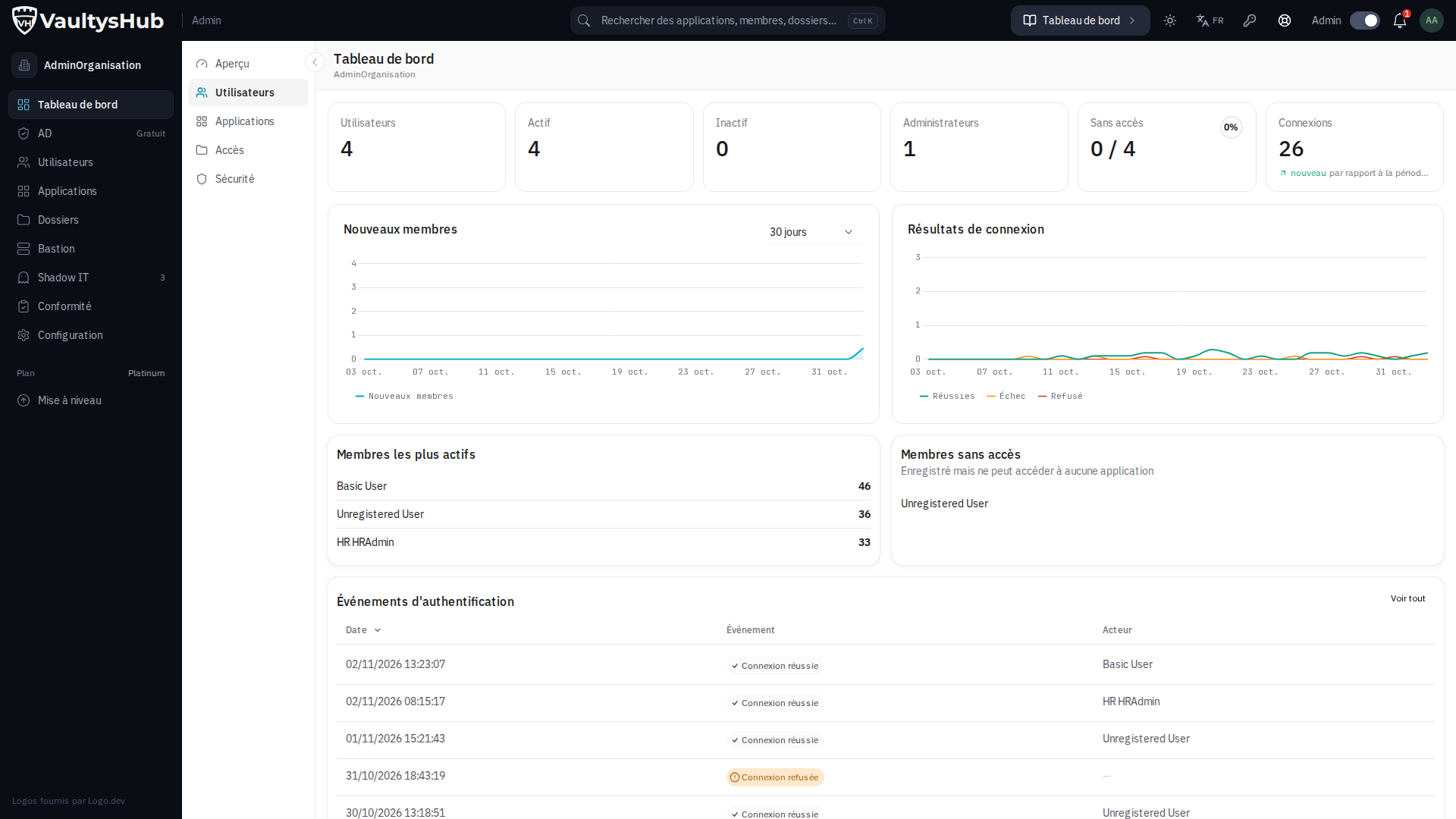
The Users tab details adoption: new members, login results (successful, failed, denied), most active members, and Members without access — registered but unable to reach any applications. The authentication log at the bottom of the page summarizes events in the corresponding category.
Applications
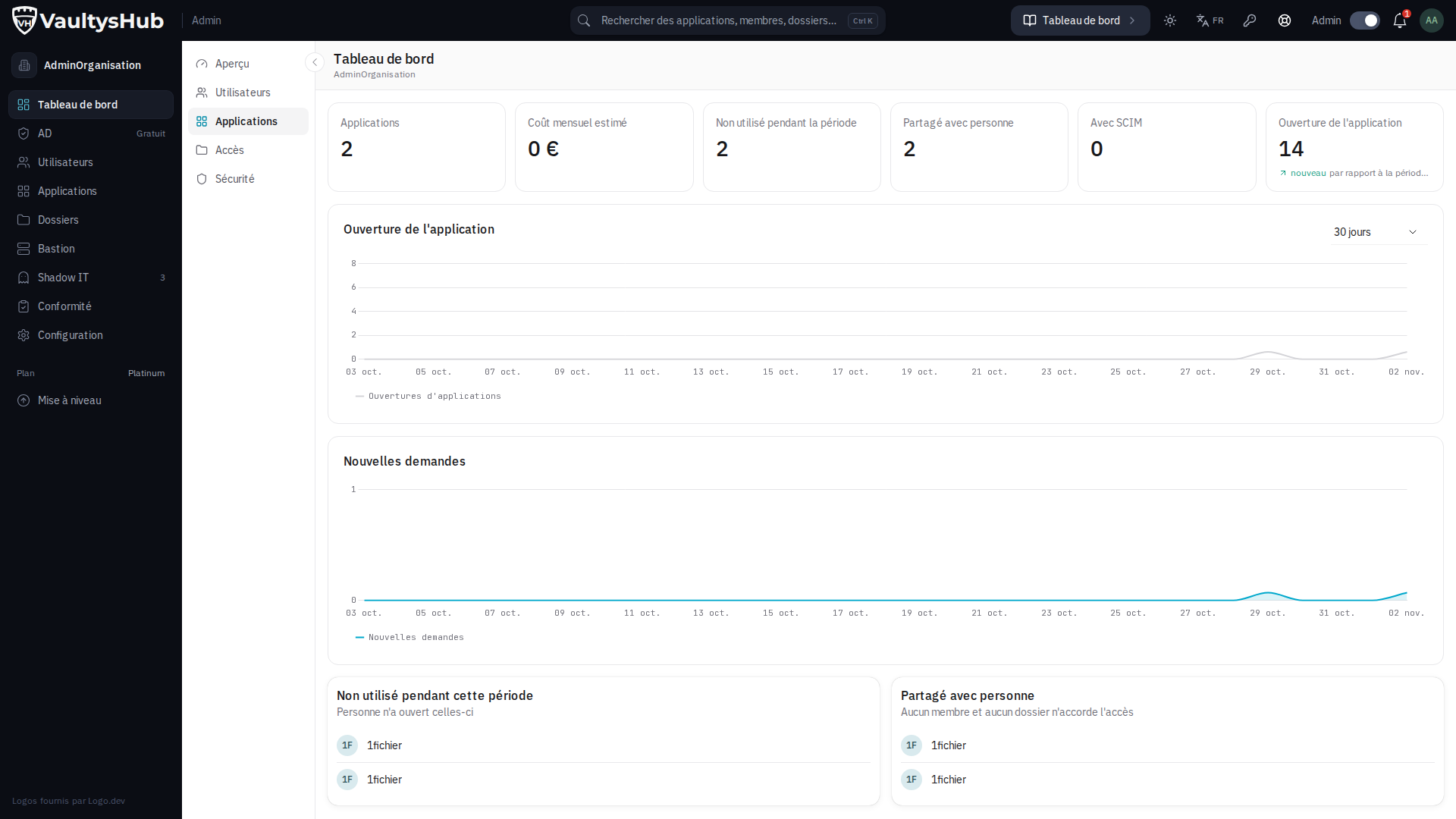
The Applications tab describes the application landscape: estimated monthly cost, openings, unused applications during the period, and applications shared with no one. This is the entry point for cost management.
Access
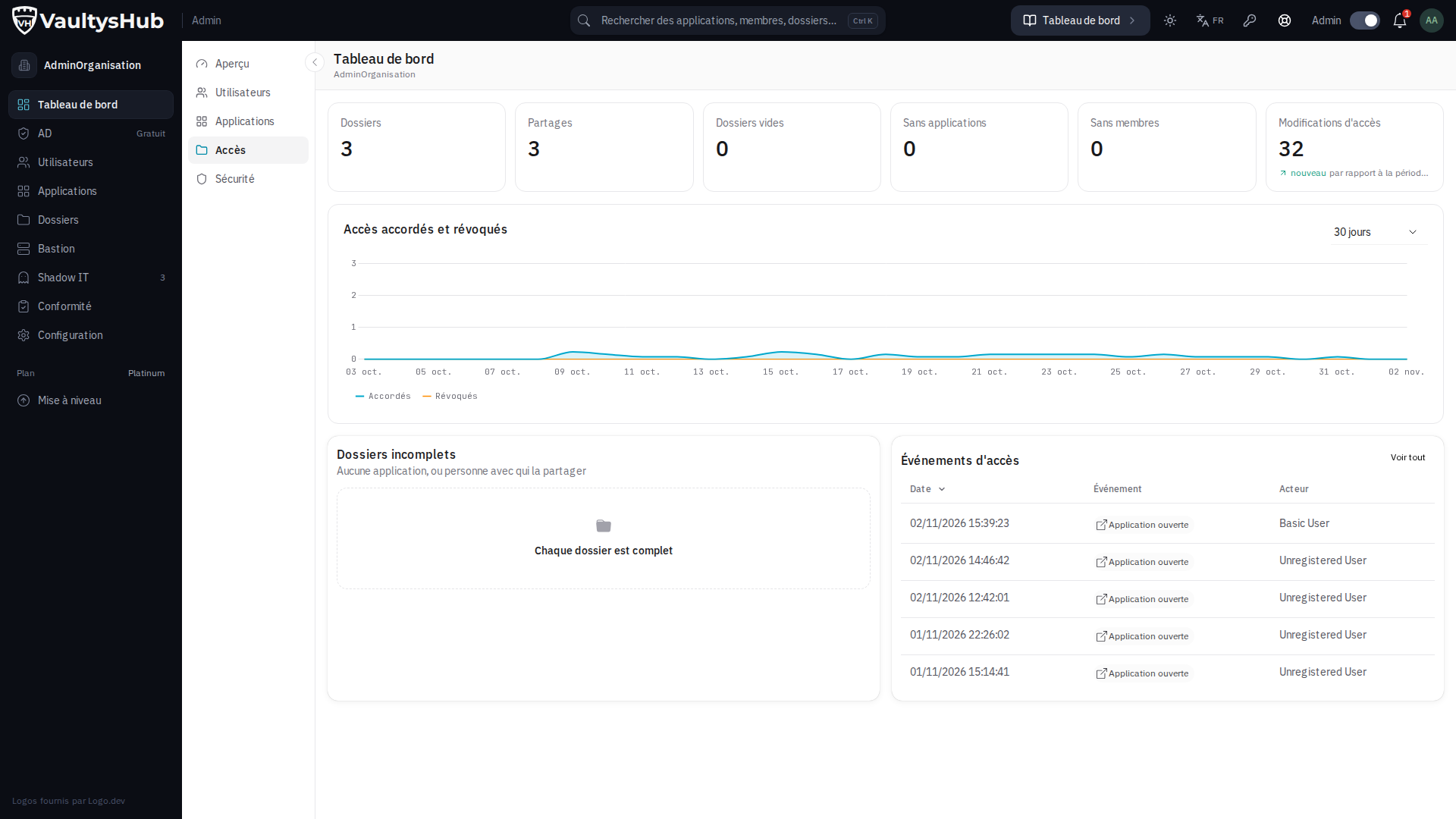
The Access tab tracks the evolution of rights: access granted and revoked during the period, and incomplete files — without applications, or without anyone to share them with.
Security
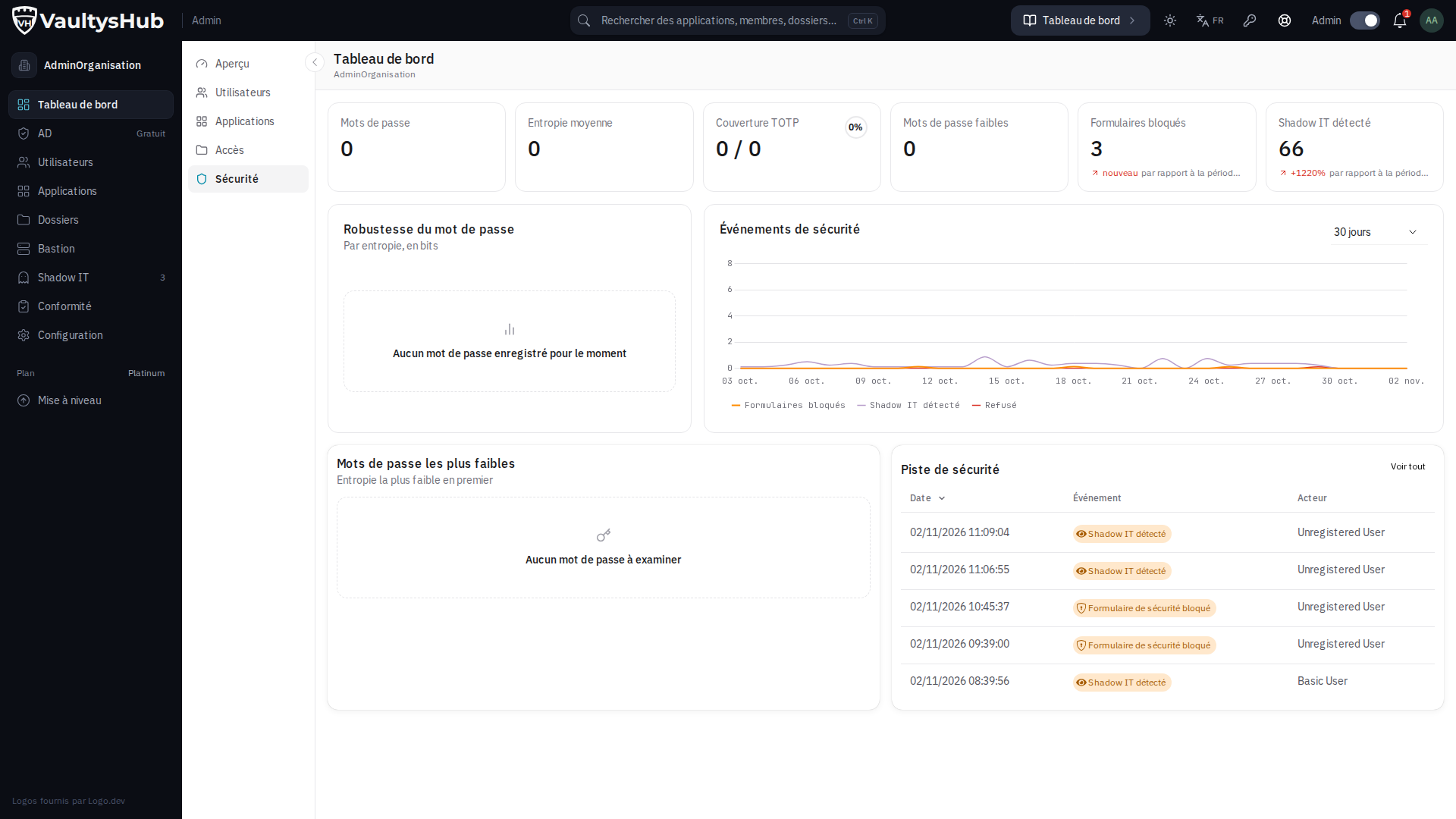
The Security tab presents the strength of stored passwords, measured in bits of entropy, the weakest passwords to review as a priority, and security events during the period.
Modules Not Included in Your Offer
VaultysHub consists of a basic offer and modules (see Pricing and Modules). The dashboard shows administrators and the owner what a module that the organization does not possess would bring, rather than hiding it:
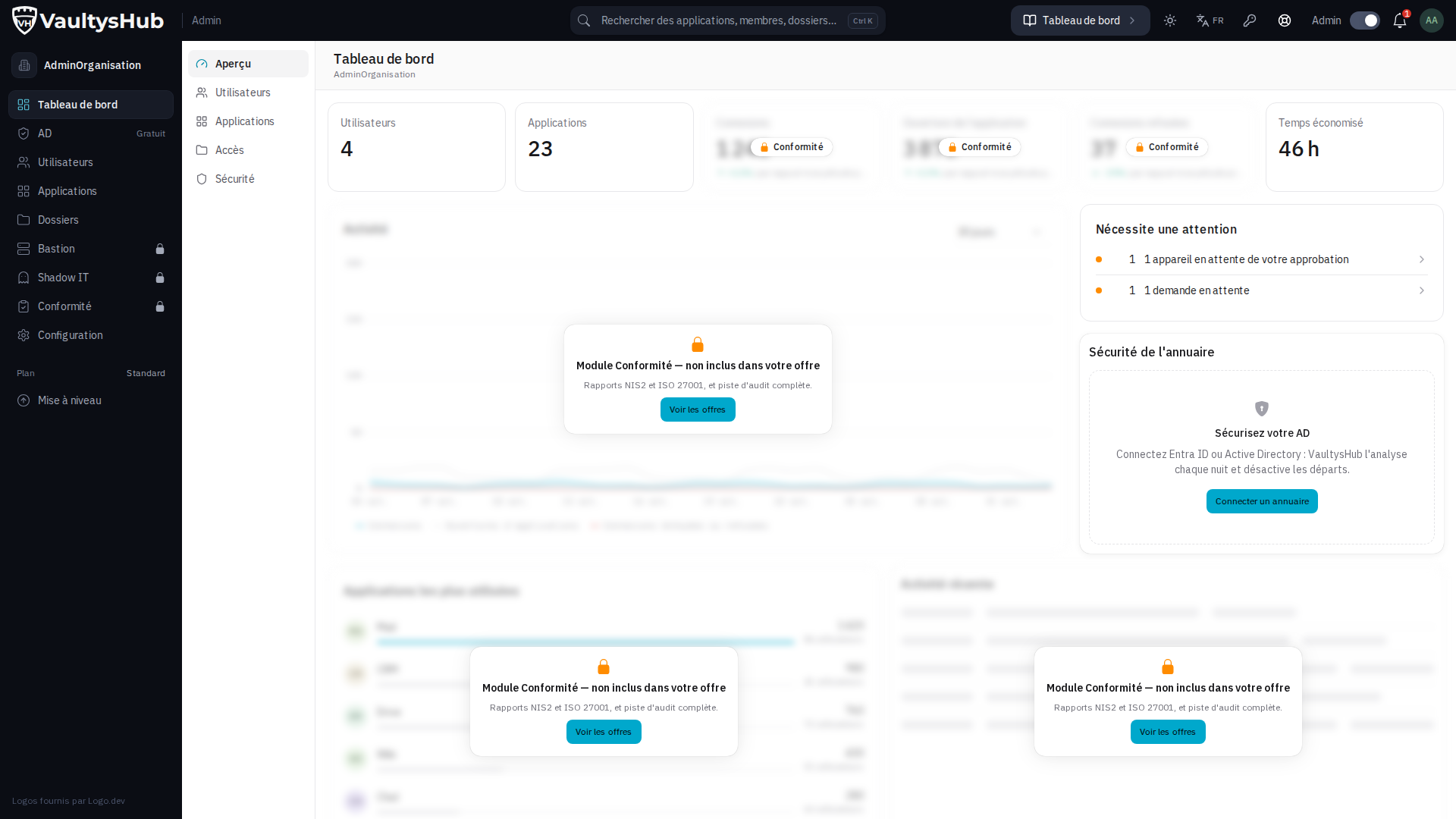
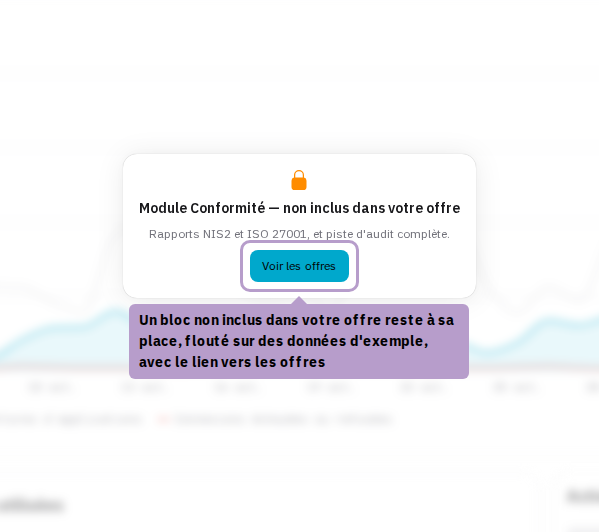
- a block that depends on an absent module remains in place, blurred on example data — never on your data. It indicates the relevant module and offers See Offers;
- an indicator in the same case simply displays the module name and a padlock; it is clickable to the offers.
Most of the figures calculated over a period (connections, openings, trends, activity graphs, application rankings) come from the audit trail and fall under the Compliance module. Other blocks follow their own module: Passwords for password strength, Integration for SCIM and estimated cost, Anti-phishing for blocked forms, Shadow IT for detected applications. Instant values — members, applications, quotas, attention panel — are always displayed.
A user who is neither an administrator nor an owner sees nothing of the non-included modules: neither blurred blocks nor menu entries.
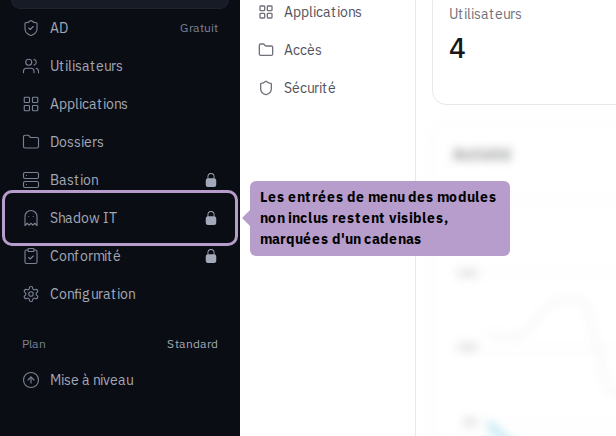
In the sidebar menu, sections of non-included modules remain visible, marked with a padlock:
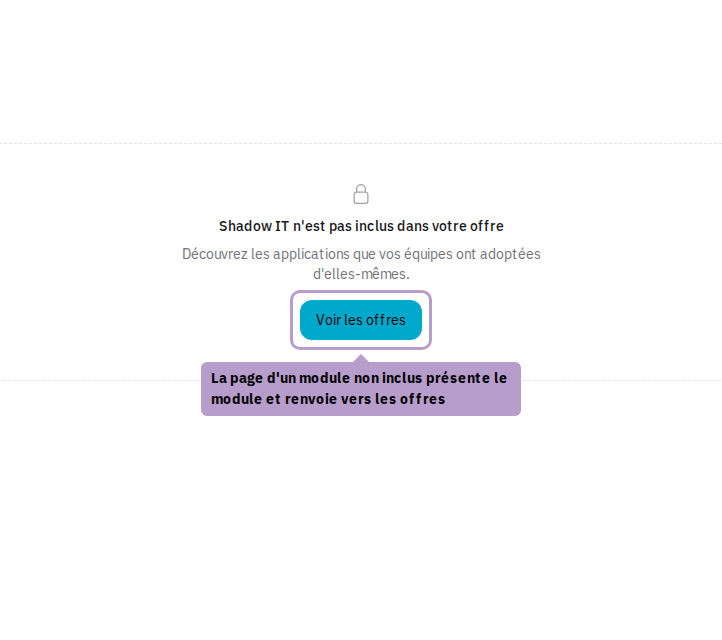
Opening one of them displays, instead of the screen, a presentation of the module and the button See Offers:
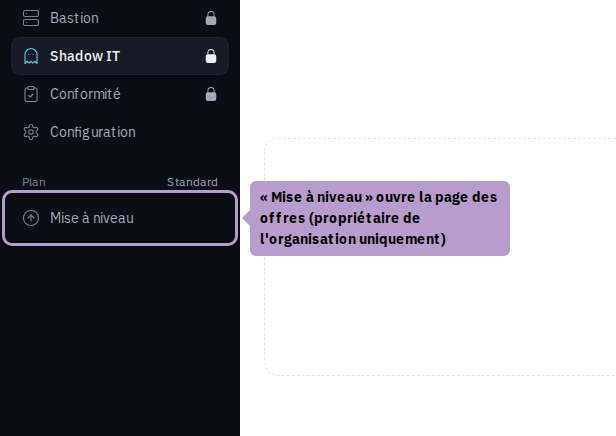
Upgrade
The Upgrade entry, at the bottom of the sidebar under your current offer, is reserved for the owner of the organization. The See Offers button for locked blocks also leads there.
The page presents the Free, Standard, and Platinum offers, then the six modules with their price per user per year. At the bottom of the page, Your Current Subscription reminds you of your offer, the number of active users, and the expiration date, and Estimate calculates the annual cost of the basic offer and the modules you own for your active users.
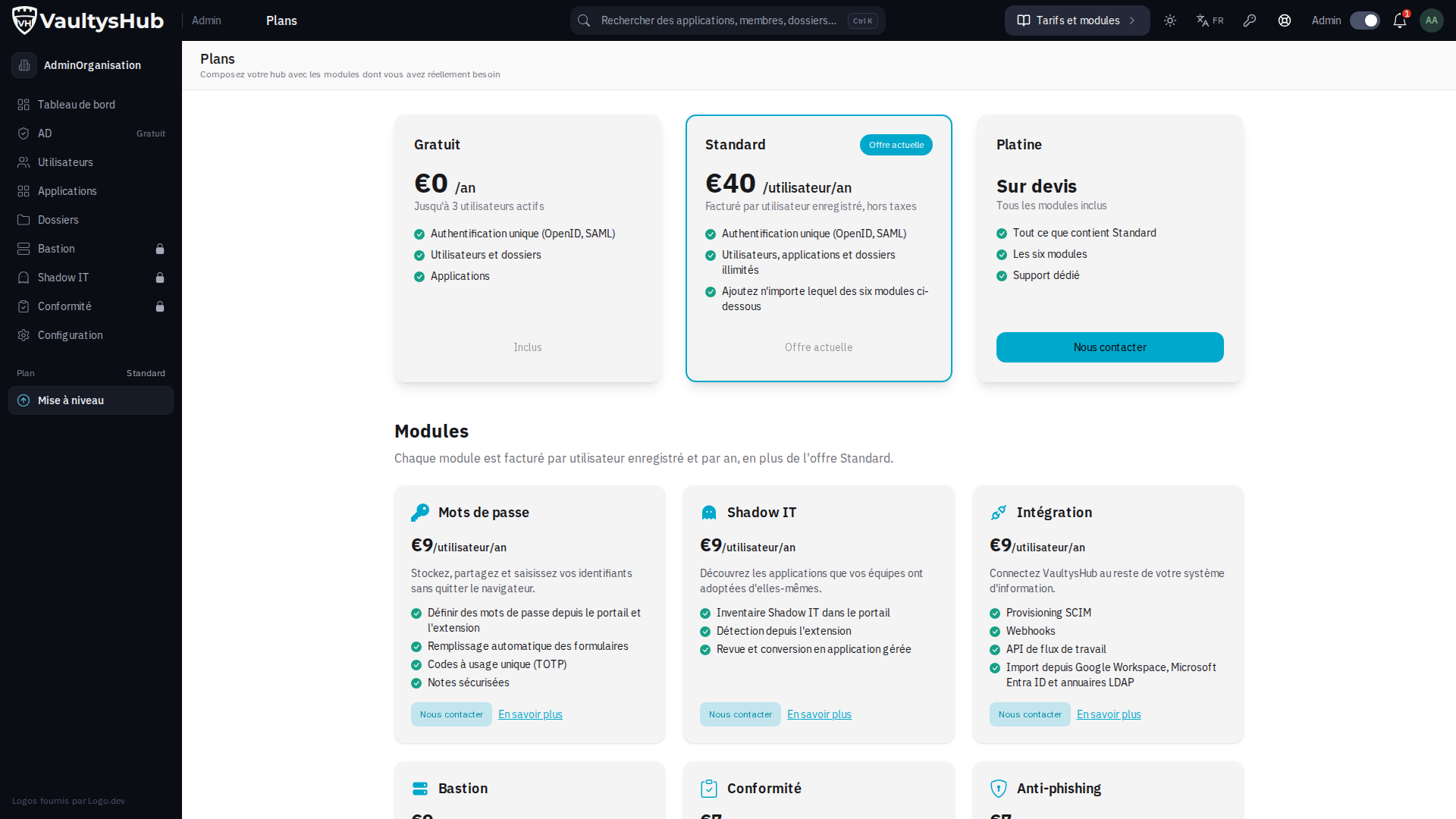
A module that you own is marked Included. For others, Contact Us prepares an email request for activation, and Learn More opens the module details in Pricing and Modules.
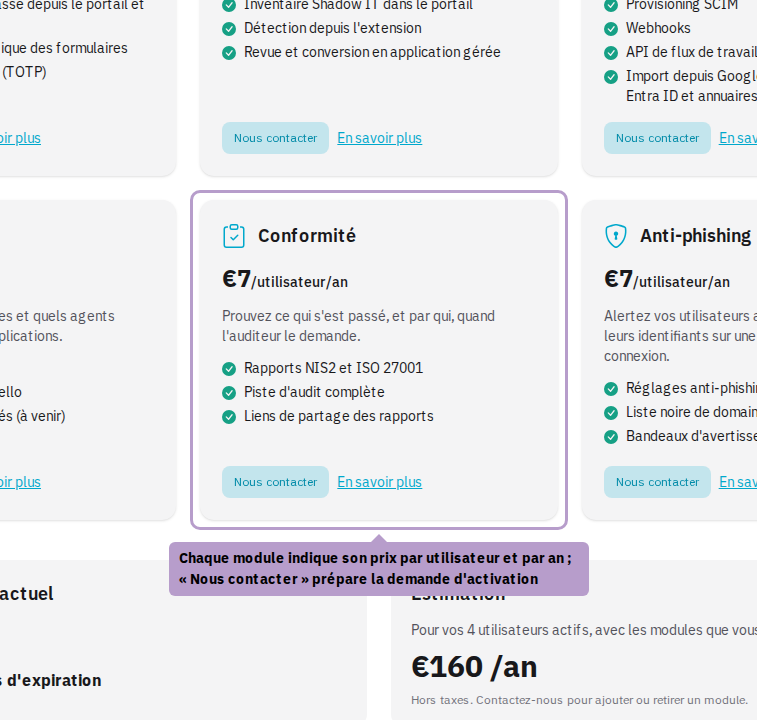
There is no online purchase: the activation of a module is carried out by Vaultys, without service interruption. The corresponding screens appear as soon as the activation occurs.