Connect and Audit Your Directory
The AD section ("Secure Your AD") connects VaultysHub to your company's directory, Microsoft Entra ID (formerly Azure AD) or an on-premises Active Directory, to:
- audit its security: a score out of 100, a grade from A to F, and a list of configuration errors that attackers exploit first, along with steps to correct each;
- monitor it every night: a new scan at 5 AM, and an alert to administrators when the situation deteriorates;
- close access for departures: members whose directory account is disabled can be disabled in VaultysHub, manually or automatically;
- import your users from the Users tab (see Import Users from the Directory).
VaultysHub never writes to your directory. All requested permissions are read-only, and the scan does not modify anything. Proposed corrections (including PowerShell scripts) are to be reviewed and applied by you.
The AD section is included for free in all offers during its launch, outside of paid modules. It will later join a module of the VaultysHub offer; a banner "Free for now" and a badge in the menu indicate this while it is the case.
Accessing the Section
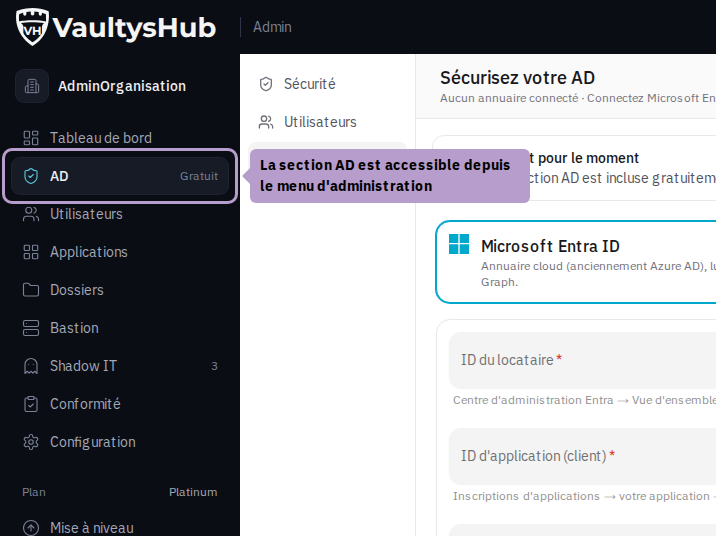
The AD section is located in the administration menu, just below the dashboard. As long as no directory is connected, it opens directly to the Connection tab.
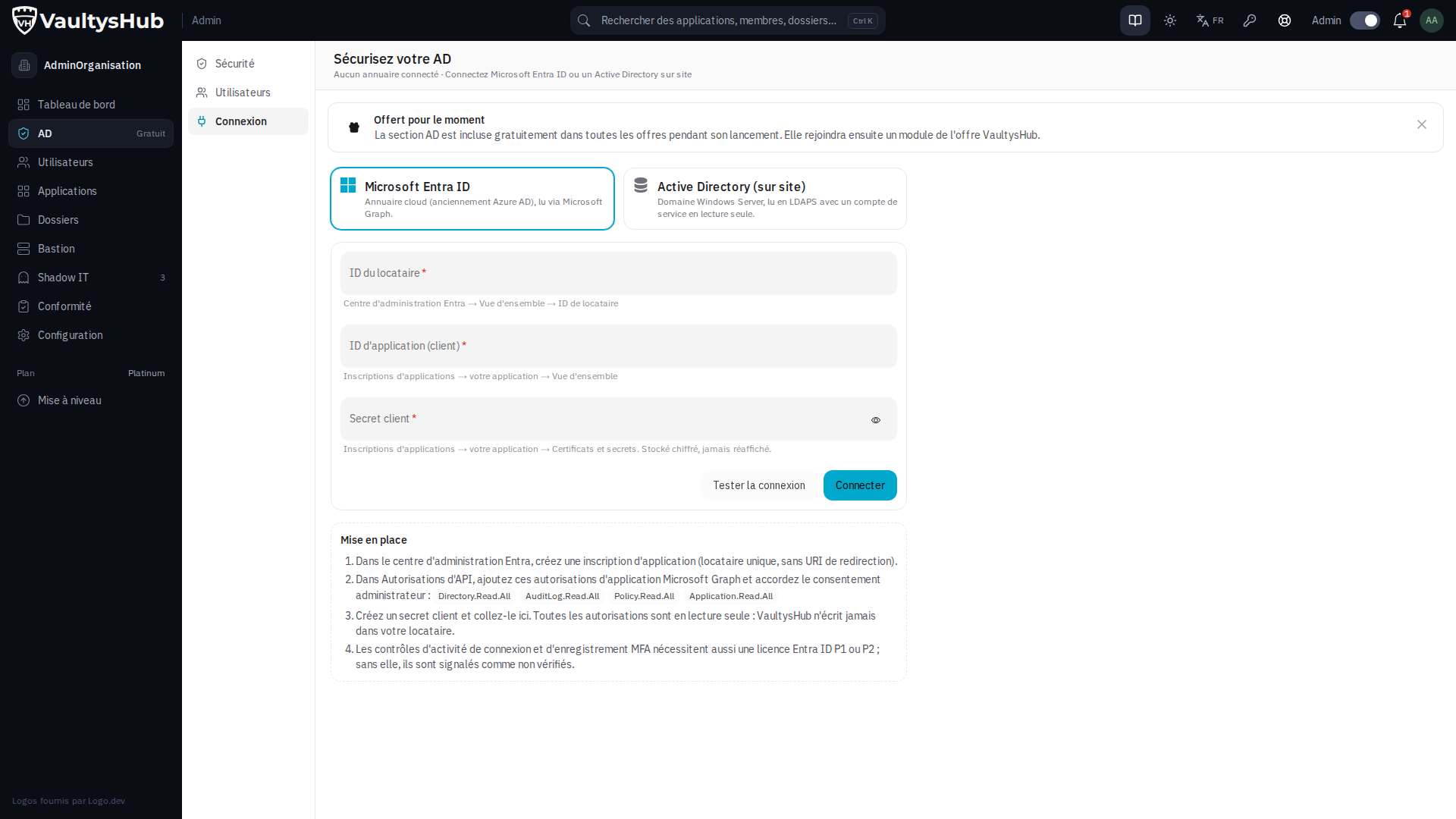
The page has three tabs:
| Tab | Content |
|---|---|
| Security | The score, the grade, the score evolution, and the list of checks |
| Users | Importing directory accounts into VaultysHub |
| Connection | Connection settings to the directory and the nightly scan |
Without a connected directory, the Security and Users tabs simply display an invitation to connect one ("Connect a directory").
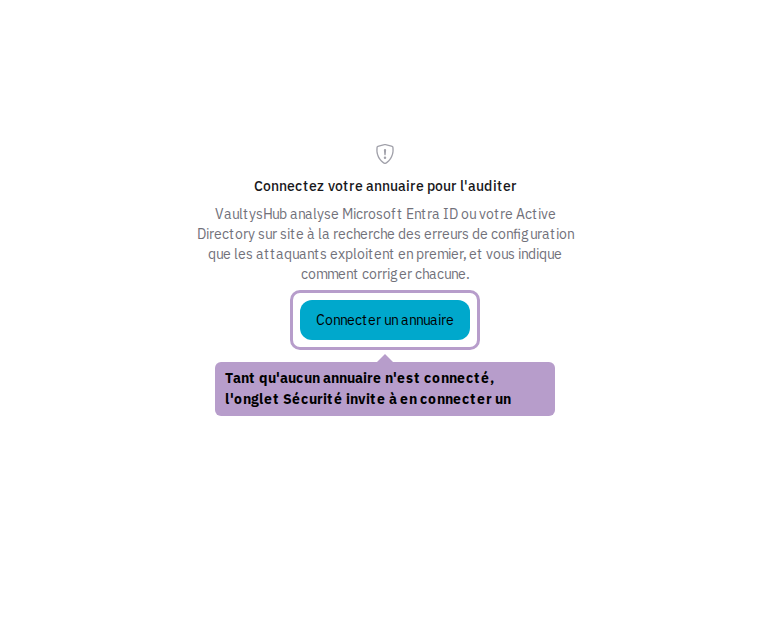
Connecting the Directory
In the Connection tab, choose the type of directory.
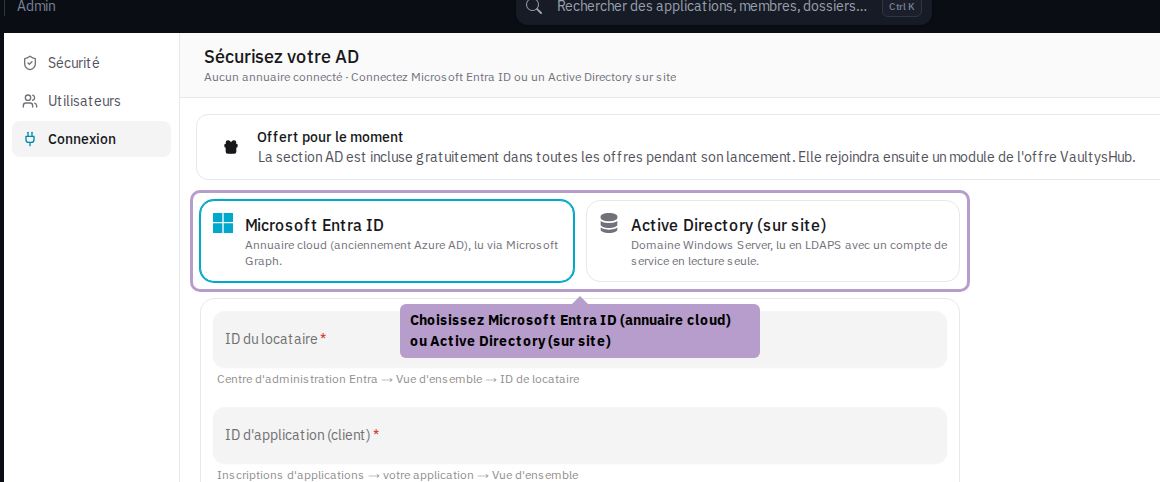
An organization can connect only one directory at a time. Switching from Entra ID to Active Directory (or vice versa) clears the last scan and the score history: they no longer describe the same directory.
Microsoft Entra ID
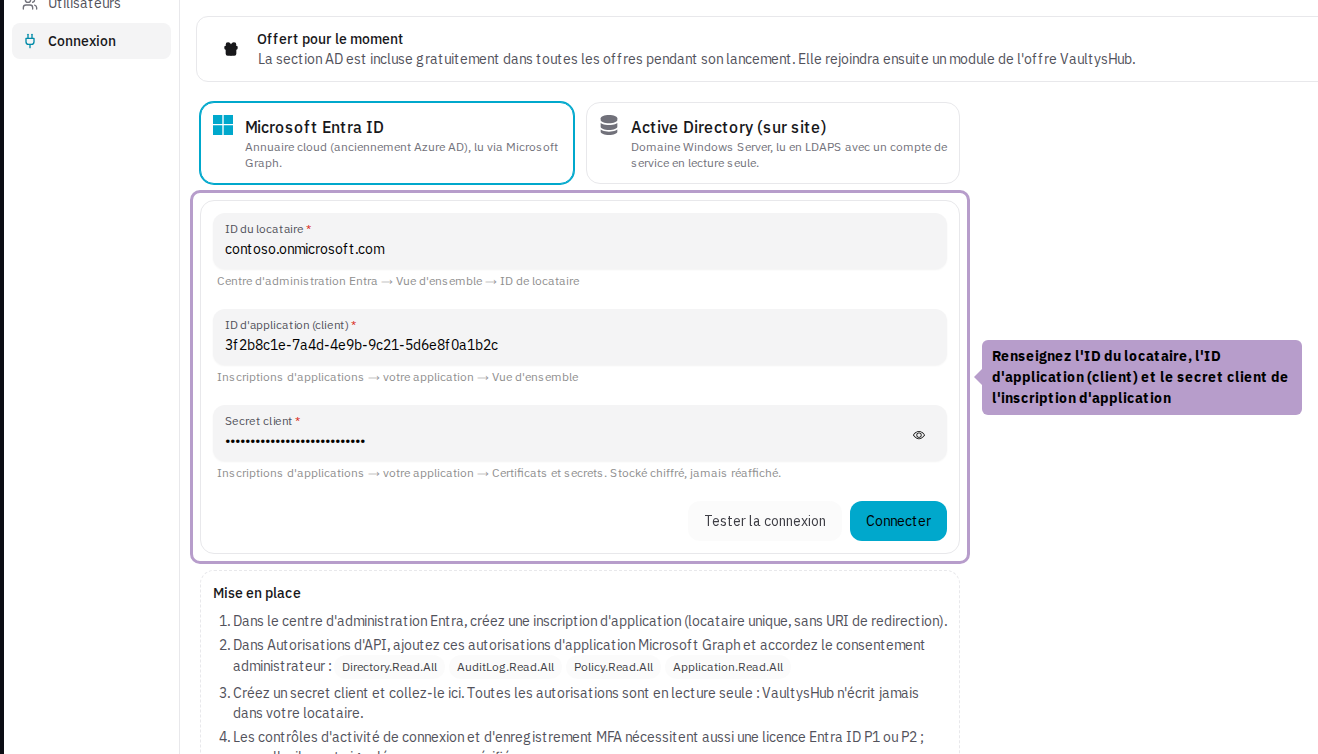
VaultysHub reads the tenant via Microsoft Graph, with a dedicated application registration. In the Entra admin center:
- Create an application registration (single tenant, no redirect URI).
- In API Permissions, add these Microsoft Graph application permissions, then grant admin consent:
Directory.Read.AllAuditLog.Read.AllPolicy.Read.AllApplication.Read.All
- In Certificates and Secrets, create a client secret.
Then fill in VaultysHub with the tenant ID, the application (client) ID, and the client secret.
A reminder of these steps, along with the list of permissions, is displayed below the form.
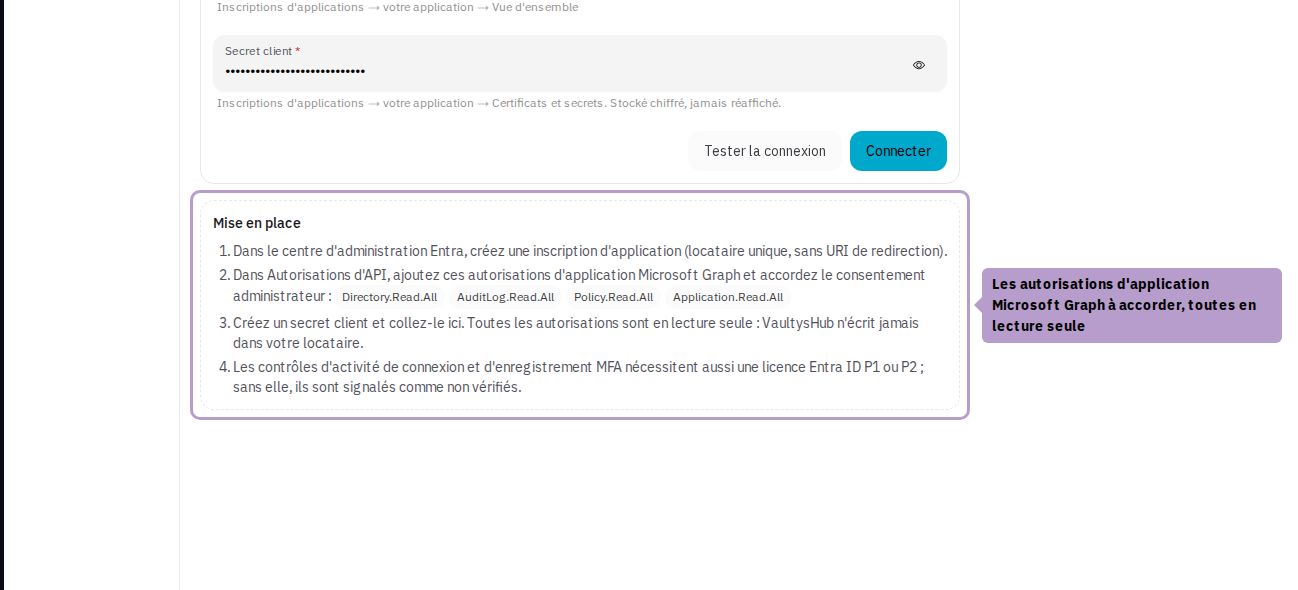
Some checks rely on data that Entra ID only provides with a P1 or P2 license: sign-in activity (inactive accounts), MFA method registration, conditional access. Without this license, they appear as Not Verified and do not count towards the score. For an Entra ID directory, the Security tab also displays an Entra ID License card: the detected level (Free, P1, or P2) and the number of assigned licenses.
On-Premises Active Directory
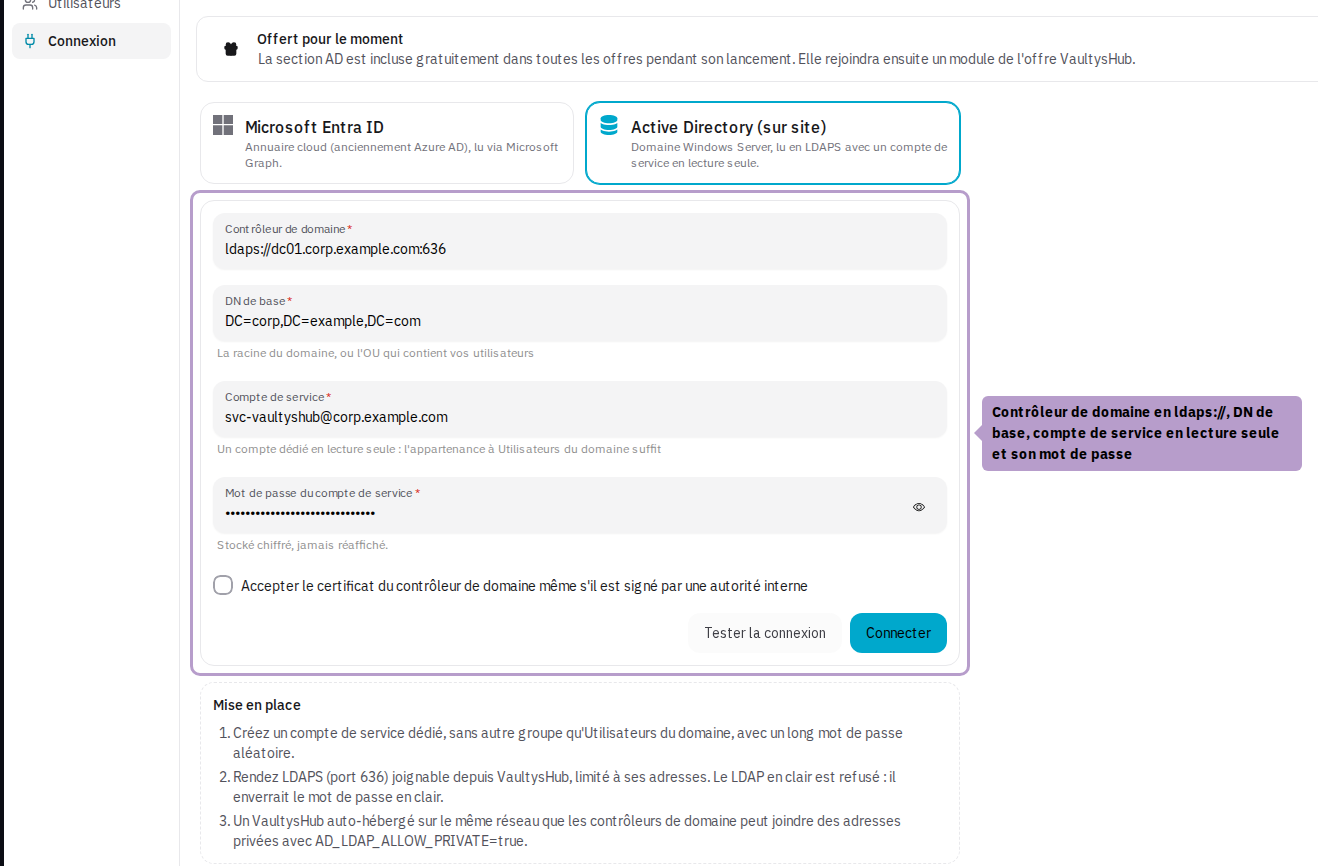
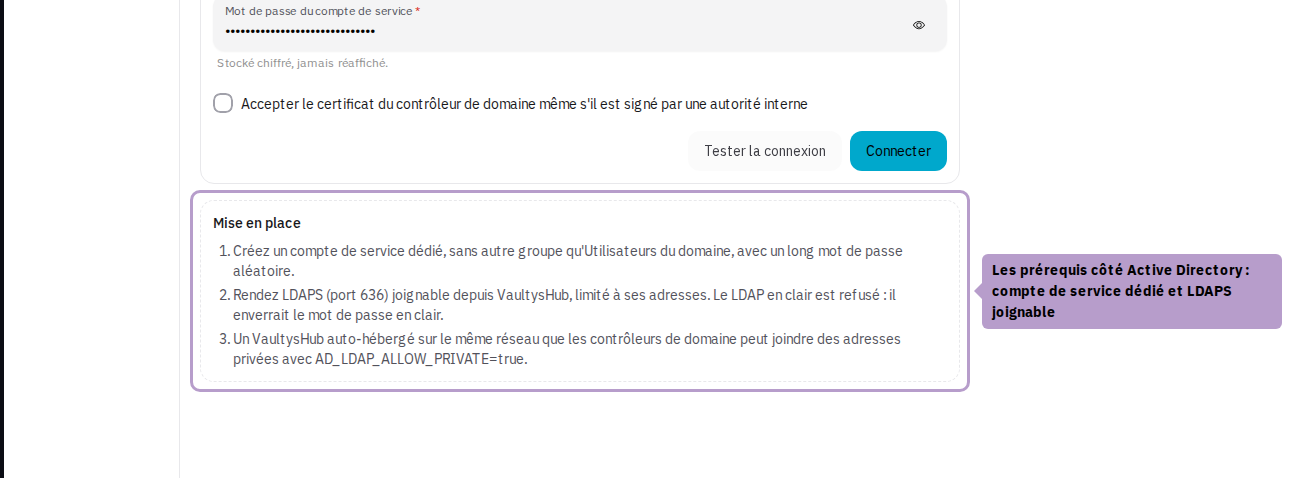
VaultysHub queries a domain controller via LDAPS (LDAP encrypted by TLS, port 636), with a read-only service account. On the Active Directory side:
- Create a dedicated service account, with no other group than Domain Users, with a long random password.
- Make LDAPS (port 636) reachable from VaultysHub, limiting it to its addresses.
Then fill in:
| Field | Example | Note |
|---|---|---|
| Domain Controller | ldaps://dc01.corp.example.com:636 | Only ldaps:// is accepted: plain LDAP would send the password in clear text |
| Base DN | DC=corp,DC=example,DC=com | The root of the domain, or the OU that contains your users |
| Service Account | [email protected] | A DN or UPN |
| Service Account Password |
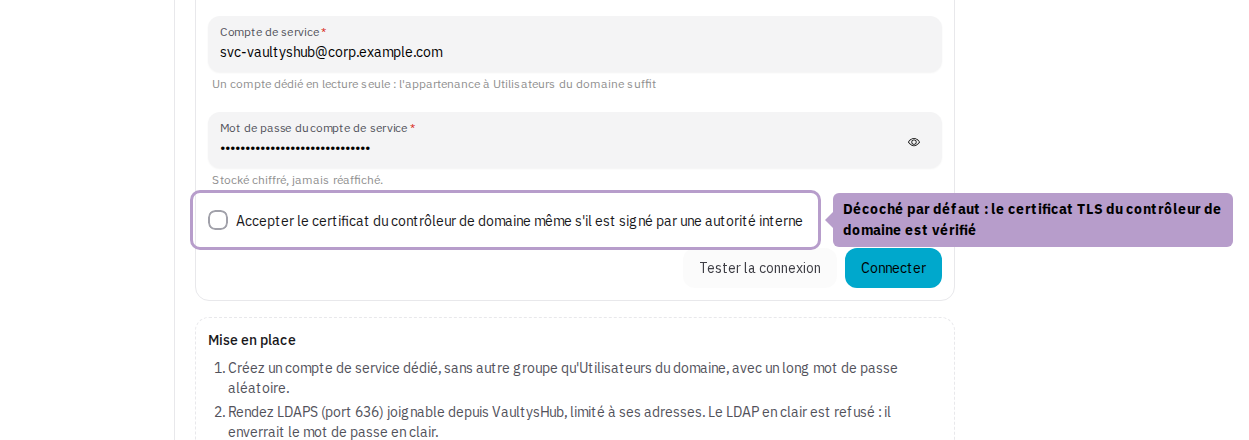
The TLS certificate of the domain controller is verified by default. If your controller presents a certificate issued by an internal certification authority, check Accept the domain controller's certificate even if it is signed by an internal authority. The connection remains encrypted, but the server's identity is no longer verified: prefer, when possible, a recognized certificate.
On the hosted VaultysHub, the domain controller must be reachable at a public address: a private address (10.x, 192.168.x…) is rejected. A self-hosted VaultysHub on the same network as your domain controllers can reach private addresses by setting AD_LDAP_ALLOW_PRIVATE=true.
Test, then Save
Click on Test Connection: VaultysHub authenticates with the directory and reads a single object (the tenant name, or the base DN), without saving anything. If successful, the result is displayed next to the button ("Reached: …").
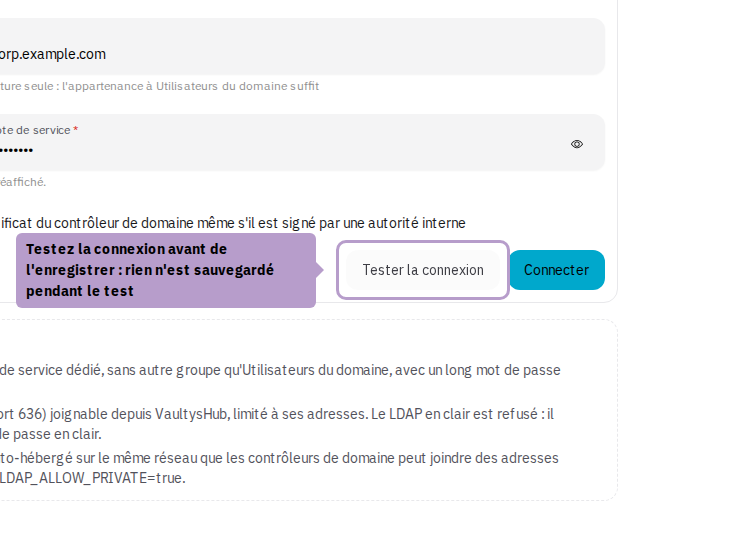
Then click on Connect. The connection appears at the top of the tab, with the tenant identifier or the controller's address.
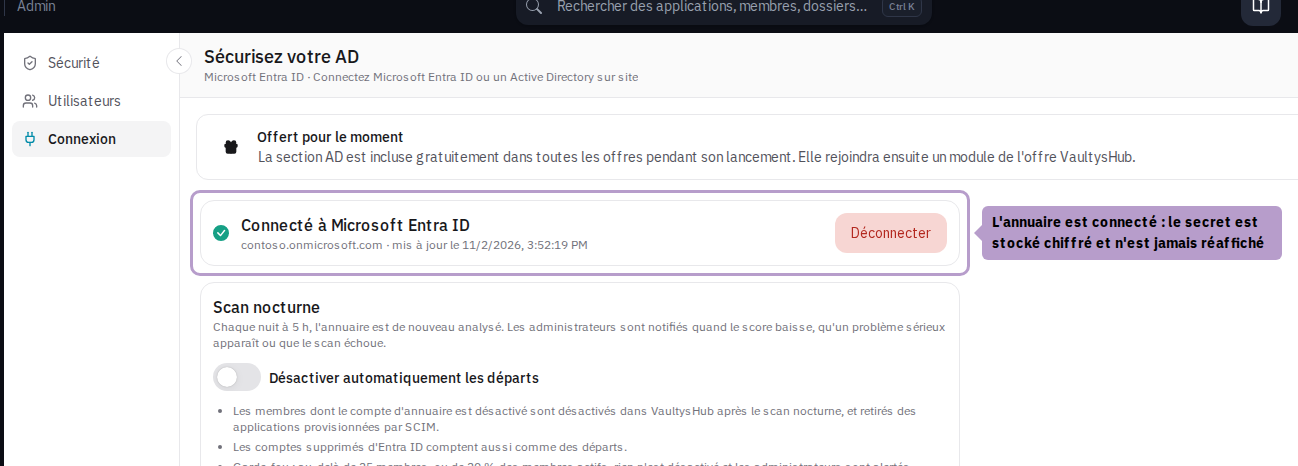
The client secret and the service account password are stored encrypted (AES-256-GCM, with a key specific to your organization) and are never sent back to the browser, nor displayed again. To modify other settings, leave the field empty: the stored secret is retained. However, it will be requested again if you change tenant, application, server, service account, or if you disable certificate verification.
The Disconnect button removes the stored credentials, the last scan, and the score history. Users already imported remain in VaultysHub. The connection, modification, and disconnection of the directory are logged in the audit log.
Security Score
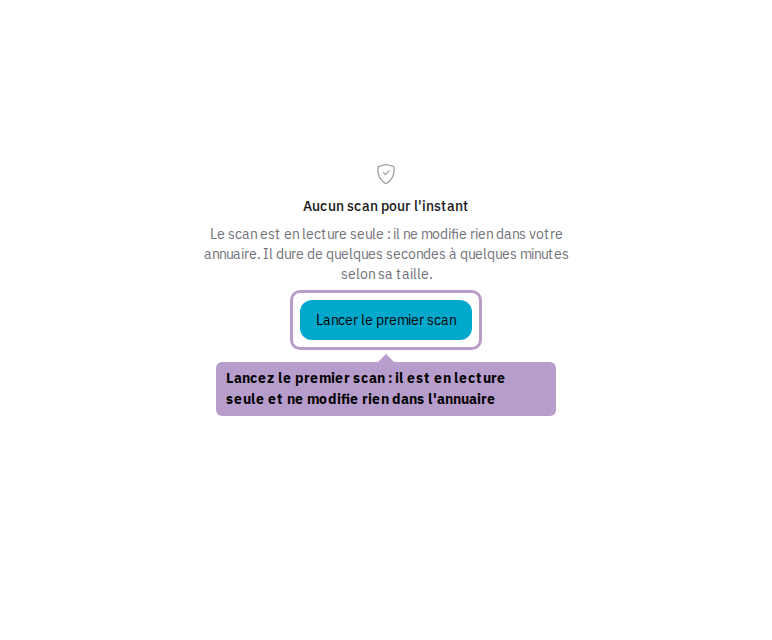
Once the directory is connected, the Security tab offers to launch the first scan. It lasts from a few seconds to a few minutes depending on the size of the directory. The Run a new scan button in the toolbar allows you to relaunch it at any time, for example after a correction.
The result includes:
- the grade from A to F and the score out of 100;
- the issues to correct by severity: Critical, High, Medium, Low;
- the number of active, privileged, and disabled accounts;
- the evolution of the score over scans (it appears from the second scan);
- the list of issues, from most severe to least severe. Each explains why it is a risk and how to correct it, lists the affected accounts, and suggests, when possible, a PowerShell correction script to copy. The switch Show successful checks also displays checks that passed successfully.
How the Score is Calculated
Each check has a weight according to its severity: Critical 20, High 10, Medium 5, Low 2. The score is the share of the total weight of successful checks. A Not Verified check (missing permission, insufficient license) is counted neither for nor against you.
| Grade | Score |
|---|---|
| A | 90 and above |
| B | 75 to 89 |
| C | 60 to 74 |
| D | 45 to 59 |
| E | 30 to 44 |
| F | less than 30 |
The Checks
For both types of directory, VaultysHub cross-references the directory with the members of your organization:
- Departures still active in VaultysHub: active members in VaultysHub whose directory account is disabled or deleted. They retain access to all applications that VaultysHub connects them to. The button Disable these members in VaultysHub disables them in one click, after confirmation.
- Directory administrators without VaultysHub identity: privileged accounts in the directory whose access still relies on a password.
Microsoft Entra ID: number of global administrators, administrators without MFA, users without MFA, MFA not enforced for the entire tenant, legacy authentication not blocked, inactive accounts, obsolete guest accounts, long-lived application secrets, expired application credentials.
On-Premises Active Directory: accounts without Kerberos pre-authentication, kerberoastable service accounts, unconstrained Kerberos delegation, age of the krbtgt password, accounts allowed to have a blank password, reversible encryption or Kerberos DES only, weak domain password policy, privileged accounts whose password never expires, old privileged passwords, privileged accounts that can be delegated, number of privileged accounts, inactive accounts, passwords that never expire, adding workstations to the domain open to all, local administrator passwords not managed by LAPS, unsupported Windows versions.
An account is considered inactive after 90 days without a login.
Nightly Scan and Alerts
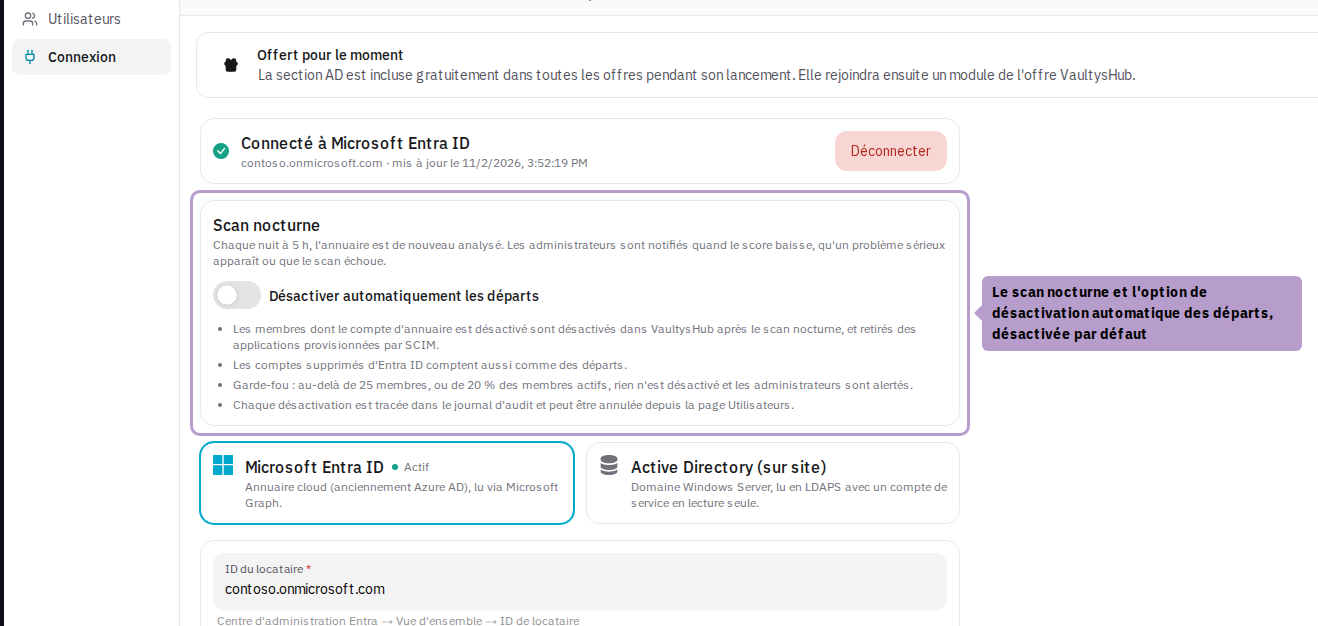
Every night at 5 AM (Paris time), the directory of each connected organization is scanned again. The score joins the history (the last 90 scans are kept) and each scan is logged in the audit log.
Administrators are alerted (notification in VaultysHub and email) when:
| Alert | Trigger |
|---|---|
| The score drops | The score loses 5 points or more compared to the previous scan, or a new Critical or High issue appears |
| The scan fails | The nightly scan could not complete (expired client secret, unreachable domain controller…) — one alert per day at most as long as the problem persists |
| The safeguard is triggered | Automatic offboarding has been suspended (see below) |
When automatic offboarding disables members, administrators are informed by a notification in VaultysHub.
Automatically Disable Departures
The switch Automatically Disable Departures, in the Connection tab, is disabled by default. When enabled, it adds a step to the nightly scan: members whose directory account is disabled are disabled in VaultysHub, and removed from SCIM provisioned applications.
The rules applied:
- Entra ID: a disabled account, or deleted from the tenant, counts as a departure.
- On-Premises Active Directory: only a disabled account counts as a departure. An account simply absent from the directory is reported in the check "Departures still active," but never automatically disabled: the base DN may only cover one OU, and an account outside this OU may not have left the company. You can disable it manually from the Security tab.
- A member is considered absent only if their email address belongs to a directory domain: a contractor on their own domain is never reported.
- The owner of the organization is never disabled.
- Each disabling is logged in the audit log.
If a scan finds more than 25 departures, or more than 20% of active members, nothing is disabled and administrators are alerted: such a volume often signals a connection issue (wrong base DN, filtered Entra application) rather than a wave of departures. Check the list in the Security tab, then disable the affected members manually with Disable these members in VaultysHub.
Consequence for small organizations: with fewer than 5 active members, 20% represents less than one member, and automatic disabling is therefore always suspended. Departures remain reported and are disabled manually.
Reactivating a Member
A disabled member (automatically or manually) is not deleted. An administrator can reactivate it from the Users page, using the switch in the Status column (see Manage Users).
As long as automatic disabling is active, a member manually reactivated in VaultysHub while their account is still disabled in the directory will be disabled again at the next nightly scan. Reactivate their account in the directory first, or temporarily disable automatic disabling.
FAQ and Troubleshooting
The connection test fails
The error message displayed by Test Connection indicates the cause:
| Message (in English) | Probable Cause |
|---|---|
Invalid tenant ID / Invalid client ID | The tenant ID or application ID is copied incorrectly (the application ID is a 36-character GUID). |
Client secret is required / Service account password is required | The secret or password has not been entered. |
Enter the client secret again… / Enter the service account password again… | You have changed tenant, application, server, or account: the stored secret no longer applies, please enter it again. |
Only ldaps:// connections are allowed | The controller's address starts with ldap://: use ldaps://. |
Invalid server URL, expected ldaps://host:port / Invalid base DN | The address or base DN is malformed (the base DN must contain at least one DC=). |
Cannot resolve … | The domain controller's name cannot be resolved in public DNS. |
… resolves to a private address… | The controller is reachable only at a private address: publish LDAPS at a public address, or use a self-hosted VaultysHub. |
Cannot reach the domain controller: … | Port 636 is not reachable (firewall, address filtering), or TLS negotiation failed (see below). |
The domain controller refused the service account: … | Incorrect service account or password, account locked or disabled. |
Entra ID refused the credentials: … | Incorrect or expired client secret, or application ID that does not belong to this tenant. |
Microsoft Graph error 403 on … | The application is authenticated, but a Microsoft Graph permission is missing or admin consent has not been granted. |
LDAPS Certificate Error
The domain controller's certificate is verified by default. A TLS error during the test (Cannot reach the domain controller followed by a certificate error, for example self-signed certificate or unable to verify the first certificate) usually means that the certificate is issued by an internal certification authority, or that it does not match the name used in the address. Check that the entered address matches the name present in the certificate; otherwise, check Accept the domain controller's certificate even if it is signed by an internal authority.
Some Entra ID Checks are "Not Verified"
The directory refused the check request: a Microsoft Graph permission is missing or has not received admin consent, or the check requires an Entra ID P1 license (sign-in activity, MFA registration, conditional access). The Microsoft refusal message is displayed under the check. Add the missing permission (the list is recalled in the Connection tab), grant consent, then launch a new scan. A not verified check does not penalize the score.
If the Entra ID License card indicates "Unreadable," grant Directory.Read.All to the application registration.
I Received a "Safeguard" Alert
The nightly scan found more departures than the allowed threshold (25 members, or 20% of active members) and did not disable anyone. Open the Security tab and the check Departures still active in VaultysHub:
- if the list contains members who are still in the company, the connection sees only part of the directory: check the base DN (Active Directory) or the permissions of the application registration (Entra ID);
- if they are indeed departures, disable them with Disable these members in VaultysHub.
The Nightly Scan Fails
The most common causes are an expired Entra ID client secret and an unreachable domain controller (change of firewall, certificate, or service account password). Correct the connection in the Connection tab, test it, save it, then launch a new scan from the Security tab.
Can VaultysHub Modify My Directory?
No. The requested Microsoft Graph permissions are all read-only, and the Active Directory service account does not need any rights beyond Domain Users. Automatic disabling only acts on VaultysHub accounts (and, via SCIM, on the applications that VaultysHub provisions), never on the directory.