Install VaultysID
Required hardware
VaultysID is an app developed by Vaultys. It is compatible with iOS and Android. We recommend using iOS 16.4 or later and Android 12 or later. If you bought your phone less than three years ago, it should be compatible without any changes.
Security of your data
Vaultys never collects your personal data or your credentials through this app: your keys are created and stay on your phone, nothing is stored on our servers. VaultysID offers three ways to protect them:
- Biometrics (passkey) — your fingerprint or your face, using your phone's passkey technology. This is the recommended option for most users: the best balance between security and simplicity. The passkey is managed by your phone's provider (Google on Android, iCloud on iPhone): if that account is closed, you lose access to this identity. Check your provider's terms of use.
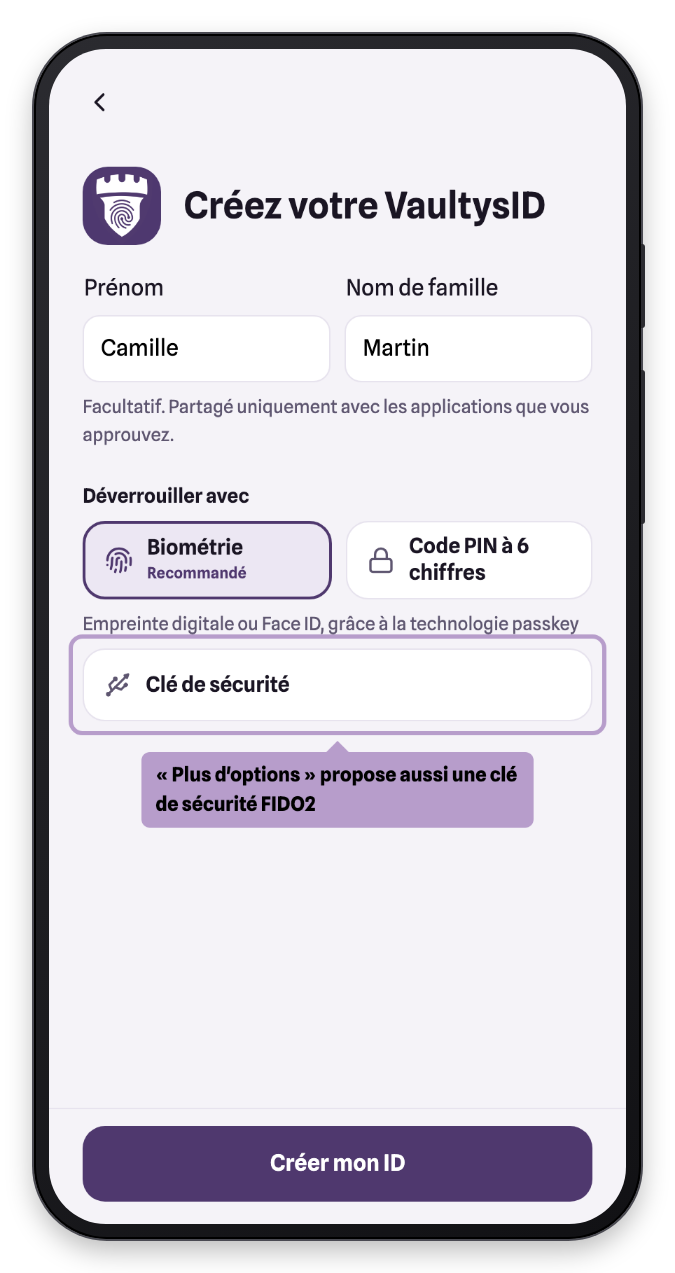
- A FIDO2 security key — the best option for your security and privacy: all sign-in data is physically under your control. However, you must have the key at hand every time you sign in. The main brands are Yubikey, Feitian, Thétis and the French Neowave; check that the key is compatible with your phone. Recommended for administrators and decision-makers.
- A 6-digit PIN code — the identity is stored in the app and protected by your code. You have full control, but a forgotten code cannot be recovered.
Installation
Scan this QR code with your phone's camera: it takes you to the right place for your phone, the App Store on iPhone, the Google Play Store on Android.

For users who want to go further in managing their data, it is possible to use VaultysID as a Progressive Web App (PWA), directly from the phone's browser. Some phone features (biometrics, camera) may then be more limited than in the app.
Create your VaultysID
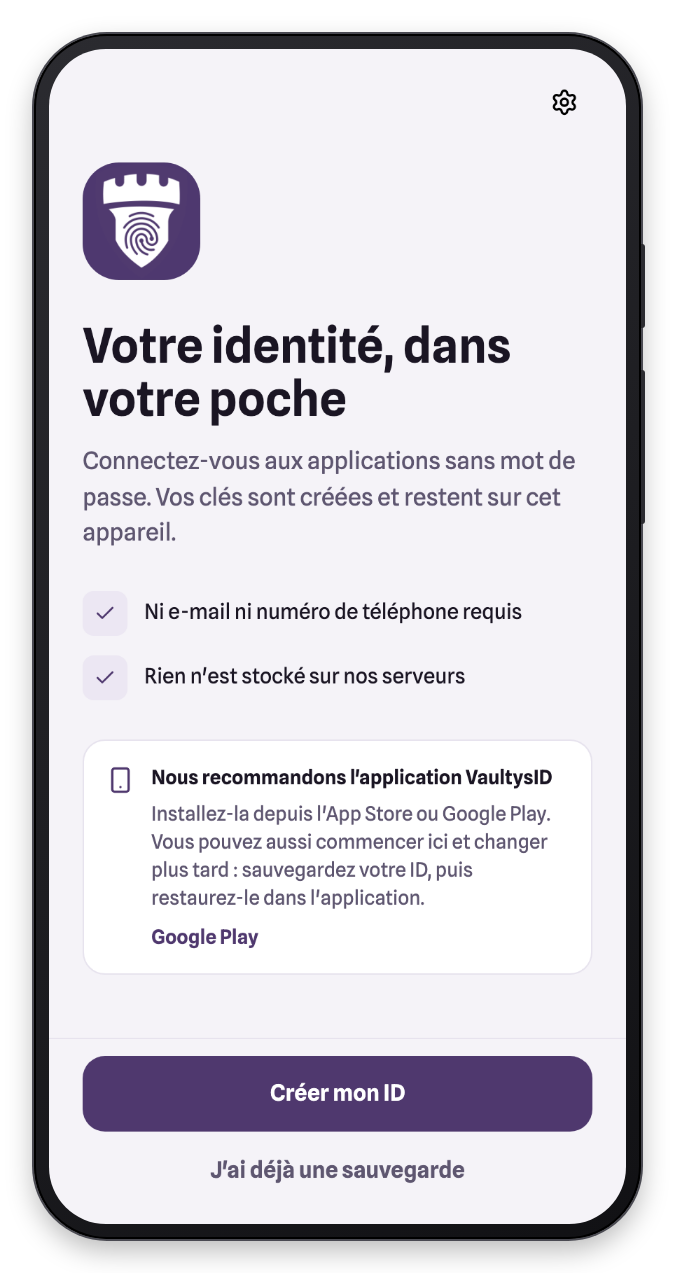
On first launch, VaultysID welcomes you and offers to create your identity. It takes less than a minute.
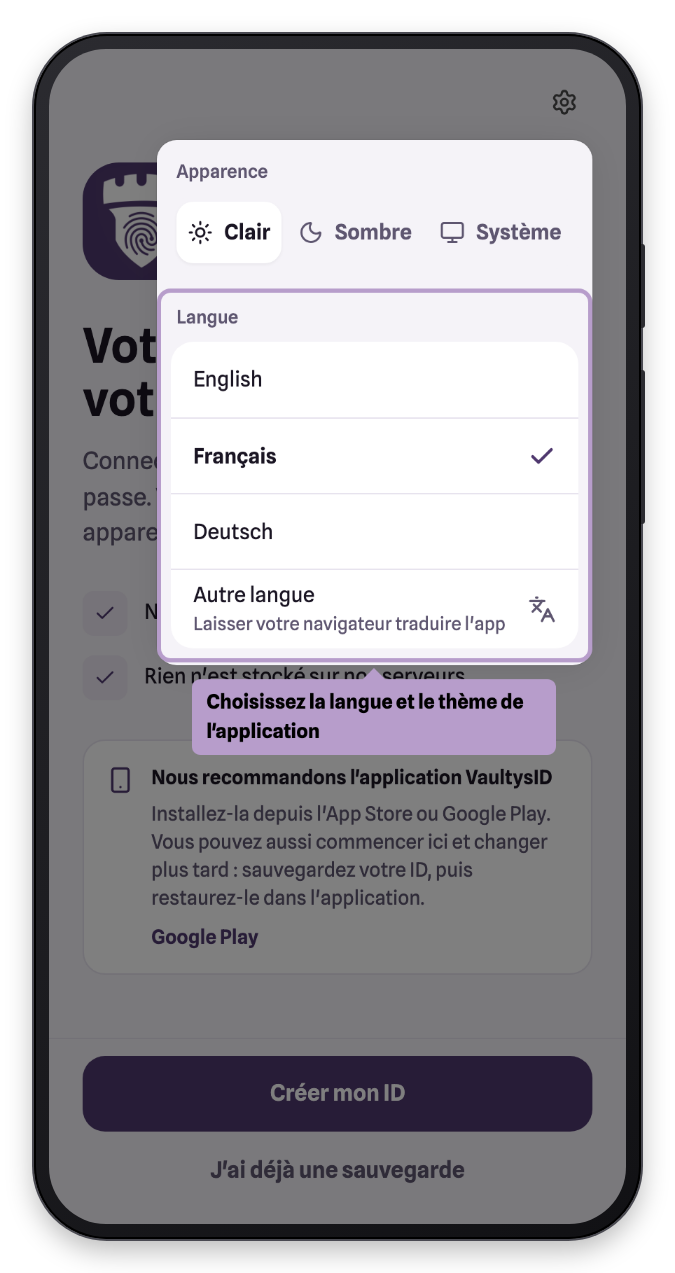
Language and theme
The gear icon, at the top right, lets you choose the app's language (French, English, German, or another language translated by your browser) and its theme: light, dark, or your phone's theme.
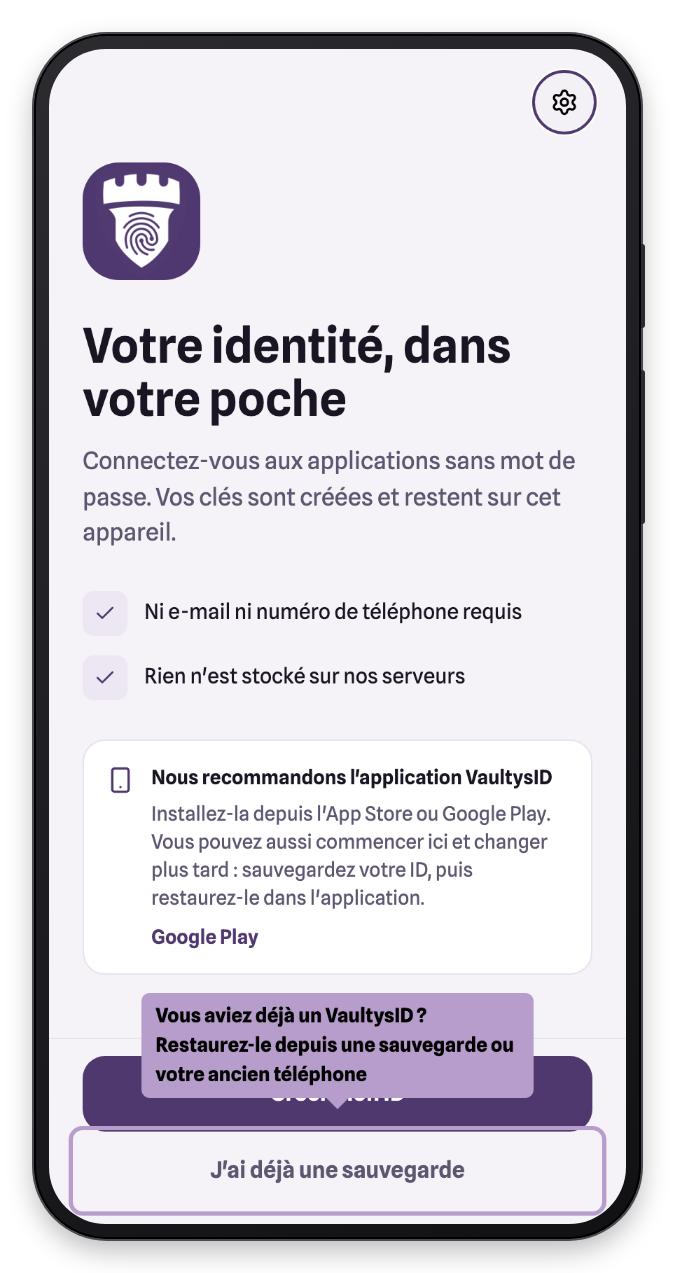
Already have a VaultysID?
If you have changed phones, do not create a new identity: tap I already have a backup to restore your identities from a backup file, VaultysBox or your old phone. See Backup and transfer.
Create your identity
Otherwise, tap Create my ID.
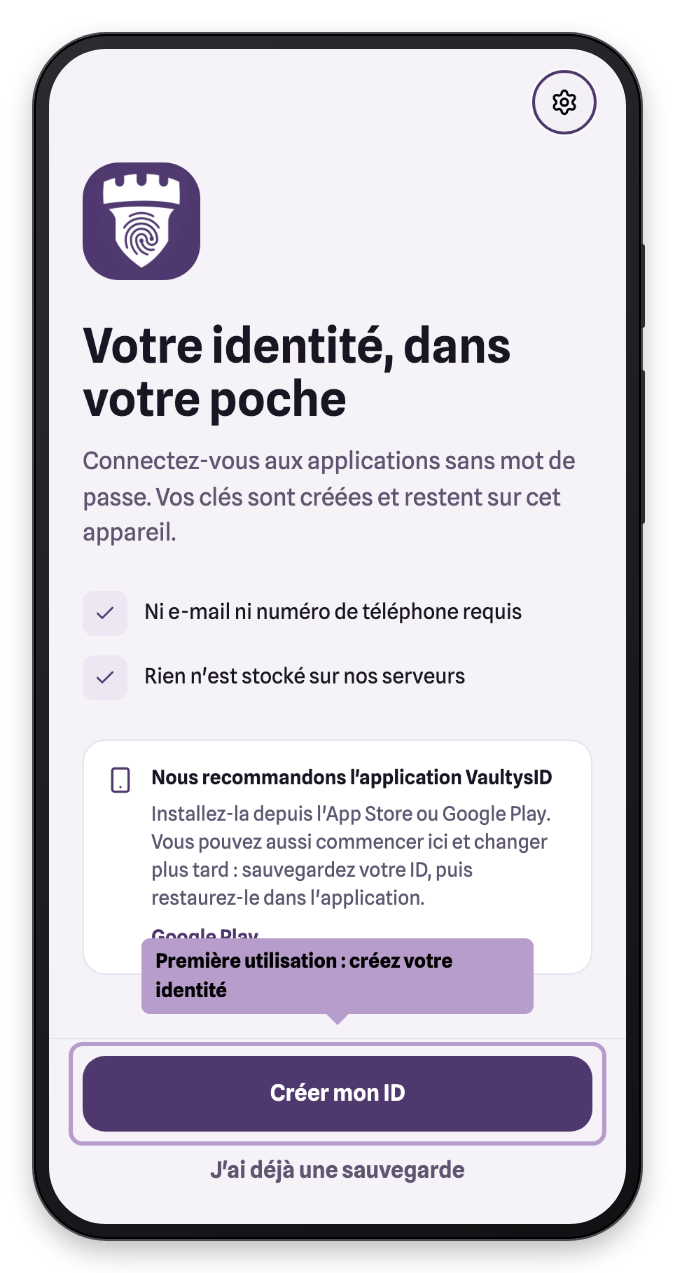
The button stays on hold for a few moments while VaultysID checks your phone's time: a correct time is essential for your signatures to be accepted. If the time is wrong, the app tells you; keep your phone connected to the Internet during this step.
Your name and your unlock method
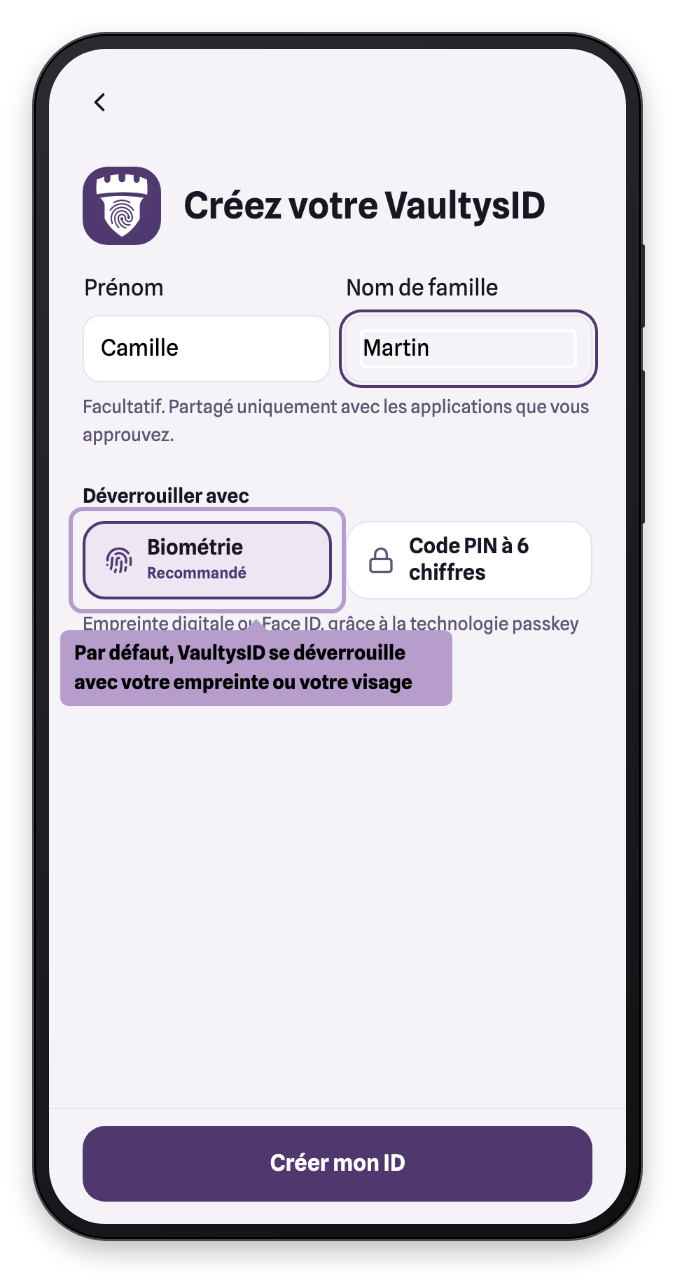
Enter your first name and last name. They are optional and are only shared with the apps you approve.
Then choose how to unlock your VaultysID. On a phone equipped with a fingerprint reader or facial recognition, Biometrics is offered and recommended.
More options shows the additional methods available on your phone, such as the FIDO2 security key.
You can also choose the 6-digit PIN code.
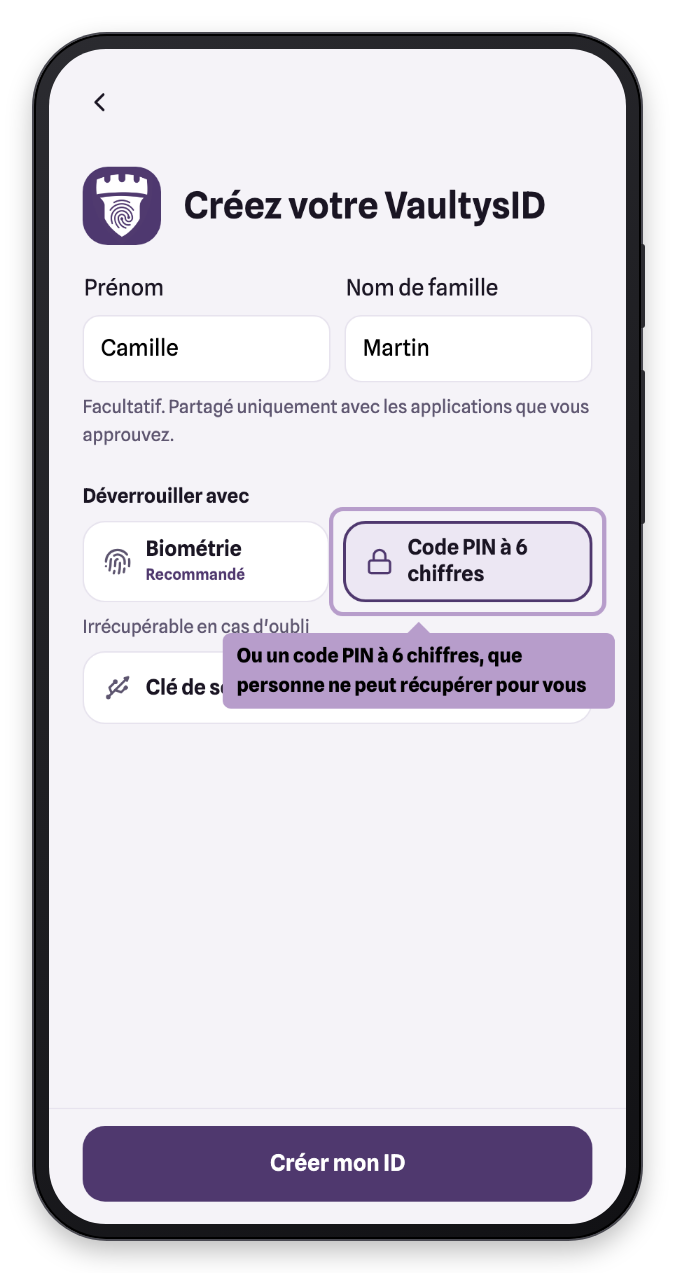
A forgotten PIN code is unrecoverable: nobody, not even Vaultys, can reset it. Remember to back up your VaultysID as soon as it is created.
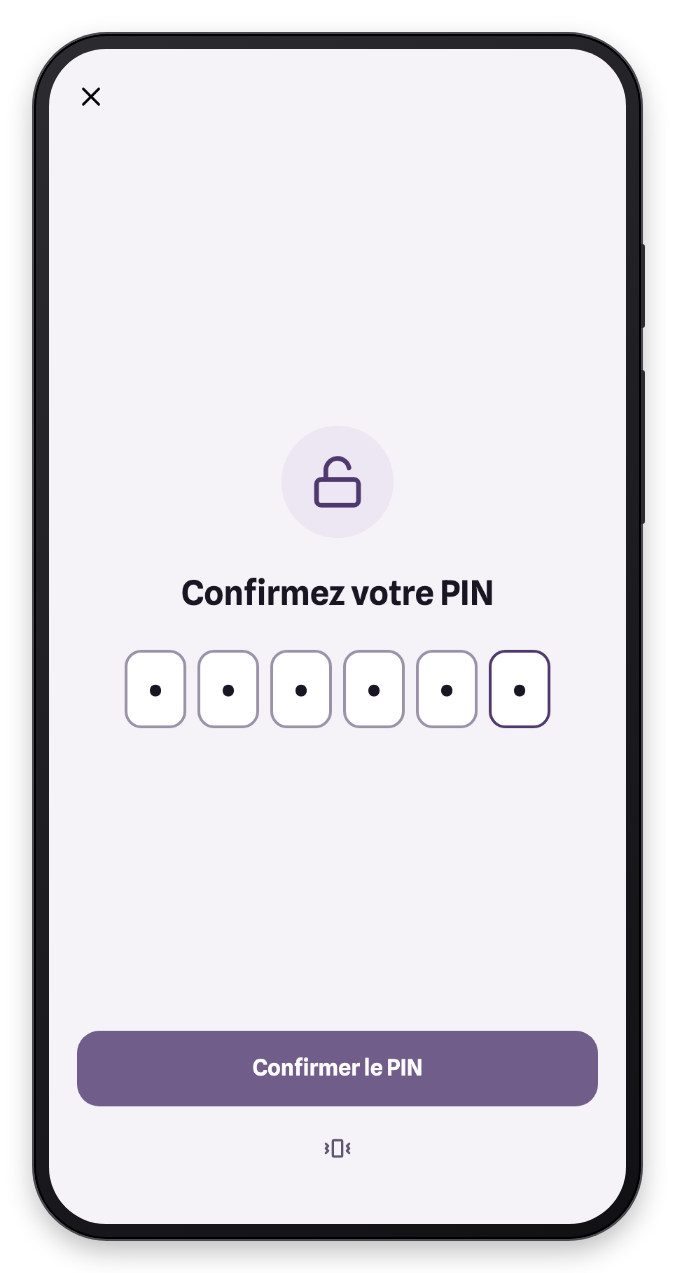
Create your PIN code
If you chose the PIN code, enter it once…
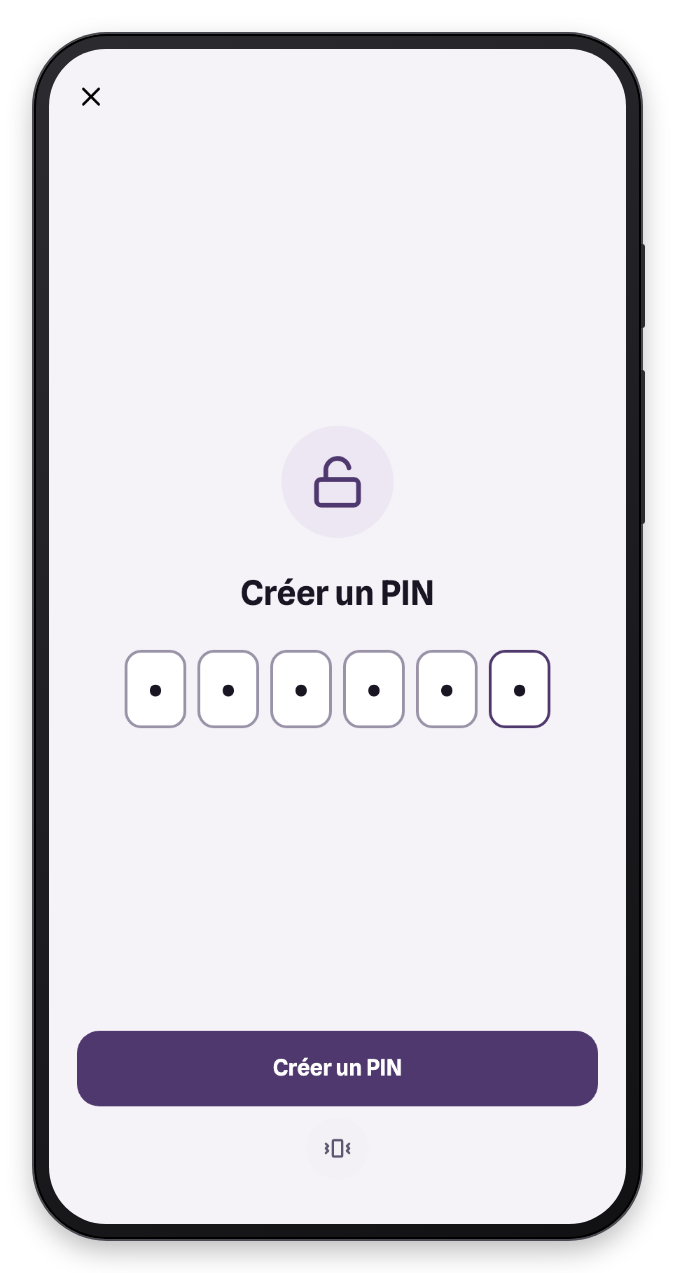
… then a second time to confirm it.
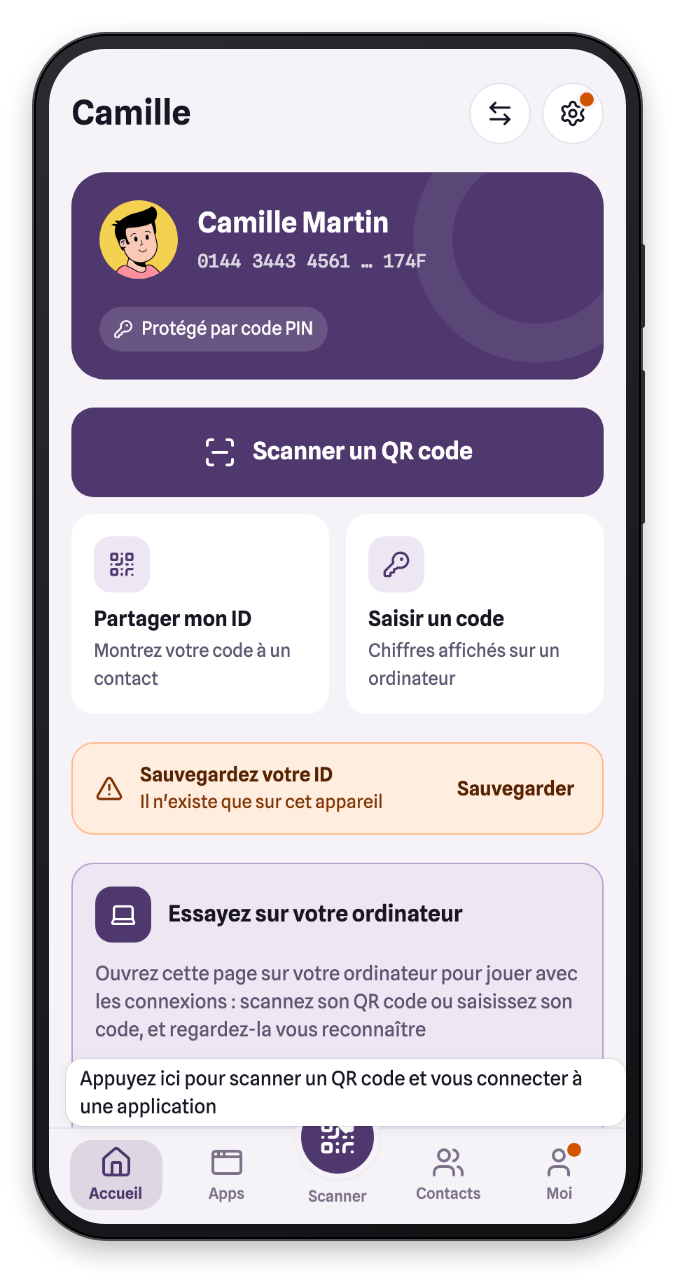
You're all set
Your VaultysID is created and you land on Home. A bubble points out the Scan button: it is what signs you in to compatible apps.
You are now ready to sign in to VaultysHub with your digital identity. Ask your VaultysHub administrator to send you an invitation, then follow the Connecting to an app guide.