Backup and restore
Your VaultysID exists only on your phone: Vaultys keeps no copy of it. If you lose your phone, break it or change it without a backup, your identities are lost. Back them up as soon as you create them, then regularly (once a month, or after adding apps or contacts).
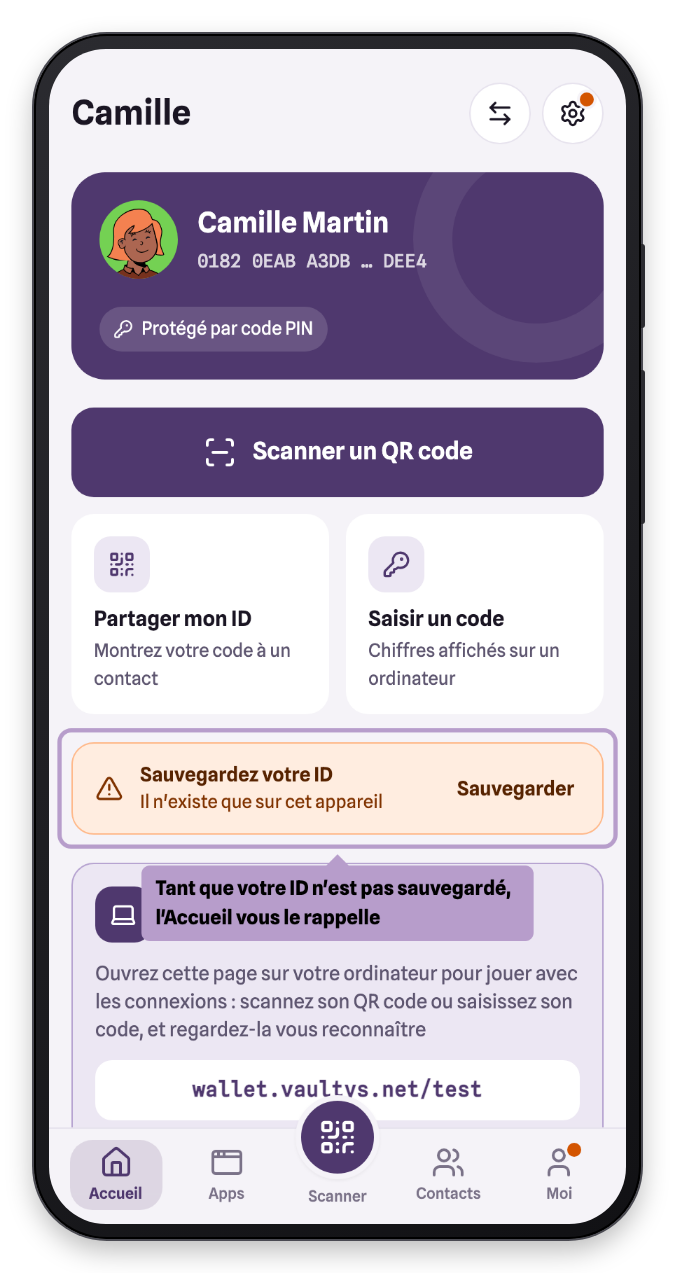
The backup reminder
As long as your identity is not backed up, Home displays a reminder, and an orange dot appears on the Me tab.
Open the backup
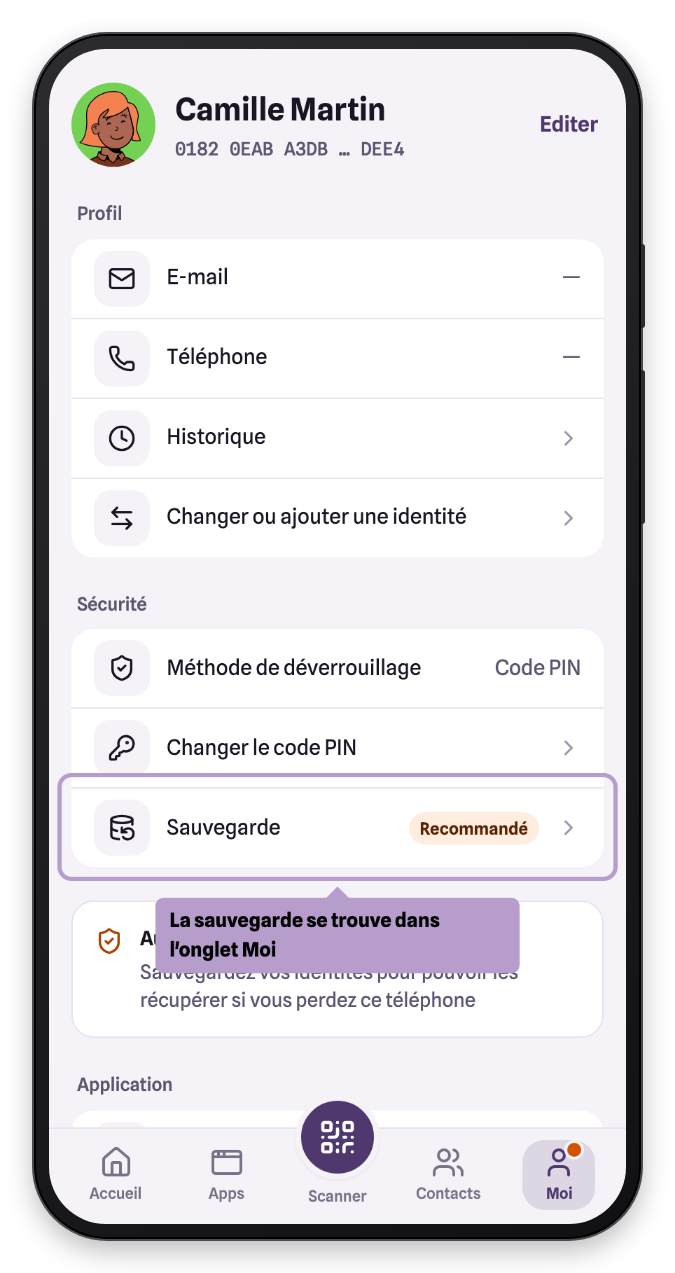
In the Me tab, tap Backup. You can also find it in Settings.
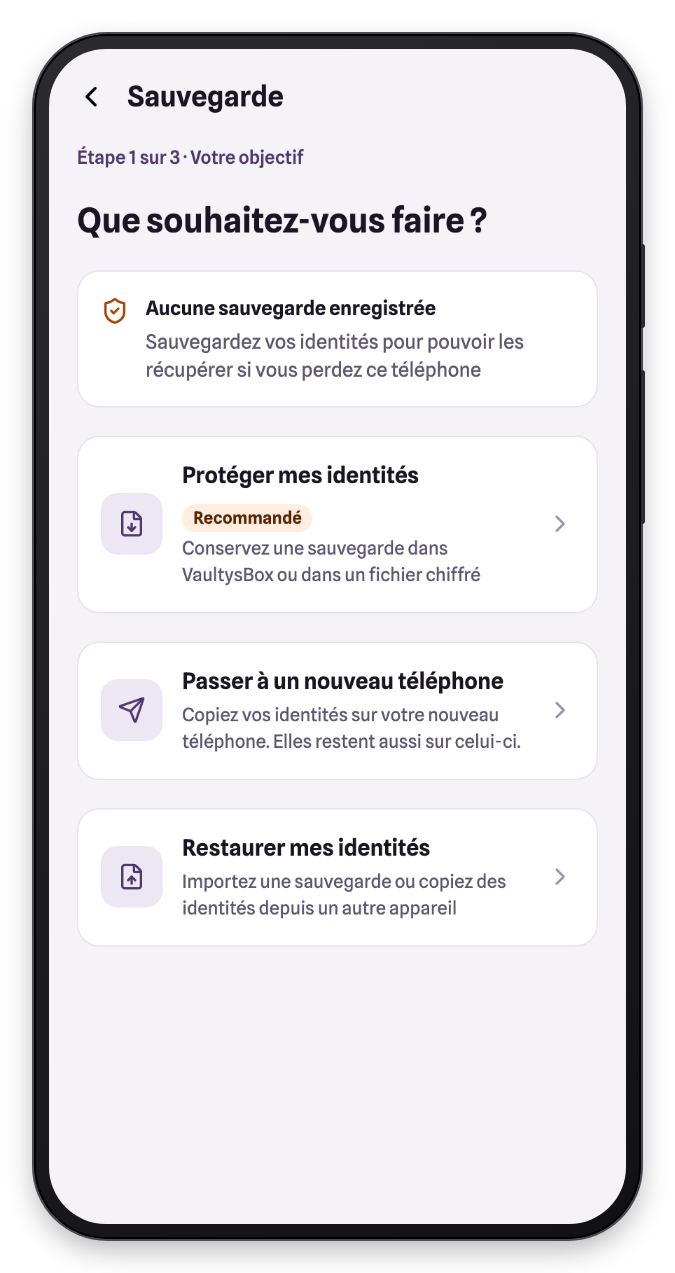
VaultysID asks what you want to do:
- Protect my identities — keep a copy in VaultysBox or in an encrypted file;
- Move to a new phone — copy your identities to another phone, see Switch phones;
- Restore my identities — import a backup, or copy identities from another device.
Protect my identities
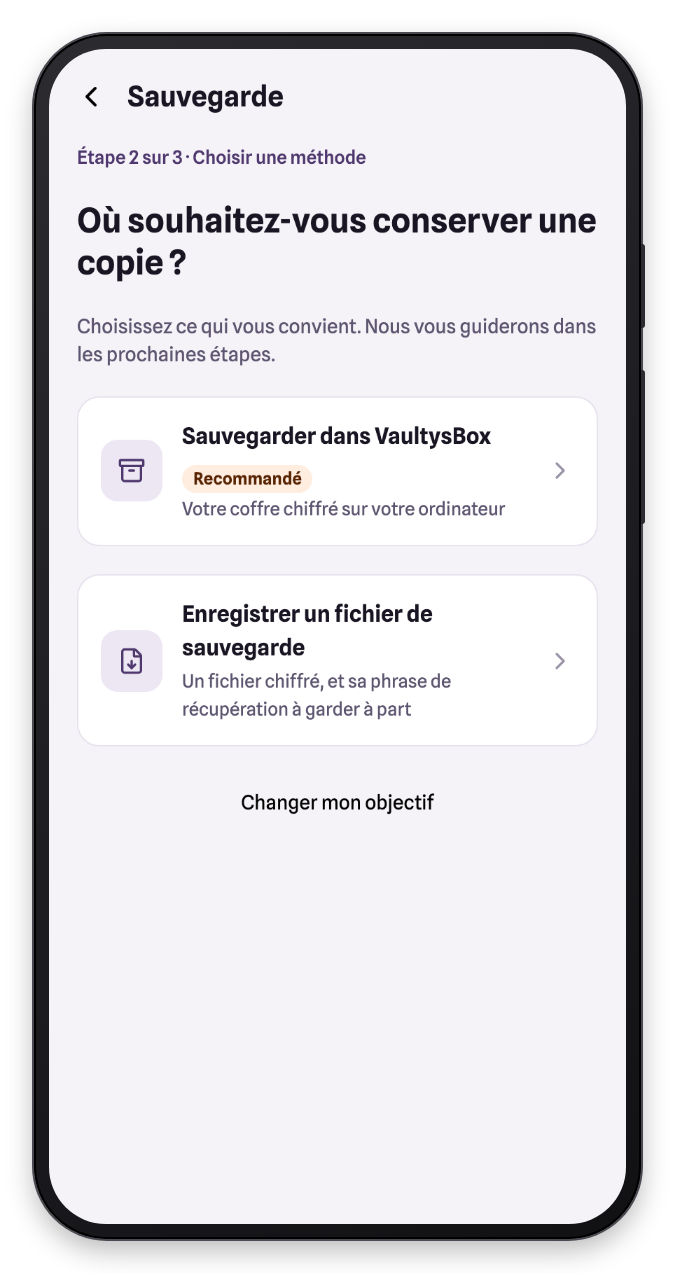
Choose where to keep a copy:
- Back up to VaultysBox (recommended) — VaultysBox is your encrypted vault on your computer. It keeps a backup of each of your identities with its recovery phrase, and sends them to a new phone the day you need it. VaultysID guides you step by step: install VaultysBox on the computer, open Wallet › + › Vaultys ID backup › From the Vaultys ID app in it, then scan the code that appears.
- Save a backup file — an encrypted file, along with its recovery phrase, which you must keep separately.
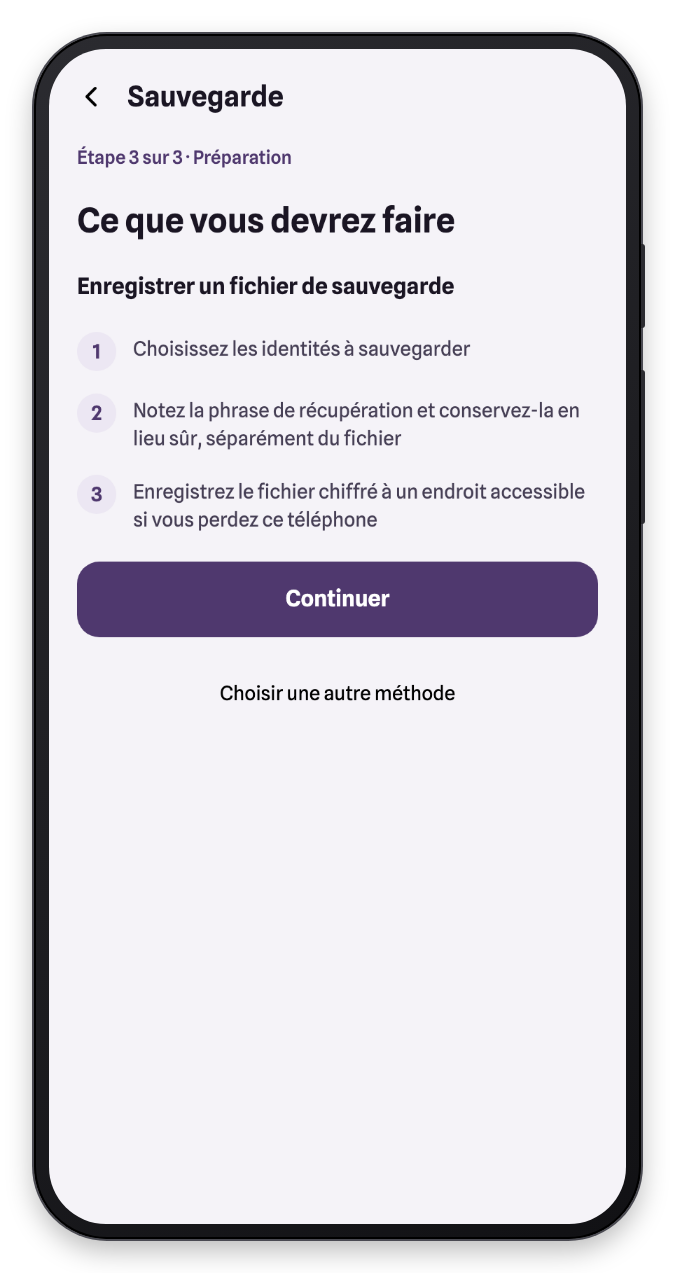
Save a backup file
VaultysID summarizes the steps before you start. Tap Continue.
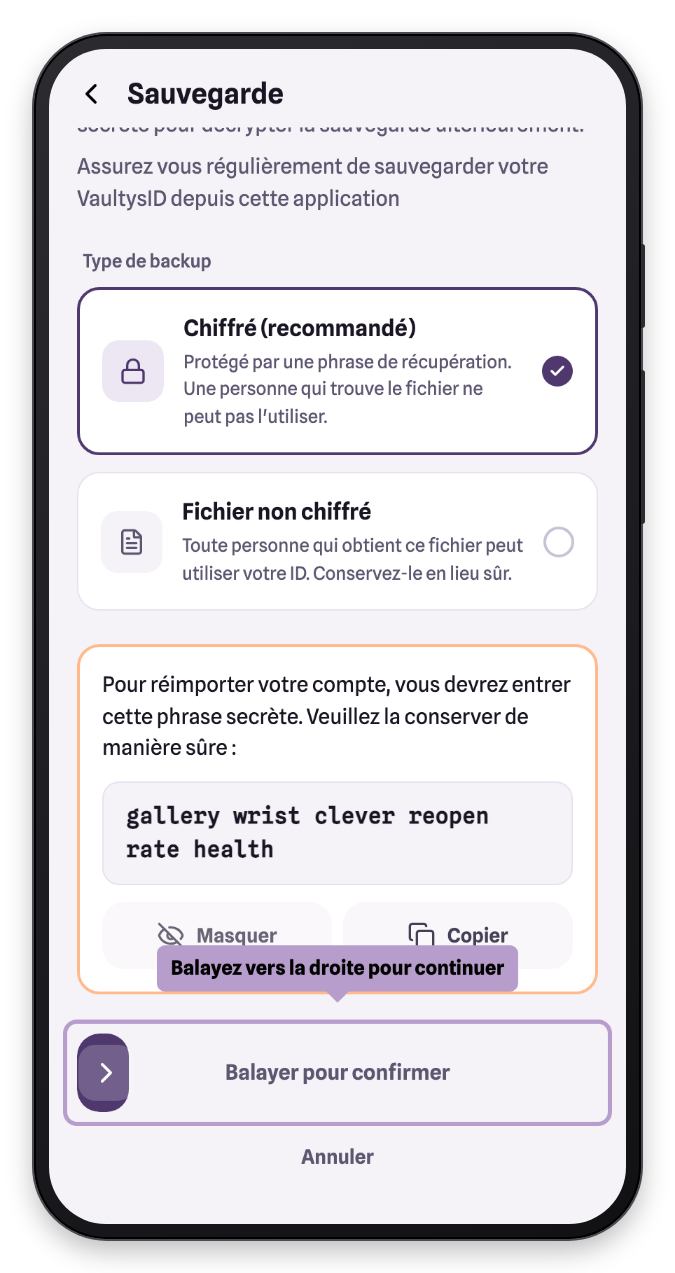
Keep the Encrypted (recommended) type: the file is protected by a recovery phrase, and someone who found it would not be able to use it.
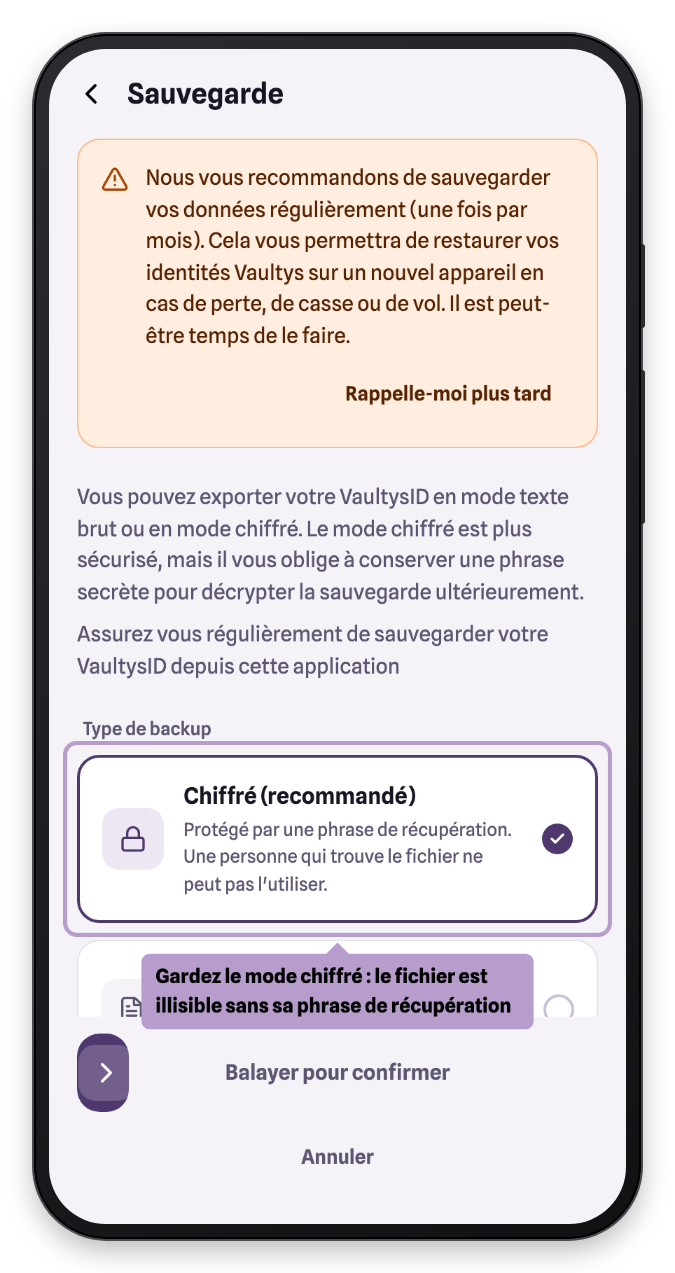
An unencrypted file lets anyone who obtains it use your identity. Only choose this type if you know what you are doing, and keep the file in a safe place.
Display the recovery phrase and write down its 6 words. Keep it separately from the file: without it, the backup cannot be opened.
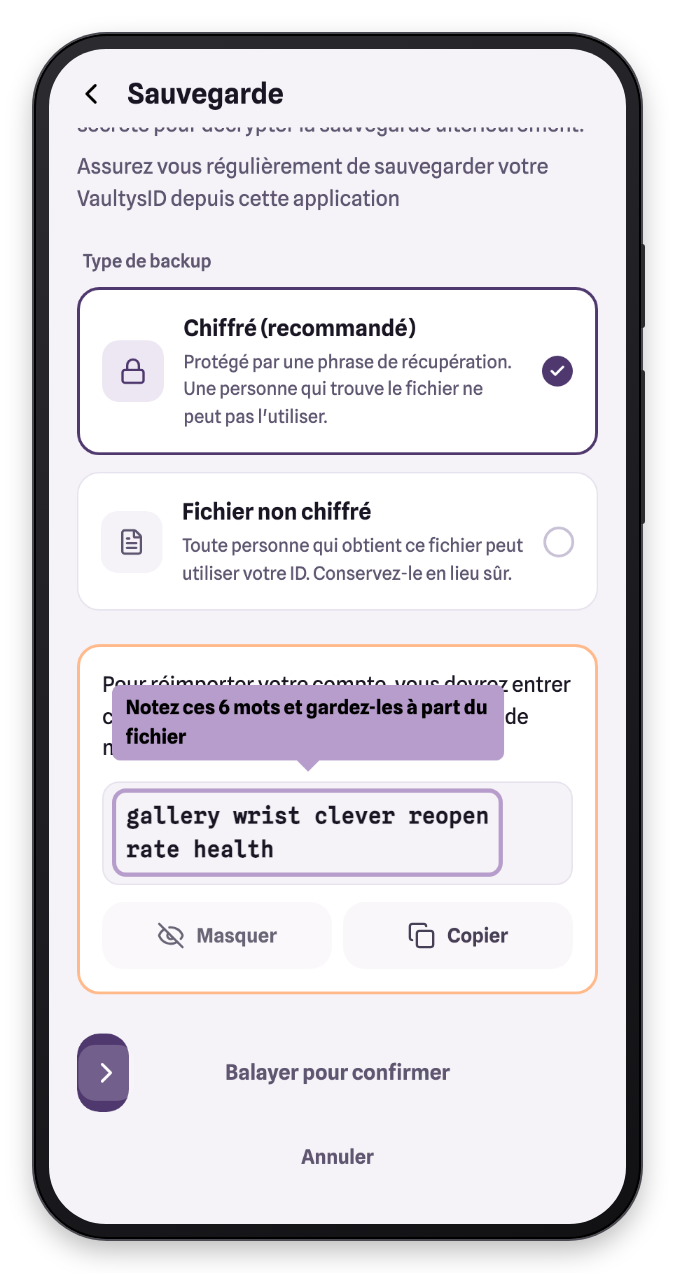
Then swipe the Swipe to confirm button to the right.
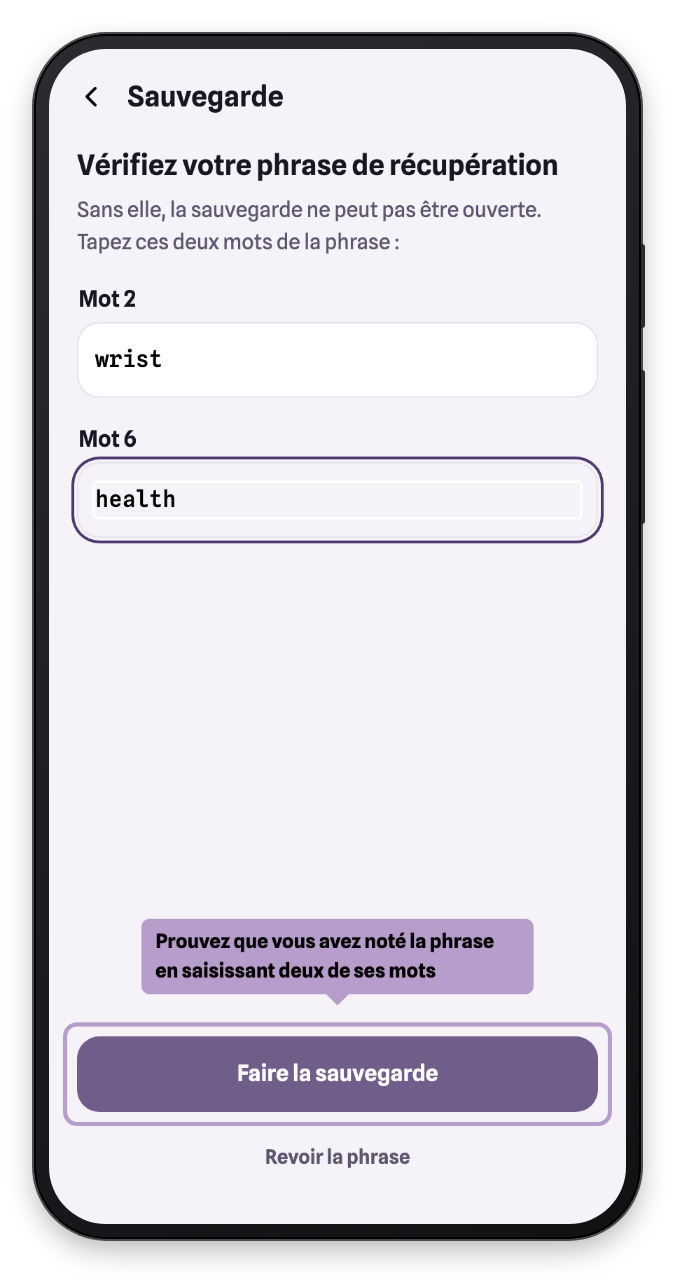
VaultysID checks that you really wrote down the phrase by asking you for two of its words. Then tap Make the backup and unlock your VaultysID.
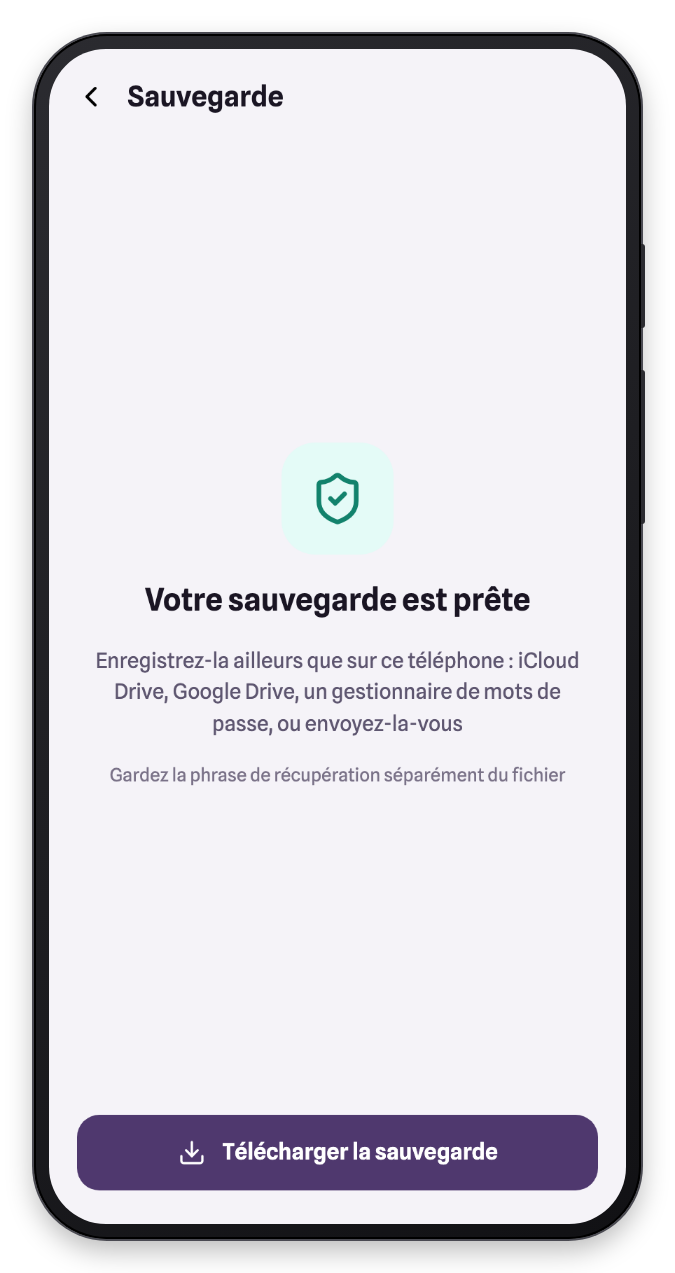
The backup is ready. Save it somewhere other than this phone: iCloud Drive, Google Drive, a password manager, or email it to yourself.
Restore your identities
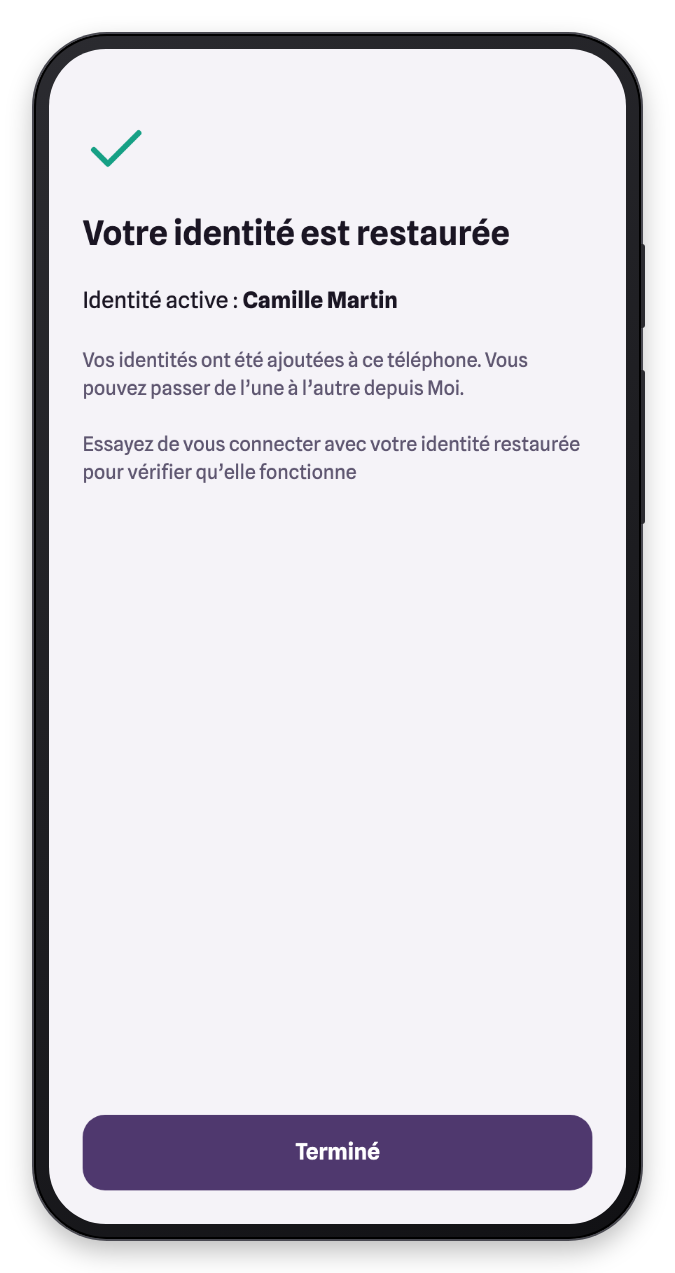
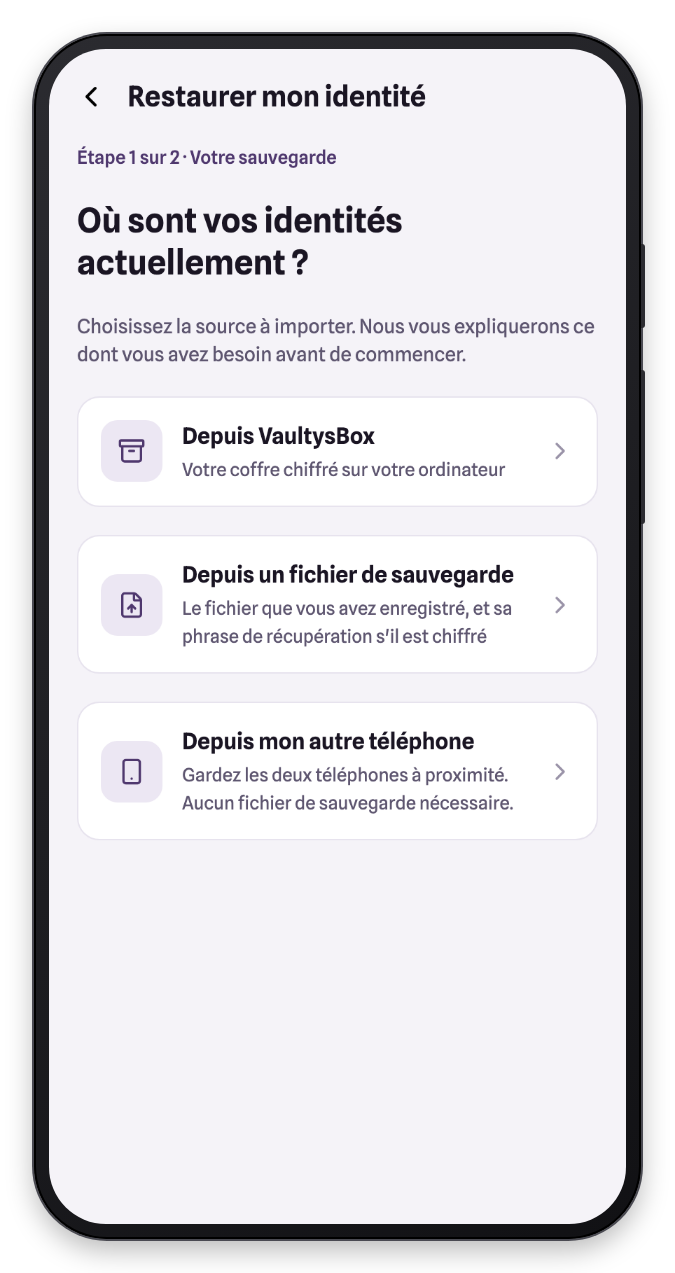
On a new phone, install VaultysID and tap I already have a backup instead of creating an identity. If you already have an identity on this phone, go through Me › Backup › Restore my identities.
Choose where your identities come from: VaultysBox, a backup file, or your other phone (see Switch phones).
From a backup file
After the summary, select your backup file, enter its recovery phrase if it is encrypted, then tap Import. Then unlock the imported identities with their PIN code.
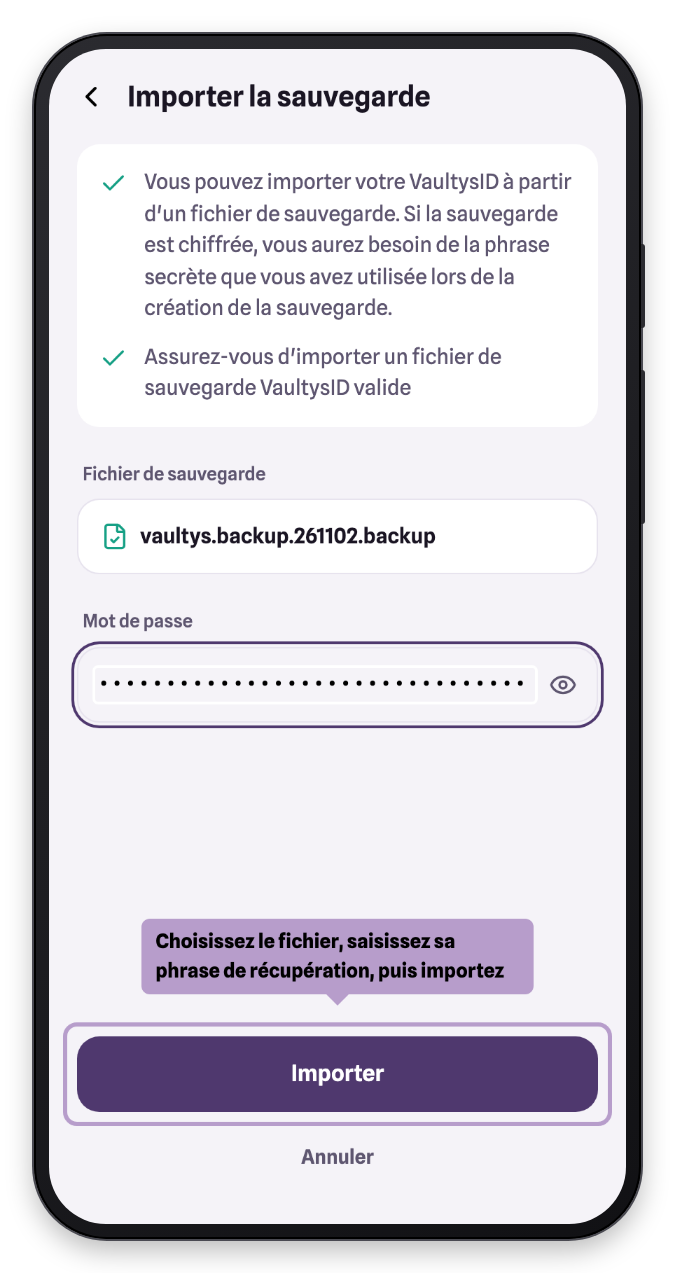
Your identities are restored. Sign in to an app to check that everything works.