Switch phones
Changing phones? Copy your identities from the old one to the new one directly, without a backup file: the new phone displays a code, the old one scans it. Keep both phones close together, with VaultysID installed on each.
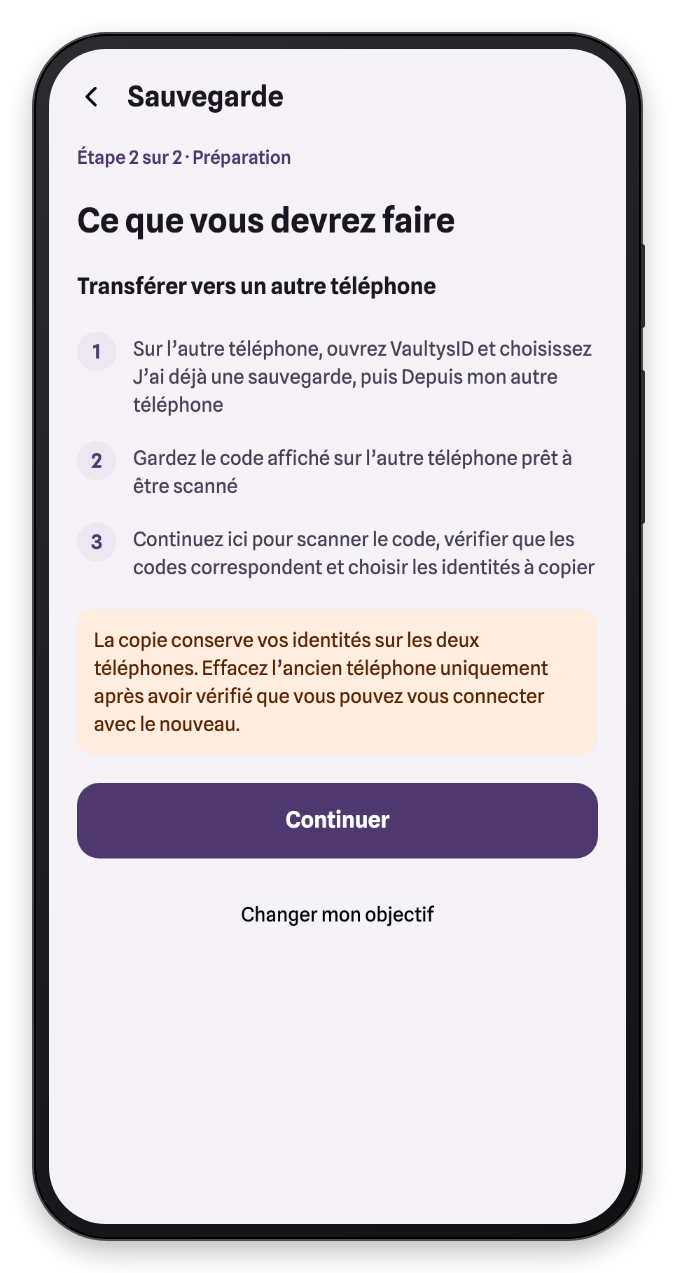
The copy keeps your identities on both phones. Only erase the old phone after checking that you can sign in with the new one.
1. On the old phone
In the Me tab, open Backup and choose Move to a new phone.
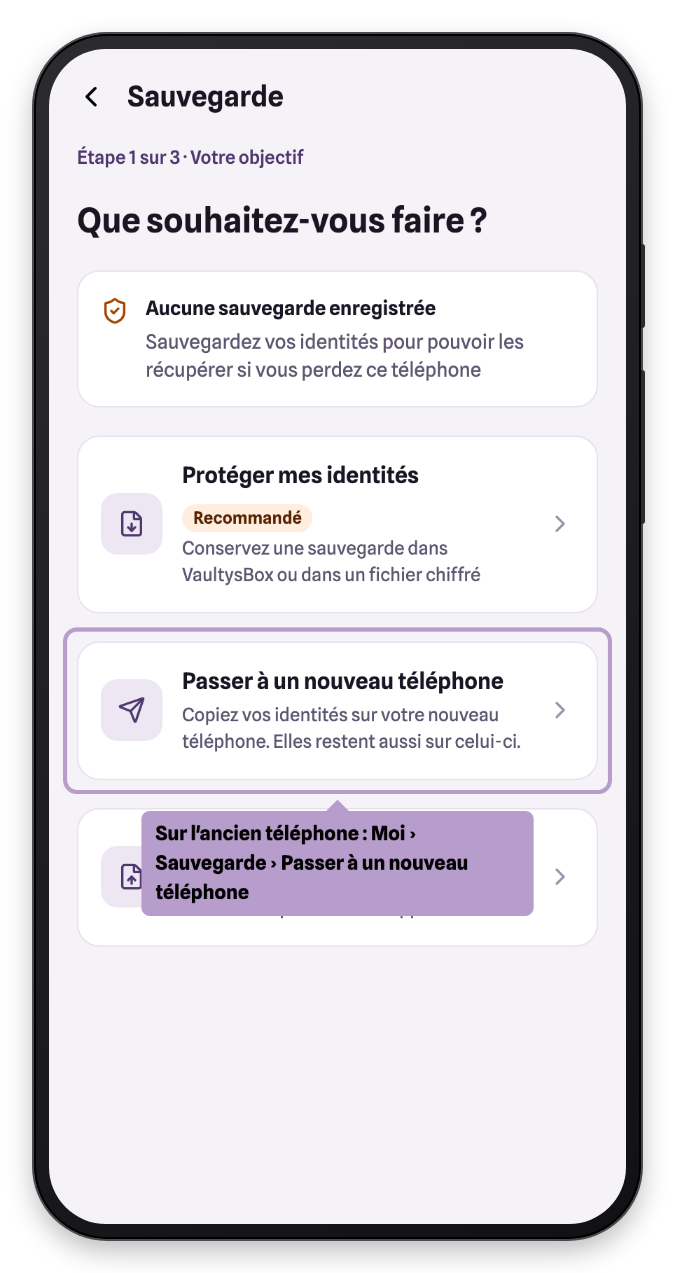
VaultysID summarizes the steps. Keep this screen open, the rest happens on the new phone.
2. On the new phone
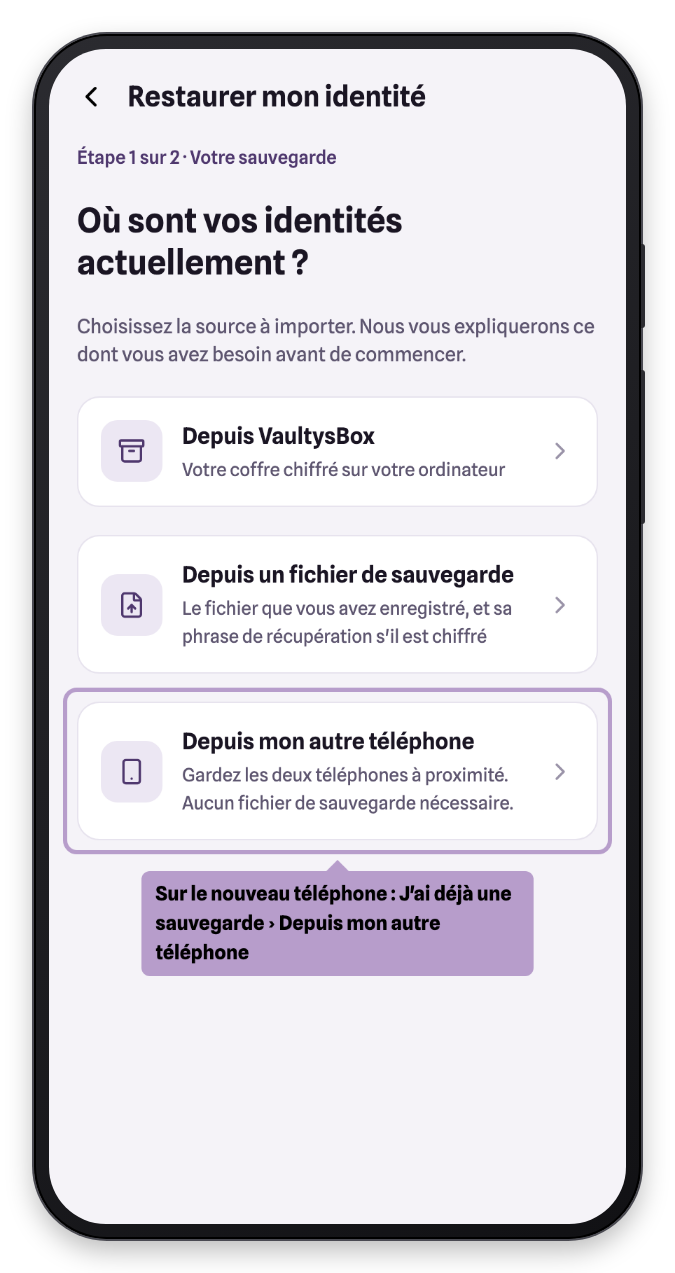
On first launch of VaultysID, tap I already have a backup, then choose From my other phone and Continue.
The new phone displays a QR code and a 6-digit code.
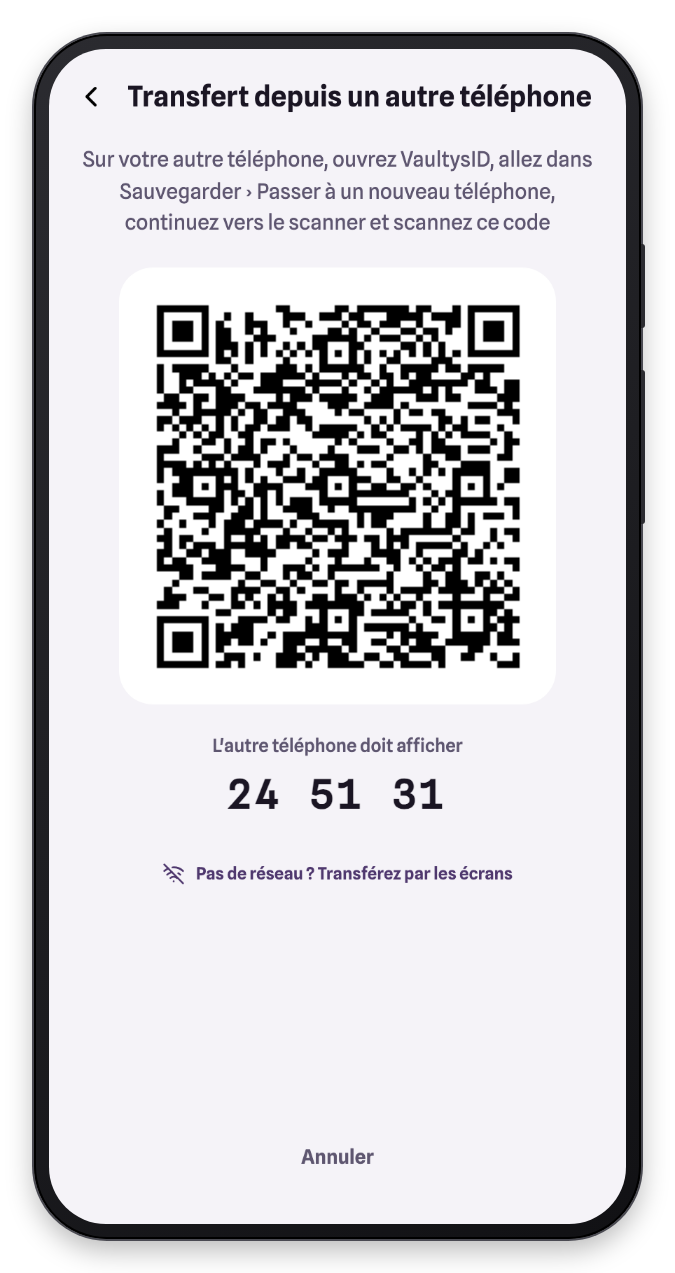
Tap No network? Transfer via the screens: the two phones exchange your identities by reading each other's screen, without Internet.
3. Scan and compare the codes
On the old phone, tap Continue then scan the new phone's QR code. Check that the code displayed is identical on both phones, then tap The codes match, copy and unlock your VaultysID.
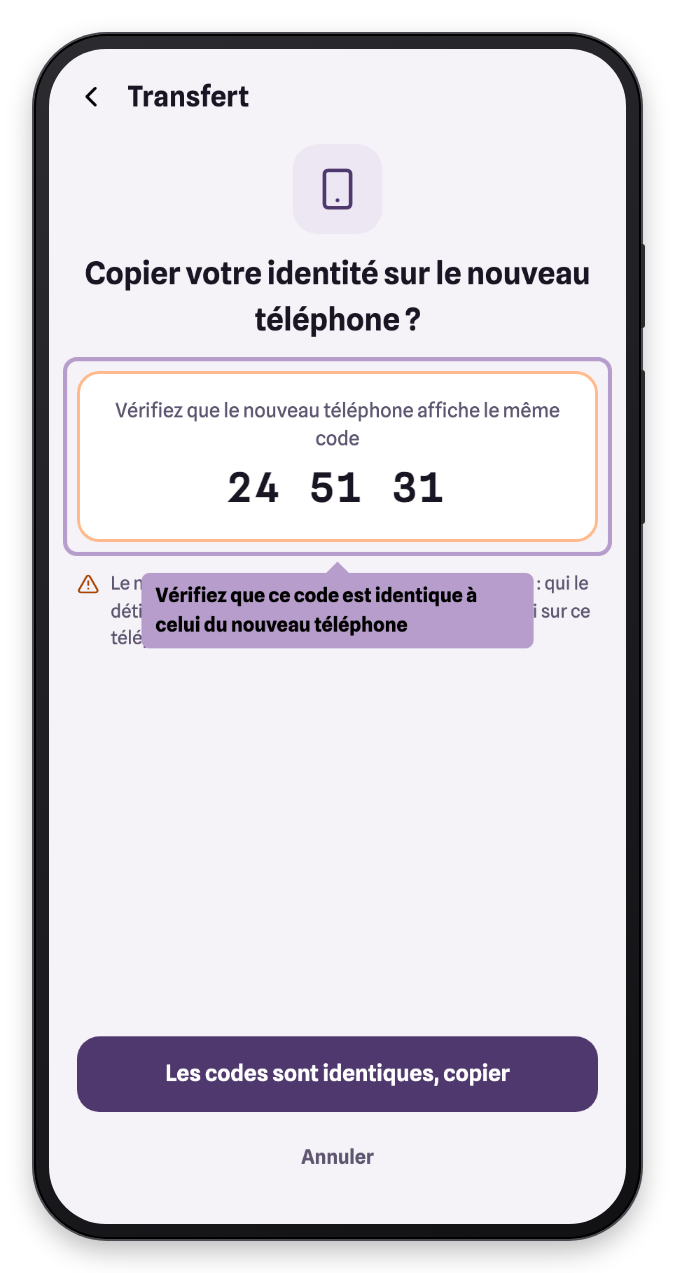
If the codes are different, cancel: another device is trying to receive your identities.
4. Done
The new phone has received your identities, with their apps and contacts.
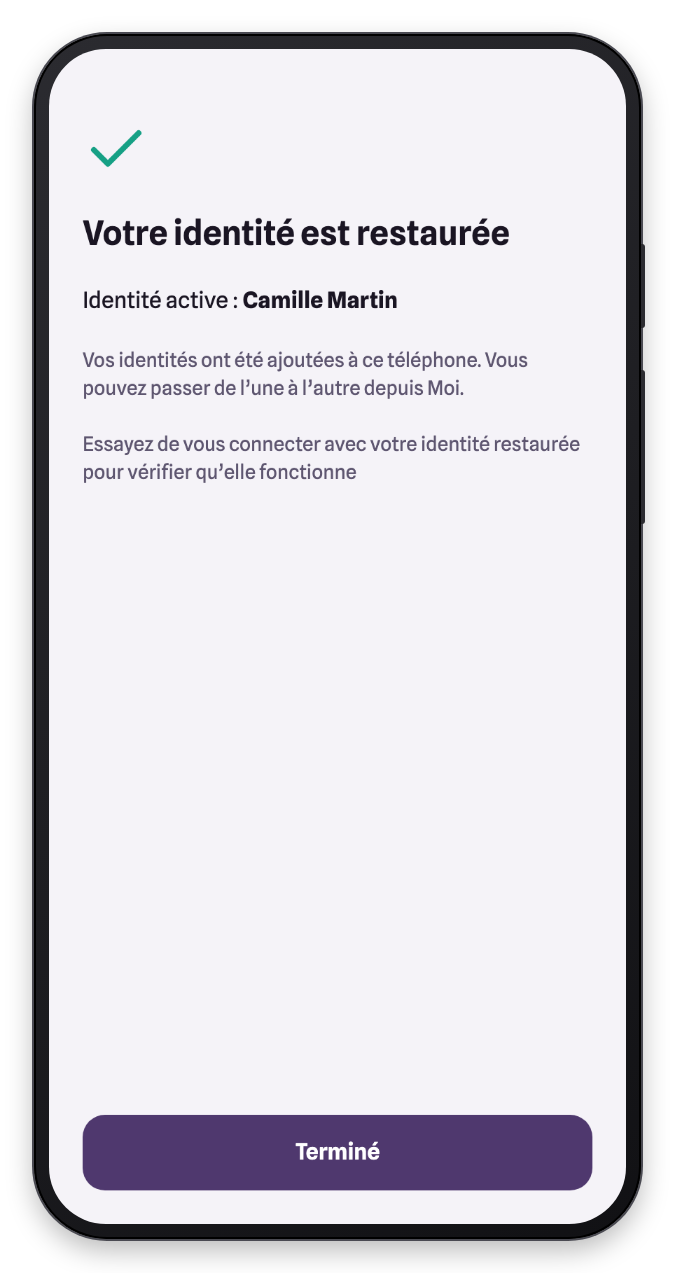
Sign in to an app from the new phone to check that everything works, then remember to back up your identities on this new phone.