Application Launchers
Some applications offer launchers: shortcuts to a specific page of the application, defined by your administrator. For example, a GitHub application may provide a launcher for each repository.
A launcher opens the same application as the tile, with the same login. It simply takes you directly to the right page.
Identifying an application with launchers
On the home page, a badge at the bottom right of the tile indicates the number of launchers for the application.
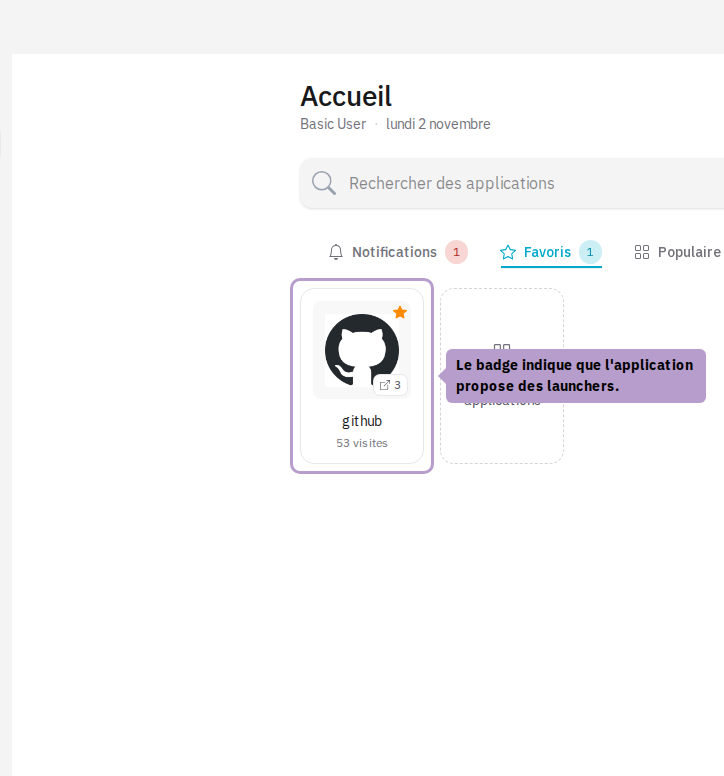
Opening a launcher
Click on the tile: a menu opens.
- The first entry opens the main page of the application, as before.
- The following entries each open a launcher, with its description if applicable.
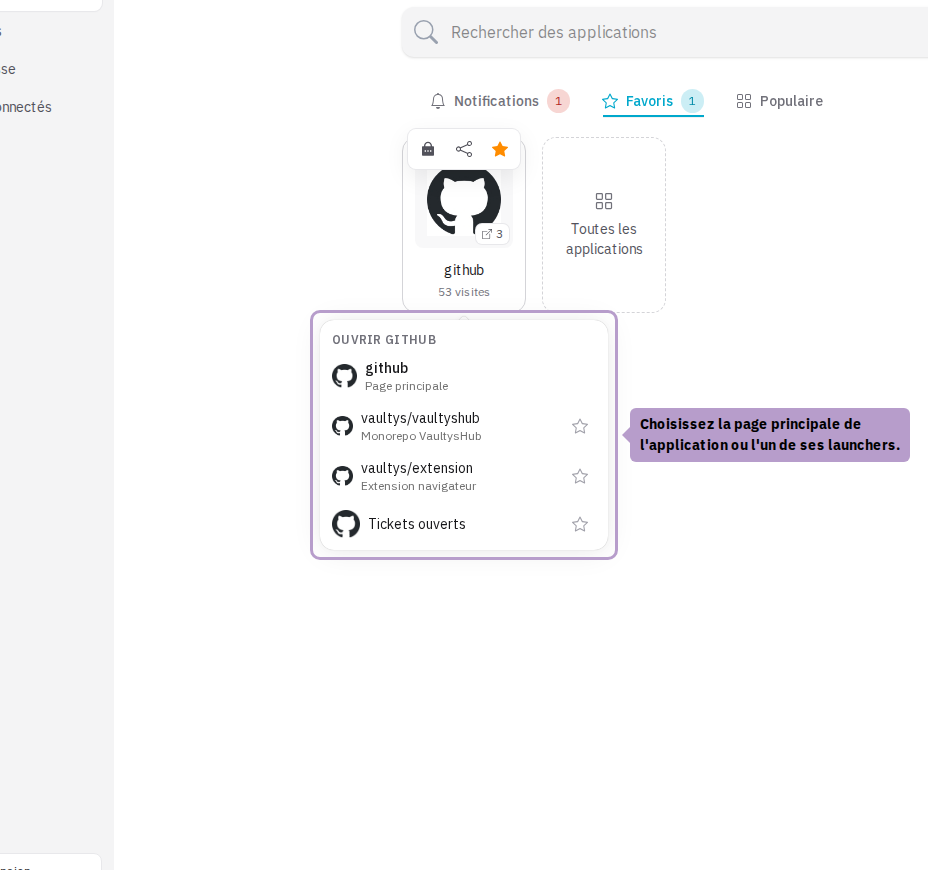
The page opens in a new tab.
Searching for a launcher
Launchers appear as full results in the search bar on the home page. A launcher is found by its title, by its description, or by the name of its application: typing "github" lists the GitHub application and each of its launchers.
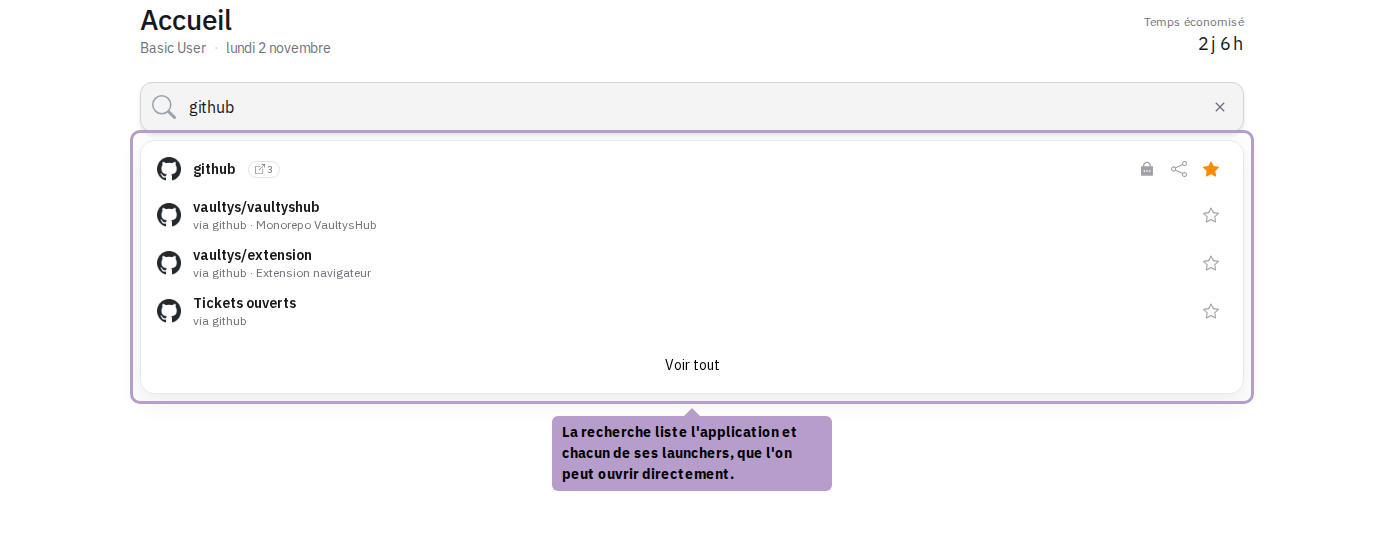
Click on a result to directly open the launcher.
Favoriting a launcher
Like an application, a launcher can be added to your favorites. Open the application menu and click on the star of the launcher. The star is also offered in the search results.
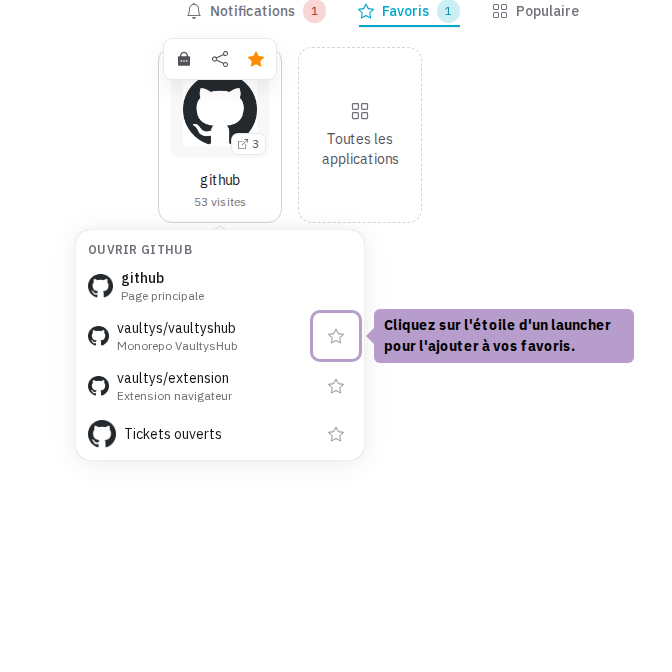
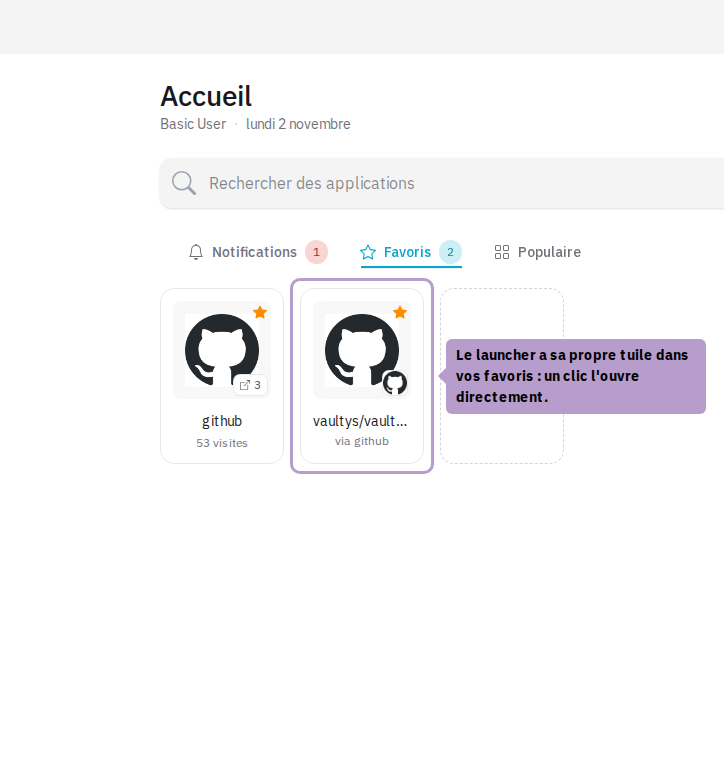
The launcher then appears in the Favorites tab, with its own tile. The name of the application is noted under its title. A click on the tile directly opens the launcher. To remove it from favorites, hover over the tile and click the star again.
From the Applications page
The launcher menu is also offered when you open an application from the Applications page.
In the extension
In the VaultysHub extension, an application with launchers displays a button with their number. Click on it to expand the list, then on a launcher to open it.
The extension search also lists the launchers, and your favorite launchers appear in the Favorites section. Favorites are managed from the VaultysHub home page.
Launchers are managed by your administrators. If you need an additional shortcut, please contact them.