API and Webhooks
You can integrate VaultysHub with any software (LDAP, SOC, Google Suite, ...) via the VaultysHub API and Webhooks!
These features are included in the Integration module.
The VaultysHub API allows you to make requests to your VaultysHub (e.g., retrieve apps, create users, ...) for your integrations.
Webhooks allow you to send data to the URL of your choice when events are triggered (e.g., user creation, user login, ...).
Webhooks
Access the Webhooks tab
Go to Configuration from the sidebar navigation, then select the Webhooks tab.
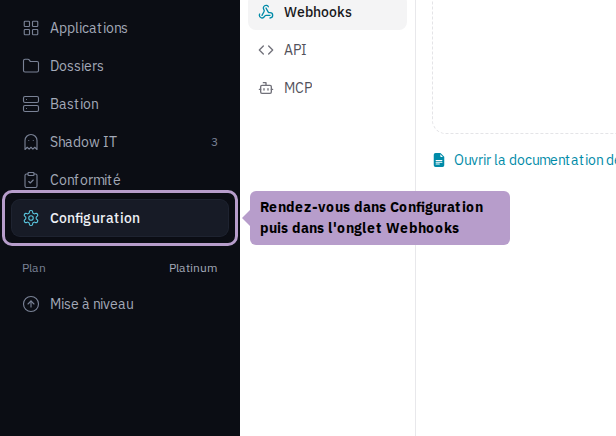
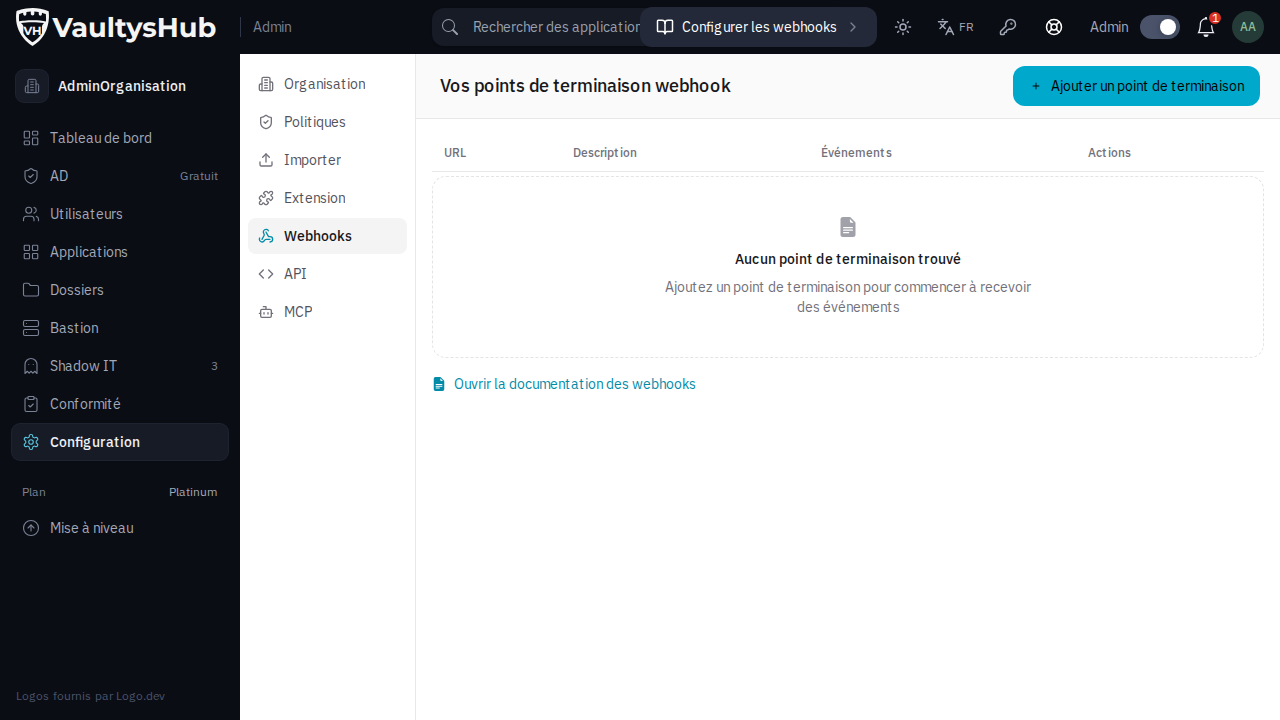
Webhooks Documentation
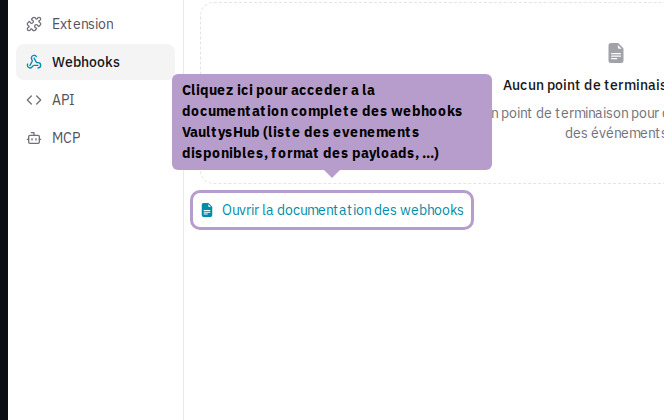
Click on the link Open the webhooks documentation to access the complete webhooks documentation: list of available events, payload formats, integration examples.
Add an endpoint
Click on the Add an endpoint button in the toolbar to configure a new webhook.
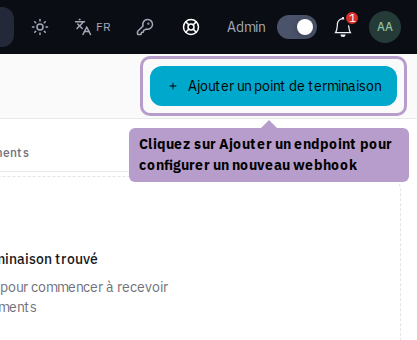
A sidebar opens with the configuration form.
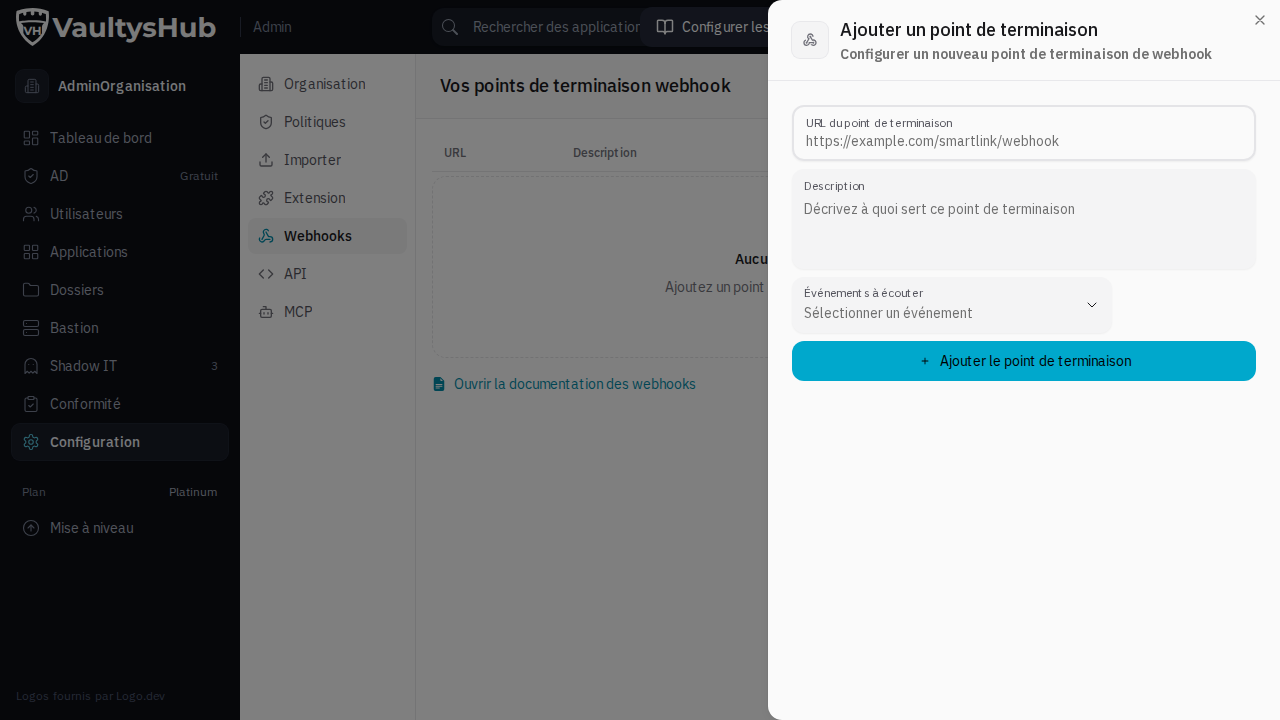
Configure the endpoint
Destination URL
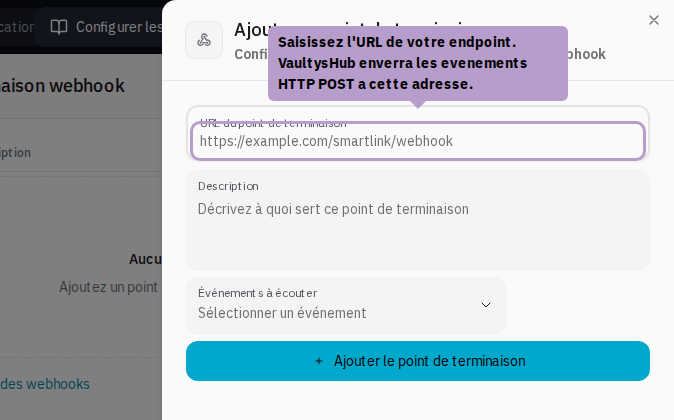
Enter your endpoint URL. VaultysHub will send events via HTTP POST to this address.
Events to listen to
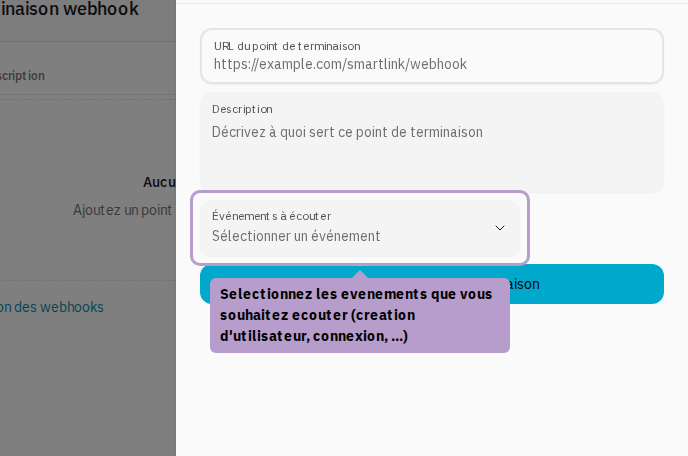
Select the events you wish to receive. You can choose multiple at once.
Signature Secret
Each event sent is signed in HMAC-SHA256 with the signature secret of the organization, displayed at the top of the Webhooks tab as soon as an endpoint is configured. Your receiver recalculates the signature with this secret to verify that the event indeed comes from VaultysHub.
This secret is independent of API keys: creating, modifying, or revoking an API key does not change the signature of the webhooks. The Regenerate secret button creates a new secret; make sure to communicate it to all your receivers, who will reject events as long as they use the old one.
Verify the signature of an event
Each event is sent in POST, with the header Content-Type: application/json, and a body of the form:
{
  "date": 1767225600000,
  "event": "user.created",
  "data": { "…": "…" },
  "signature": "3f5c…"
}
date: the emission date, in milliseconds since January 1, 1970;event: the name of the event;data: the event data;signature: the HMAC-SHA256 signature, in lowercase hexadecimal, calculated with the signature secret on the JSON of the object{ date, event, data }(in this order, without spaces).
The signature is found in the body of the request, not in an HTTP header. To verify it, remove the signature field, recalculate the HMAC on { date, event, data }, and compare. Example in Node.js, without dependencies:
import { createServer } from "node:http";
import { createHmac, timingSafeEqual } from "node:crypto";

// The signature secret displayed in the Webhooks tab
const SECRET = process.env.VAULTYSHUB_WEBHOOK_SECRET;

function isSignedByVaultysHub(payload) {
  const { date, event, data, signature } = payload;
  if (typeof signature !== "string") return false;
  // Same object, same fields, same order as signed by VaultysHub
  const signed = JSON.stringify({ date, event, data });
  const expected = createHmac("sha256", SECRET).update(signed, "utf8").digest();
  const received = Buffer.from(signature, "hex");
  return received.length === expected.length && timingSafeEqual(received, expected);
}

createServer(async (req, res) => {
  let raw = "";
  for await (const chunk of req) raw += chunk;
  let payload;
  try {
    payload = JSON.parse(raw);
  } catch {
    return res.writeHead(400).end();
  }
  if (!isSignedByVaultysHub(payload)) return res.writeHead(401).end();
  // Optional: reject events that are too old (replay)
  if (Math.abs(Date.now() - payload.date) > 10 * 60 * 1000) return res.writeHead(401).end();

  console.log("Event received:", payload.event, payload.data);
  res.writeHead(200).end();
}).listen(3000);
Respond quickly with a 2xx code and process the event afterwards. An event that your receiver could not receive (unavailable, error, signature rejected) is not resent.
API
Access the API tab
From the API tab of the Configuration page, you can enable access to the VaultysHub REST API.
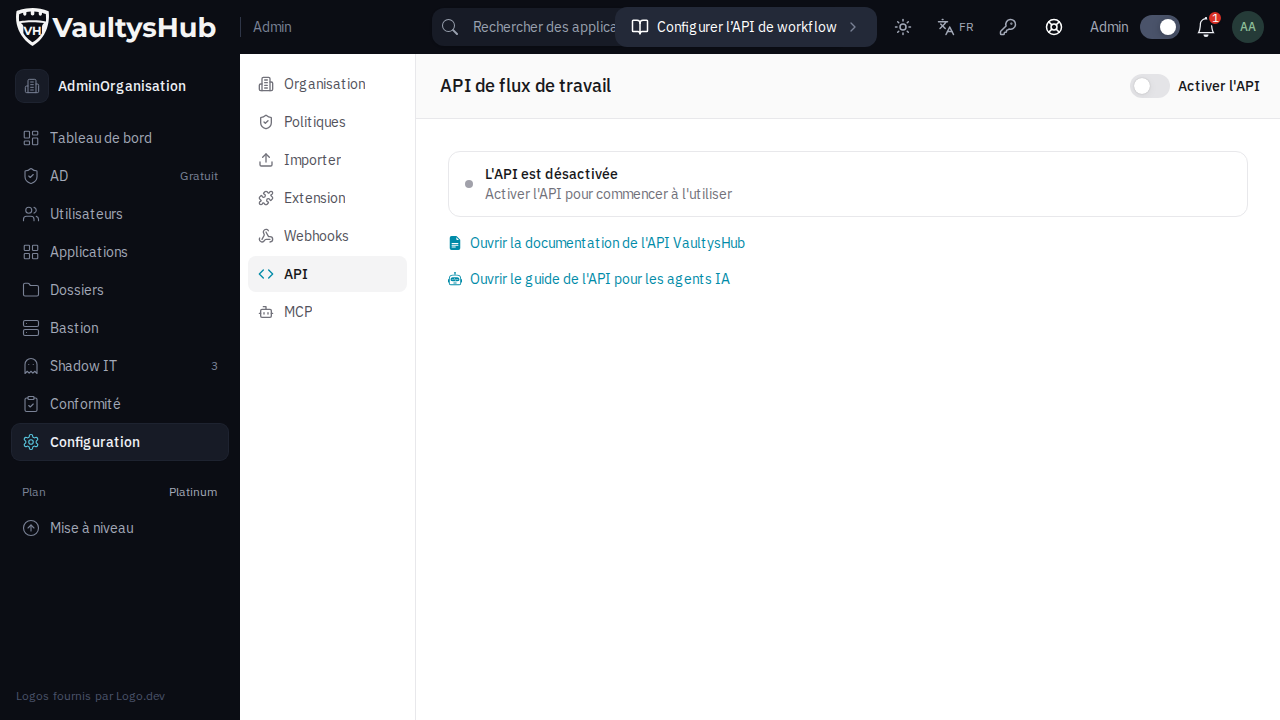
By default, the API is disabled.
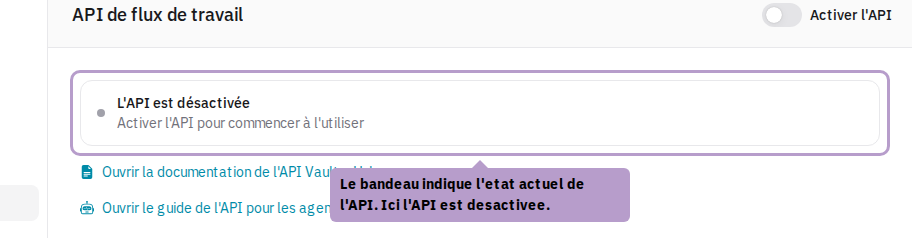
Enable the API
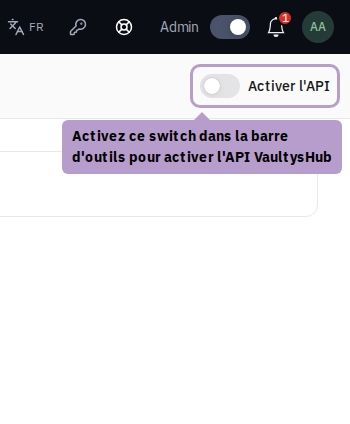
Enable the Enable API switch in the toolbar to activate access to the API.
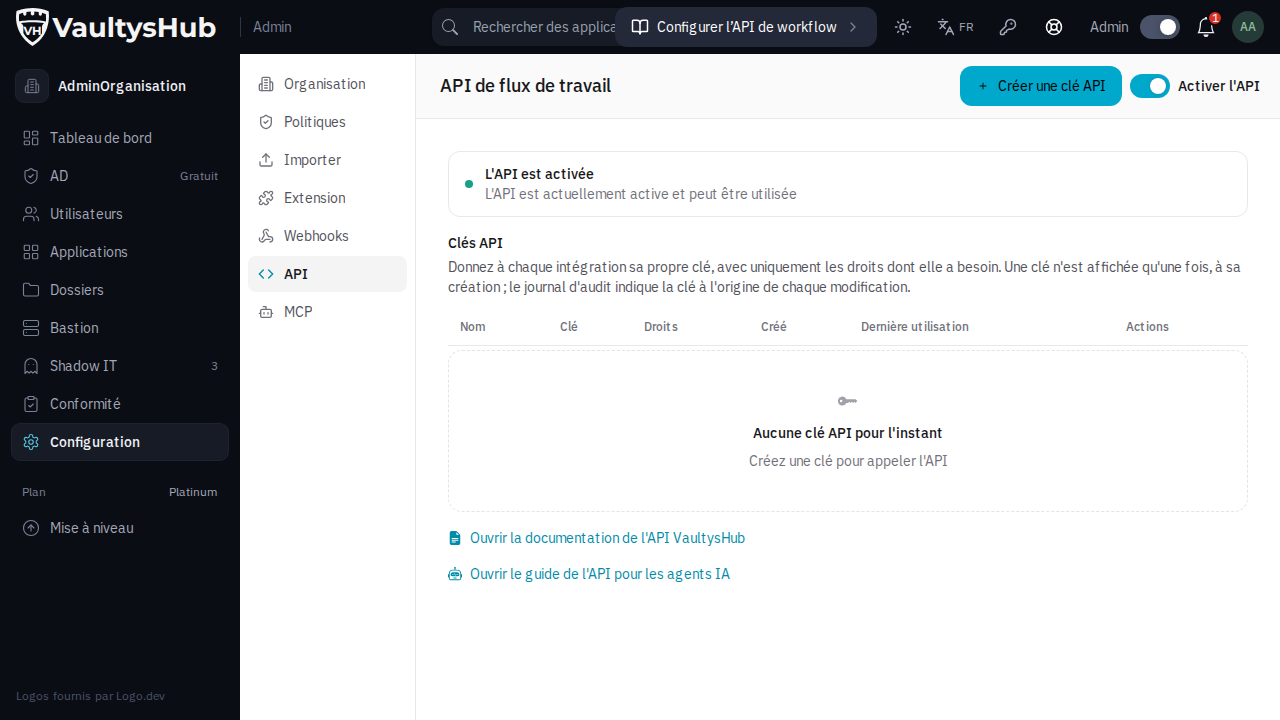
Once the API is enabled, you can create keys that will allow your integrations to call it.
API Keys
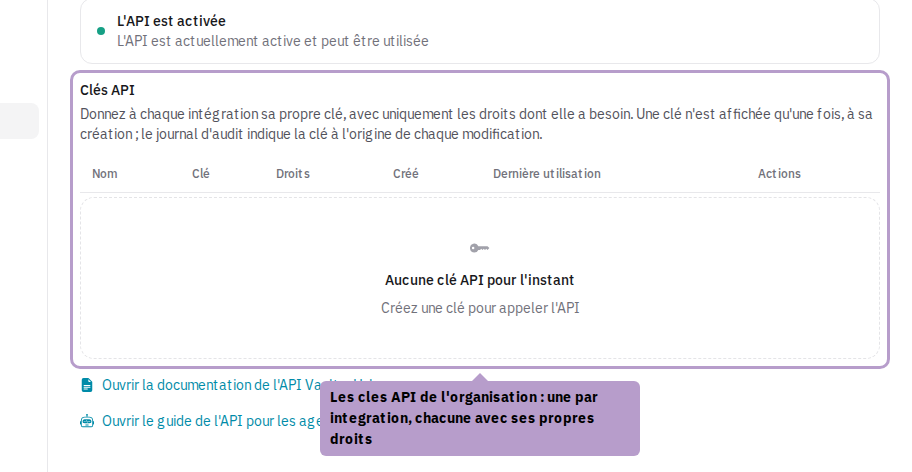
Create one key per integration (HR synchronization, SIEM, administration script, AI agent…), with only the rights it needs. Each modification made with a key appears in the audit log under the key name.
Create a key
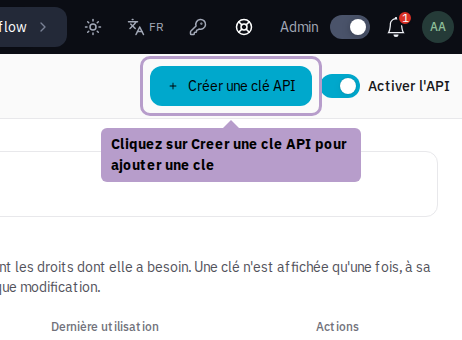
Click on Create an API key in the toolbar. A sidebar opens:
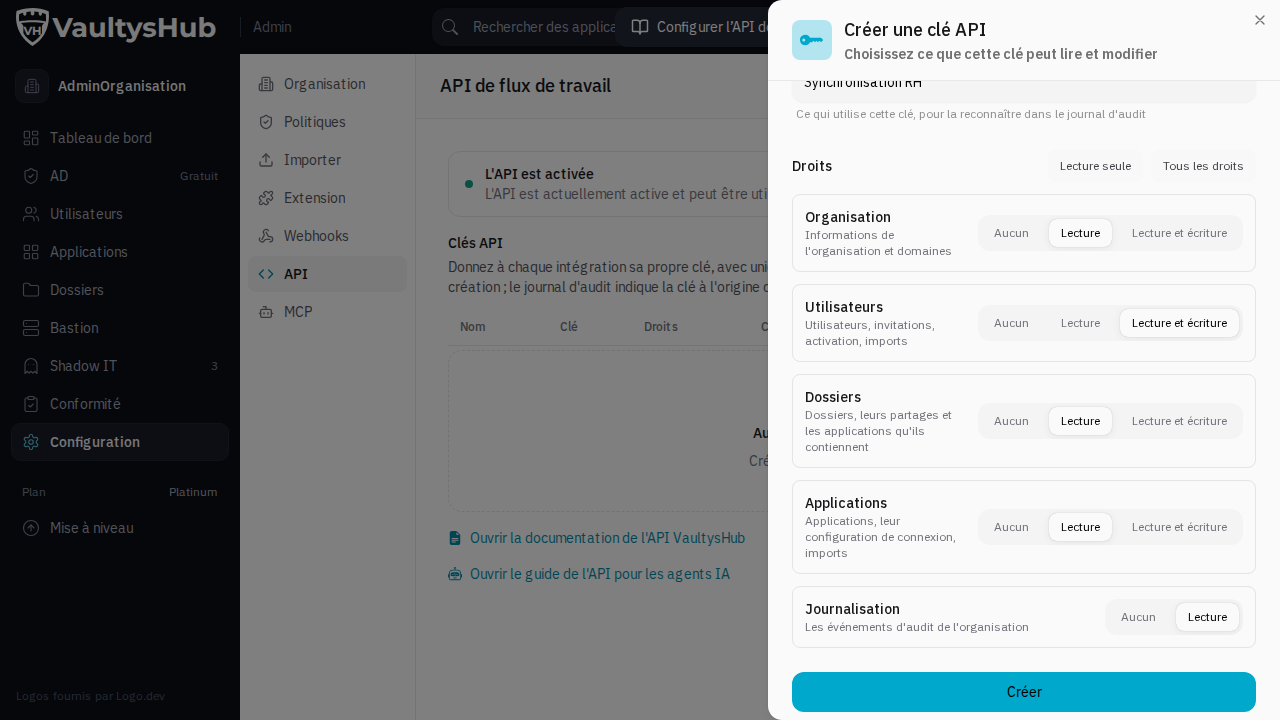
- Give a name to the key that describes what uses it;
- Choose its rights, resource by resource:
| Resource | What it covers |
|---|---|
| Organization | Organization information and domains |
| Users | Members, invitations, activation and deactivation, imports |
| Folders | Folders, their shares, and the applications they contain |
| Applications | Applications, their connection configuration, imports |
| Logging | Audit log events (read-only) |
For each resource, choose None, Read (GET requests) or Read and Write (all requests). The shortcuts Read-only and All rights set all resources at once.
- Naming or removing an administrator (field
isAdminon creation,roleon modification, columnadminof the import) requires, in addition to Users: read and write, the right Organization: read and write. An administrator can create a key with all rights: a key limited to users should not be able to name one. - Importing users with folders also requires Folders: read and write, since the import creates the folders and shares them.
- An import never modifies the role of the owner of the organization.
Copy the key
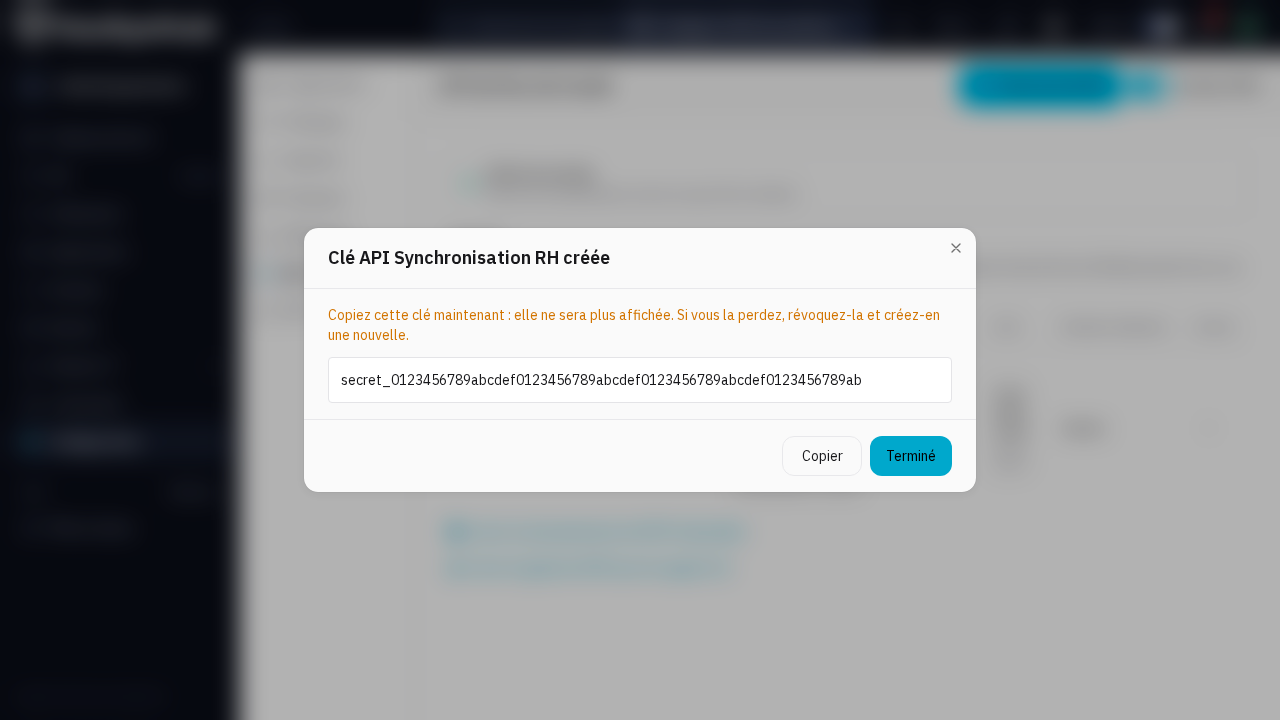
The key is displayed only once, upon creation: copy it immediately and keep it in a safe place (secret manager, environment variable). VaultysHub keeps only a fingerprint and cannot display it to you again. If you lose it, revoke it and create a new one.
Manage the keys
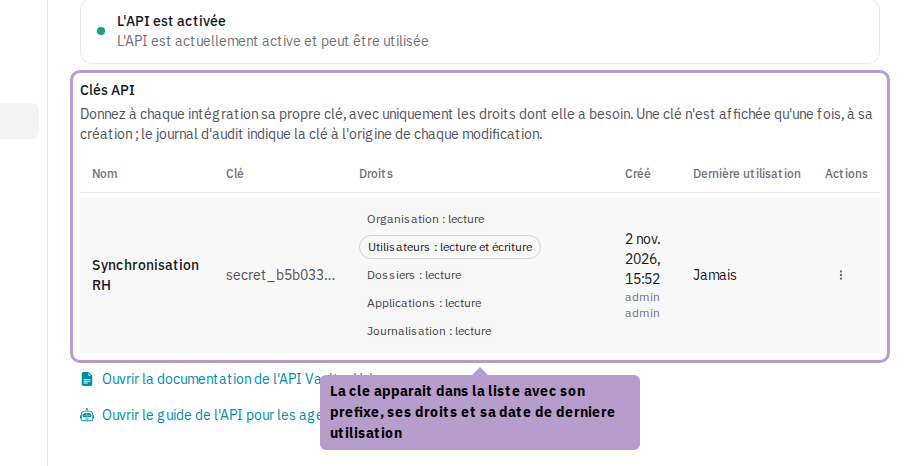
The list indicates for each key its prefix (the beginning of the key, for recognition), its rights, who created it, and when it was last used. From the ⋮ menu of a key:
- Modify changes its name or rights, without changing the key itself;
- Revoke deletes it: all integrations using it are immediately denied.
A request made with an unknown key, revoked, or when the API is disabled receives a 401 error. A request that exceeds the rights of the key receives a 403 error specifying the missing right (for example Missing scope members:write).
API Documentation
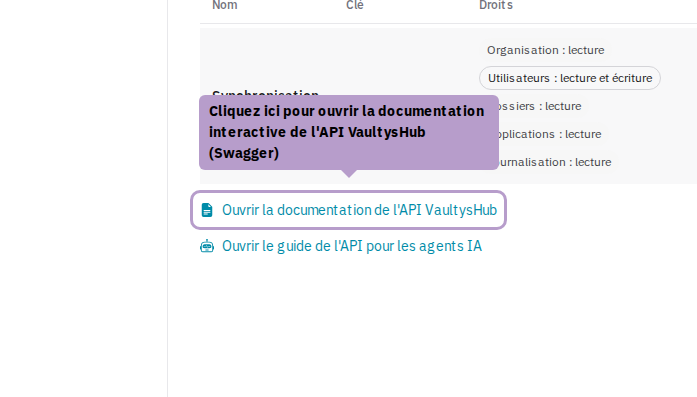
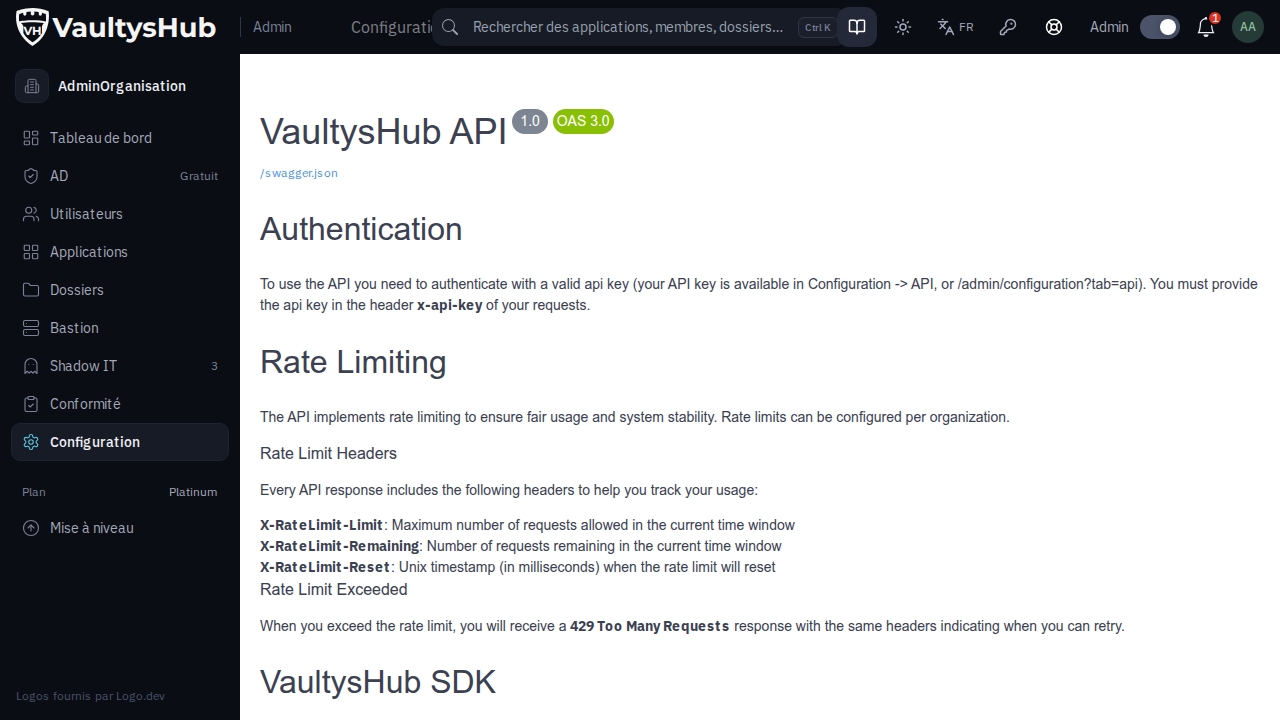
Click on Open the VaultysHub API documentation to access the interactive documentation (Swagger) listing all available endpoints.
Configure an OIDC or SAML application via the API
The API allows you to fully create and configure a SSO application, without going through the administration interface. All requests are made to your VaultysHub address (one of your organization's domains), with the key in the x-api-key header. The key must have the right Applications: read and write, and Folders: read and write for step 4.
- Find or create the application:
GET /api/workflow/app?slug=my-appreturns the application whose slug ismy-app(404 if it does not exist);POST /api/workflow/appcreates it (title,url,slug,description). - Choose the protocol:
PUT /api/workflow/app/{clientId}/typewith{"type": "OPENID"}or{"type": "SAML"}. VaultysHub then generates the client secret (OIDC) or the signing keys (SAML). - Configure:
PUT /api/workflow/app/{clientId}/config. For OIDC:redirectUris,allowedScopes,subjectType(emailormembershipId),requirePkce,tokenEndpointAuthMethod(client_secret_basicorclient_secret_post). For SAML:entityIdandacsUrlof the application,signAssertions. Only the fields sent are modified. - Grant access:
PUT /api/workflow/folder/{id}/apps/{clientId}places the application in a folder (the list of folders is given byGET /api/workflow/folders);DELETEon the same address removes it. - Retrieve what needs to be filled in the application:
GET /api/workflow/app/{clientId}/configreturns, for OIDC, the client ID and secret and the issuer URL; for SAML, the VaultysHub entity ID, the SSO and metadata URLs, and the signing certificate.
Example for an OIDC application:
URL=https://sso.example.com
KEY=your-api-key

curl -X POST "$URL/api/workflow/app" -H "x-api-key: $KEY" -H "content-type: application/json" \
  -d '{"title": "My app", "url": "https://app.example.com", "slug": "my-app"}'
# → {"clientId": "smartlink_…", …}

curl -X PUT "$URL/api/workflow/app/smartlink_…/type" -H "x-api-key: $KEY" -H "content-type: application/json" \
  -d '{"type": "OPENID"}'

curl -X PUT "$URL/api/workflow/app/smartlink_…/config" -H "x-api-key: $KEY" -H "content-type: application/json" \
  -d '{"redirectUris": ["https://app.example.com/oauth/callback"], "allowedScopes": ["openid", "email", "profile"], "subjectType": "email", "requirePkce": true, "tokenEndpointAuthMethod": "client_secret_basic"}'

curl "$URL/api/workflow/app/smartlink_…/config" -H "x-api-key: $KEY"
# → {"clientId": "smartlink_…", "clientSecret": "…", "issuer": "https://sso.example.com/api/oidc/smartlink_…", …}
A key with the right Applications: read gives access to the client secrets of the applications: keep it like an administrator password, and revoke it at the slightest doubt.
GET and POST /api/workflow/organization/domains list and add the organization's domains (right Organization).
AI Agents (MCP)
The API is also accessible to AI assistants (Claude, Cursor, GitHub Copilot, …) via the VaultysHub MCP server, with MCP keys distinct from API keys and managed in the MCP tab: see the MCP Server page.
Troubleshooting
API Errors
| Symptom | Likely cause and solution |
|---|---|
401 Unauthorized | The API is disabled (switch Enable API in the API tab); the key is missing from the x-api-key header, poorly copied, or has been revoked; the request is sent to the address of another organization (the organization is recognized from the domain name); or it is a MCP key. |
401 with a key starting with mcp_ | MCP keys only open the MCP server and are denied by the REST API. Create an API key (it starts with secret_) in the API tab. |
403 Missing scope … | The key does not have the requested right: for example Missing scope members:write to create a user with a key in Users: read. Add the right from the ⋮ menu of the key, Modify: the key itself does not change. |
403 Module INTEGRATION not enabled | Your subscription does not include the Integration module. |
403 This route is not open to API keys | This address is not accessible with an API key: consult the API documentation for the list of available endpoints. |
429 Rate limit exceeded | The key has exceeded your organization's request limit. The headers X-RateLimit-Limit, X-RateLimit-Remaining, and X-RateLimit-Reset (reset date, in milliseconds) indicate where you stand: wait until the reset, space your requests, or distribute your integrations across multiple keys. |
To quickly check a key:
curl -i "https://sso.example.com/api/workflow/organization" -H "x-api-key: $KEY"
A 200 response, or 403 Missing scope organization:read for a key without rights on the organization, confirms that the key is valid; a 401 response indicates one of the above cases. The Last used column of the key list also allows you to see if an integration is still using a key.
Webhooks are not arriving, or their signature is rejected
- Check that the endpoint is properly configured for the expected event and that its URL is reachable from the Internet.
- If your receiver rejects the signature: ensure it uses the signature secret from the Webhooks tab (and not an API key), that it has not been regenerated since, and that the signature is recalculated on
{ date, event, data }as in the example above, and not on the received body as is (which also containssignature).
Updating from a version prior to 4.4.0
Before version 4.4.0, each organization had only one API key, which also served to sign the webhooks. Upon updating:
- this key was retained as a key named Default, with all rights: your integrations continue to work without change;
- its value became the signature secret of the webhooks: your receivers continue to validate the signatures.
The same value thus serves both as an API key with all rights and as the signature secret of the webhooks. We recommend that you:
- create one key per integration, with only the necessary rights, and replace the Default key in each;
- revoke the Default key once it is no longer used (its Last used column stops evolving);
- click on Regenerate secret in the Webhooks tab and communicate the new secret to your receivers.
Since version 4.4.0, the MCP server also has its own keys and its own switch: an AI assistant configured with an API key receives a 401 error. See MCP Server.