Configuration
The Configuration page guides you step by step to set up VaultysHub completely and effectively. It includes several tabs: Progress, Organization, Policies, Import, Extension, Webhooks, and API.
Accessing the configuration
In the sidebar navigation, click on Configuration.
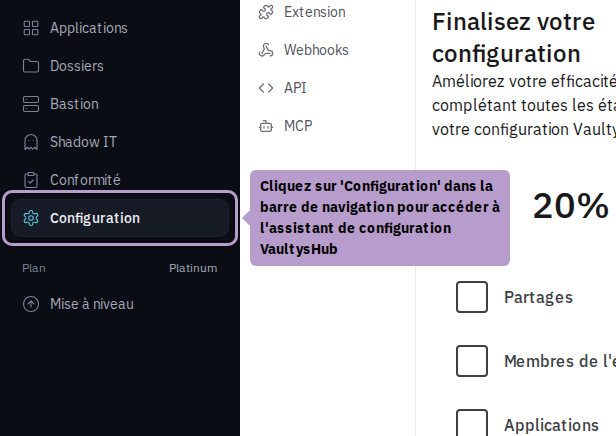
Overview — Progress Tab
When opening an organization that is not yet configured, you will land directly on the Progress tab, which presents the VaultysHub setup assistant.
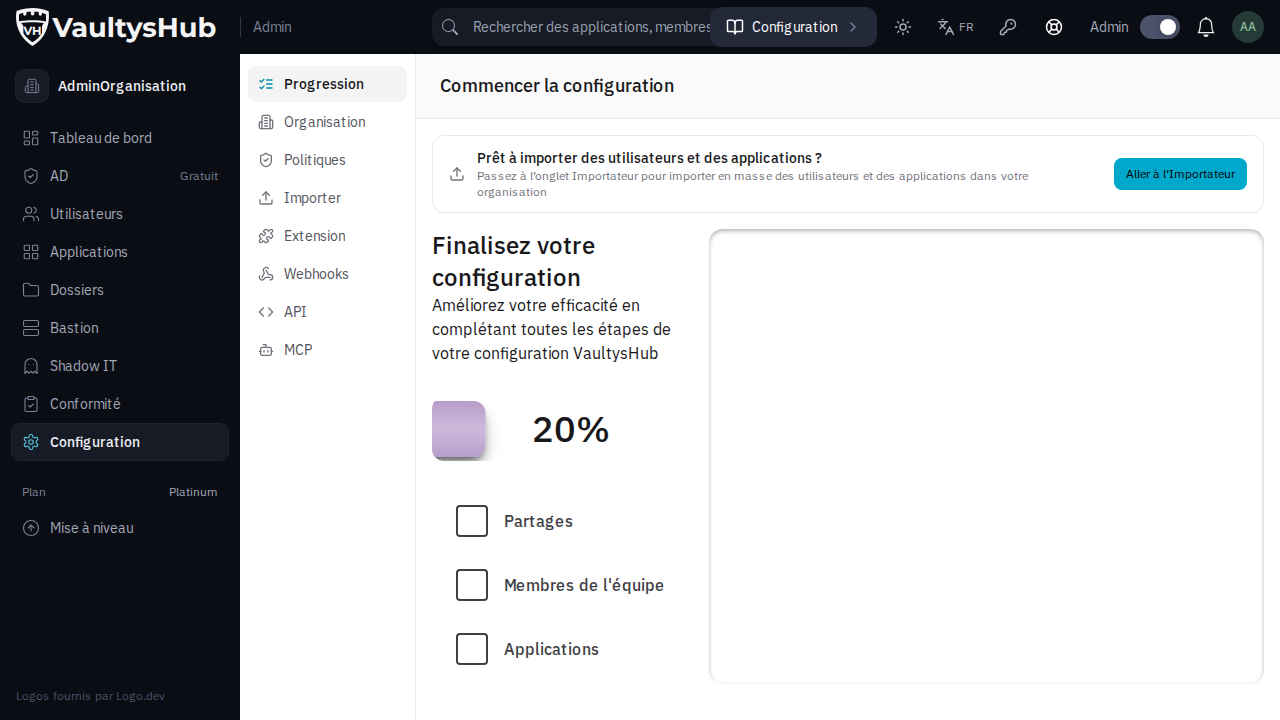
Progress bar
The progress bar displays the percentage of completed steps. Each validated step moves the bar towards 100%, indicating that your VaultysHub is fully configured.
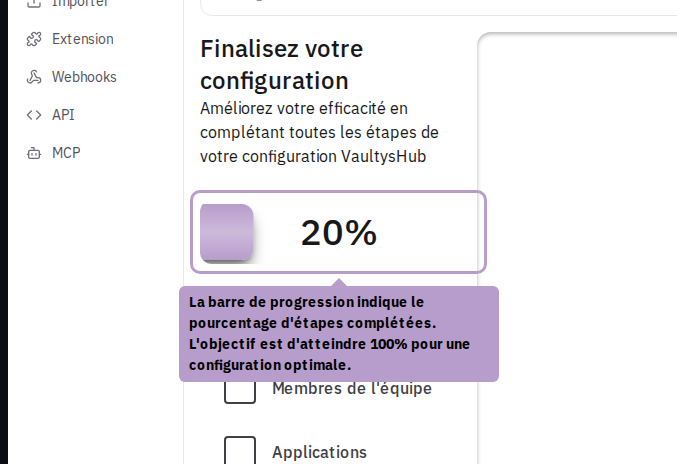
Configuration steps
Five steps structure the setup of VaultysHub. Click on a step to display its content in the right panel and complete it directly.
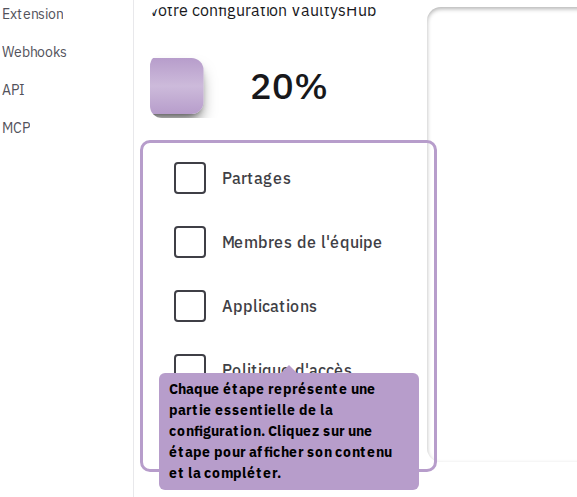
| Step | Description | Validated when… |
|---|---|---|
| Shares | Create the folder structure that reflects your organization. Folders allow you to group applications and users. | at least one folder exists |
| Team members | Invite collaborators from your organization. They will be able to access the applications assigned to them via the folders. | the organization has more than one member |
| Applications | Add the applications used in your company. VaultysHub will manage access and authentications for each of them. | at least one application exists |
| Access policy | Assign applications to folders and users to folders to define who accesses what. | a folder containing applications is shared |
| Browser extension | Install the VaultysHub extension in your browser to enable Shadow IT detection and automatic password filling. | the extension responds to the browser |
A step is marked as completed as soon as the corresponding data exists in VaultysHub: nothing needs to be checked manually.
Step: Shares
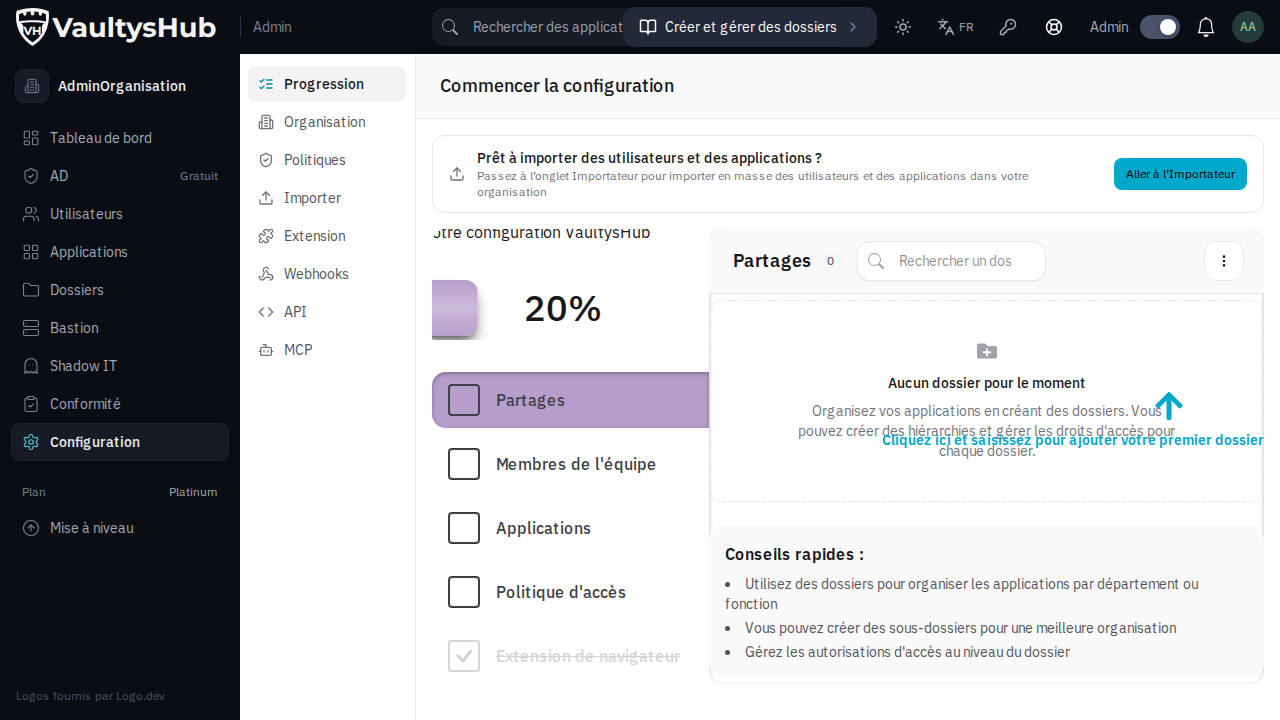
Create your folder hierarchy to structure access. You can create nested folders to reflect your departments or projects.
Step: Team members
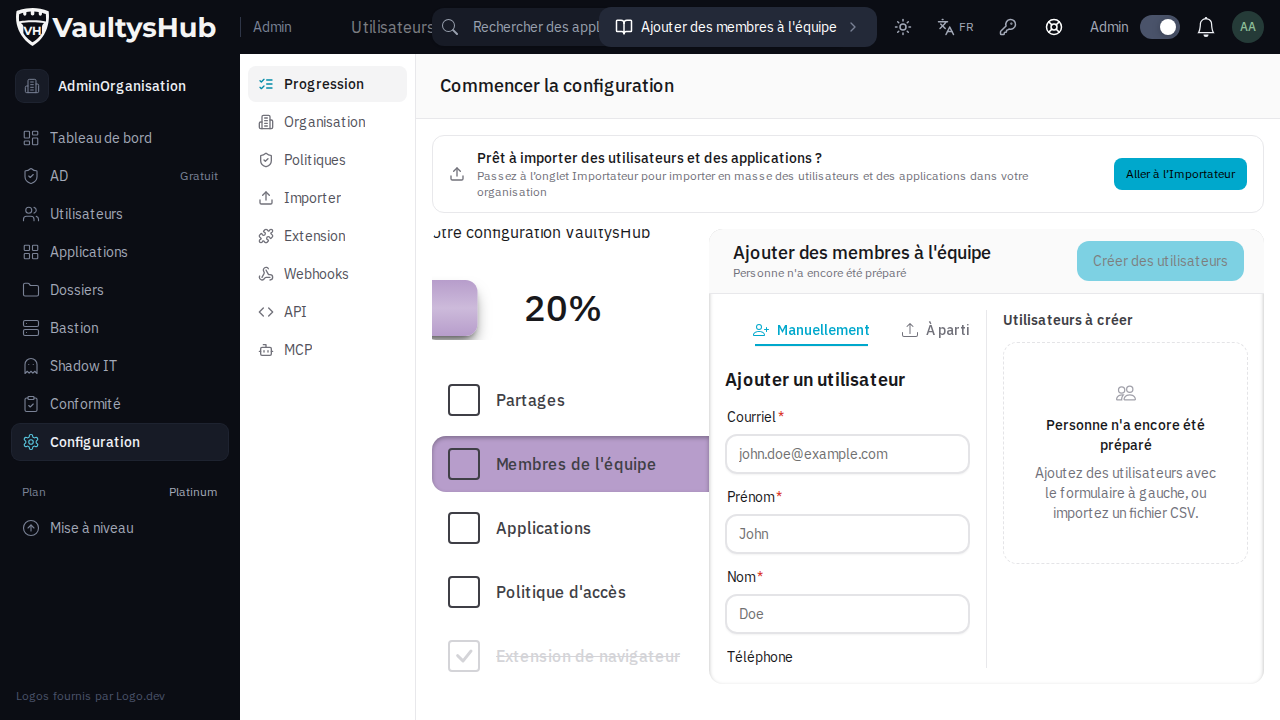
Invite your collaborators by email or import them from a CSV file. Each user receives an invitation link to join your VaultysHub organization.
Step: Applications
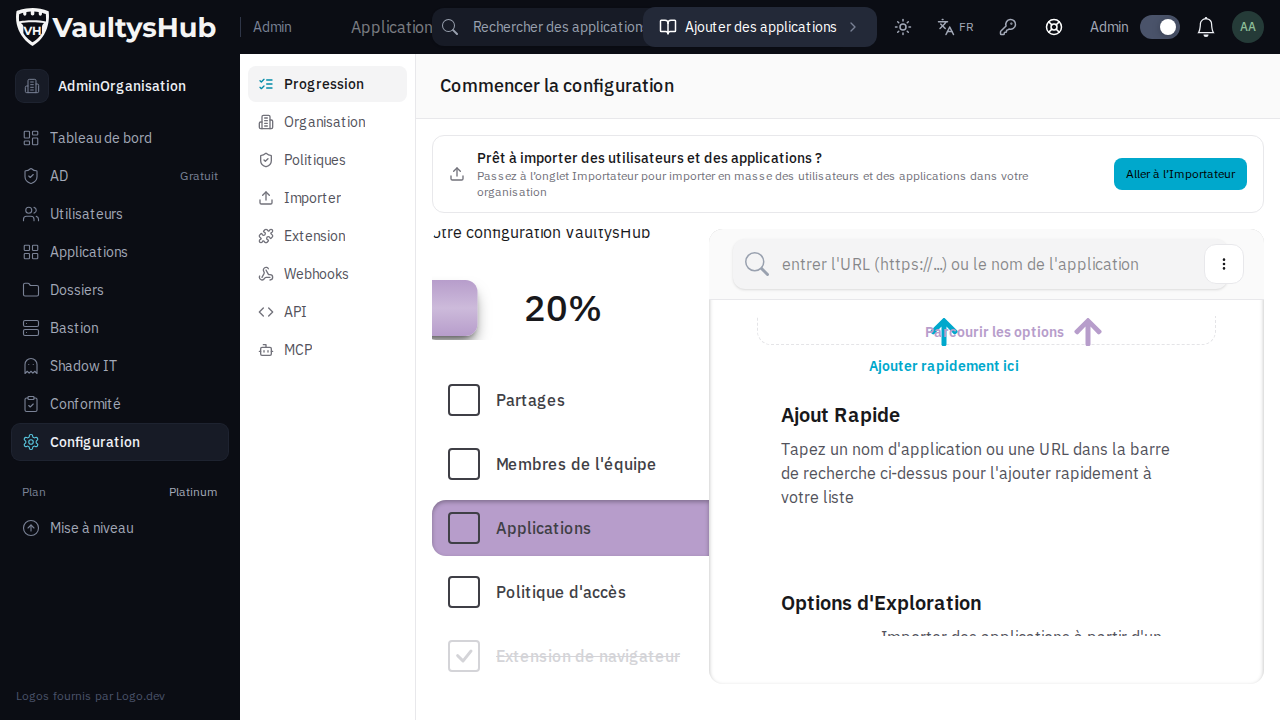
Add your organization's applications from the VaultysHub library or by manually entering a URL. The applications will then be assignable to folders.
Step: Access policy
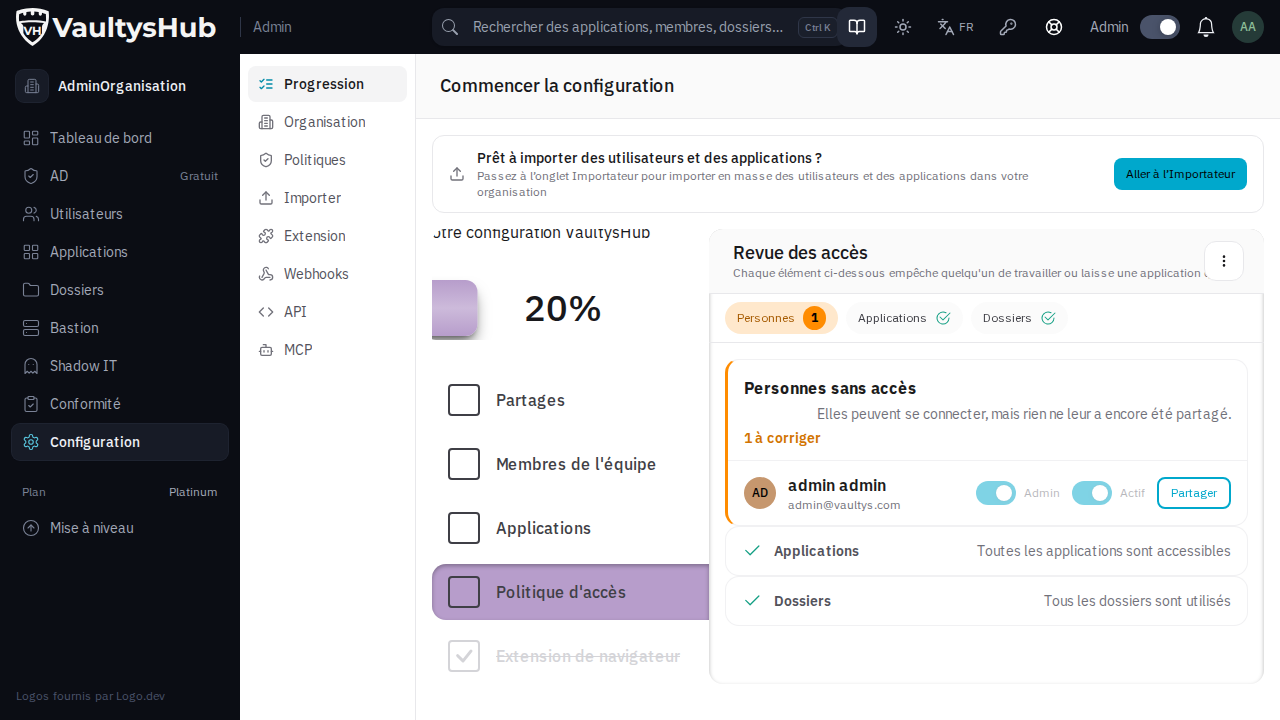
Associate applications and users with your folders. A user who is a member of a folder automatically accesses all the applications it contains.
Step: Browser extension
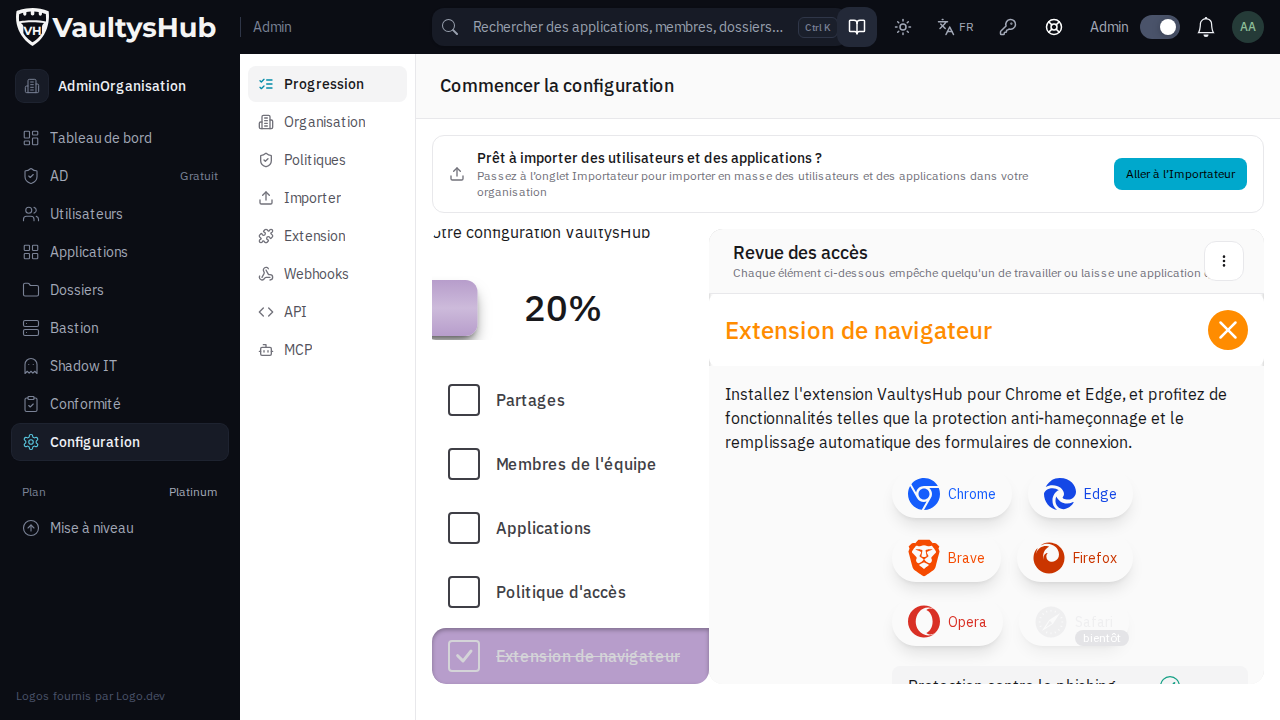
Install the VaultysHub browser extension to benefit from automatic password filling and detection of Shadow IT applications used in your organization.
Once the configuration is complete
The assistant is a startup tool, not a permanent screen. Once the five steps are validated, the progress reaches 100% and the Progress tab disappears: the other tabs on the Configuration page take over for ongoing management.
The tab reappears if any of the conditions cease to be met — for example, if all applications are deleted.