MCP Server
Connect an AI assistant (Claude, Cursor, GitHub Copilot, ...) to your VaultysHub organization and manage it in natural language:
"Create an account for Marie Curie ([email protected]), send her the invitation, and give her access to the Accounting folder."
VaultysHub exposes a MCP server (Model Context Protocol, the open standard that allows AI assistants to use external tools). The assistant finds tools to manage the members, folders, and applications of your organization, and to consult the audit log.
The MCP server is included in the Integration module, like the VaultysHub API on which it relies.
The MCP server does not add any rights: each tool executes the corresponding operation of the VaultysHub API, with the same controls, the same request limits, and the same traceability. The assistant only sees the tools authorized by the rights of its MCP key, and all its modifications appear in the audit log under the key name.
Dedicated keys for the MCP server
The MCP server has its own keys, distinct from the API keys, and its own switch:
| API Key | MCP Key | |
|---|---|---|
| Managed in | Configuration › API | Configuration › MCP |
| Starts with | secret_ | mcp_ |
| Opens | the REST API (/api/workflow/…) | the MCP server (/api/workflow/mcp) |
| Refused by | the MCP server | the REST API |
| Activated with | Enable API | Enable MCP Server |
You can thus open the MCP server to your assistants without exposing the API to your integrations, or vice versa, and revoke access for one without affecting the others.
Enable the MCP server
Go to Configuration, tab MCP. As long as the server is disabled, no assistant can connect to it.
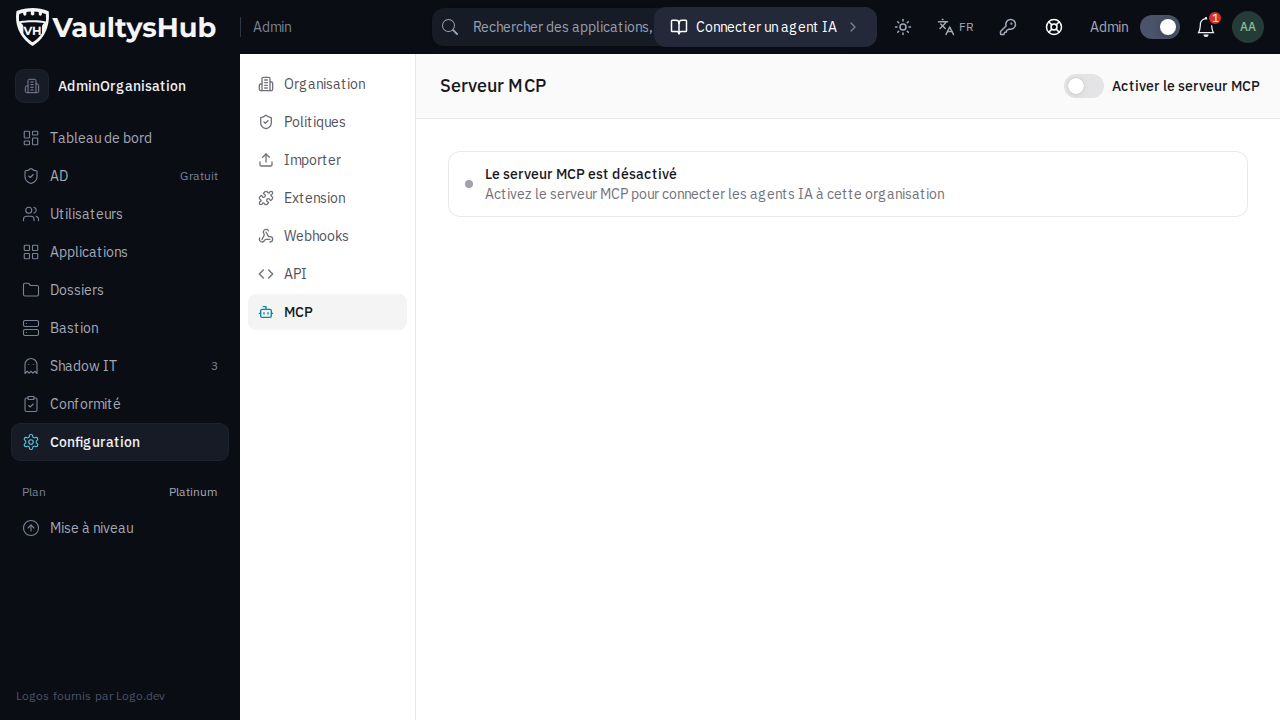
Activate the Enable MCP Server switch in the toolbar.
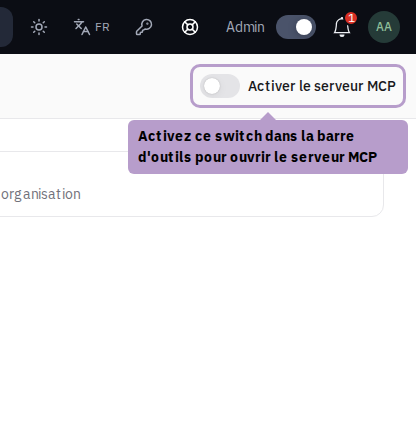
The tab then displays the server address and the list of MCP keys for the organization.
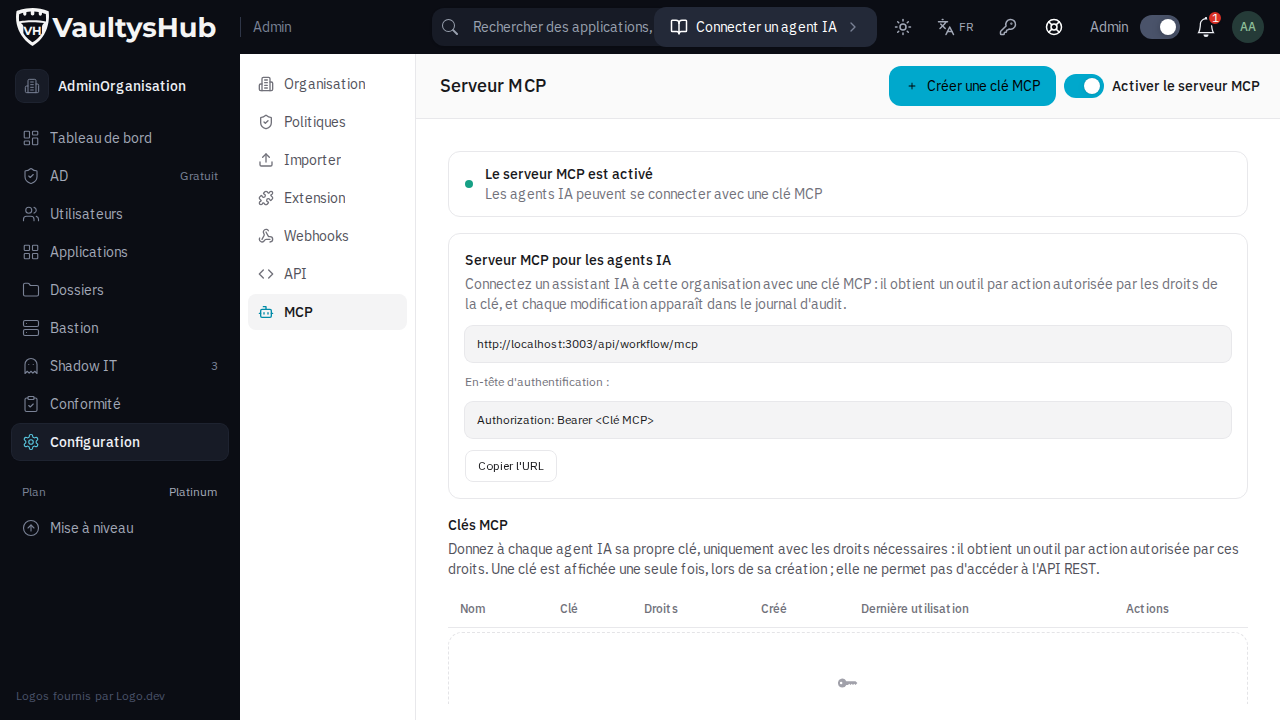
Retrieve the server address
The MCP Server for AI agents block provides the address to configure in your assistant: that of your VaultysHub followed by /api/workflow/mcp, for example:
https://monentreprise.link.vaultys.org/api/workflow/mcp
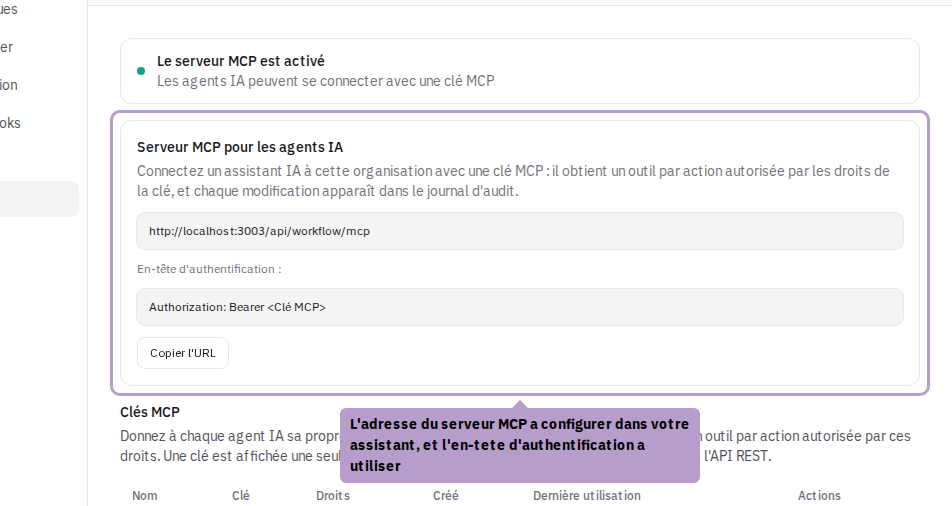
The assistant authenticates by sending the MCP key in the header Authorization: Bearer <MCP key> (the x-api-key header is also accepted). Click on Copy URL to copy the server address.
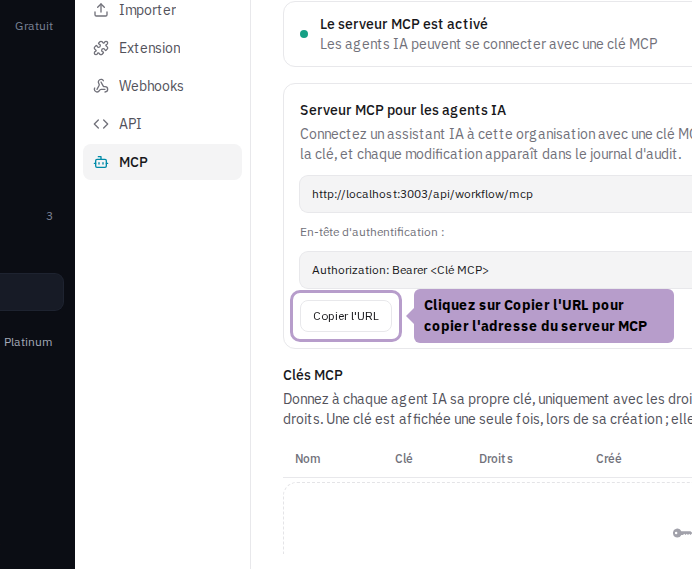
Always use the address of your VaultysHub: the organization is recognized from the domain name. The same key used on another domain is refused.
Create an MCP key
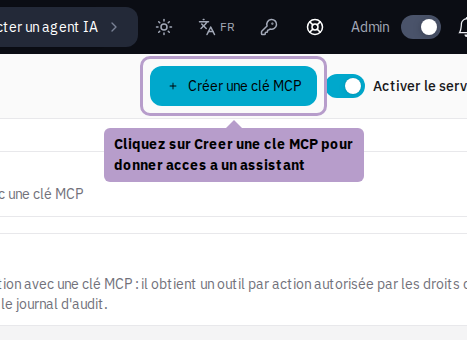
Create a key for each assistant (or team): click on Create MCP Key in the toolbar.
Name the key (for example "Claude — IT team"): this name appears in the audit log in front of each modification made by the assistant. Then choose its rights, resource by resource: None, Read, or Read and Write. The Read Only and All Rights buttons fill the grid in one click.
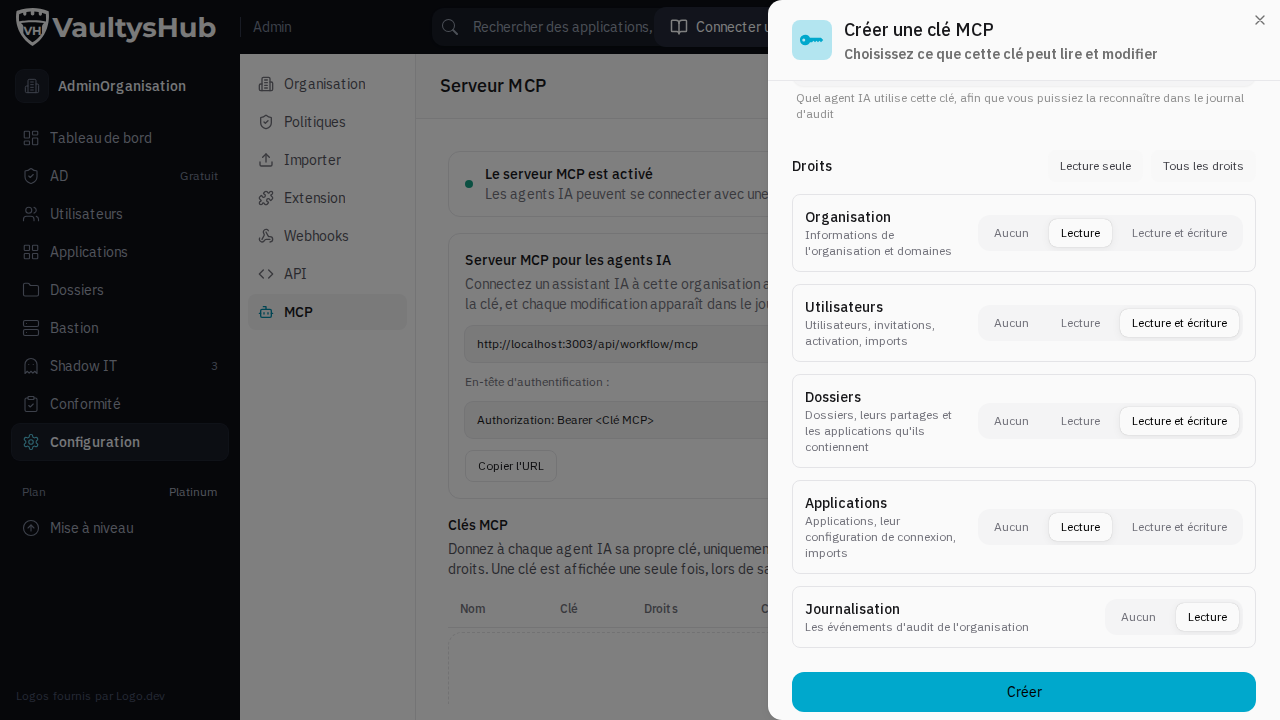
Give the assistant only the necessary rights: a key in Read Only is sufficient to query the organization or the audit log, without risk of modification.
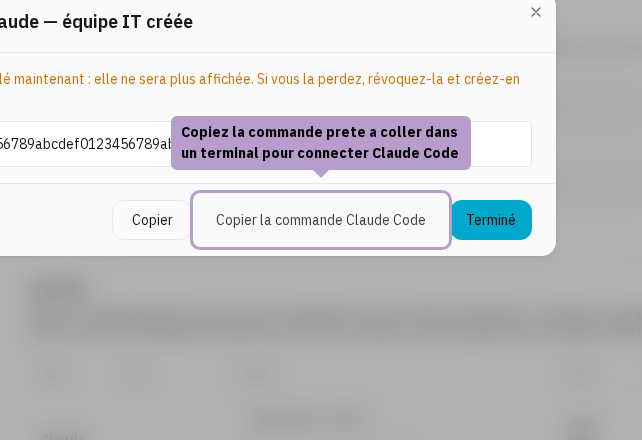
Click on Create: the key is displayed only once. Copy it immediately; if you lose it, revoke it and create a new one.
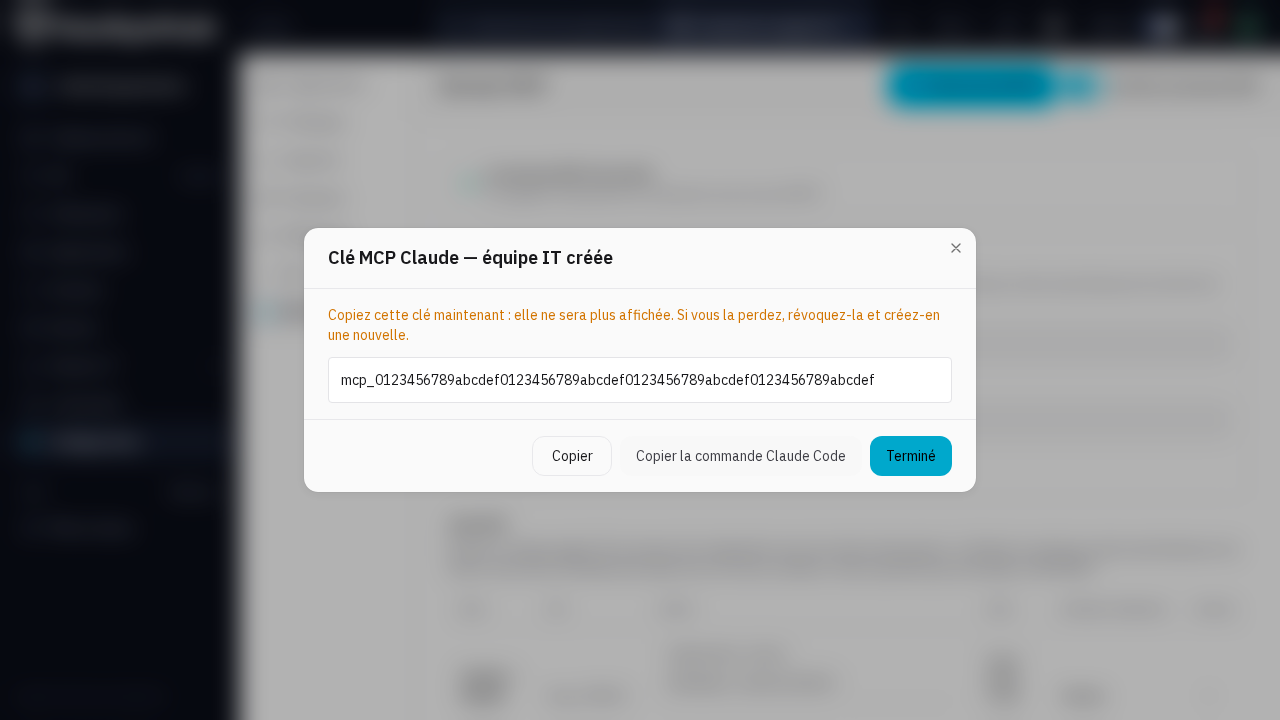
If you are using Claude Code, click on Copy Claude Code Command: the copied command already contains the server address and the key, you just need to paste it into a terminal.
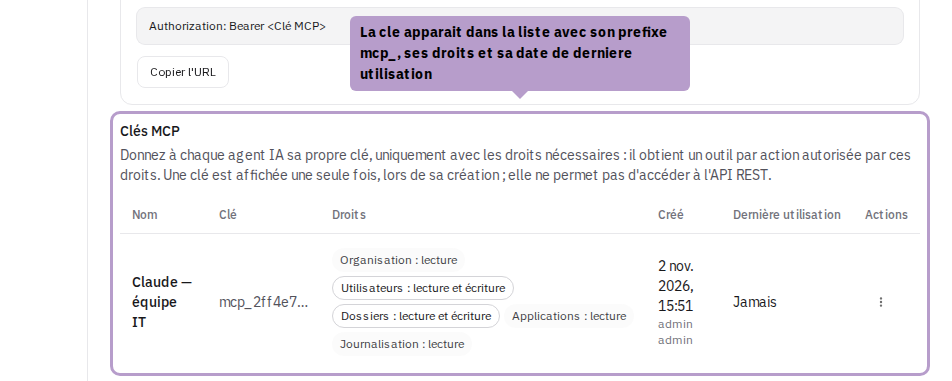
The key then appears in the list, with its prefix, its rights, and the date of its last use.
Modify or revoke a key
The ⋮ menu of each key offers:
- Modify: change its name or rights. The assistant using it sees its tool list updated at its next connection; the key itself does not change.
- Revoke: the key is immediately invalidated and the assistants using it are disconnected; other keys continue to function.
The creation, modification, and revocation of a key are tracked in the audit log.
Connect an AI assistant
The server uses the HTTP transport of MCP (Streamable HTTP). Any MCP client capable of sending an authentication header can connect to it. In the examples below, replace the address with yours and <MCP key> with the MCP key copied at its creation.
Claude Code
claude mcp add --transport http vaultyshub https://monentreprise.link.vaultys.org/api/workflow/mcp \
  --header "Authorization: Bearer <MCP key>"
Or, more simply, paste the command copied with the Copy Claude Code Command button (see Create an MCP Key). Then check the connection with the /mcp command in Claude Code.
Cursor
In the ~/.cursor/mcp.json file (or .cursor/mcp.json in a project):
{
  "mcpServers": {
    "vaultyshub": {
      "url": "https://monentreprise.link.vaultys.org/api/workflow/mcp",
      "headers": {
        "Authorization": "Bearer <MCP key>"
      }
    }
  }
}
VS Code (GitHub Copilot)
In the .vscode/mcp.json file:
{
  "servers": {
    "vaultyshub": {
      "type": "http",
      "url": "https://monentreprise.link.vaultys.org/api/workflow/mcp",
      "headers": {
        "Authorization": "Bearer <MCP key>"
      }
    }
  }
}
Claude Desktop and other clients
For a client that can only launch local MCP servers, use the mcp-remote gateway (Node.js required). For Claude Desktop, in claude_desktop_config.json:
{
  "mcpServers": {
    "vaultyshub": {
      "command": "npx",
      "args": [
        "-y",
        "mcp-remote",
        "https://monentreprise.link.vaultys.org/api/workflow/mcp",
        "--header",
        "Authorization: Bearer <MCP key>"
      ]
    }
  }
}
Then restart Claude Desktop.
Use the assistant
Simply describe what you want to do. A few examples:
- "List the members who have not yet completed their registration."
- "Add Paul Martin ([email protected]) and send him his invitation by email."
- "Give Marie access to the Accounting folder."
- "Paul is leaving the company: disable his account."
- "Create the Grafana application (https://grafana.example.com) in OpenID Connect, with the redirect URL https://grafana.example.com/login/generic_oauth, and place it in the Ops folder."
- "Who logged into the Pennylane application this week?"
In VaultysHub, a member accesses an application via a folder: the assistant shares the folder with the member and places the application in the folder.
Available tools
Only the tools covered by the rights of the key are offered to the assistant: for example, a key with Users: read sees the search and consultation tools for members, but not those for creation or deactivation.
| Domain | Tools |
|---|---|
| Organization | consult the organization, list its domains, search in the audit log |
| Members | search, consult, create, modify, send the registration invitation, activate, deactivate, delete |
| Folders | list, consult, create, delete, list members and applications of a folder, share / unshare a folder with a member |
| Applications | list, consult, create, modify, delete, choose the connection type (password, OpenID Connect, SAML), configure OpenID Connect / SAML, add to / remove from a folder |
Deletion tools are marked as destructive to the assistant: depending on its configuration, your client may ask for confirmation before executing them. The assistant is also prompted to prefer deactivating a member (reversible) over deleting them.
Security and best practices
Anyone or any assistant holding the key has its rights. Share it only with administrators, never publish it in a code repository, and prefer an environment variable to a plaintext value.
-
One key per assistant: create a distinct key for each assistant or each team, with minimum rights. This way, you can revoke one without cutting off the others, and the audit log will indicate which one did what.
-
Review before validating: check the actions proposed by the assistant, especially deletions and role changes.
-
Revoke if in doubt: in the MCP tab, choose Revoke in the key menu. It is immediately invalidated and the assistants using it are disconnected; other keys continue to function.
-
Disable the MCP server if you are no longer using it: the Enable MCP Server switch turns it off, without affecting the API or its keys.
-
Control afterwards: the audit log tracks each modification, with the name of the key that made it, as well as the creation, modification, and revocation of keys.
-
Application secrets: the configuration of an OpenID Connect application contains its client secret, which is then transmitted to the assistant. Only request this configuration when you need it.
Troubleshooting
| Symptom | Likely Cause |
|---|---|
| 401 Unauthorized error on login | The MCP server is disabled (the Enable MCP Server switch in the MCP tab); the key is missing, poorly copied, or has been revoked; the address used is not that of your organization; or it is an API key. |
401 error with a key starting with secret_ | It is a key from the REST API: the MCP server refuses it. Create an MCP key (it starts with mcp_) in the MCP tab. Conversely, an mcp_ key is refused by the REST API. |
403 error Module INTEGRATION not enabled | Your subscription does not include the Integration module. |
| A expected tool does not appear, or responds "This MCP key does not have the right..." | The key does not have the corresponding right: add it in the MCP tab (key menu, Modify). |
| 403 Forbidden origin error | The request comes from a web page from another domain: the MCP server must be called by an MCP client, not from a browser. |
| 429 error in the response from a tool | The key has exceeded your organization's request limit (the same as for the API, counted by key). The response indicates when to retry: wait until then, or spread your assistants over several keys. |
| "Not found" in the response from a tool | The requested member, folder, or application does not exist (or has been deleted): ask the assistant to search for it first. |
To check a key without going through the assistant:
curl -i https://monentreprise.link.vaultys.org/api/workflow/mcp \
  -H "Authorization: Bearer <MCP key>" -H "content-type: application/json" \
  -d '{"jsonrpc": "2.0", "id": 1, "method": "tools/list"}'
A 200 response lists the tools that the key authorizes; a 401 response indicates one of the above cases.
Update from a version prior to 4.4.0
Since version 4.4.0, the MCP server only accepts MCP keys, and it is disabled by default. After the update, an assistant configured with an API key, or connected to an organization that has not enabled the MCP server, receives a 401 error. To reconnect it:
- enable the MCP server in the MCP tab (Enable the MCP Server) ;
- create an MCP key with the necessary rights (Create an MCP Key) ;
- replace the old key in the assistant's configuration.
The organization's old unique API key has been retained under the name Default, with all rights: if the assistant was using it, consider revoking it as soon as it is no longer in use (see Update from a version prior to 4.4.0 on the API page).