Share an Application
This guide explains how to manage access to an application in SmartLink: sharing with folders, with users, and removing access.
Step 1: Access sharing from the list of applications
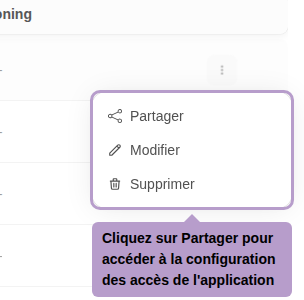
From the Applications page, open the actions menu (⋮) of an application and click on Share.
Step 2: Application sharing page
You will be taken to the application's configuration page, in the Share tab.
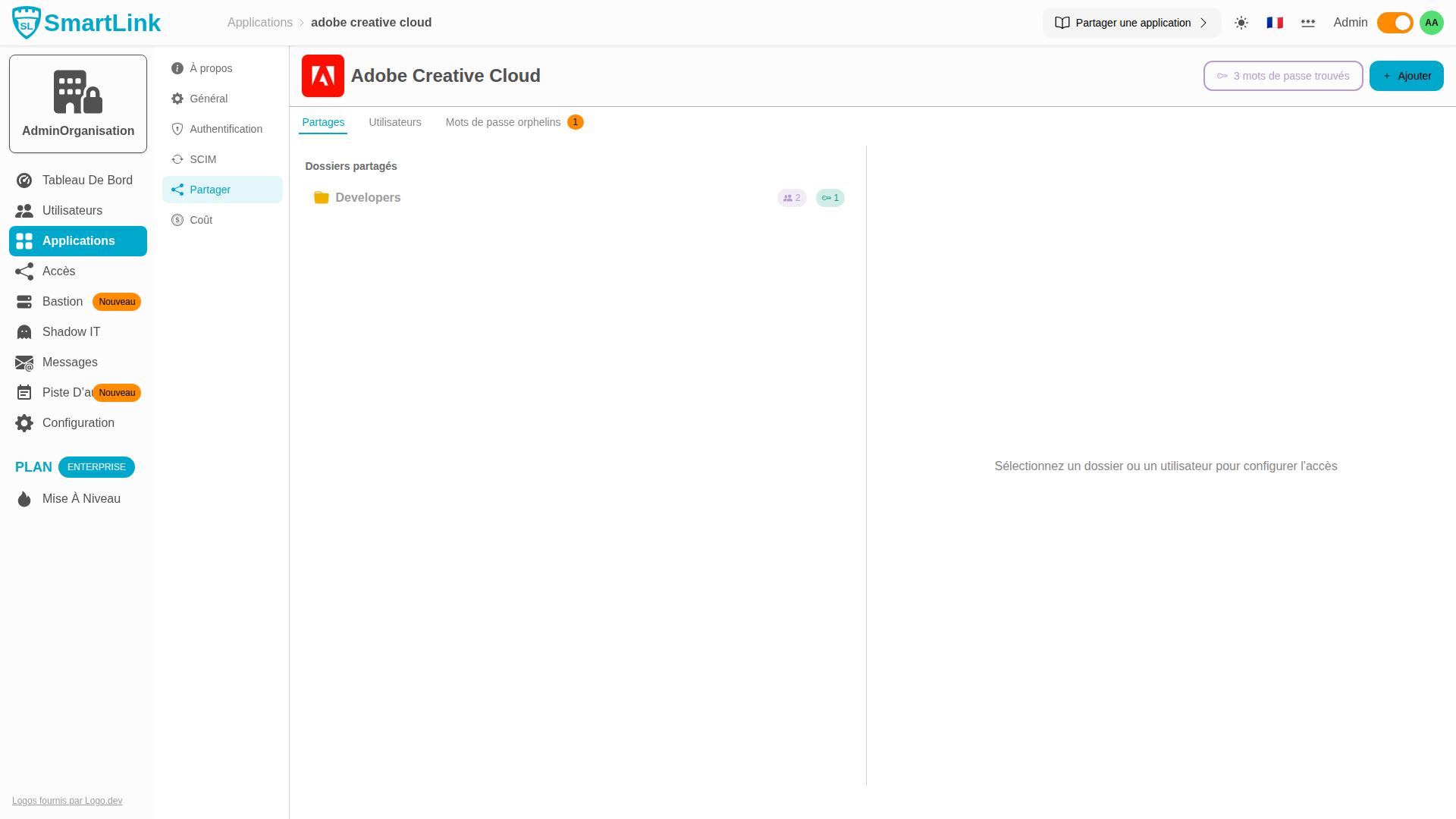
The 3 available tabs
Shares
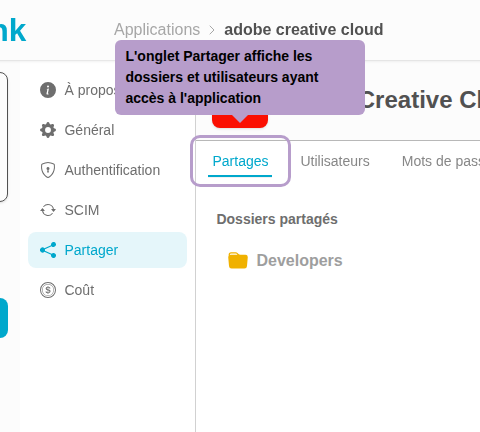
The Shares tab displays the folders and users who have access to the application. Here you can add or remove access.
Users
The Users tab lists all users who have access to the application, whether they access it directly or through a folder.

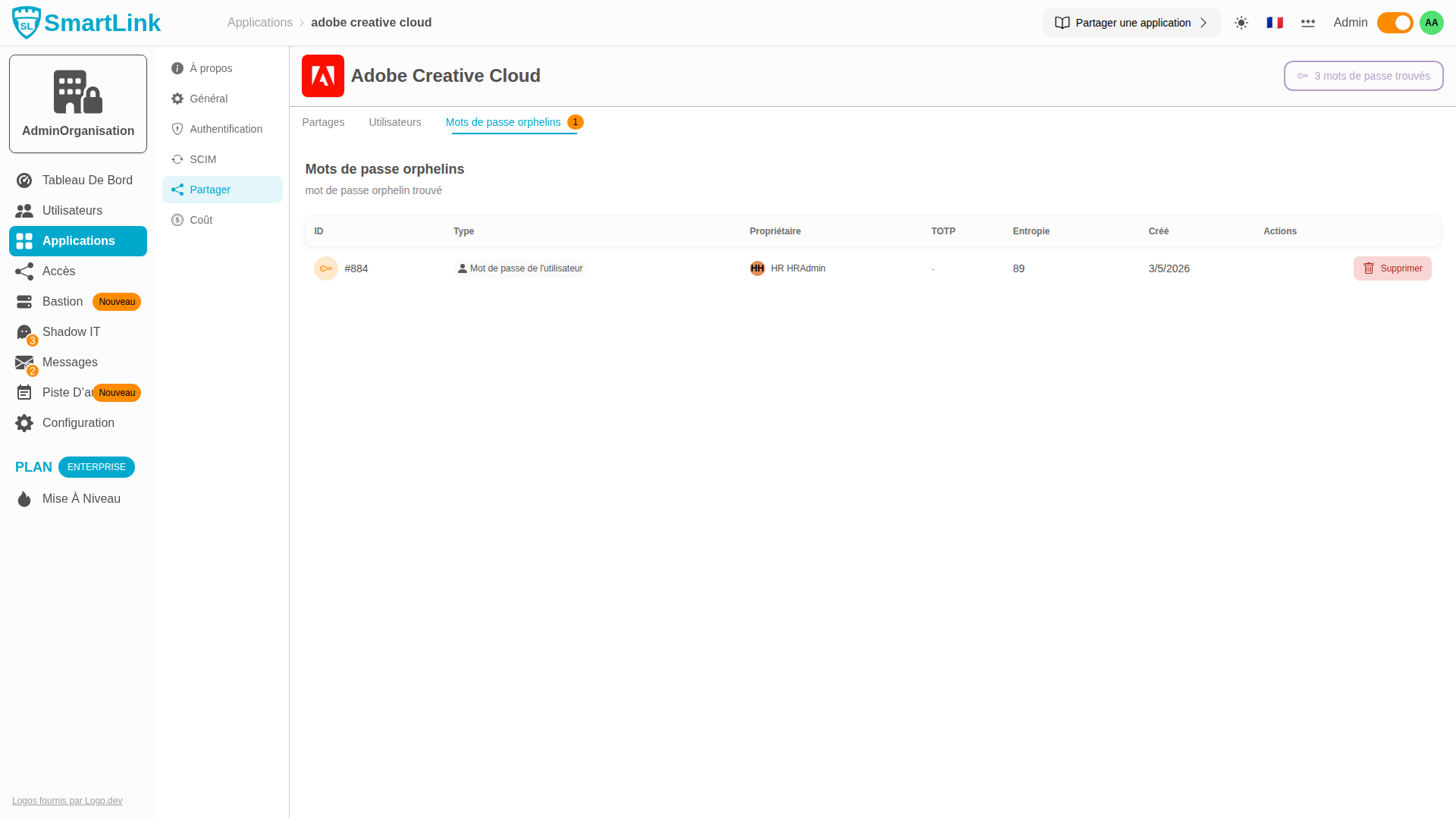
Orphan Passwords
The Orphan Passwords tab displays passwords that no longer have an owner — for example, when a user loses access even though they had set a password for that application.
Share with a folder
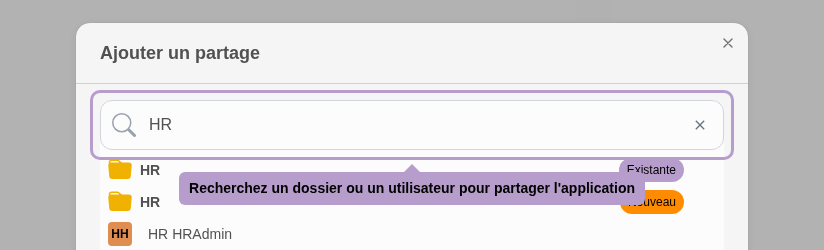
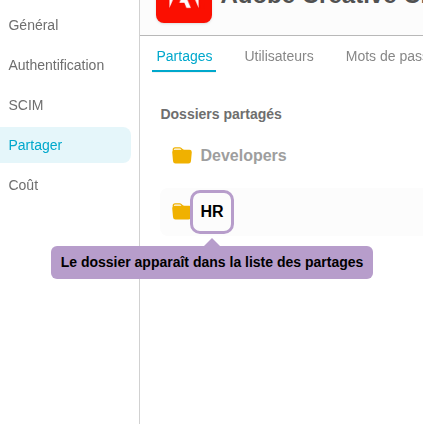
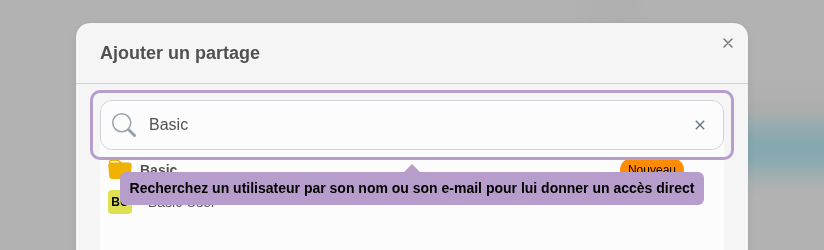
Click on the Add button to open the search window, then select a folder.
Configure folder password
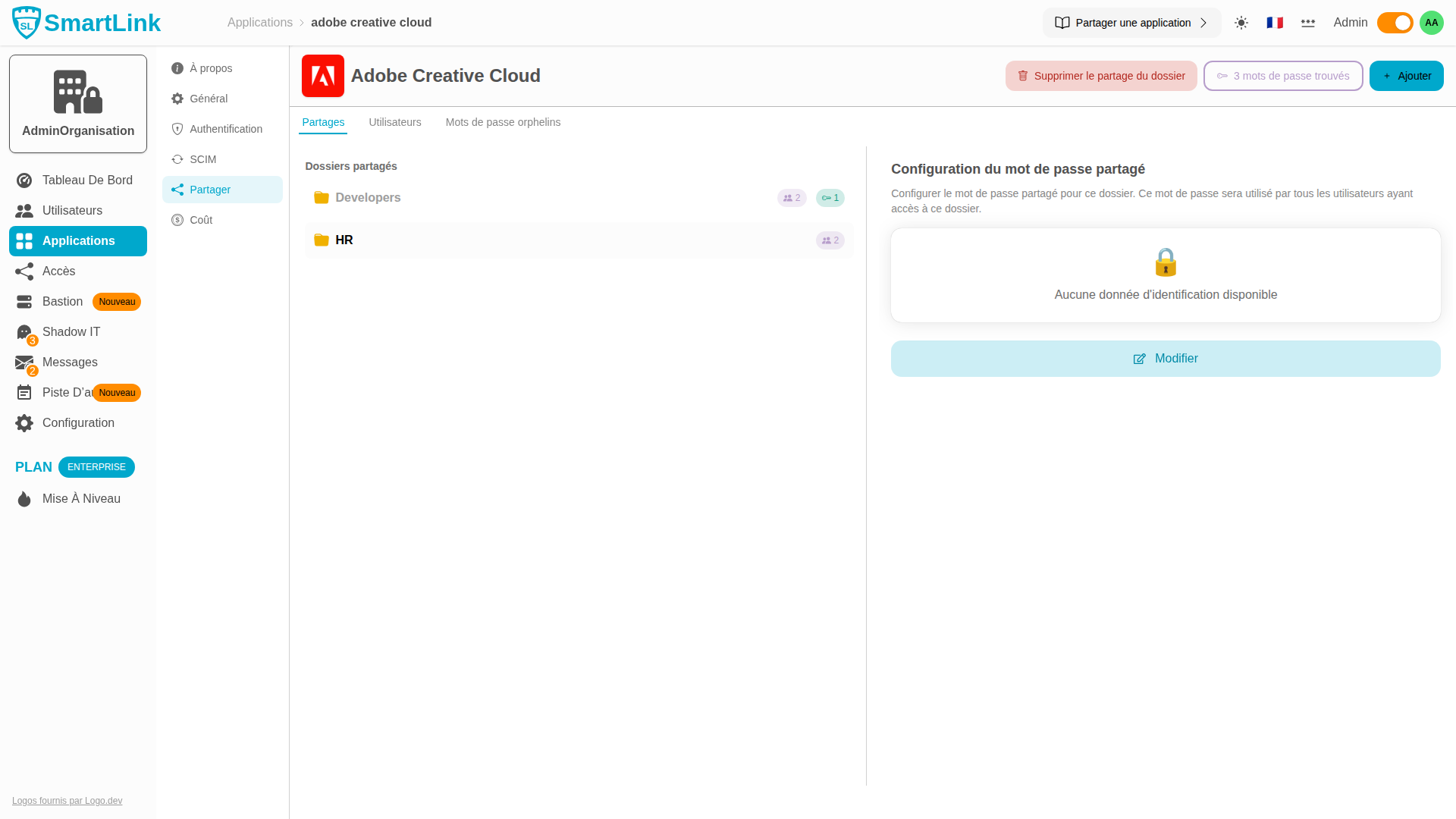
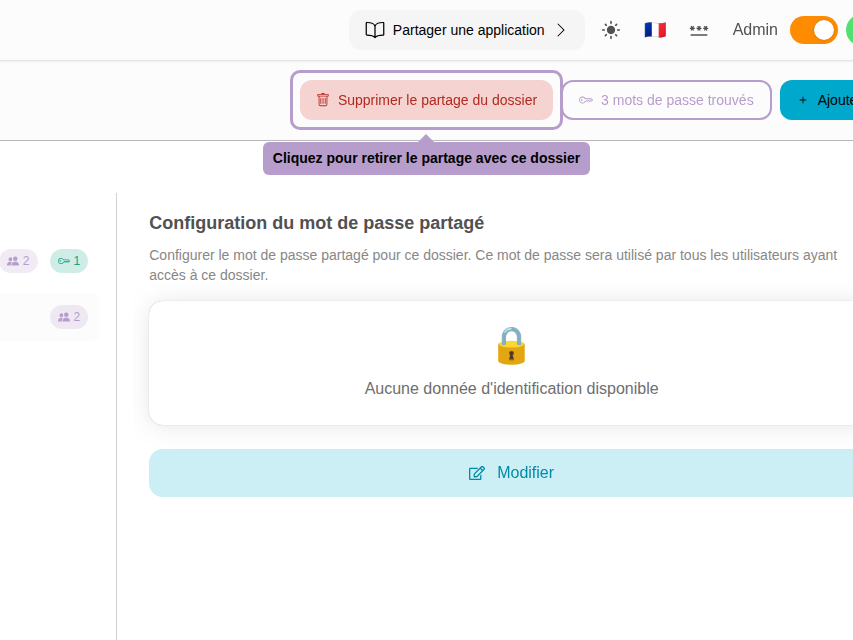
Once the folder is selected from the list, the right panel displays the configuration of the shared password for this folder. You can set a common password for all users of this folder.
Remove sharing with a folder
Select a folder from the list and click on Remove sharing with the folder in the toolbar.
Share with a user
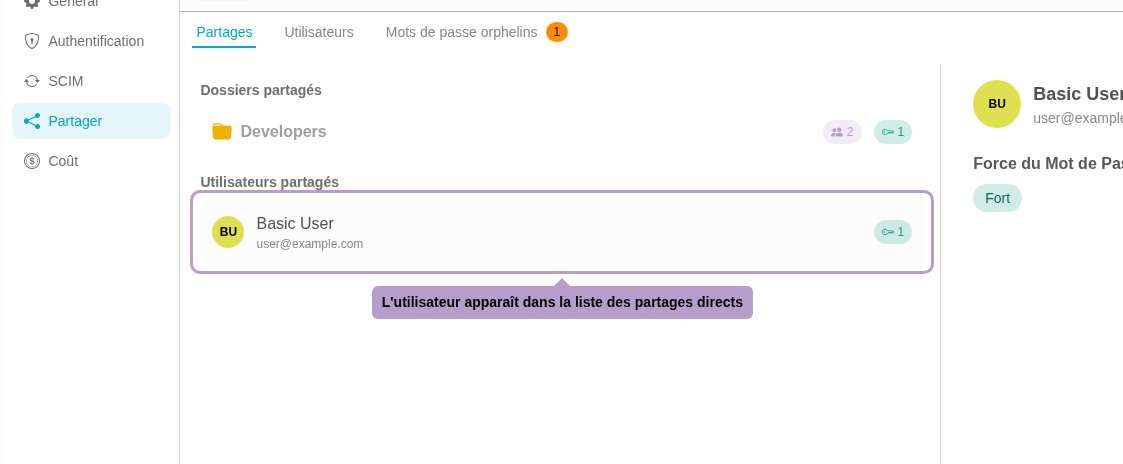
Click on the Add button, then search for a user by name or email and select them.
Remove user access
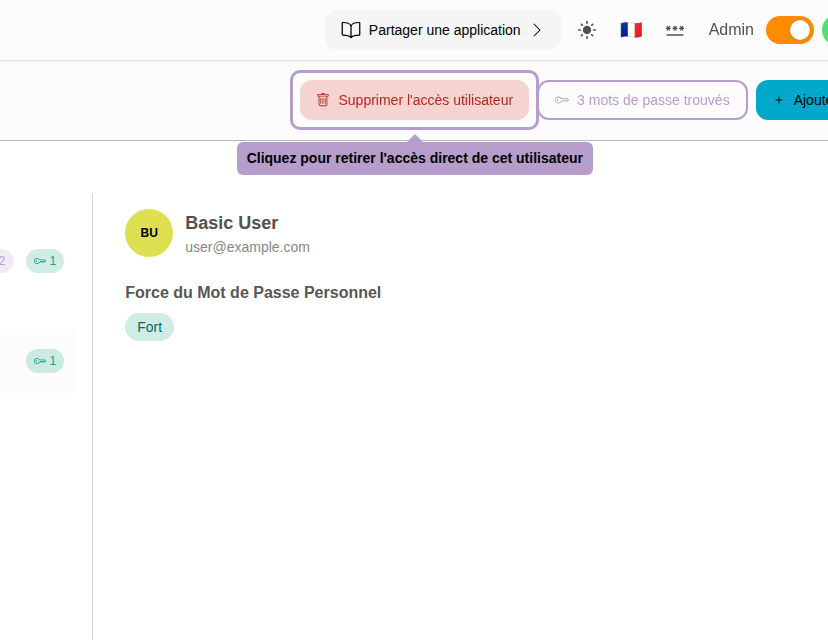
Select the user from the list and click on Remove access in the toolbar.