Shadow IT
Shadow IT refers to the use of software, applications, or IT services within a company without the approval or control of the IT department. It can involve cloud tools, storage solutions, messaging, or applications used independently by employees. While it can improve productivity, Shadow IT poses risks in terms of security, compliance, and data management.
Through its browser extension, SmartLink is able to automatically detect Shadow IT within your organization.
Accessing Shadow IT
In the sidebar, click on Shadow IT.
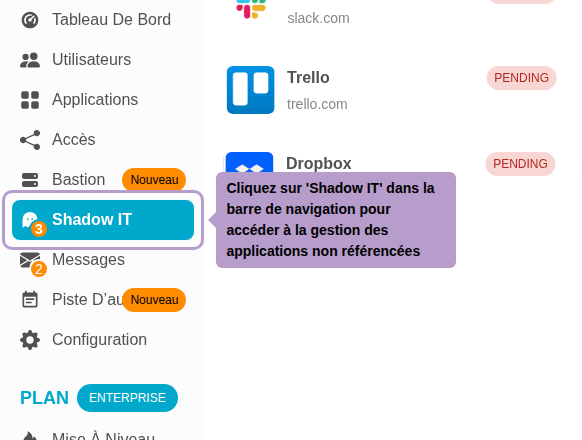
You will arrive at the list of applications detected by the extension. By default, only Pending applications are displayed.

Filtering by Status
Use the Status menu in the toolbar to display applications according to their processing status.

| Status | Description |
|---|---|
Pending (PENDING) | Application detected, awaiting an administrator's decision |
Done (DONE) | The application has been added to SmartLink applications |
Ignored (IGNORED) | Events related to this application will no longer be reported |
Available Actions
Hover over an application and click on the ⋮ menu to access the available actions.
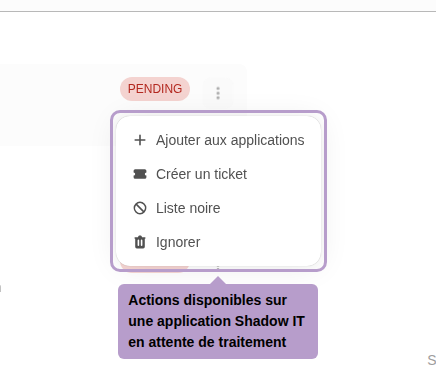
| Action | Description |
|---|---|
| Add to applications | Creates a SmartLink application from this Shadow IT. The status automatically changes to Done. Remember to configure the shares of the new application. |
| Create a ticket | Creates a follow-up ticket accessible from the Messages tab |
| Blacklist the app | Adds the domain to the anti-phishing blacklist and blocks access for your users |
| Ignore | Permanently ignores events related to this application. This is equivalent to approving it without integrating it into SmartLink. |
Application Details
Click on an application to display its detail panel on the right.

The panel displays the name, main domain, and quick actions (add, blacklist, ignore). Several tabs allow you to explore the available information.
Events Tab
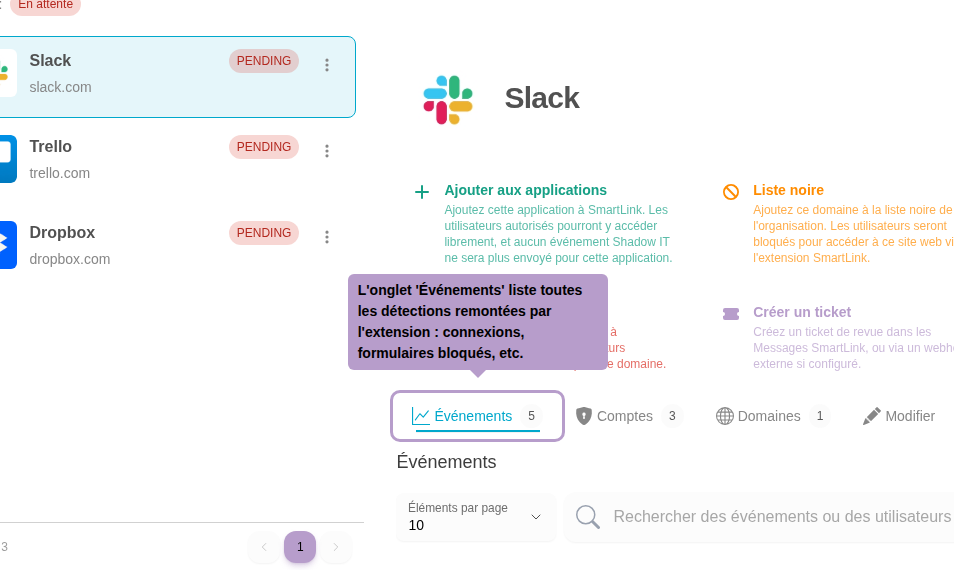
The Events tab lists everything reported by the extension related to this application: detected connections, intercepted forms, etc.
Accounts Tab
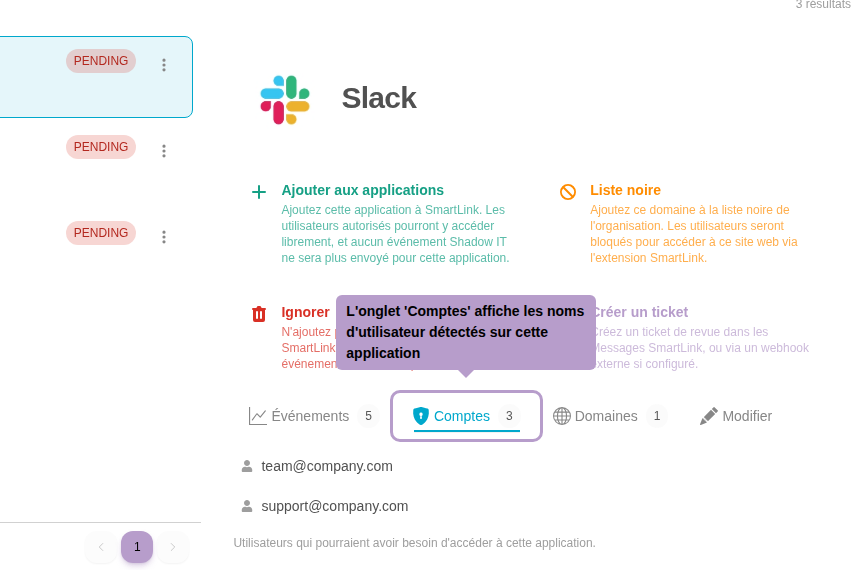
The Accounts tab displays the user names (emails or IDs) that have logged into the application via the browser.
Domains Tab

The Domains tab lists all subdomains associated with this application. An application can cover multiple domains (e.g., dropbox.com, www.dropbox.com). You can manually add or remove them.
Edit Tab

The Edit tab allows you to customize the information of the Shadow IT application: displayed name, icon, and description. These modifications only affect the display in SmartLink and do not create an official application.