Has a user forgotten their phone?
If a user temporarily needs to access the system without their main device (phone forgotten at the office, temporary breakdown...), SmartLink allows you to create a temporary VaultysID for them.
Unlike replacing a VaultysID, the user's main device is not removed. Temporary access automatically expires on the set date.
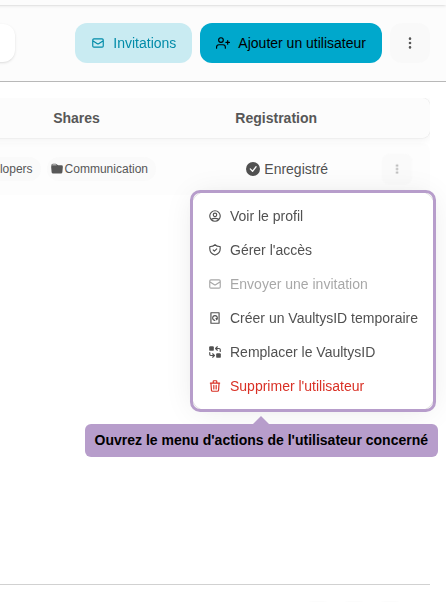
Step 1: Open the actions menu
From the list of users, click on the ⋮ button on the right of the line of the user in question.
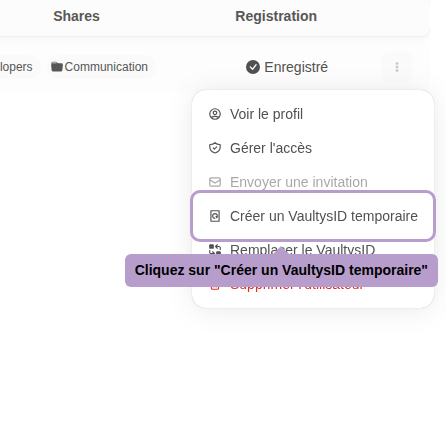
Step 2: Select "Create a temporary VaultysID"
Step 3: Creation panel
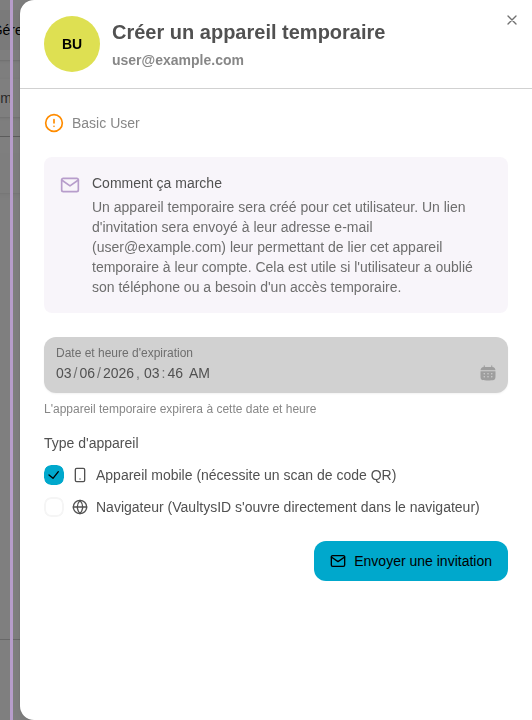
A panel opens with the procedure information. An email will be sent to the user's address to allow them to link this temporary device.
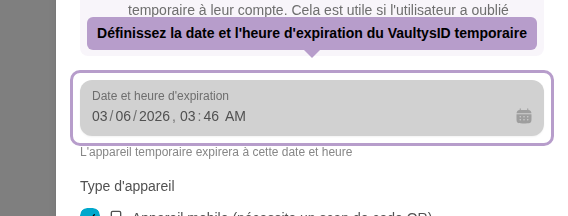
Step 4: Set the expiration date
Set the date and time at which the temporary VaultysID will automatically expire. By default, the duration is 12 hours.
Step 5: Select the device type
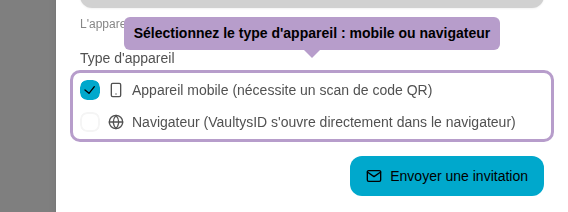
Choose how the user will use this temporary VaultysID:
- Mobile device — the user will need to scan a QR Code from their backup phone or a colleague's phone.
- Browser — VaultysID will open directly in the browser, no scan required.
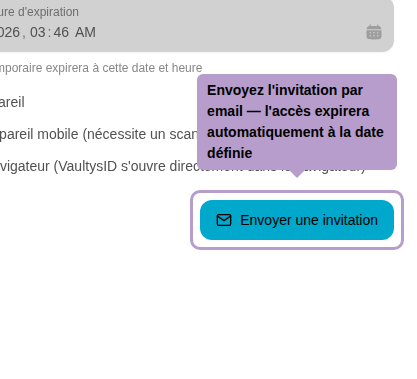
Step 6: Send the invitation
Click on Send invitation to send the link by email to the user. Access will automatically expire on the set date. The main device is not affected.