Managing User Access
In SmartLink, access to applications can be granted to a user in two ways:
- Via a Folder — by adding the user to a folder, they automatically gain access to all applications within that folder. This is the recommended method for consistent access management by team or service.
- Directly — by sharing a specific application with the user, regardless of any folder.
Accessing Access Management
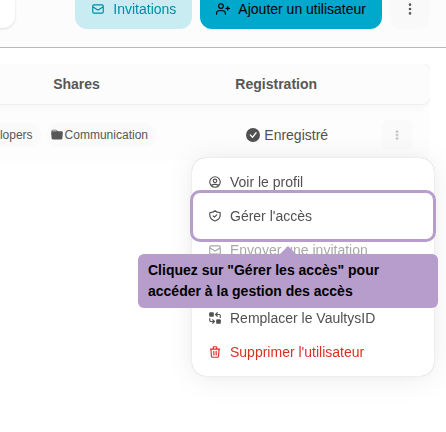
From the list of users, open the actions menu (⋮) and click on Manage Access.
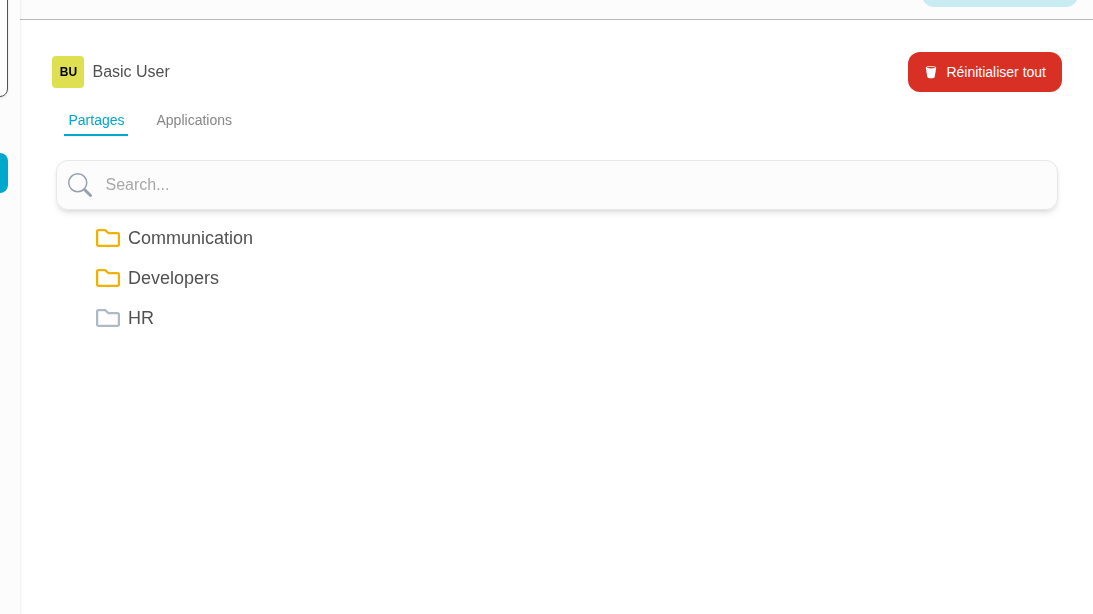
You will be taken to the access management page, which displays the folders and applications the user has access to.
Folders Tab
Adding Access to a Folder
Folders are displayed in a tree structure. Icons indicate the access status:
- 🟡 Yellow — access granted
- 🔵 Blue — folder administrator
- ⚫ Gray — access not granted
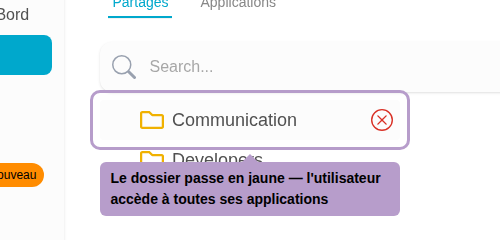
Hover over a folder with no access (gray) to reveal the + button, then click to grant access.
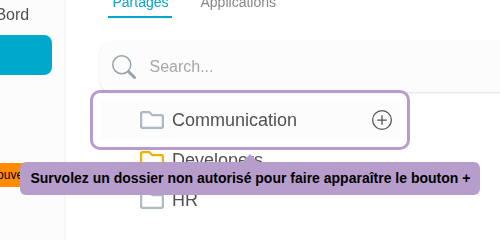
After adding access, the folder turns yellow. The user now has access to all applications within that folder.
Viewing Folder Details
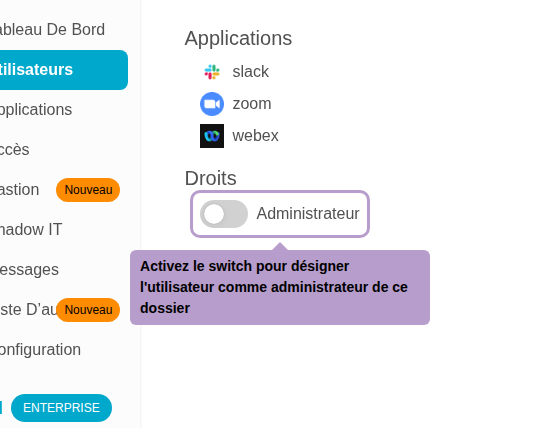
Click on an authorized folder to display its details panel on the right. You can see the list of applications within that folder.

Setting the User as Folder Administrator
In the details panel, toggle the Administrator switch to grant administrative rights of the folder to the user. The folder will then turn blue.
Choosing Administrative Rights
When the user is an administrator of a folder, you can refine their rights by selecting specific permissions they have on that folder.

Removing Access to a Folder
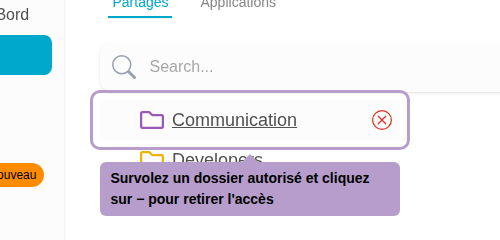
Hover over an authorized folder to reveal the - button, then click to remove access. The user will then lose access to all applications within that folder.
Applications Tab
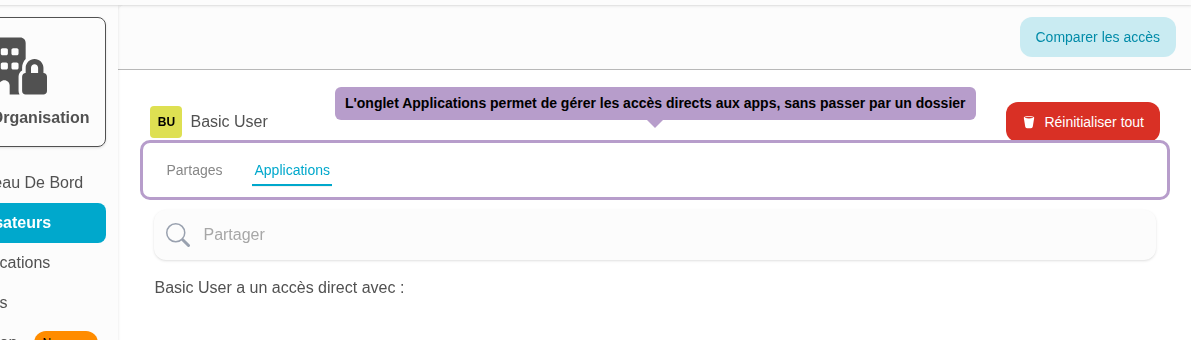
The Applications tab allows for managing direct access to applications, independent of any folder.
Sharing an Application Directly
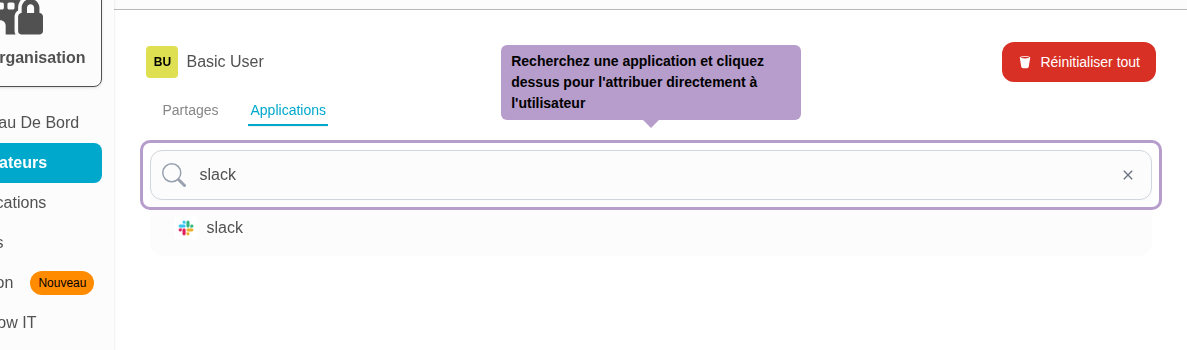
Use the search bar to find an application, then click on it to directly assign it to the user.
Removing Direct Access to an Application
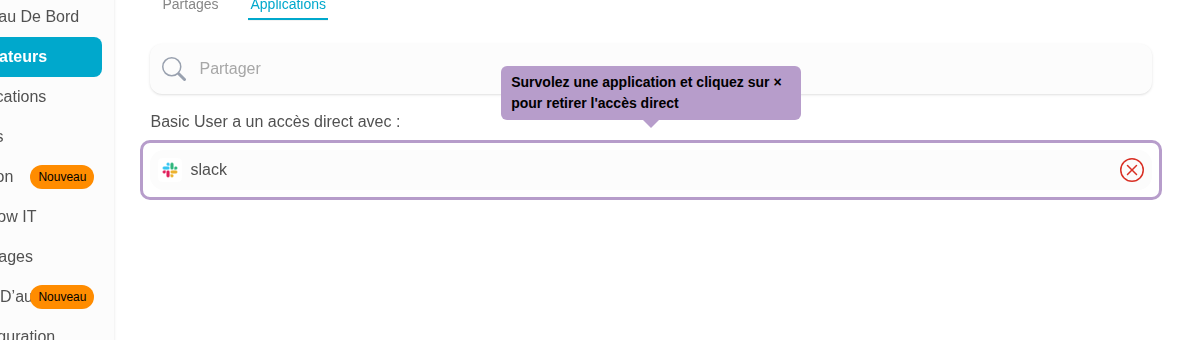
Directly shared applications are listed below. Hover over an application to reveal the delete button, then click to remove access.
Reset All Access
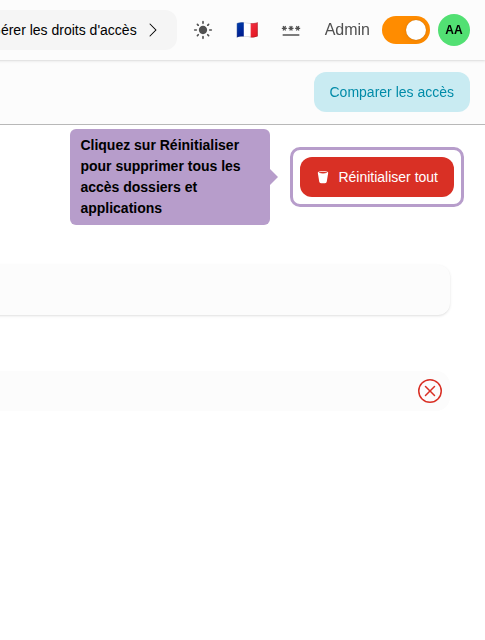
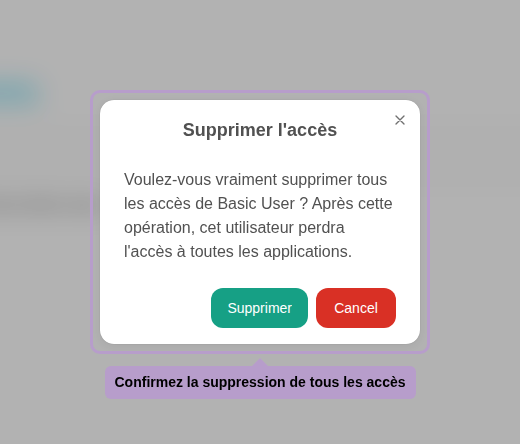
The Reset button removes all folder and direct application access for the user. Confirmation is required before proceeding.
Copy Access from Another User
After resetting access, you can copy the access configuration from another user. Click on the Compare Access button in the toolbar.
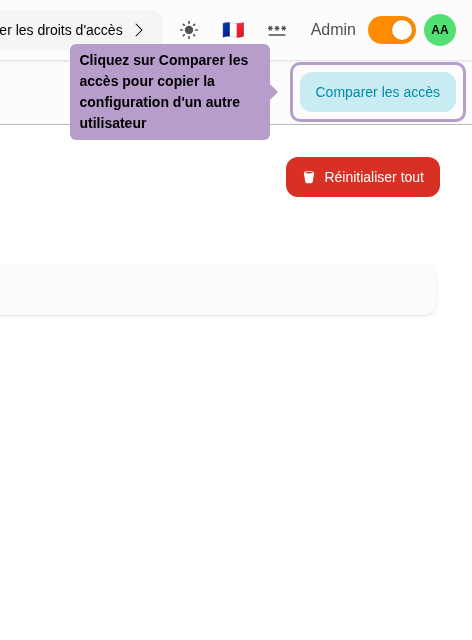
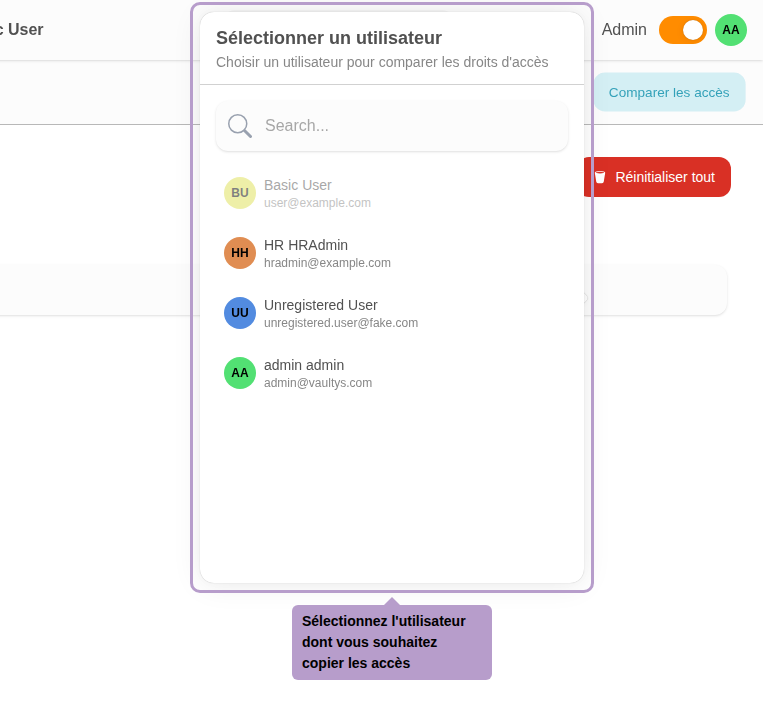
Select the user whose access configuration you want to copy. The page will then display both configurations side by side for comparison.
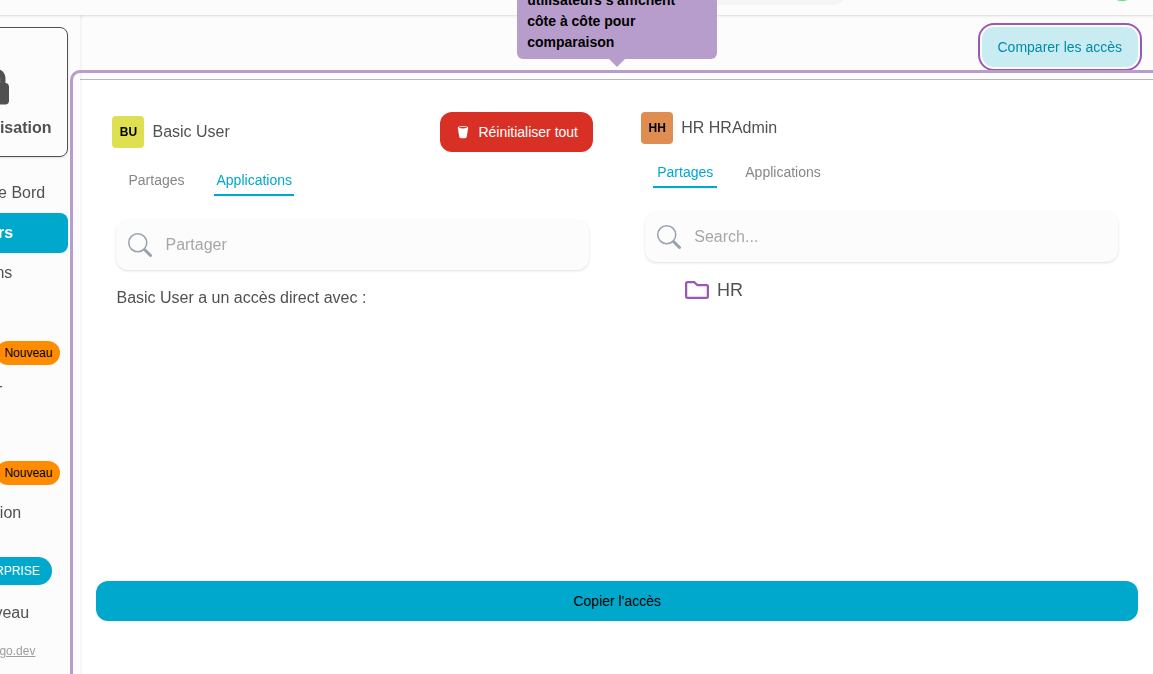
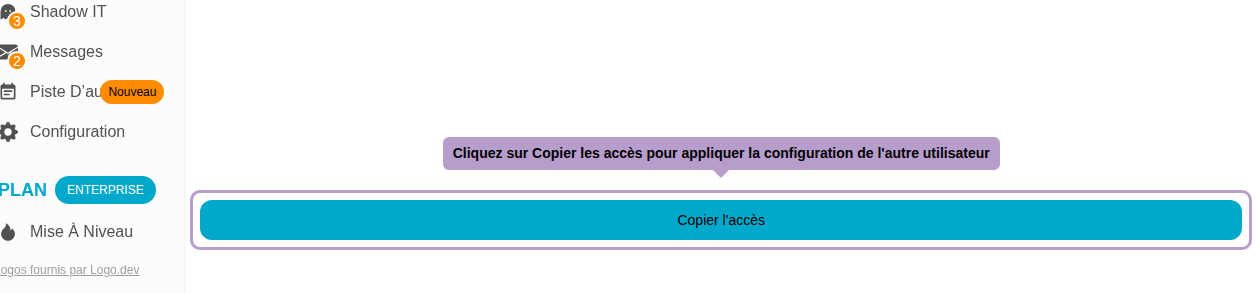
Click on Copy Access to apply the other user's configuration.