Manage Users
This guide explains how to use the user management page in SmartLink: search, filters, user actions, and pagination.
Search Bar
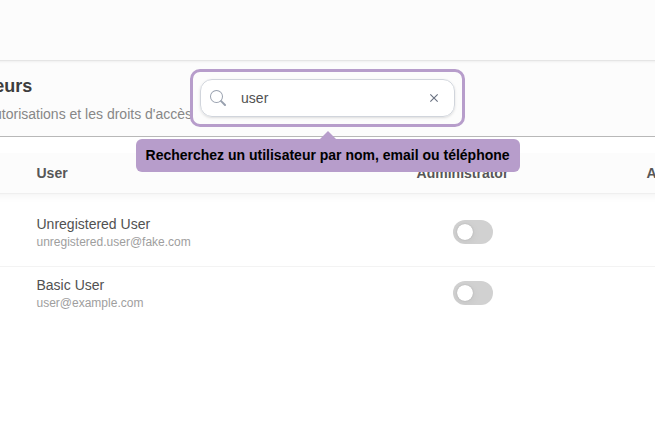
Use the search bar to quickly filter users by name, email, or phone number.
Filters
Status Filter
Filter users based on their status (Active, Inactive).

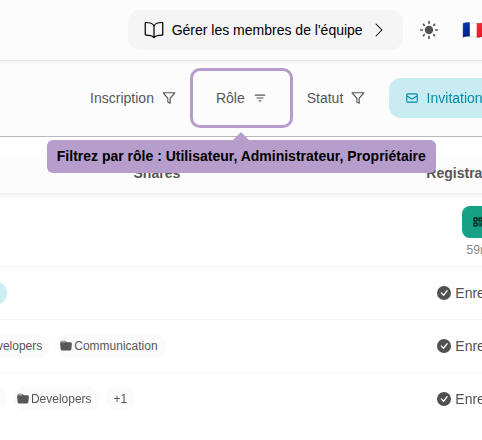
Role Filter
Filter users based on their role (User, Administrator, Owner).
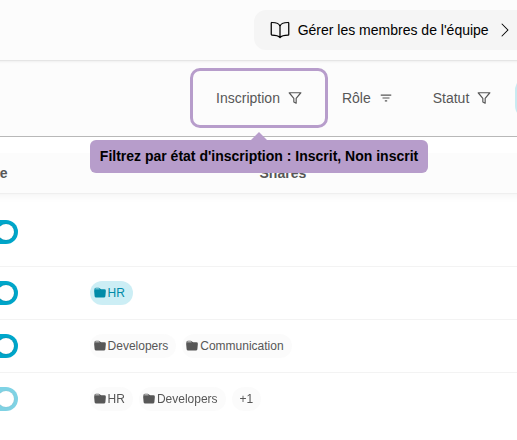
Registration Filter
Filter users based on their registration status in SmartLink (Registered, Not registered).
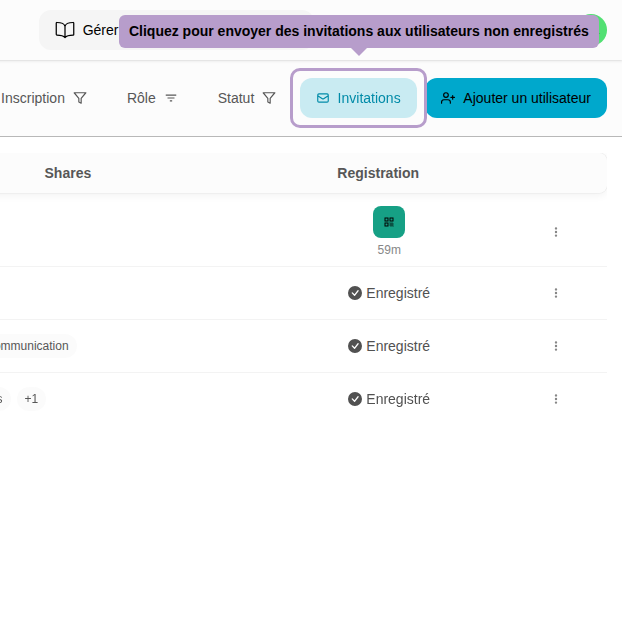
Invitations Button
Click on the Invitations button to open the invitation sending panel. You can send invitations by email to users who are not yet registered.
Administrator Rights
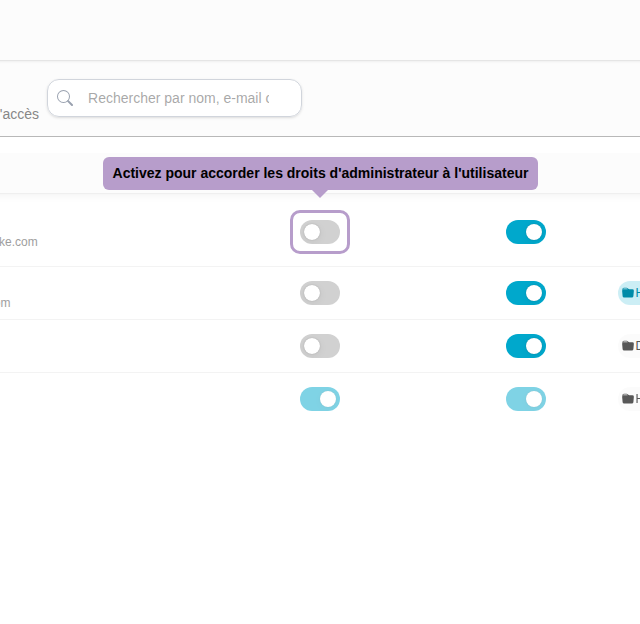
The switch in the Administrator column allows granting or revoking administrative rights to a user. Administrators have access to all SmartLink management features.
User Activation / Deactivation
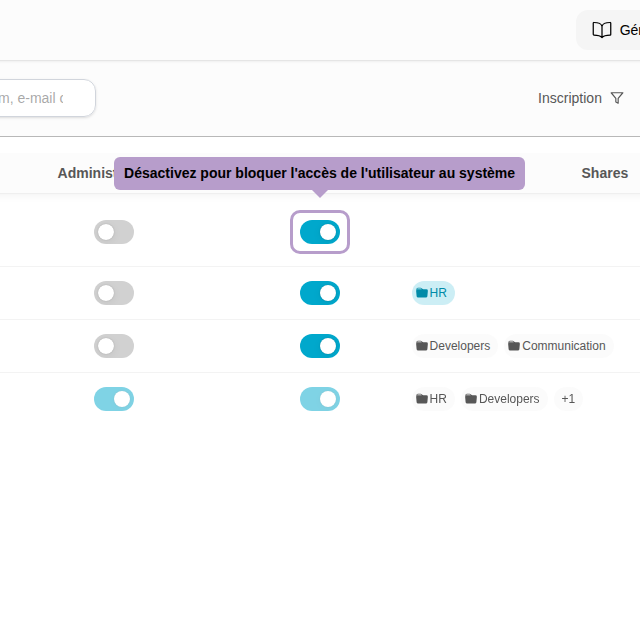
The switch in the Status column allows activating or deactivating a user. A deactivated user can no longer access the system, even if they have a registered account.
Registration via QR Code
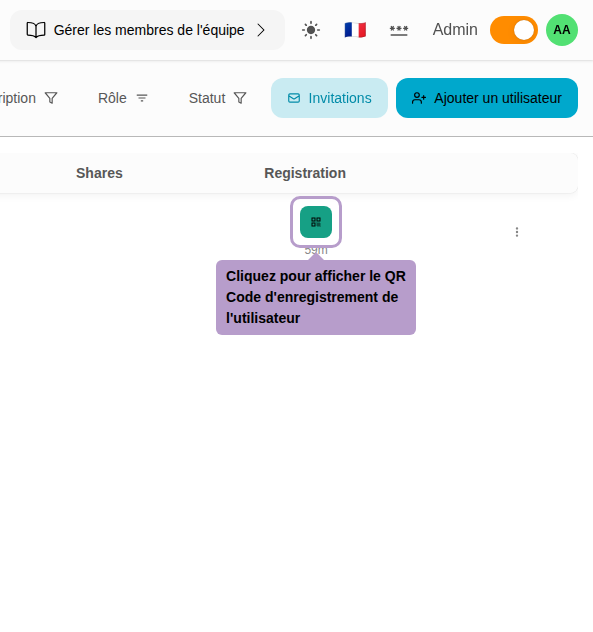
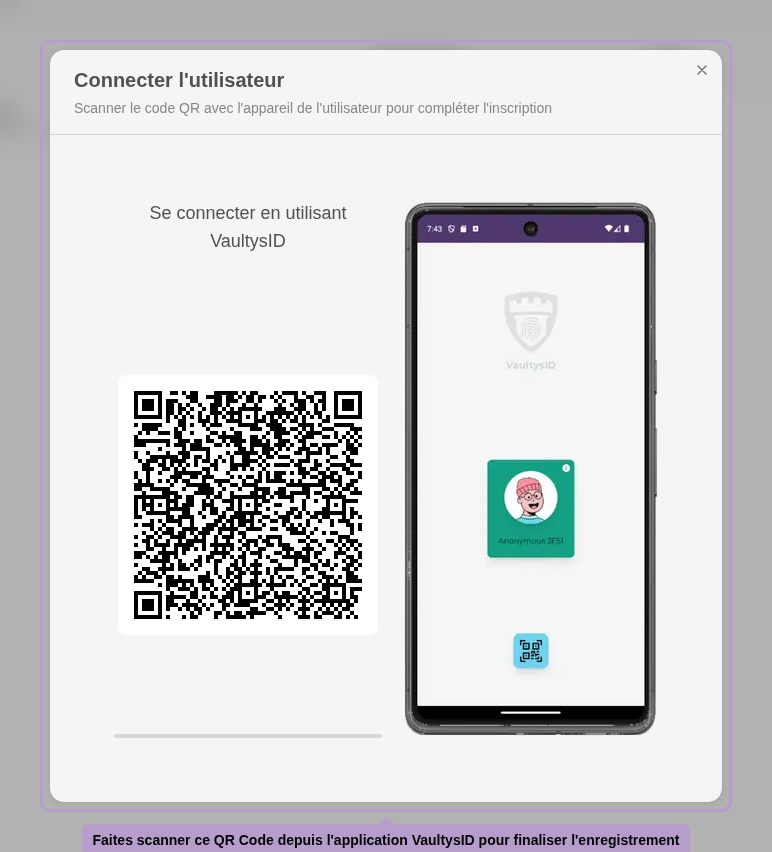
When a user is not yet registered, a QR Code button appears in the Registration column. Click on it to display the QR Code to be scanned by the user from their VaultysID application to complete their registration.
Actions Menu
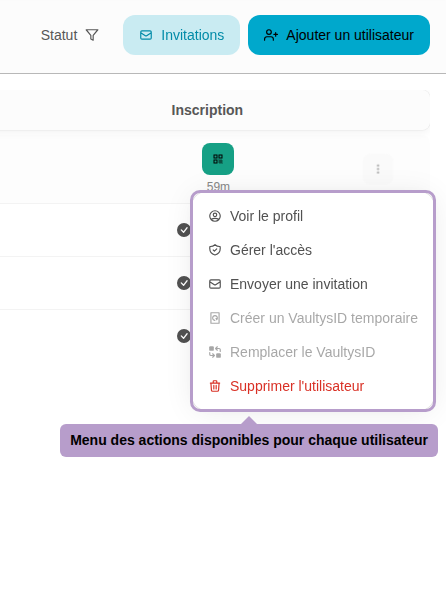
The ⋮ button on the right of each row opens the available actions menu for that user:
- View Profile — Access the user's complete profile page.
- Manage Access — Modify the user's access rights to application folders.
- Send Invitation — Send an invitation email to the user not yet registered.
- Create a Temporary VaultysID — Generate a temporary device to allow the user to log in with a different identity, or to allow someone else to temporarily replace them.
- Replace VaultysID — Replace the user's current VaultysID device (loss or renewal).
- Delete User — Permanently delete the user's account and all associated data.
Pagination
The pagination bar at the bottom of the page allows you to navigate between different user pages. You can also adjust the number of users displayed per page (10, 25, 50, or 100).

