Manage a Folder
Once your folder is created, you can configure it in detail: rename the folder, manage its members and their rights, assign applications, and view saved passwords.
Accessing a Folder's Configuration
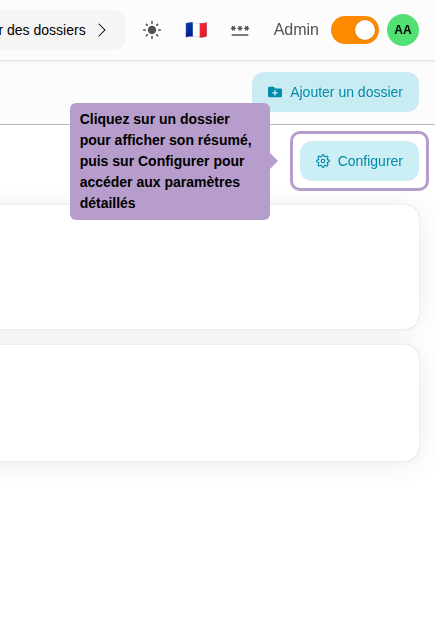
On the Access Policy page, under the Folders tab, click on the desired folder to display its summary. Then click on the Configure button to open the complete configuration page.
Overview of the Configuration Page
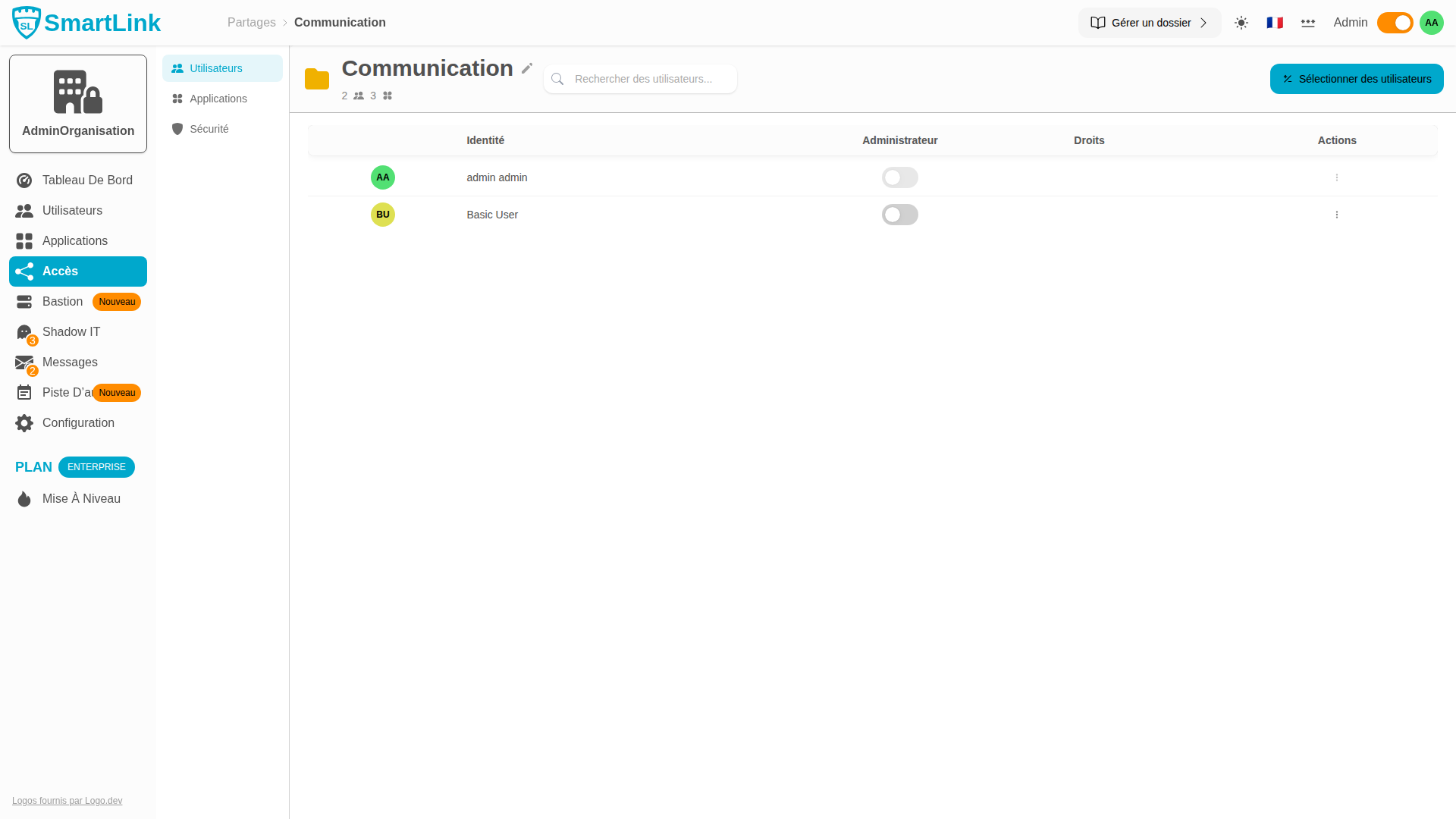
The folder configuration page is organized into three tabs:
| Tab | Description |
|---|---|
| Users | Manage folder members, their roles (admin or standard), and access rights |
| Applications | Add or remove applications assigned to the folder |
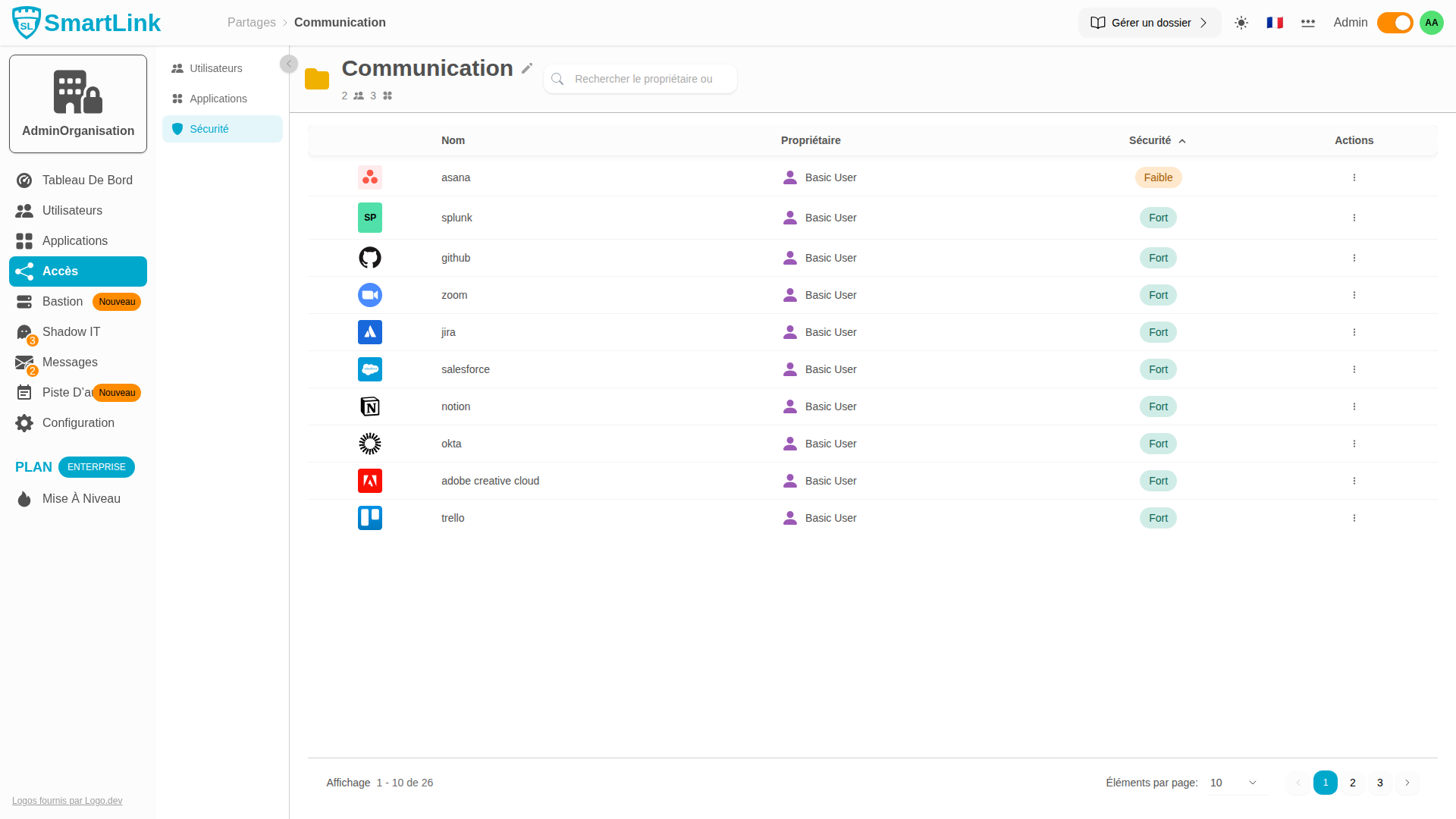
| Security | View saved passwords by members for the folder's applications |
Renaming the Folder
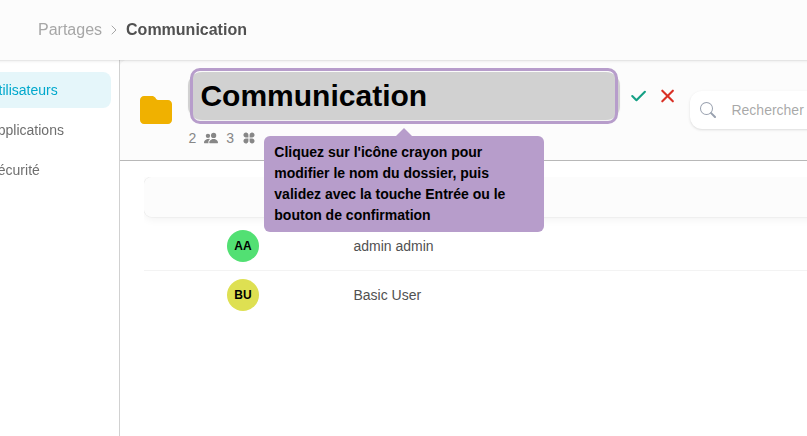
Click on the pencil icon next to the folder name to enter edit mode. Enter the new name, then validate with Enter or the confirmation button. Click on X to cancel.
Users Tab
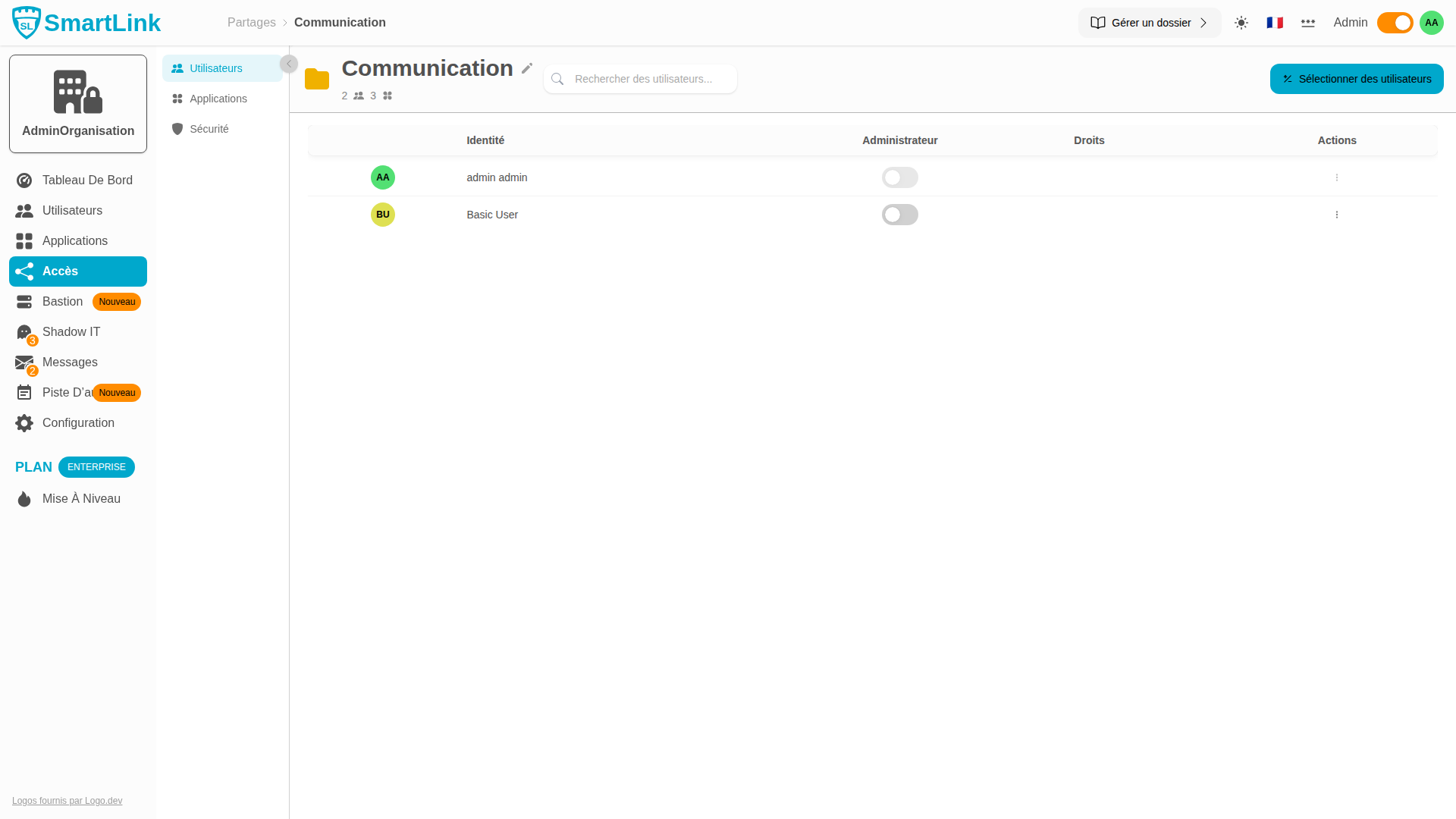
This tab lists all members with access to the folder. You can manage additions, deletions, roles, and rights here.
Adding Users
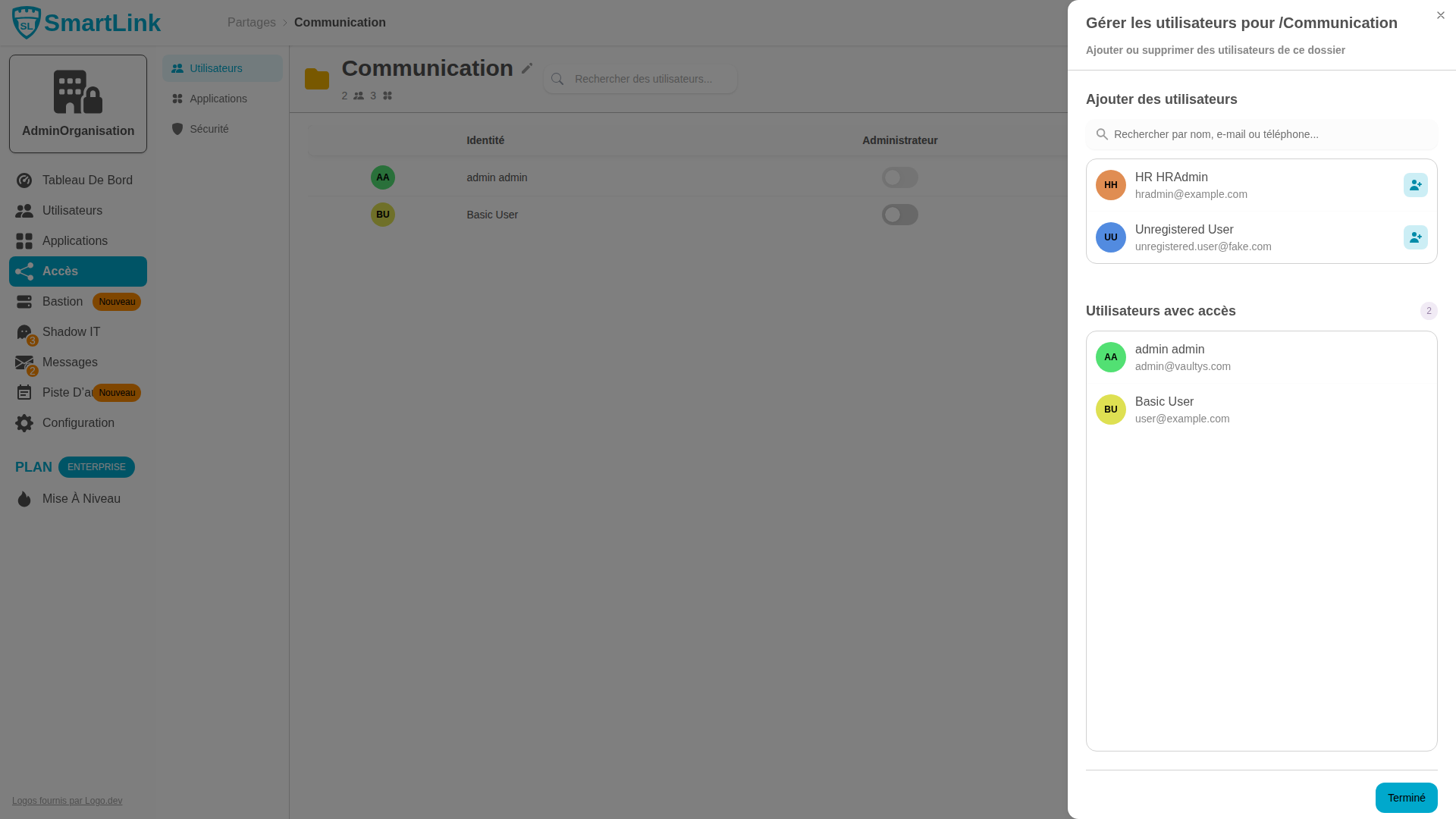
Click on the Add Users button at the top right to open the selector. Check the users to add, then confirm.
Configuring Role and Rights
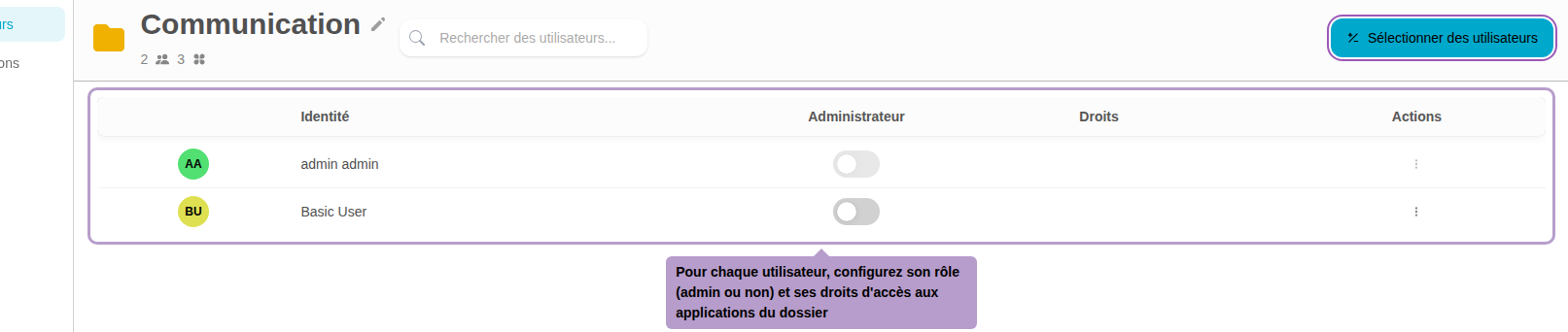
For each user in the folder, two parameters are configurable:
| Parameter | Description |
|---|---|
| Admin Role | Activate or deactivate the administrator role for this user in the folder (switch) |
| Access Rights | Select the level of rights: Can modify the folder password, applications, create new applications, modify admins, modify the folder name |
Removing a User
Click on the user's action menu ⋮, then choose Remove to revoke access for that user to the folder.
Applications Tab
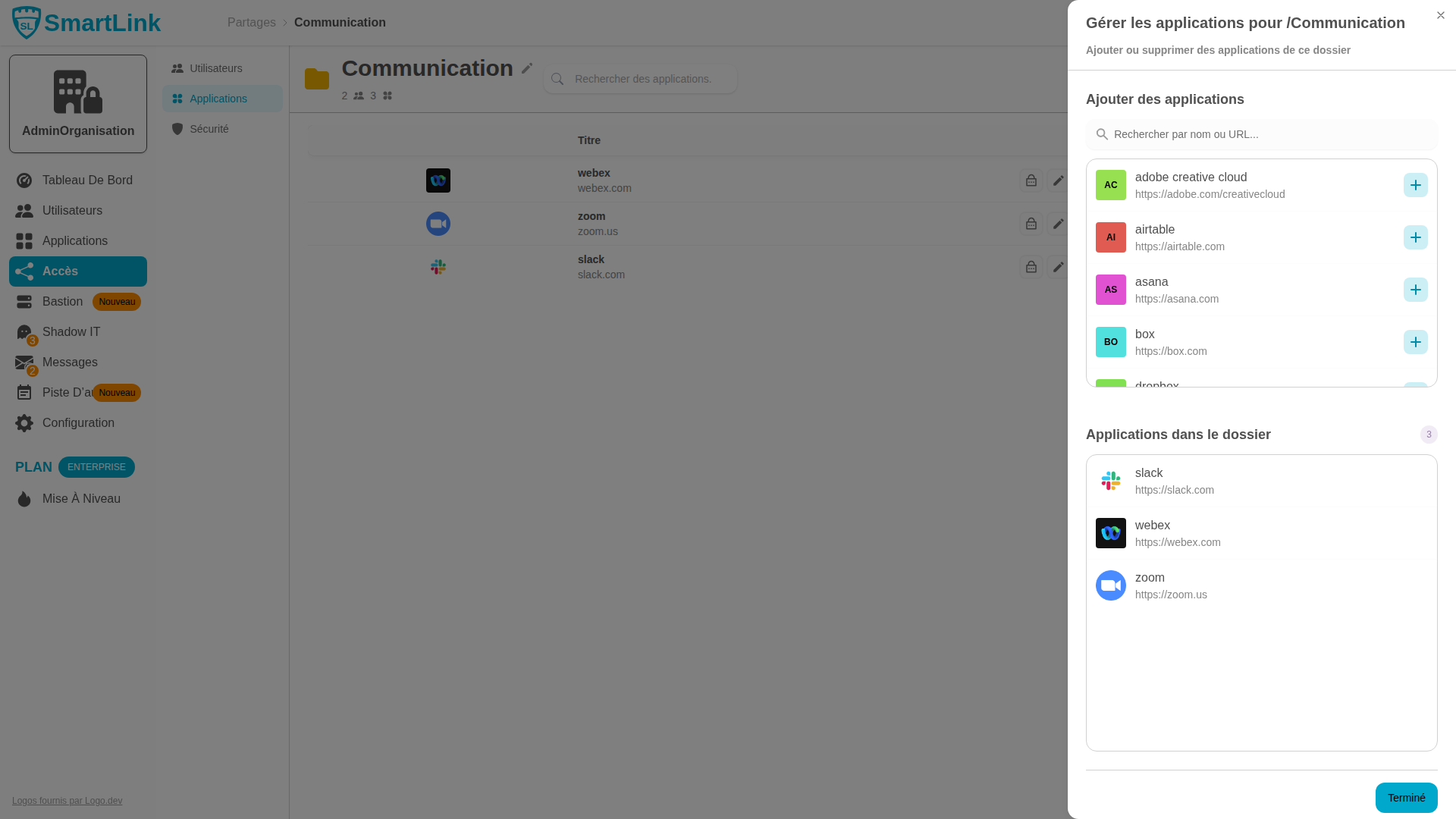
This tab displays all applications currently assigned to the folder.

Adding Applications
Click on Update Apps to open the application selector. Select the applications to add to the folder.
Removing an Application
On each application row, the action menu allows you to remove the application from the folder. Member users will immediately lose access to that application.
Security Tab
Here you can view all passwords saved by folder members for the applications assigned to them. Each entry indicates the password owner and the related application.