Access Rules
Access Rules (Device Access Policies) allow the administrator to finely control the conditions under which users can authenticate: browser type, operating system, security level of the VaultysID identity, allowed IP addresses, etc.
Three policy scopes are available:
- Global — applies to all organization users.
- Admin — applies only to administrators.
- Group — applies to a defined set of users and/or folders.
Overview
Access the access rules from the menu Access Policy > Policies.
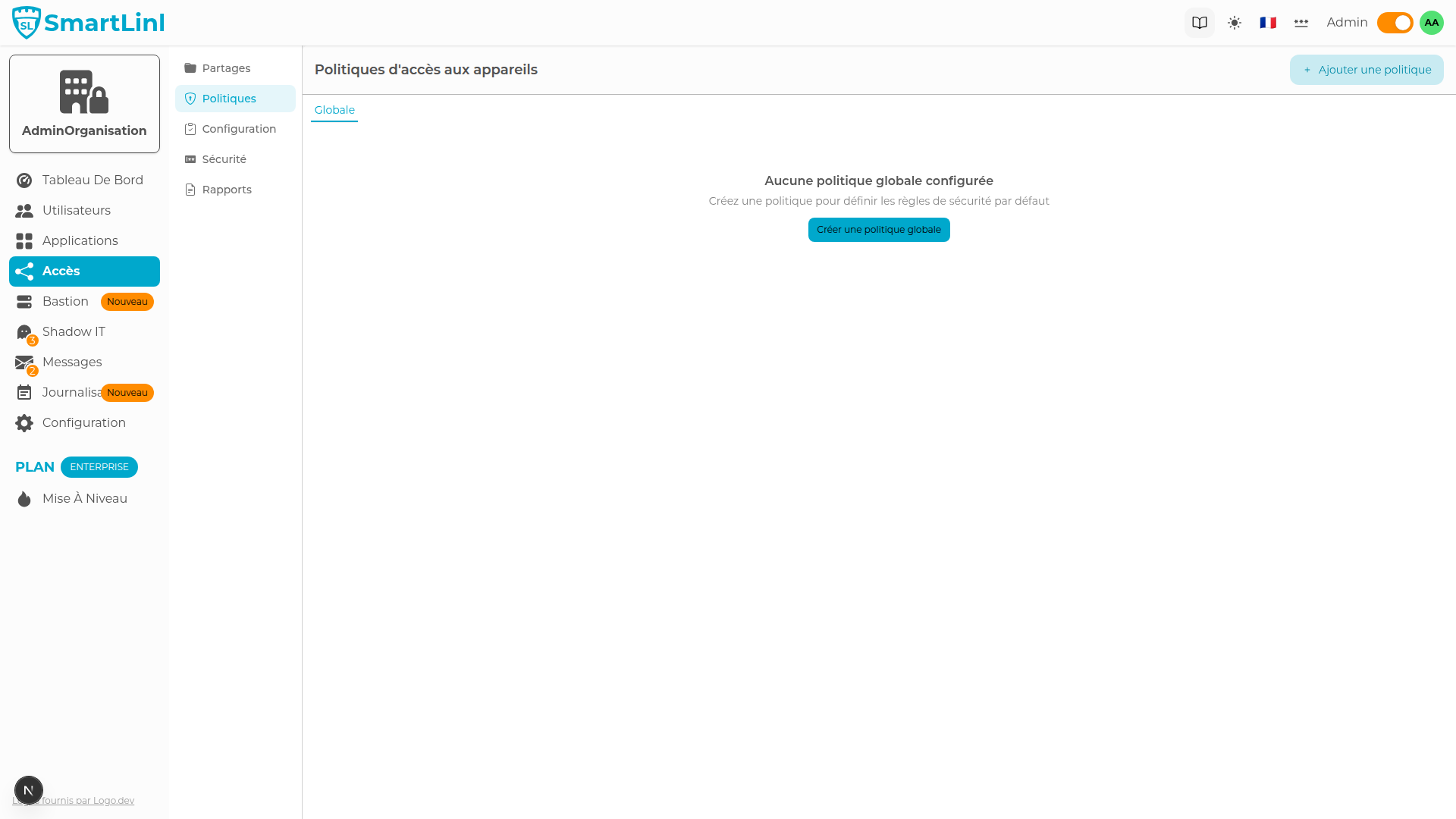
Global Policy
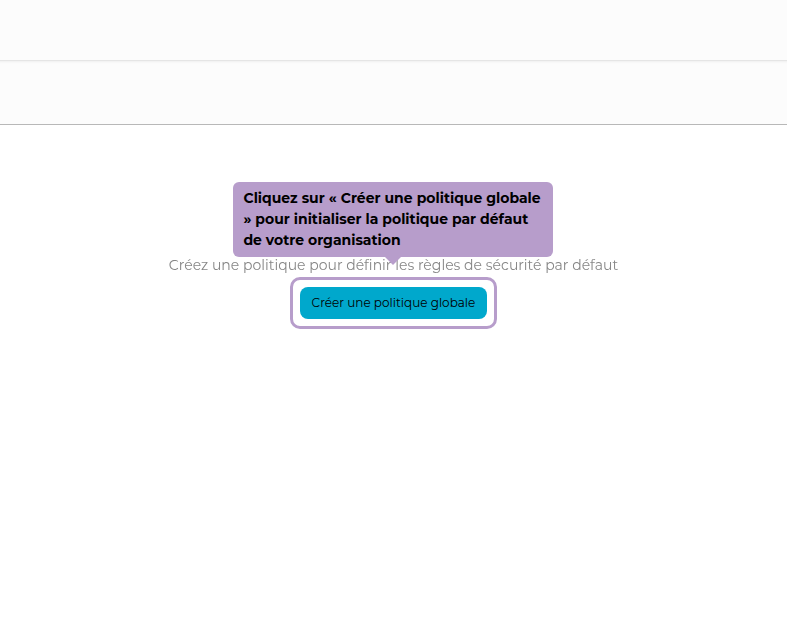
Upon first access, no policy is configured yet. Click on the Create a Global Policy button to initialize the default policy applicable to all users.
Configure a Policy
Once created, the policy is displayed in the editor. Each side tab corresponds to a control dimension. The color badges indicate the configuration status of each section.
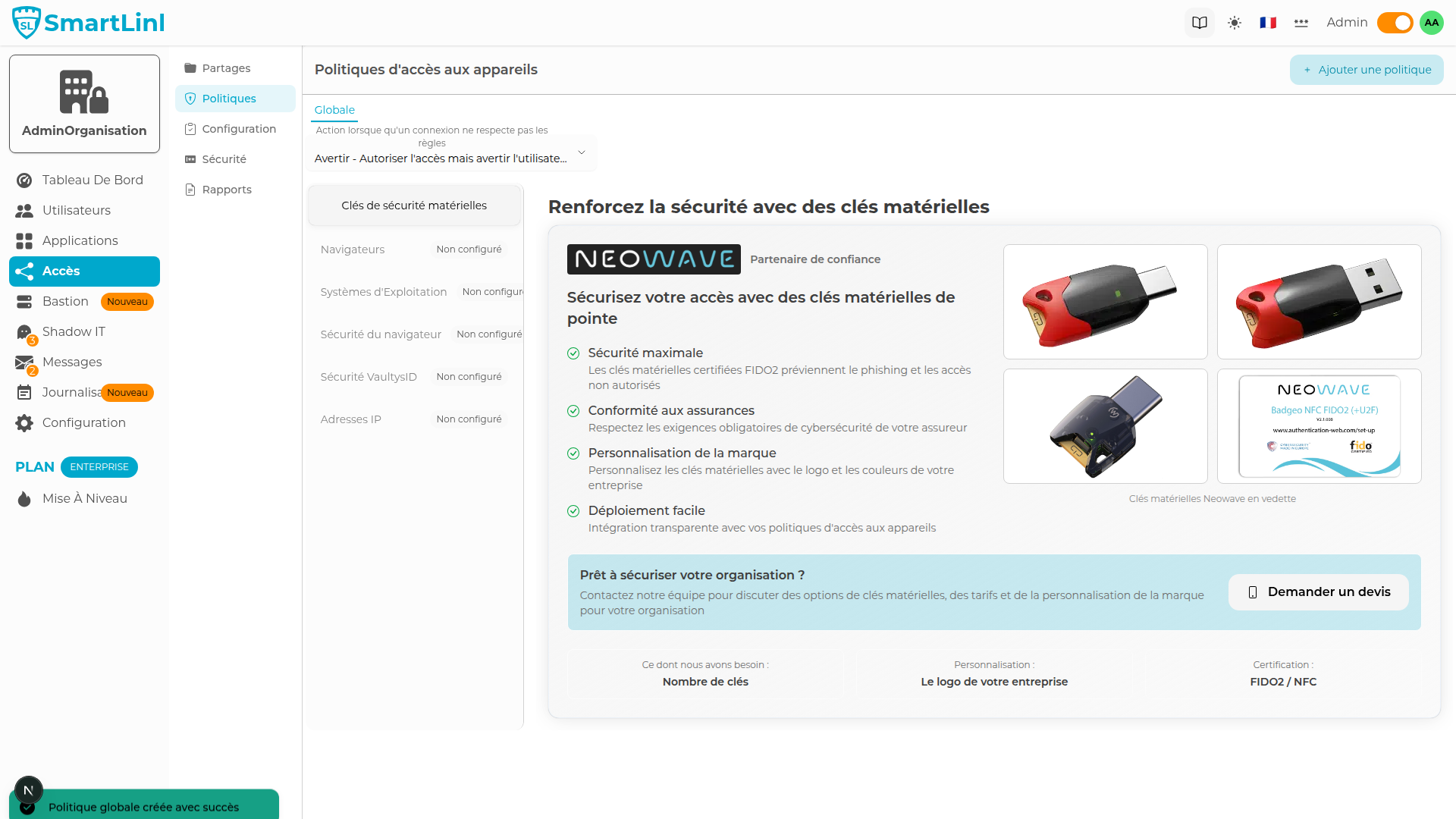
Action on Violation
Define what should happen when a rule is not followed.
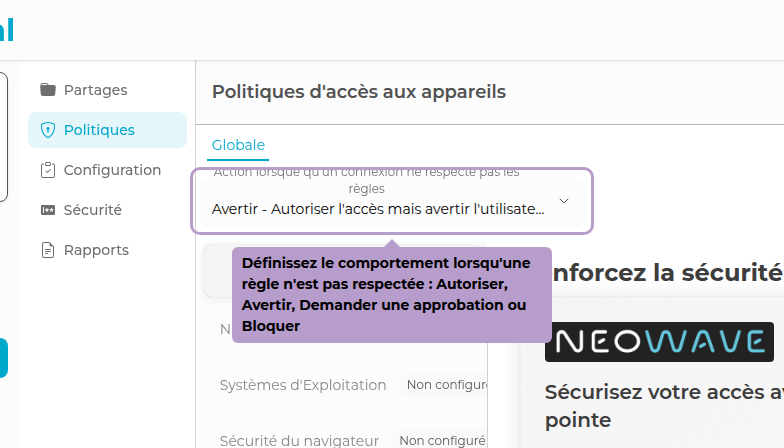
| Value | Behavior |
|---|---|
| Allow | Ignores the rules — no blocking |
| Warn | Allows access but informs the user |
| Admin Approval | Access is suspended until an administrator approves |
| Block | Access denied |
Browsers Tab
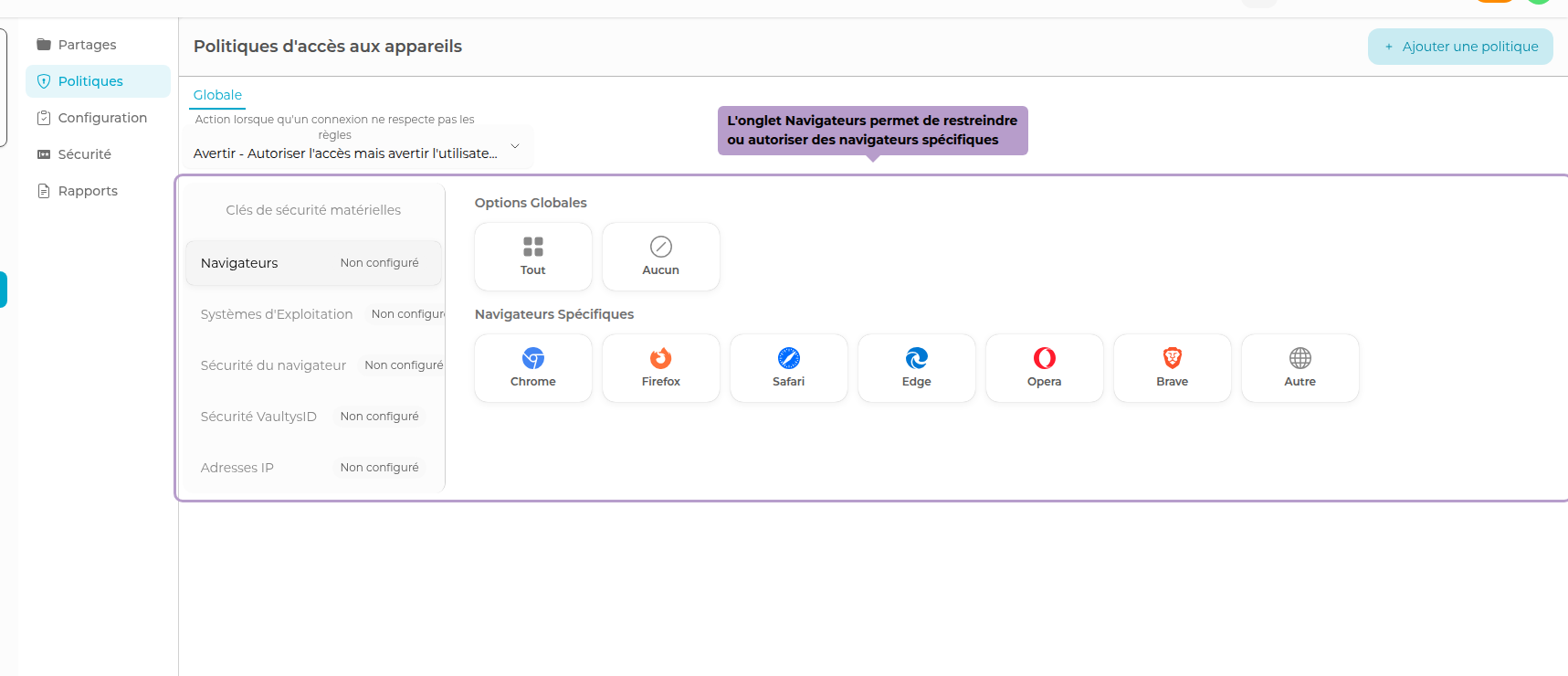
Allow or restrict access based on the browser used (Chrome, Firefox, Edge, Safari, Brave, Opera...). The All and None options apply a global rule.
Operating Systems Tab
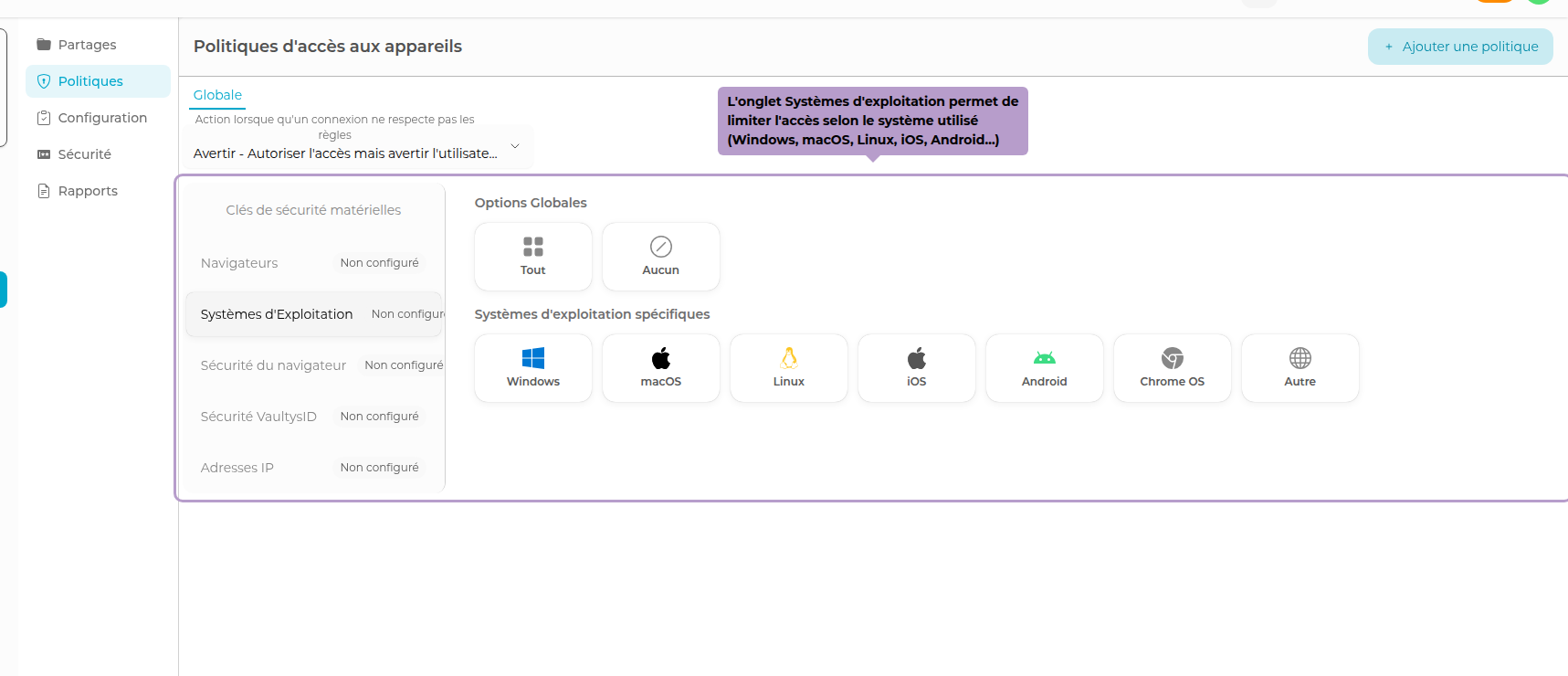
Limit access to desired operating systems: Windows, macOS, Linux, iOS, Android, or Chrome OS.
Browser Security Tab

Define requirements related to browser security (extensions, enabled settings).
VaultysID Security Tab
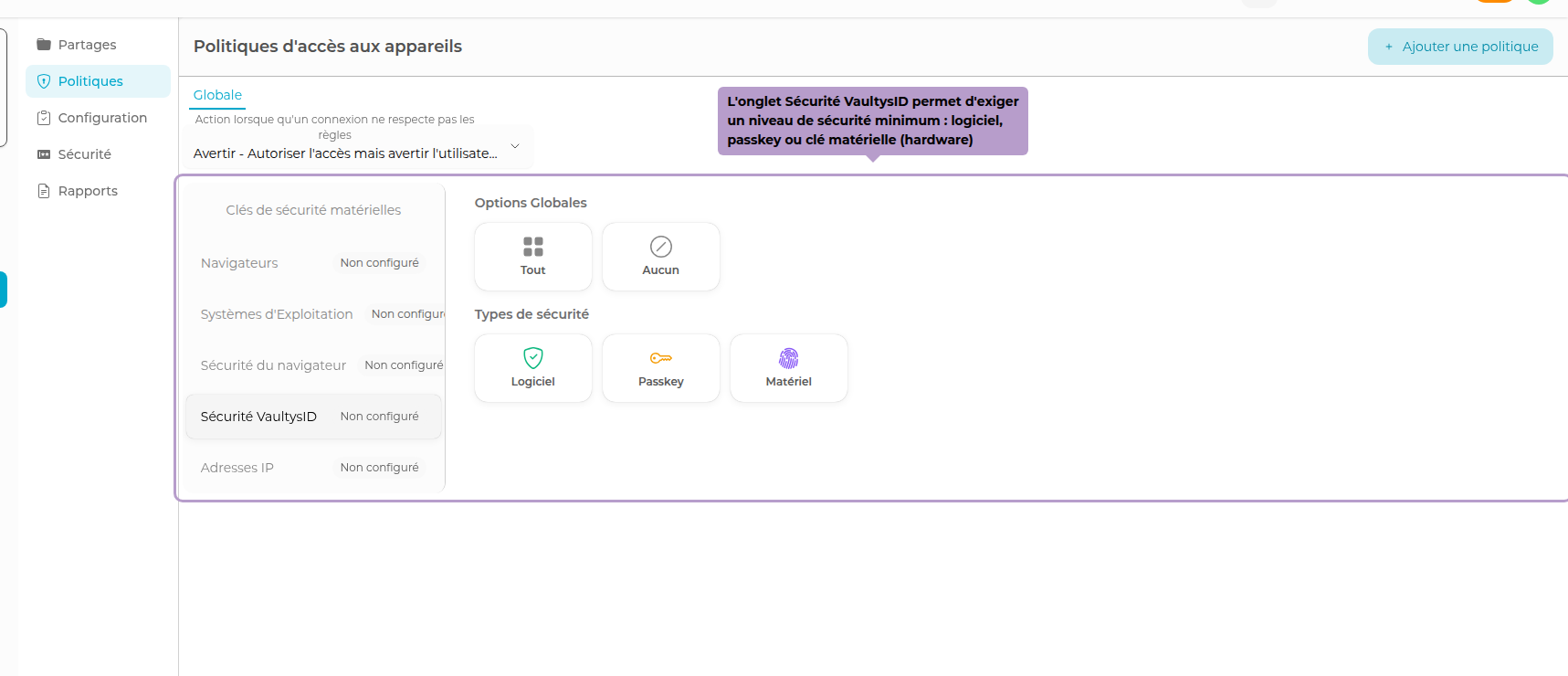
Require a minimum security level for the VaultysID identity:
- Software — key stored in software memory
- Passkey — passkey authentication
- Hardware — physical security key (FIDO2 / CTAP2)
IP Addresses Tab
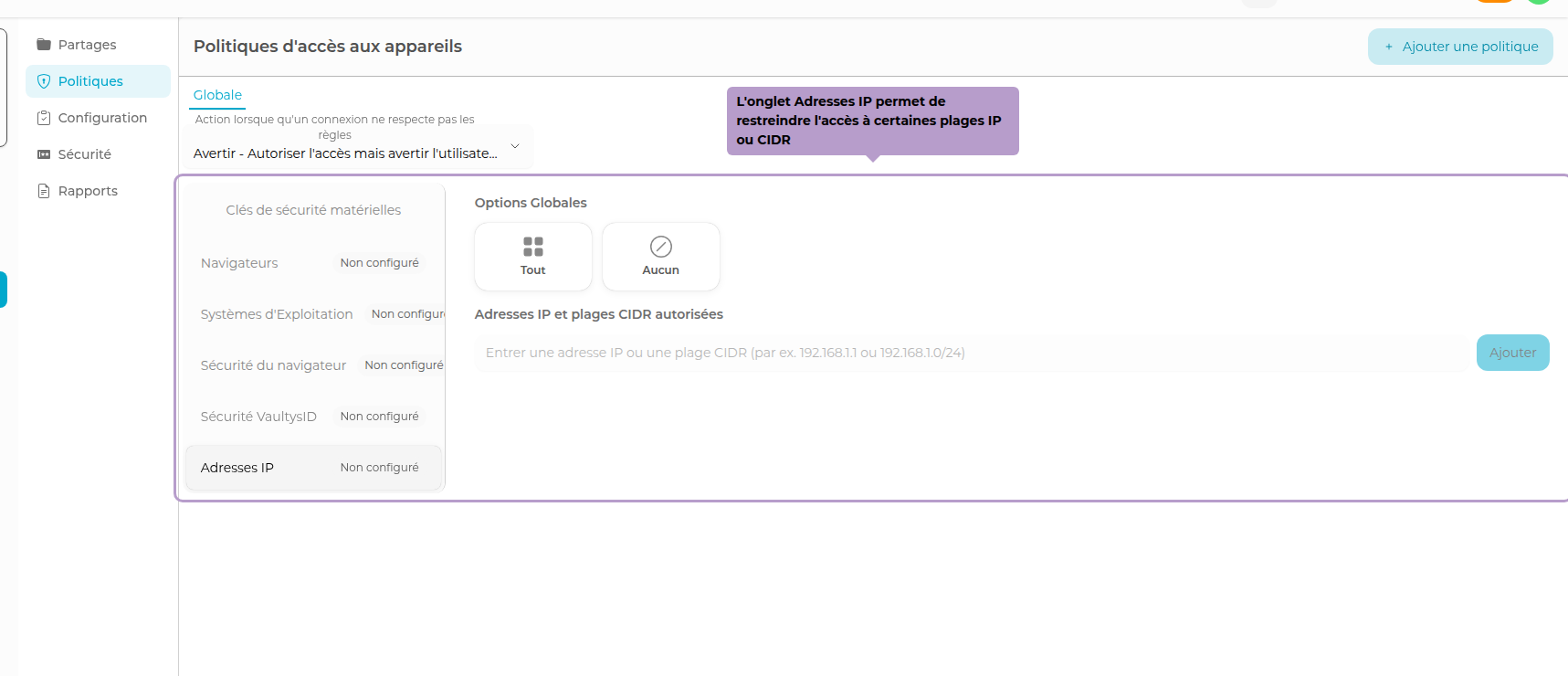
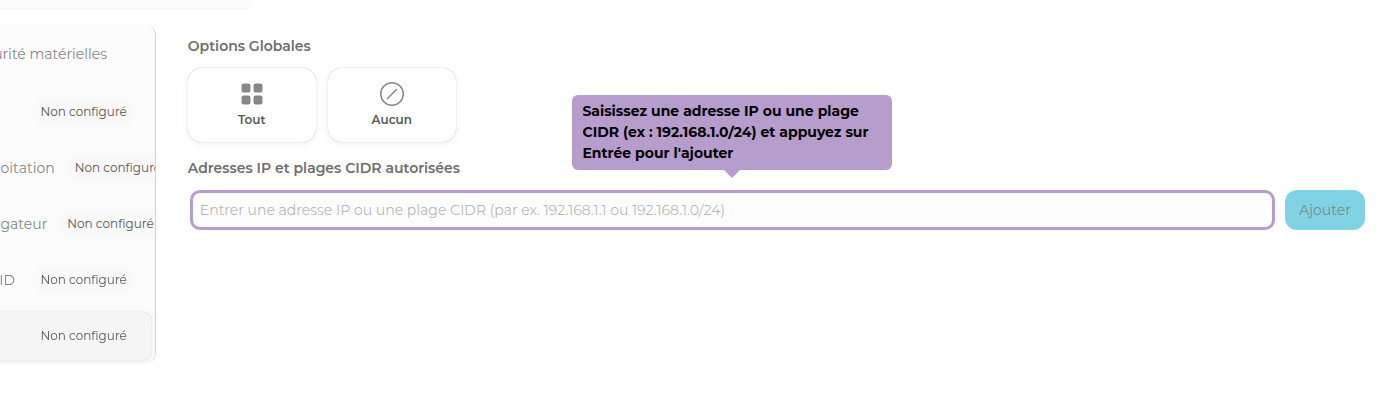
Enter the allowed IP addresses or CIDR ranges (e.g., 192.168.1.0/24). Only connections from these networks will be accepted.
Create Other Policies
To create an Admin or Group policy, use the Add a Policy button in the toolbar.
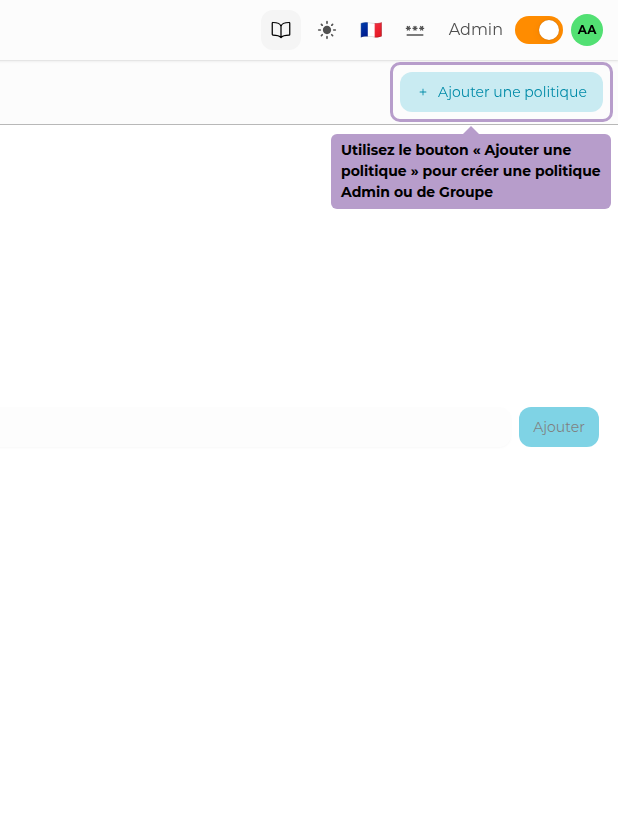
A panel opens to choose the scope.
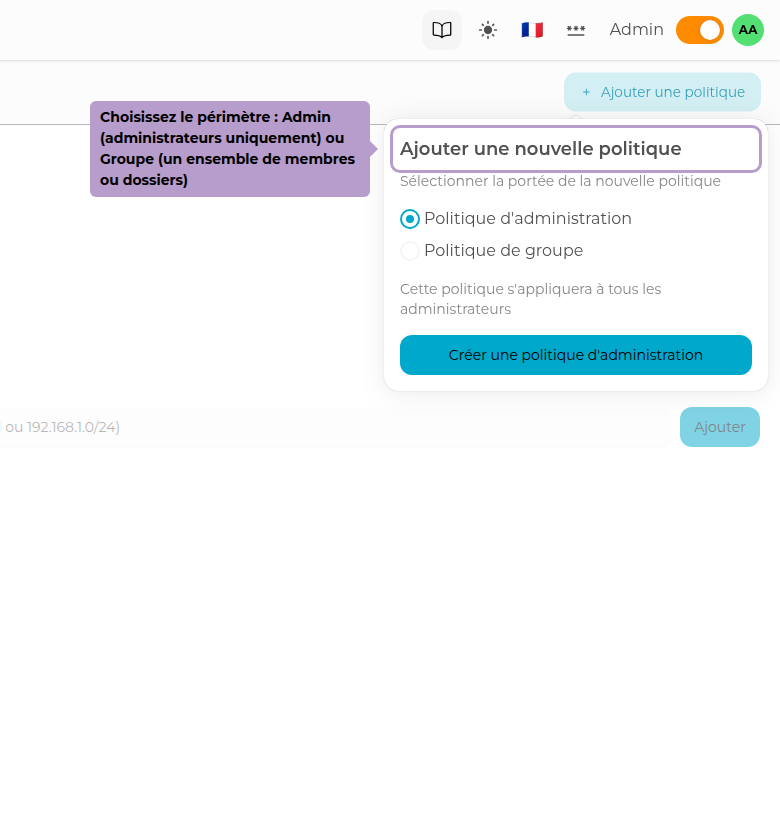
Admin Policy
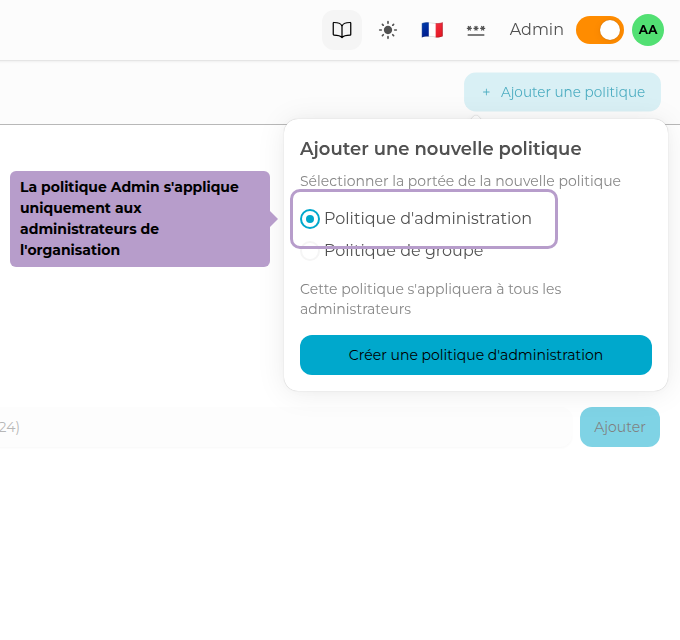
There can only be one Admin policy. The creation button will be disabled if it already exists.
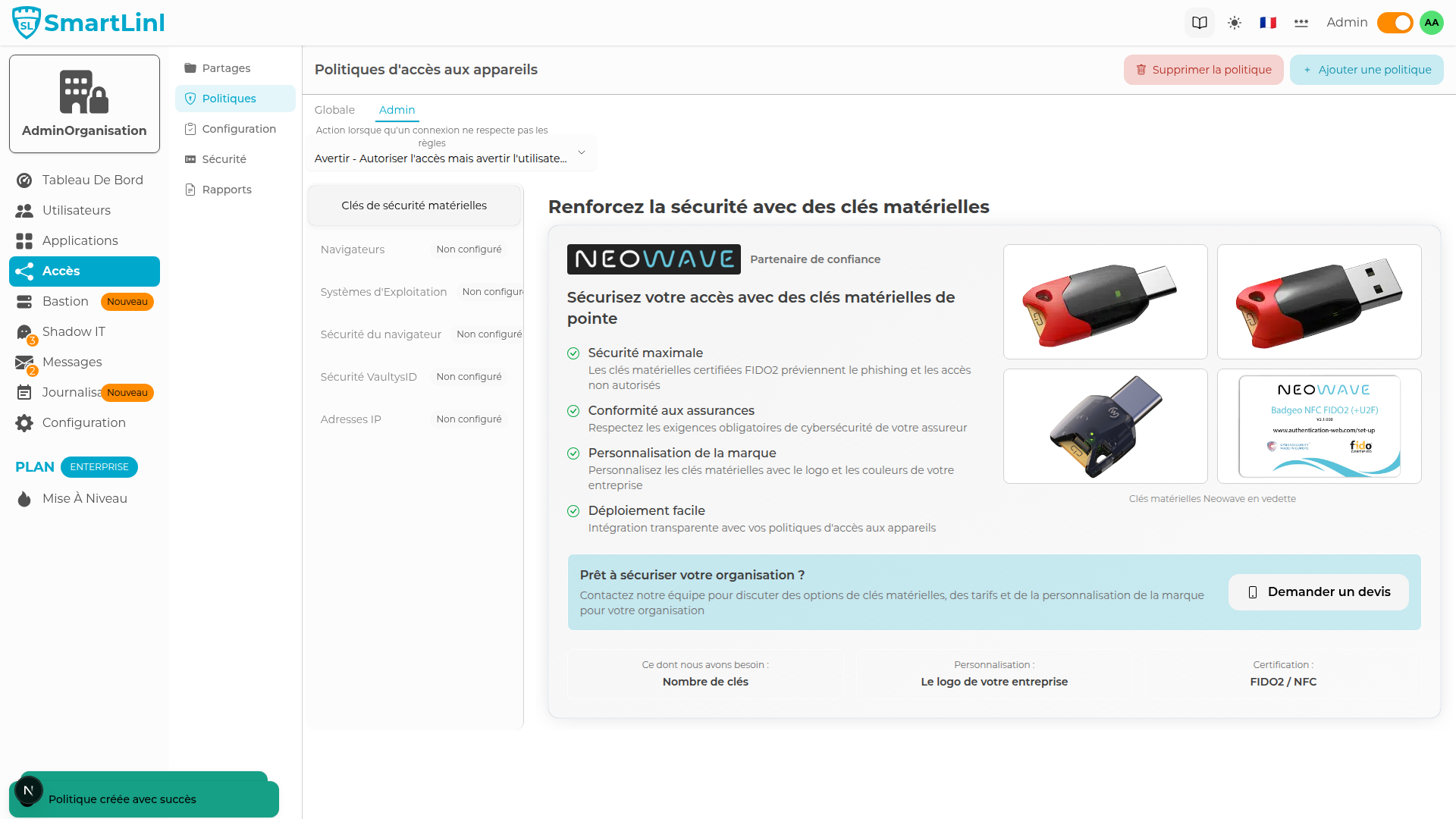
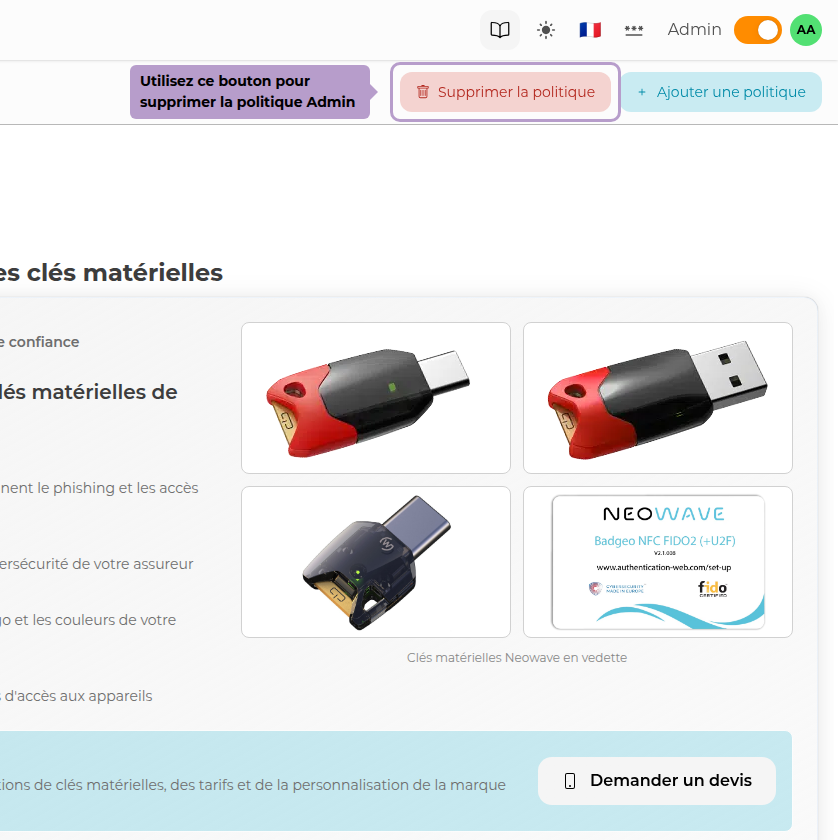
The Admin Policy applies only to administrators. To delete it, use the Delete Policy button in the toolbar.
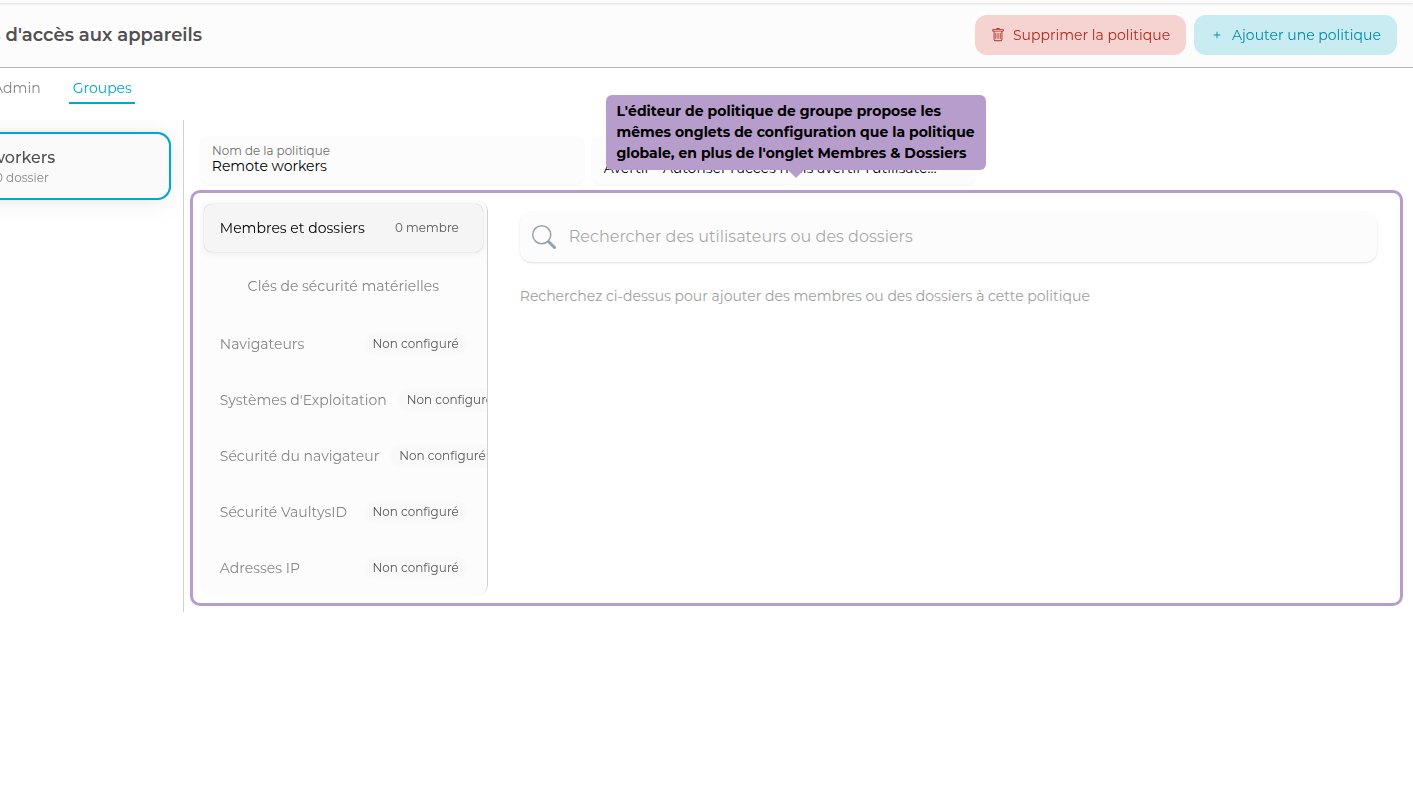
Group Policies
Group policies allow targeting a specific subset of users or folders with customized rules.
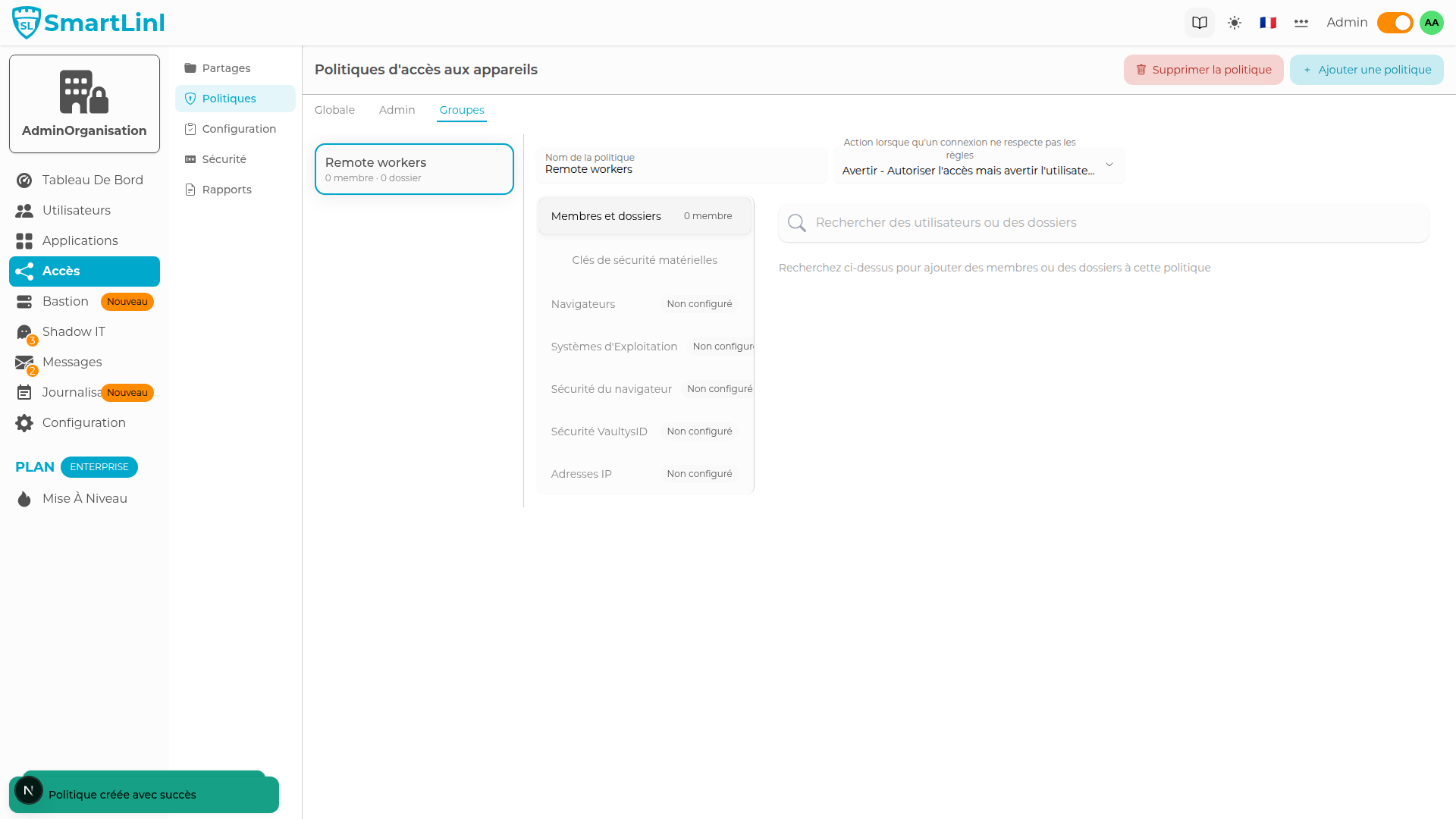
Select a group from the left column to access its editor.
Members & Folders
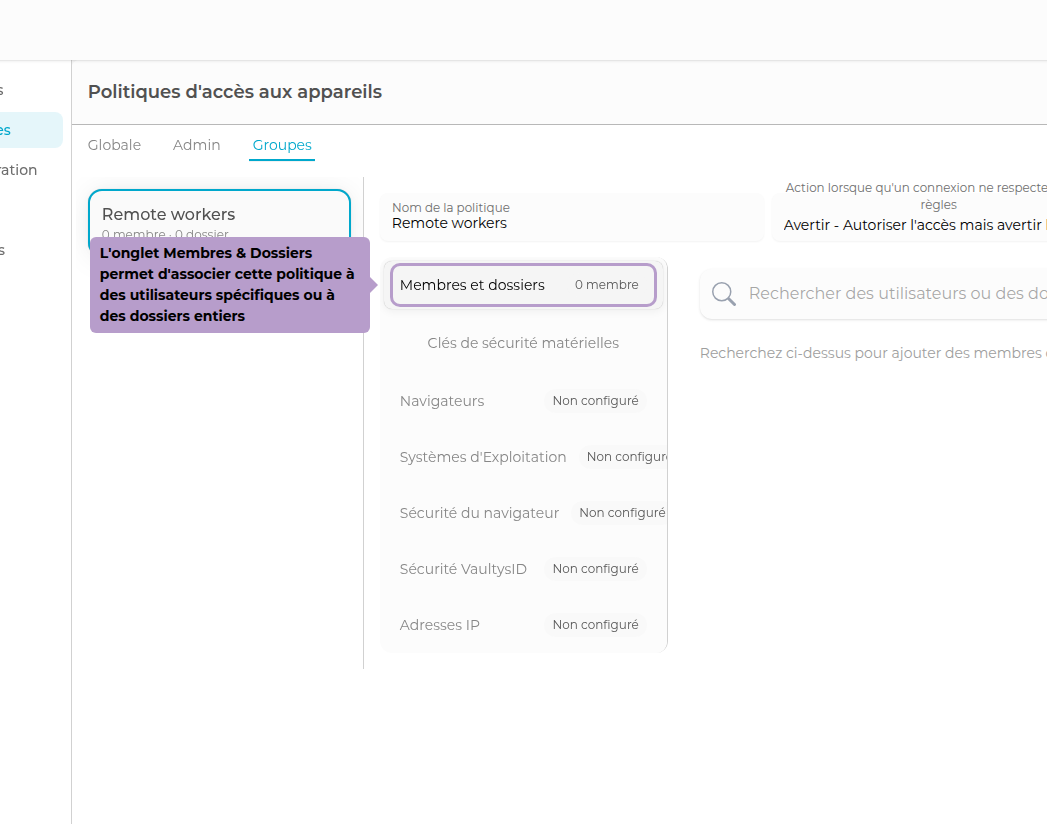
Associate the policy with individual users or entire folders. All members of the folder will be automatically covered.
Group policy rules take precedence over the global policy for the users concerned.