Create and Organize Folders
In SmartLink, folders are at the core of access policy. A folder groups applications and users: any user who is a member of a folder automatically has access to all the applications it contains, without individual configuration.
Why Structure in Folders?
Folders can be nested indefinitely to reflect your company's organization. Here are two concrete examples:
Example 1 — by department:
HR/
  └─ Recruitment/
  └─ Payroll/
IT/
  └─ Development/
  └─ Infrastructure/
Example 2 — by agency/client:
AgencyA/
  └─ ClientB/
  └─ ClientC/
AgencyB/
  └─ ClientD/
In both cases, each sub-folder inherits the parent context while allowing specific rights and applications at that level.
Accessing Folder Management
In the sidebar, click on Access Policy.
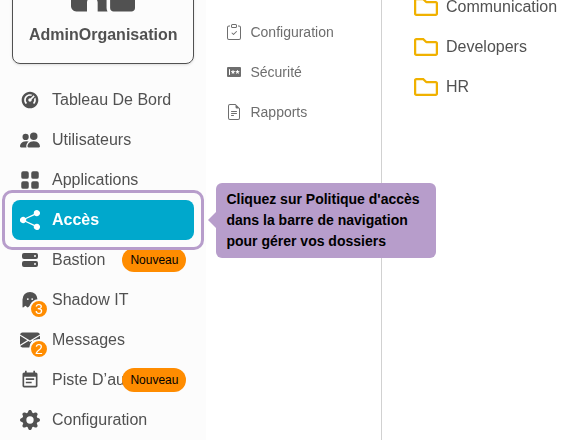
You will be directed to the Folders tab.
Create a Folder and Sub-folder
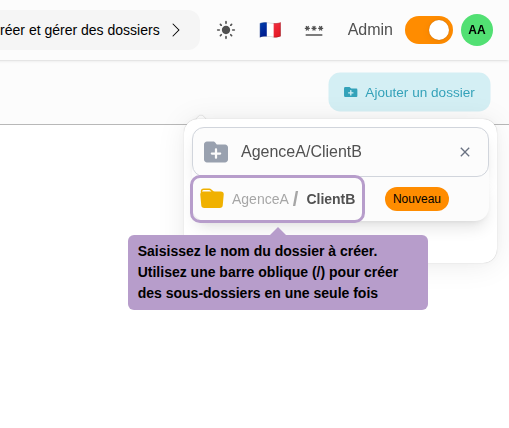
Click on the Add a Folder button at the top right. A text field will appear: enter the full path of the folder to create.
To create a sub-folder, use the separator /: for example, AgencyA then AgencyA/ClientB.
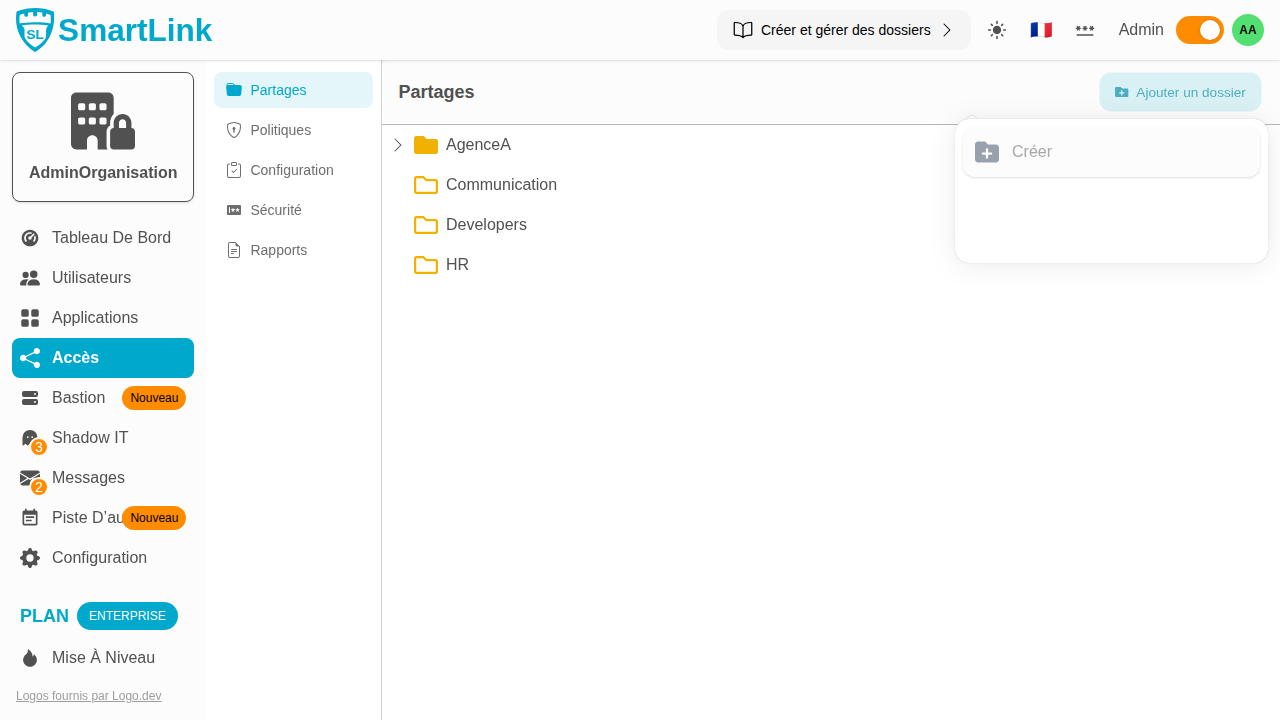
The tree structure immediately reflects the hierarchy created.
Available Actions on a Folder
Hover over a folder to display the actions menu (icon ⋮).
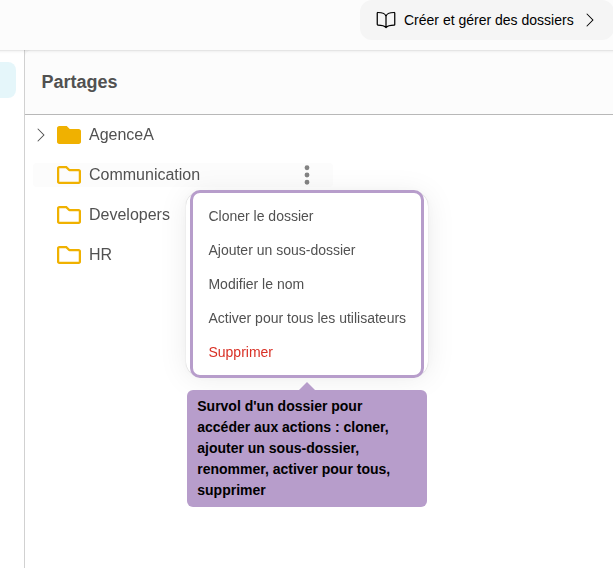
| Action | Description |
|---|---|
| Clone the folder | Duplicates the folder and its entire structure (applications, sub-folders) |
| Add a sub-folder | Creates a new child folder directly under this folder |
| Rename | Renames the folder |
| Enable/Disable for all users | If enabled, all organization members automatically have access to the applications in this folder, without explicit assignment |
| Delete | Deletes the folder and all its sub-folders |
Folder Details
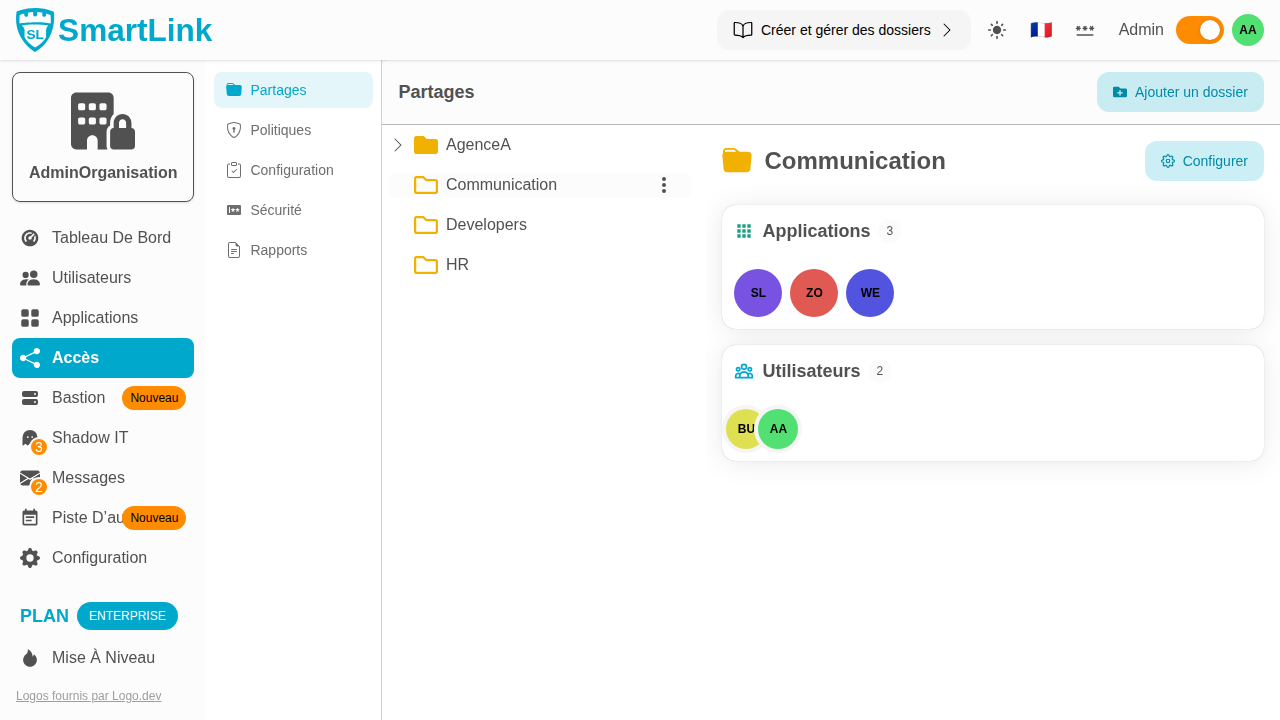
Click on a folder to display its summary in the right panel: assigned applications, members who have access, and configured rights. A Configure button allows access to detailed settings.