Connecting with a code
Some computers cannot be pointed at by your phone's camera, or display a sign-in screen without a QR code: Windows or Linux session, remote workstation… They then display an 8-digit code that you enter in VaultysID.
A code only works with an app or an organization that you have already signed in to once by scanning its QR code, for example when setting up your computer. The code never travels: your phone and the computer each derive the same secret channel from it, which only your VaultysID can open.
1. The computer displays a code
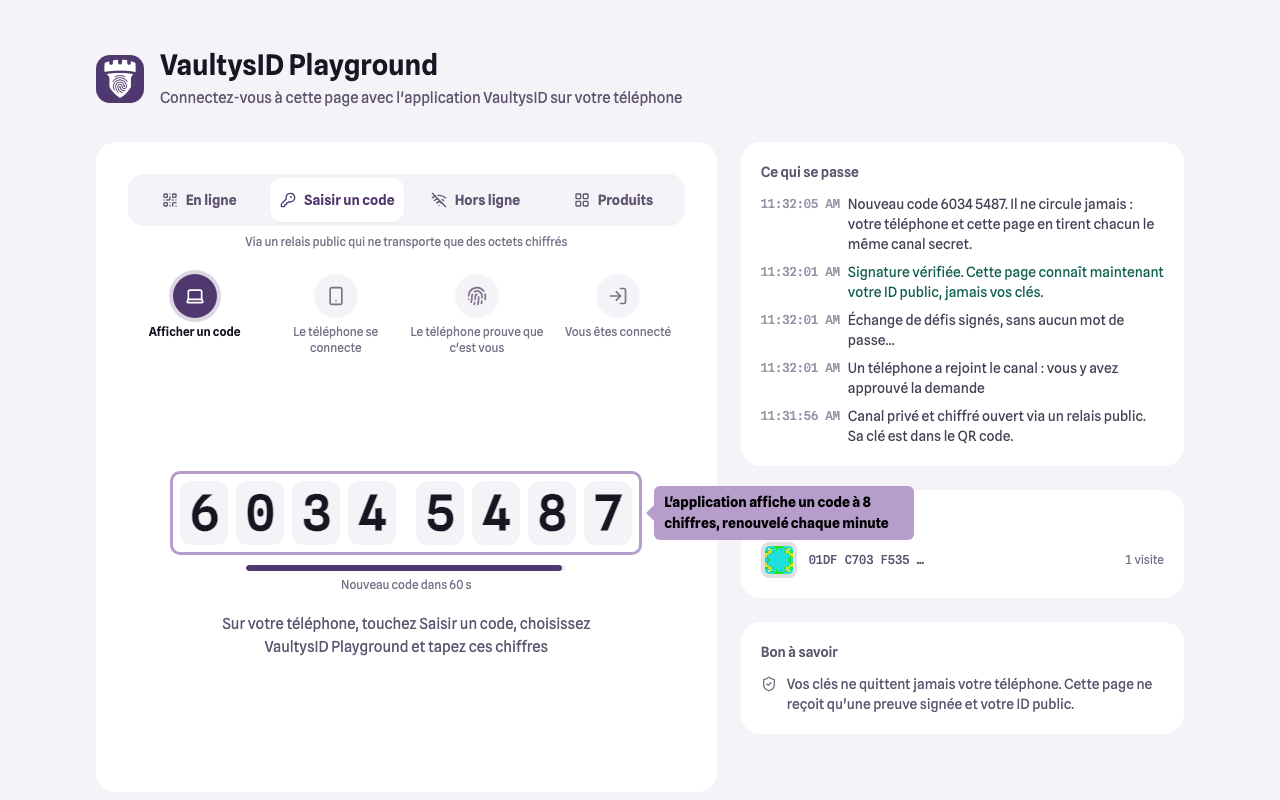
The code is renewed regularly: enter the one that is displayed at the moment you type it.
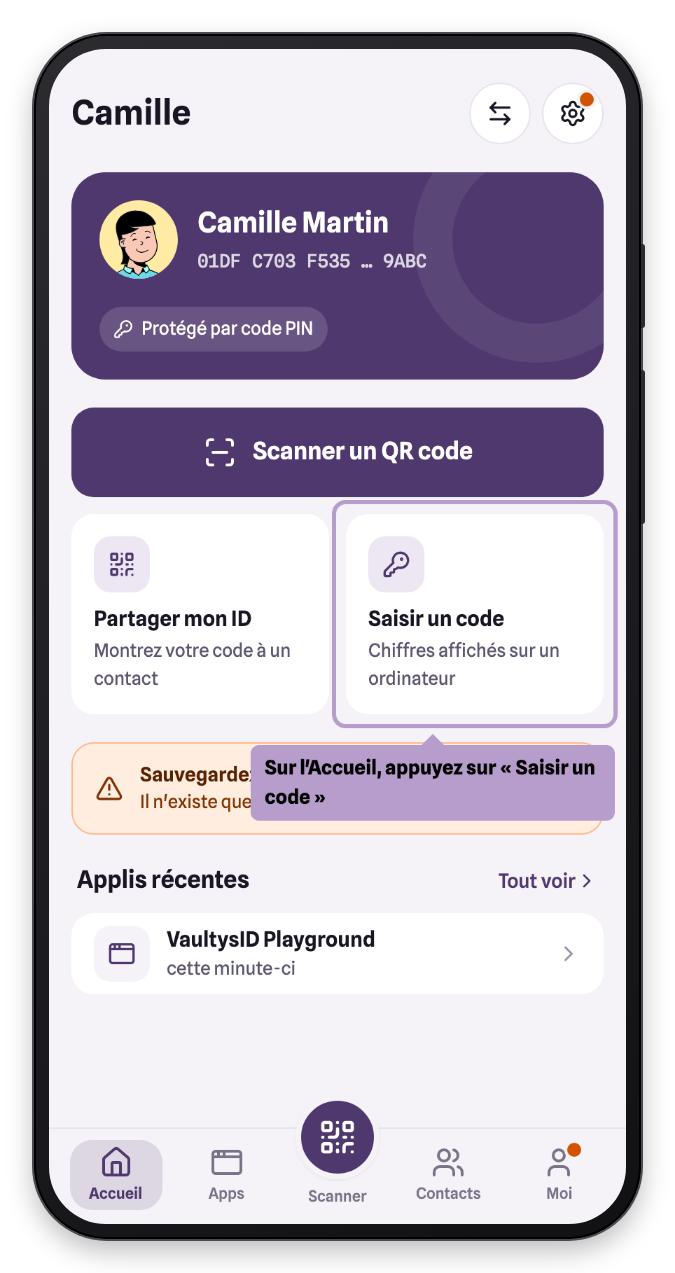
2. Tap “Enter a code”
On the VaultysID Home screen, tap Enter a code. You can also find this button on the app's page, in the Apps tab.
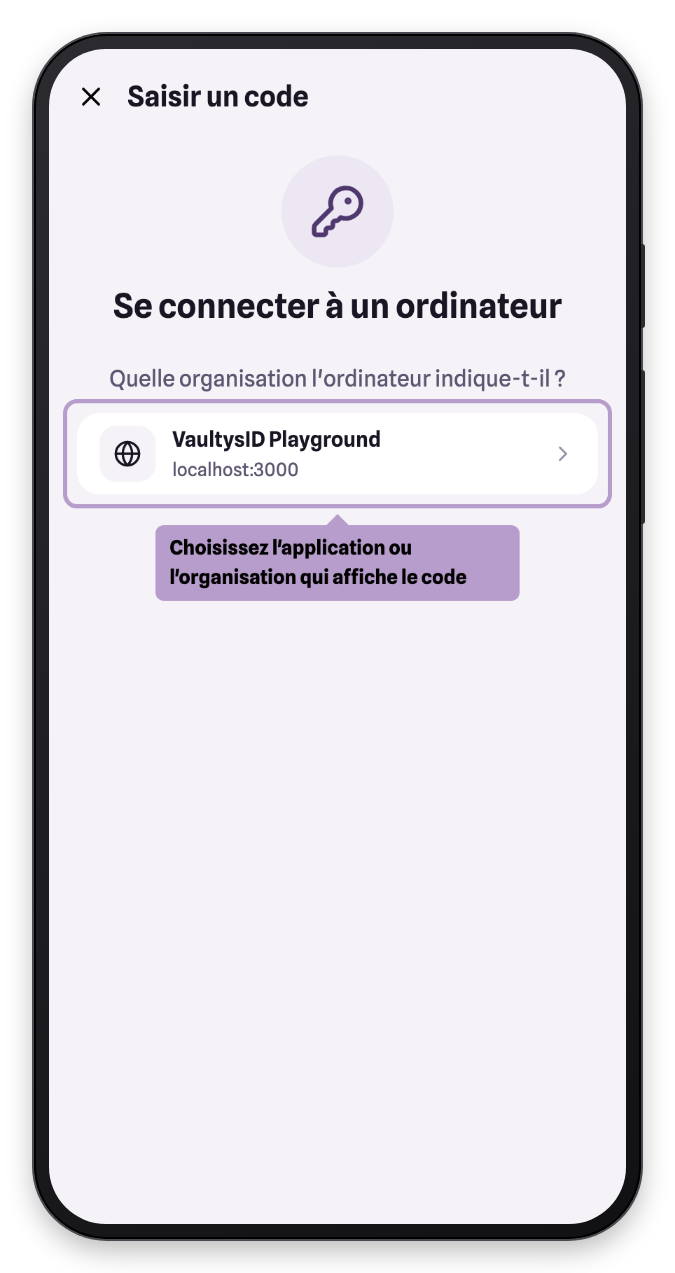
3. Choose the organization
VaultysID lists the apps and organizations that accept codes. Choose the one the computer indicates.
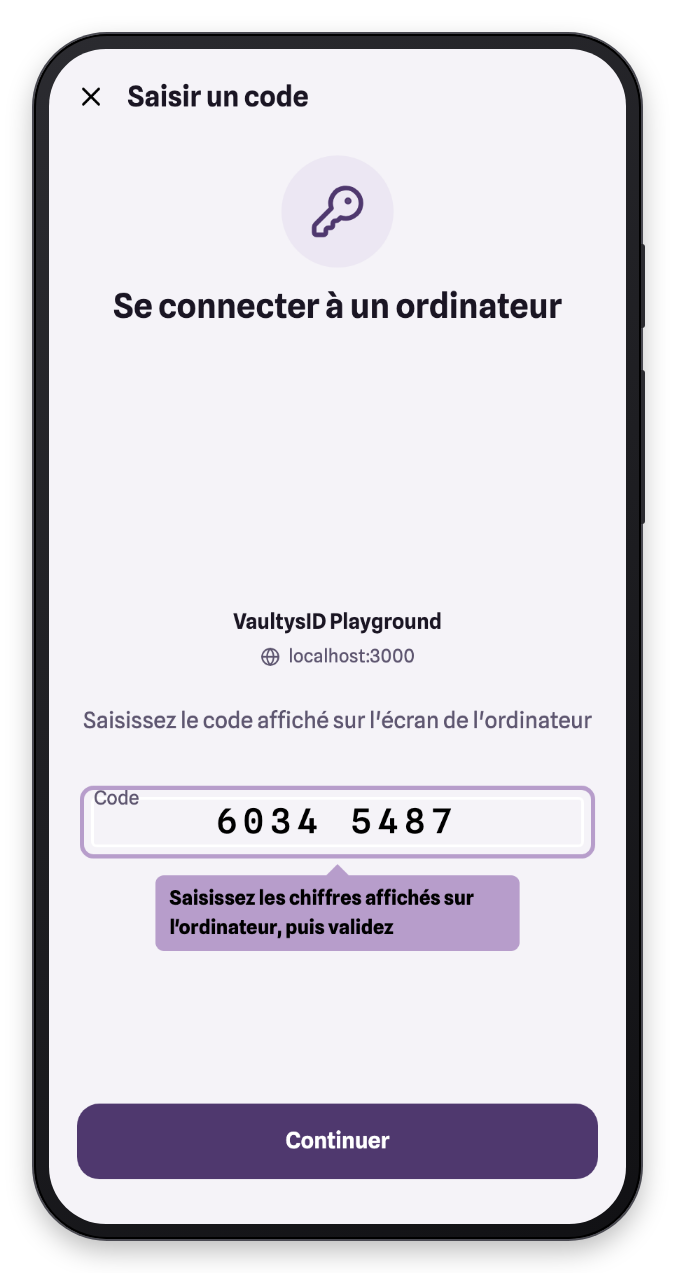
4. Enter the code
Type the 8 digits displayed on the computer, then confirm.
5. Approve and unlock
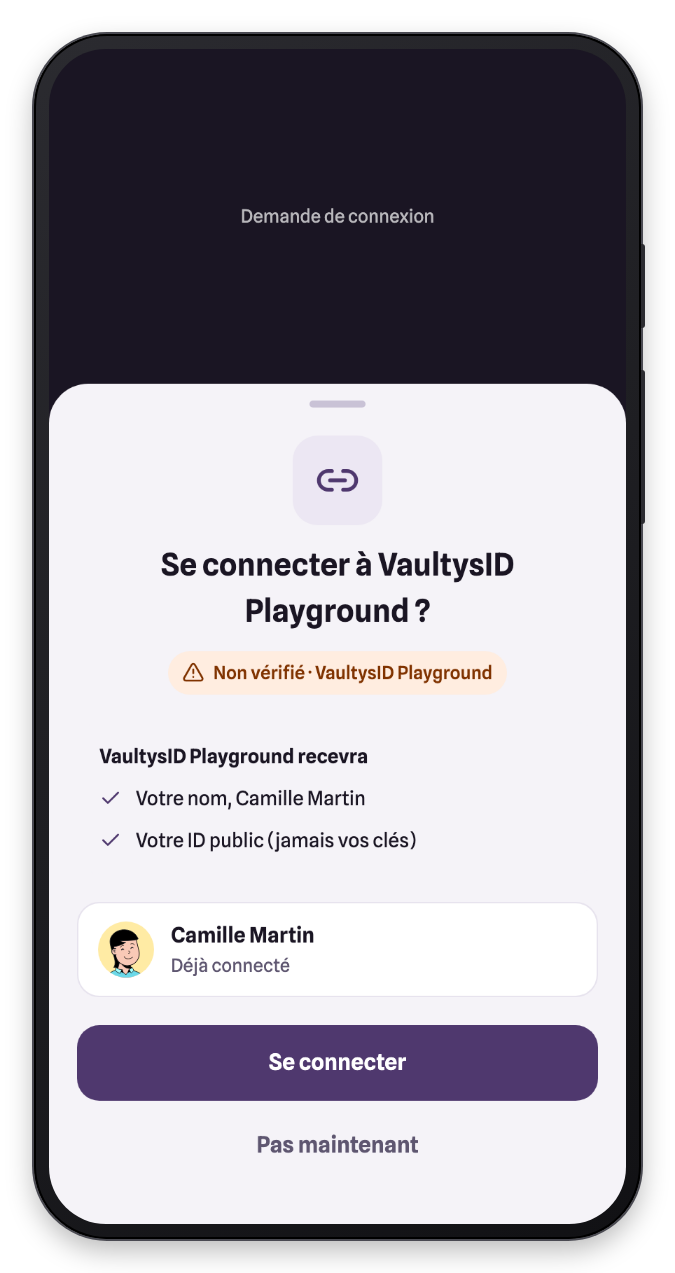
As with a QR code, VaultysID displays the sign-in request. Check it, tap Sign in, then unlock your VaultysID.
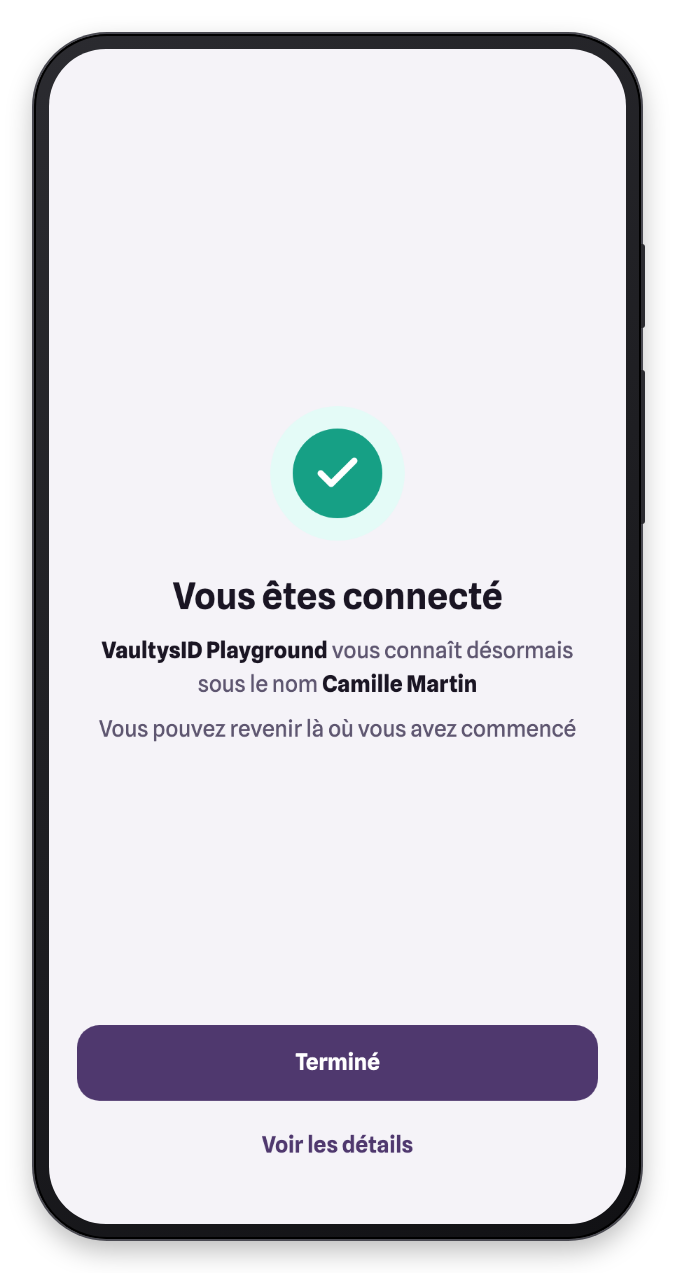
The computer is signed in.