Silent Mode Deployment
This documentation explains how to configure and deploy the SmartLink extension in Silent Mode to detect Shadow IT without direct user intervention.
Silent Mode is particularly useful in environments where SmartLink is used in ConsoleIT mode, i.e., when there are fewer than 5 active users with full access to SmartLink.
Objective of Silent Mode
Silent Mode allows for the automatic installation and configuration of the SmartLink extension on user devices without interaction. Even if users do not have SmartLink, their connections to external applications are detected and reported in the admin console to identify unlisted applications (Shadow IT).
Accessing Extension Settings
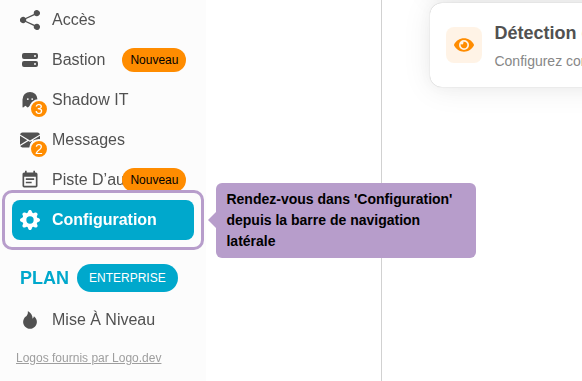
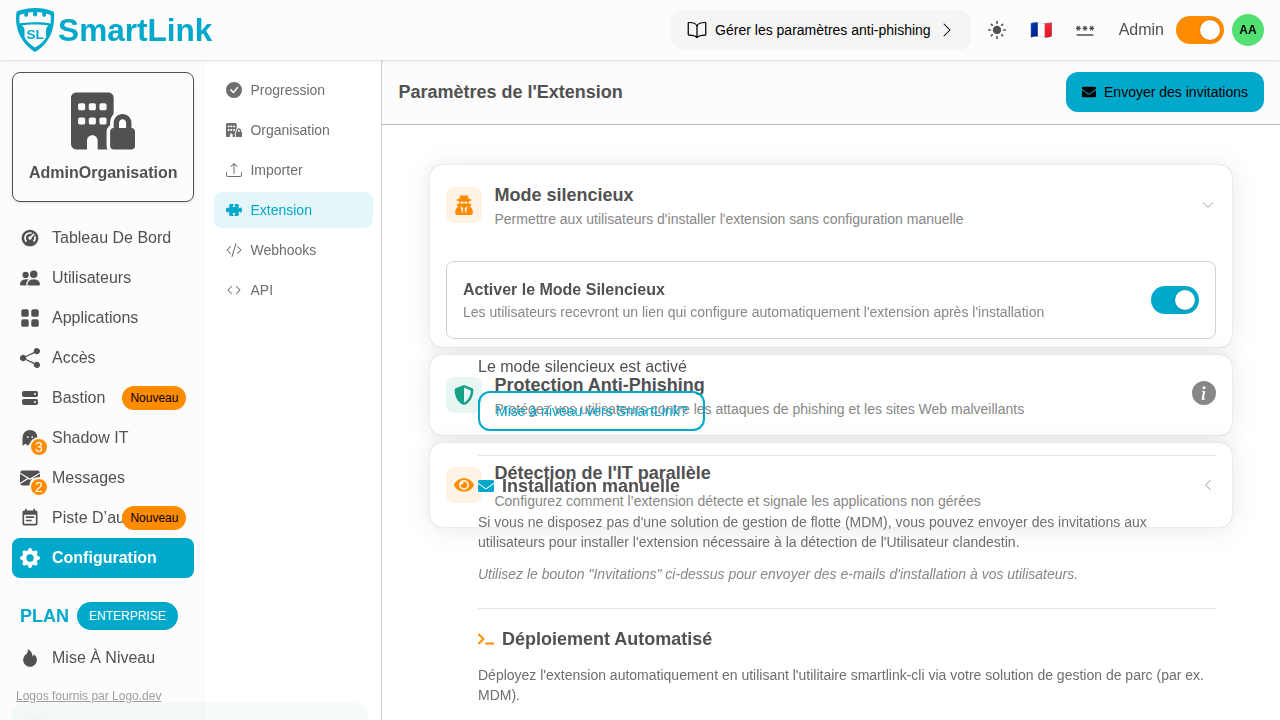
Go to Configuration from the sidebar navigation bar, then select the Extension settings tab.
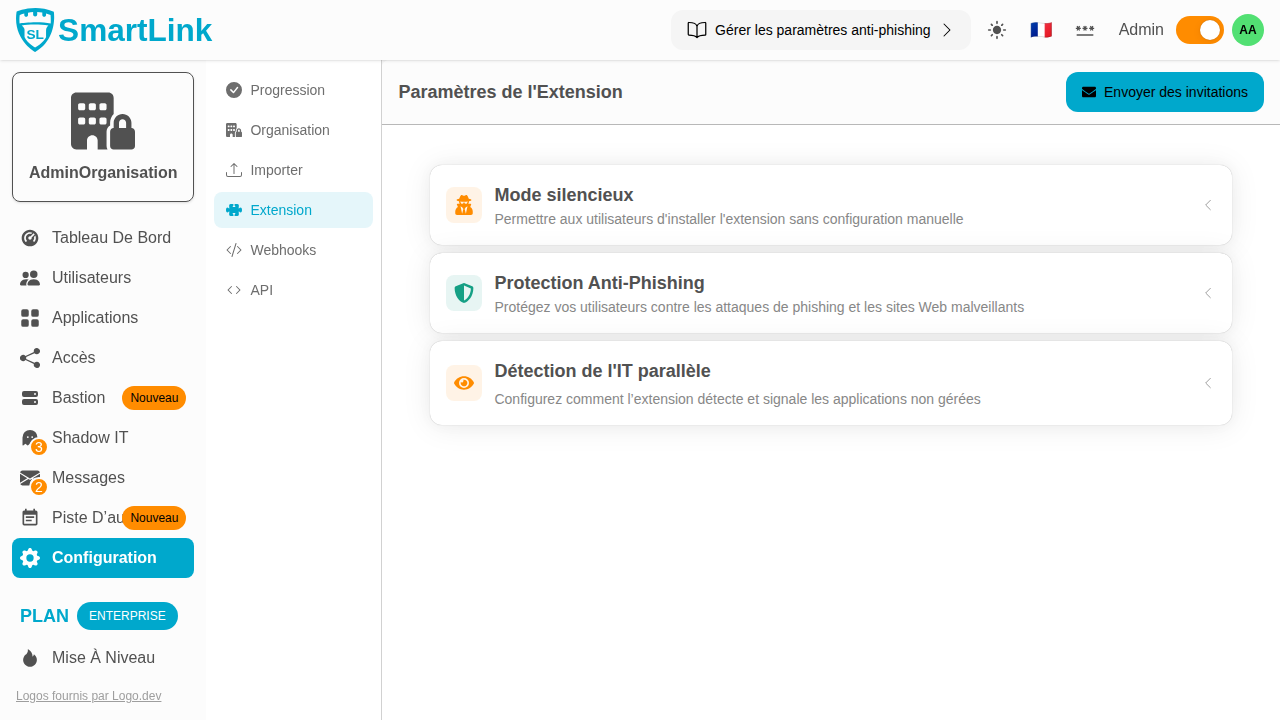
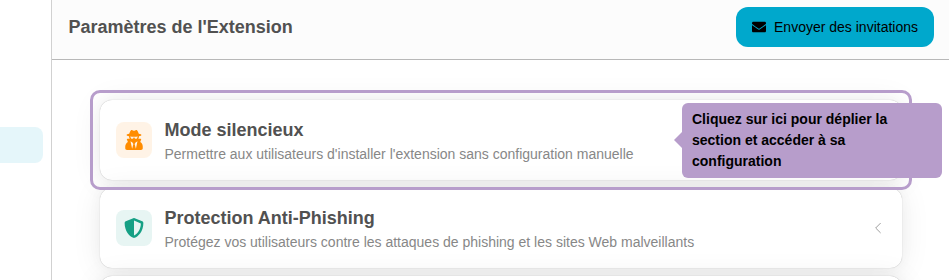
The Silent Mode section is accessible via the dedicated accordion.
Activating Silent Mode
Click on Silent Mode to expand the section, then toggle the switch to activate it.
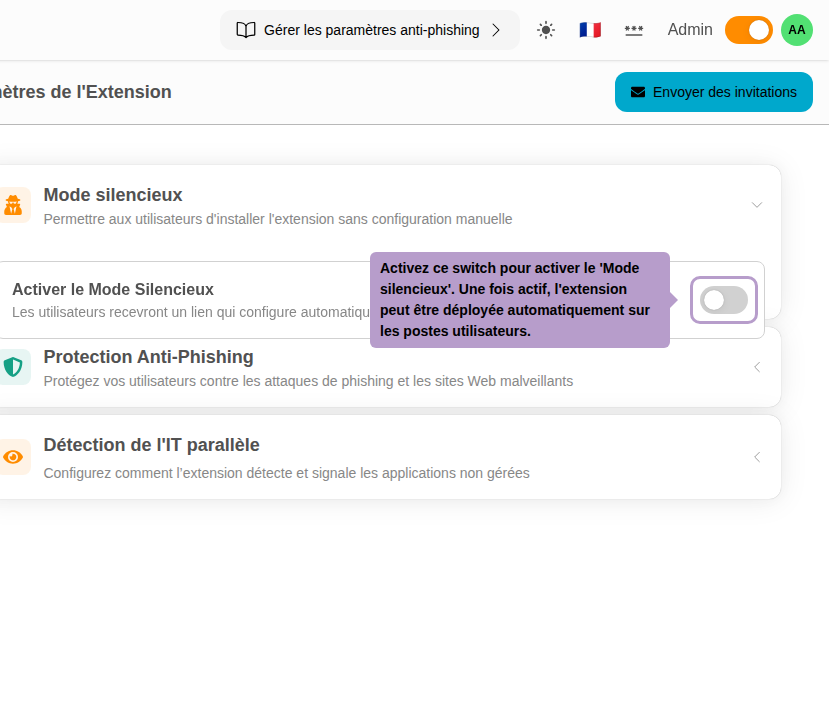
Once activated, the section displays deployment options.
Configuring Deployment
Browser Selection
Select the browsers on which the extension should be installed.
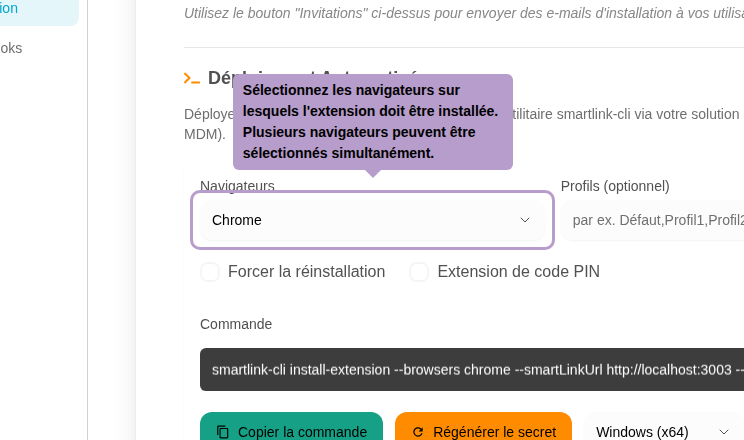
Supported browsers include: Chrome, Firefox, Edge, Opera, Brave, and Vivaldi. Multiple browsers can be selected simultaneously.
Browser Profiles (optional)
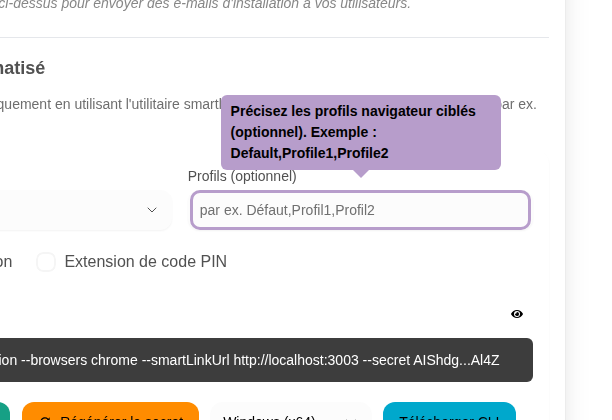
Specify the browser profiles to target if users have multiple profiles.
Advanced Options
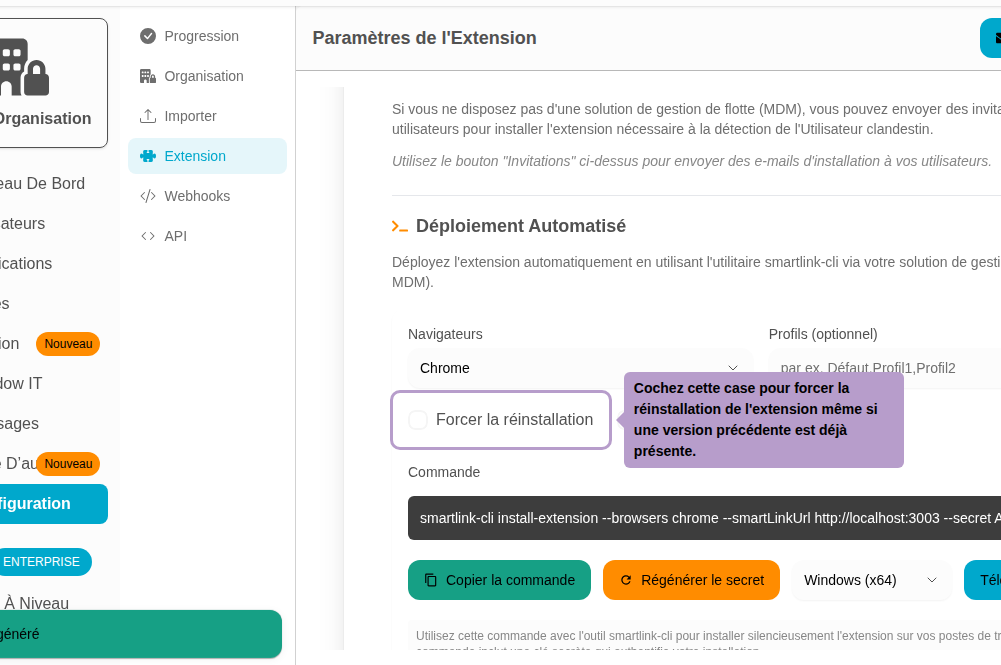
Check Force reinstall to force the reinstallation of the extension, even if a previous version is already present on the device.
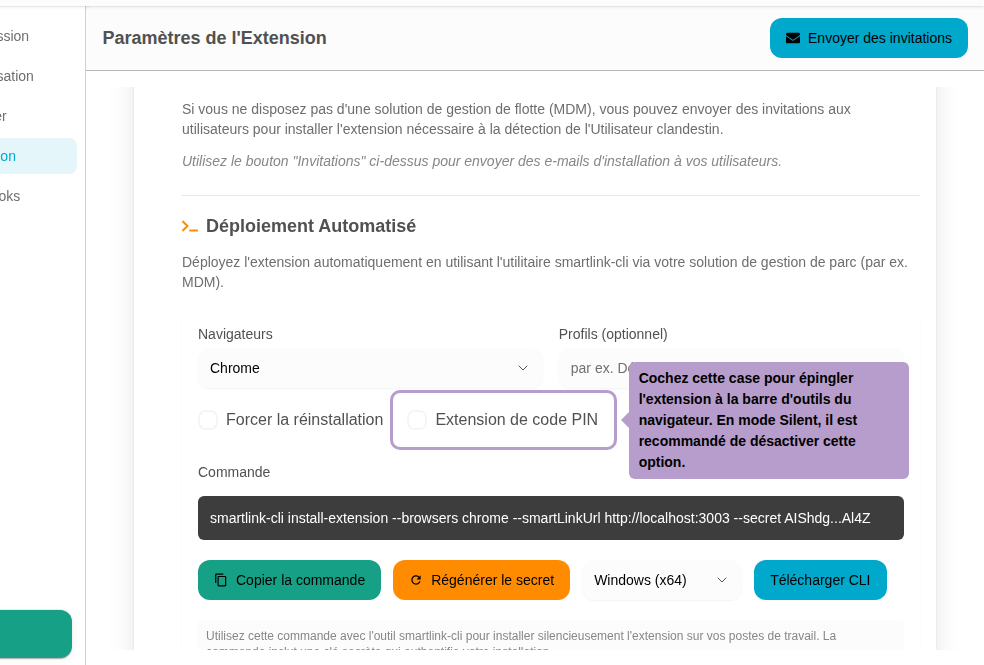
Check Pin extension to pin the extension to the browser's toolbar. In Silent Mode, it is recommended to disable this option to keep the extension invisible to users.
CLI Installation Command
The command is automatically generated based on the selected parameters.
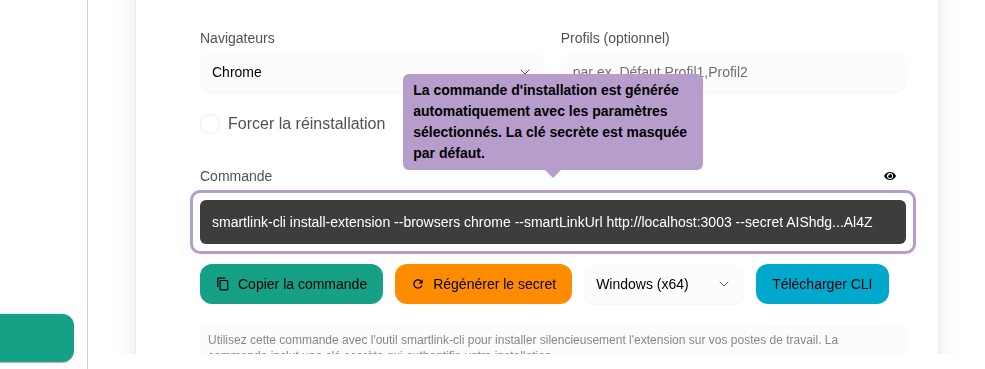
Example command:
smartlink-cli install-extension --browser chrome --smartLinkUrl https://acme.link.vaultys.org --secret <secret_key>
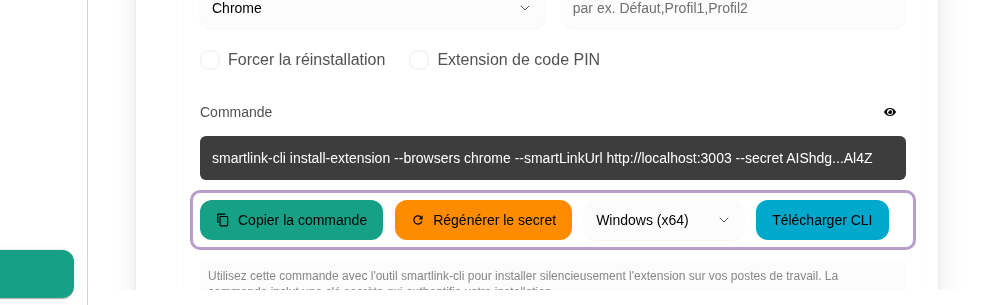
- Copy Command: copies the complete command (with the secret visible) to the clipboard
- Regenerate Secret: generates a new deployment secret
- Select the target platform (Windows, macOS, Linux) and click on Download CLI to download the corresponding SmartLink CLI tool
Large-Scale Deployment via MDM
For environments with many user devices, it is recommended to deploy the extension via a centralized management tool (MDM), such as:
- Microsoft Intune
- Jamf (macOS)
- Workspace ONE
- Fleet / Munki / Puppet / Ansible
- MDM integrated into your IT system
MDM will allow:
- Automatic execution of the SmartLink CLI installation command on each device.
- Definition of parameters (
--browser,--profiles,--forceReinstall, etc.) as needed. - Ensuring that the extension remains installed and active, even after a browser or device update.
- Scheduling automatic checks and reinstallation if necessary.
No MDM?
In this case, the installation must be done with smartlink-cli and the corresponding command, retrieved via the SmartLink admin interface, on each individual device.
Best Practices
- Always test the command on a small group of users before a global deployment.
- If using an MDM, ensure that the SmartLink CLI execution rights are properly granted.
- Keep a local copy of the SmartLink CLI corresponding to your OS and version.
- When updating the extension, regenerate the command from the SmartLink console to avoid conflicts.
Summary
SmartLink's Silent Mode allows for deploying the extension on many devices without human intervention, while maintaining reliable detection of Shadow IT. With SmartLink CLI, configuration and installation can be automated on all systems via an MDM or internal scripts.