API and Webhooks
You can integrate SmartLink with any software (LDAP, SOC, Google Suite, ...) via the SmartLink API and Webhooks!
These features are available for Platinum and Enterprise licenses only.
The SmartLink API allows you to make requests to your SmartLink (e.g., retrieve apps, create users, ...) for your integrations.
Webhooks allow you to send data to the URL of your choice when events are triggered (e.g., user creation, user login, ...).
Webhooks
Accessing the Webhooks Tab
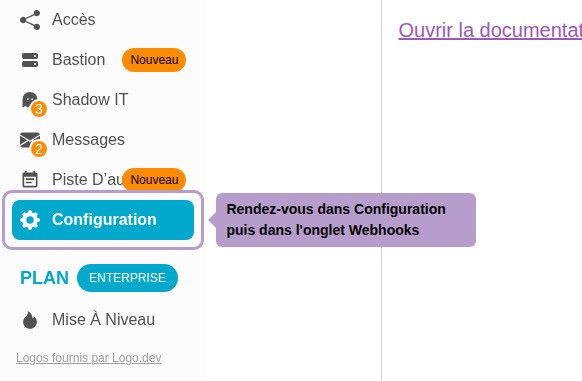
Go to Configuration from the sidebar navigation, then select the Webhooks tab.
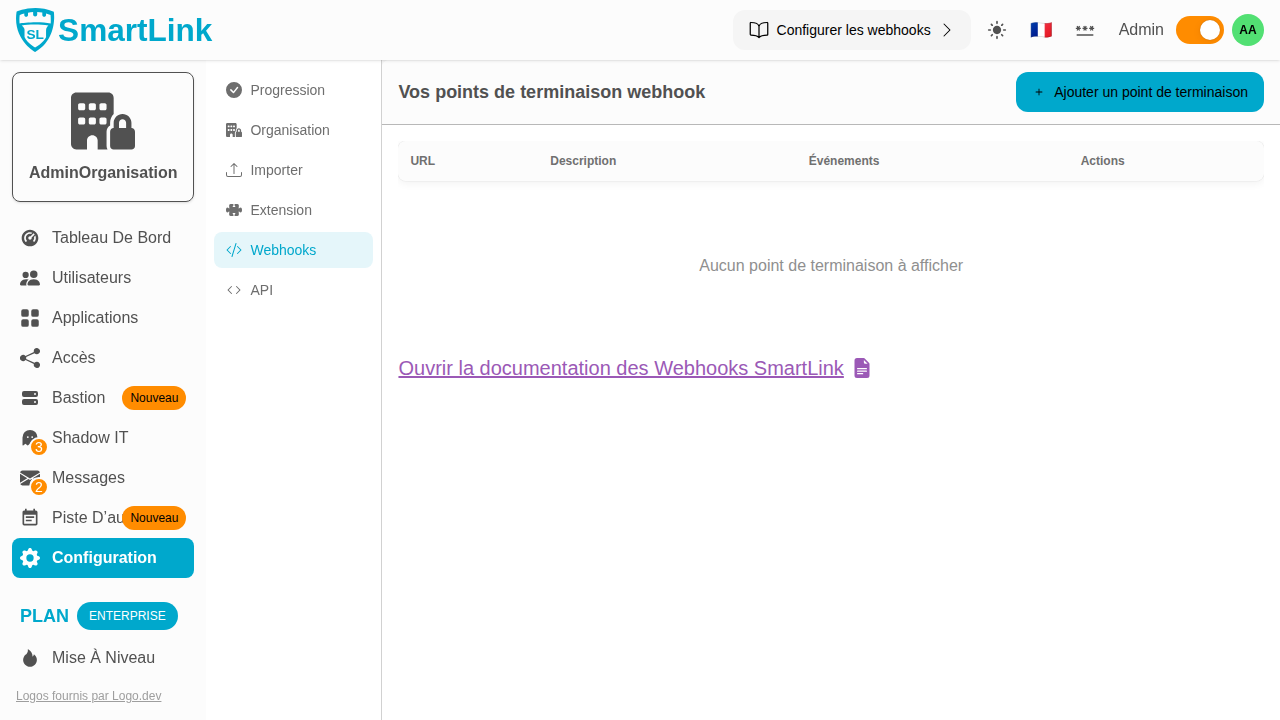
Webhooks Documentation
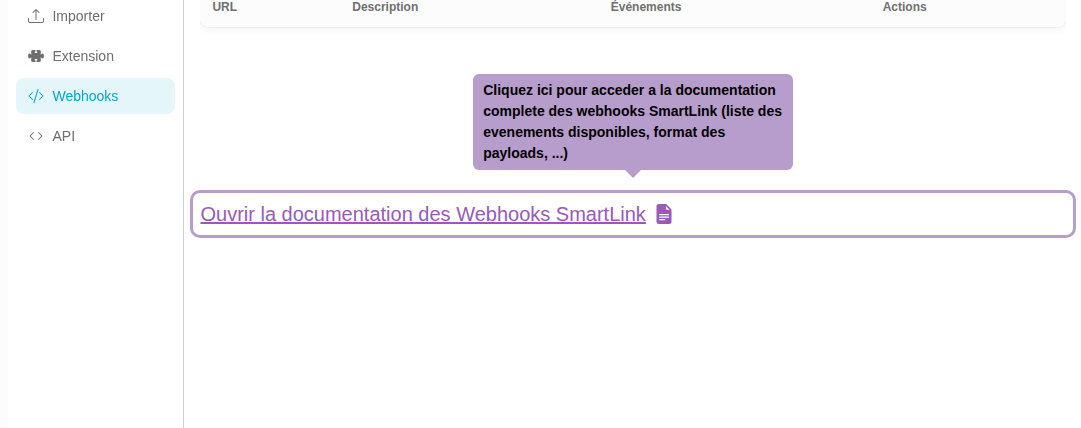
Click on the link Open SmartLink Webhooks documentation to access the complete documentation of webhooks: list of available events, payload formats, integration examples.
Adding an Endpoint
Click on the Add an endpoint button in the toolbar to configure a new webhook.
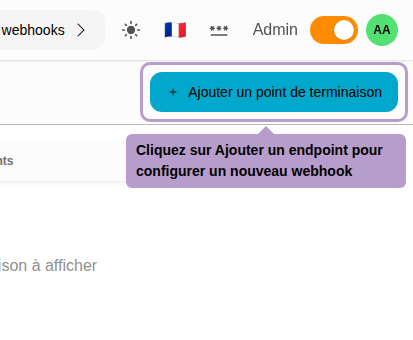
A side panel will open with the configuration form.
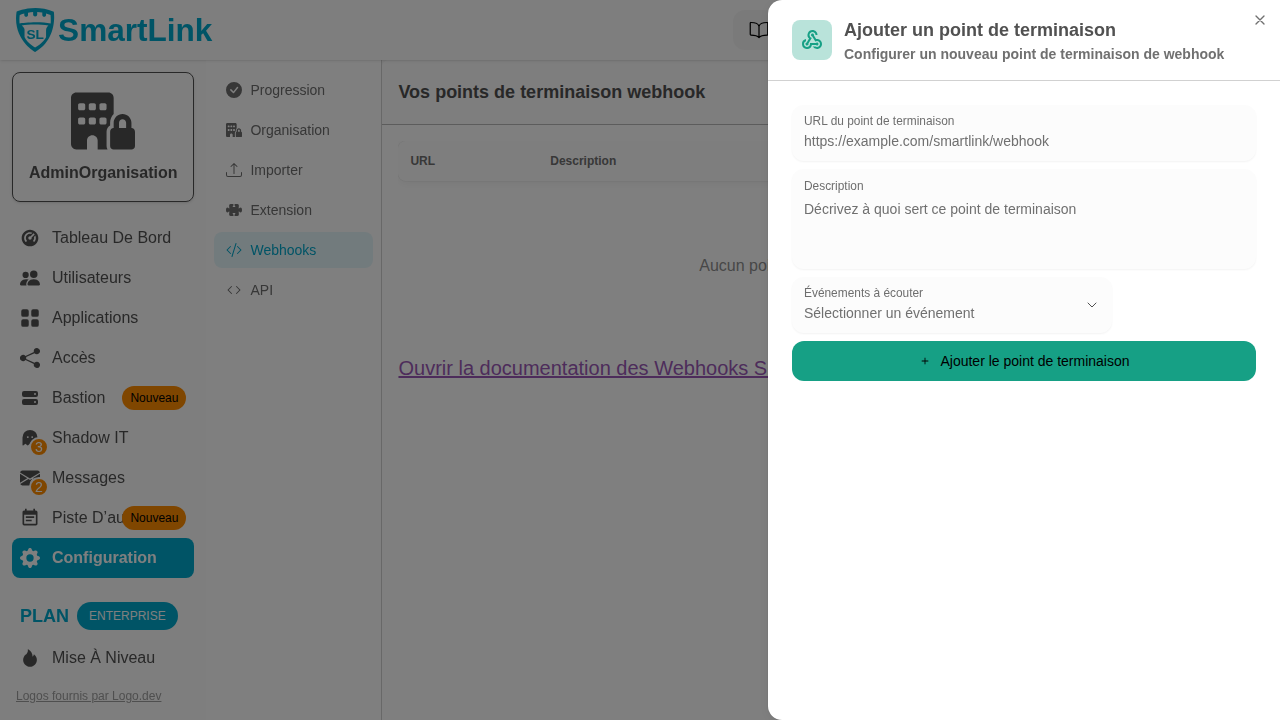
Configuring the Endpoint
Destination URL
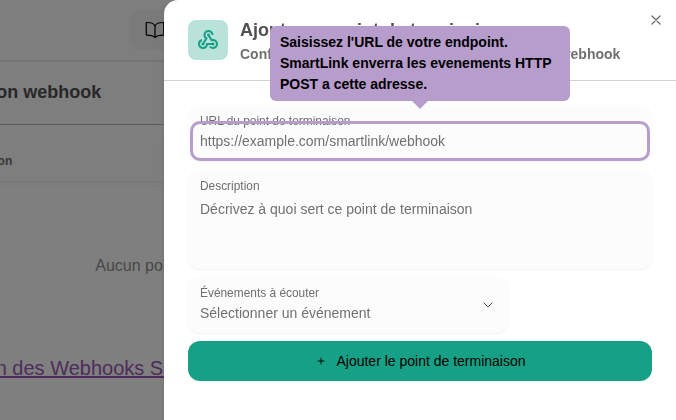
Enter the URL of your endpoint. SmartLink will send events via HTTP POST to this address.
Events to Listen to
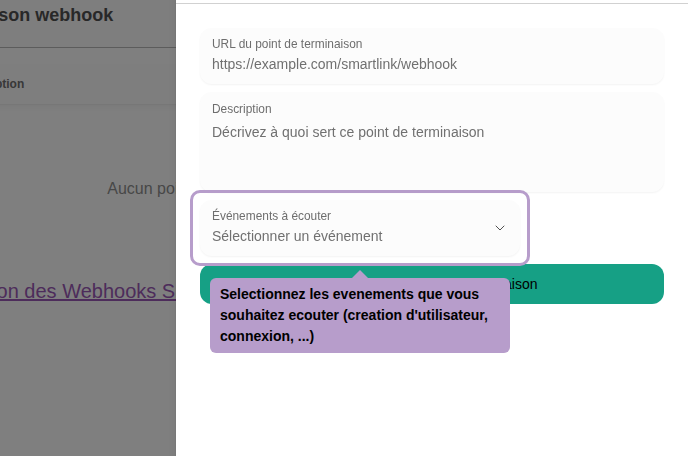
Select the events you wish to receive. You can choose multiple events simultaneously.
API
Accessing the API Tab
From the API tab on the Configuration page, you can enable access to the SmartLink REST API.
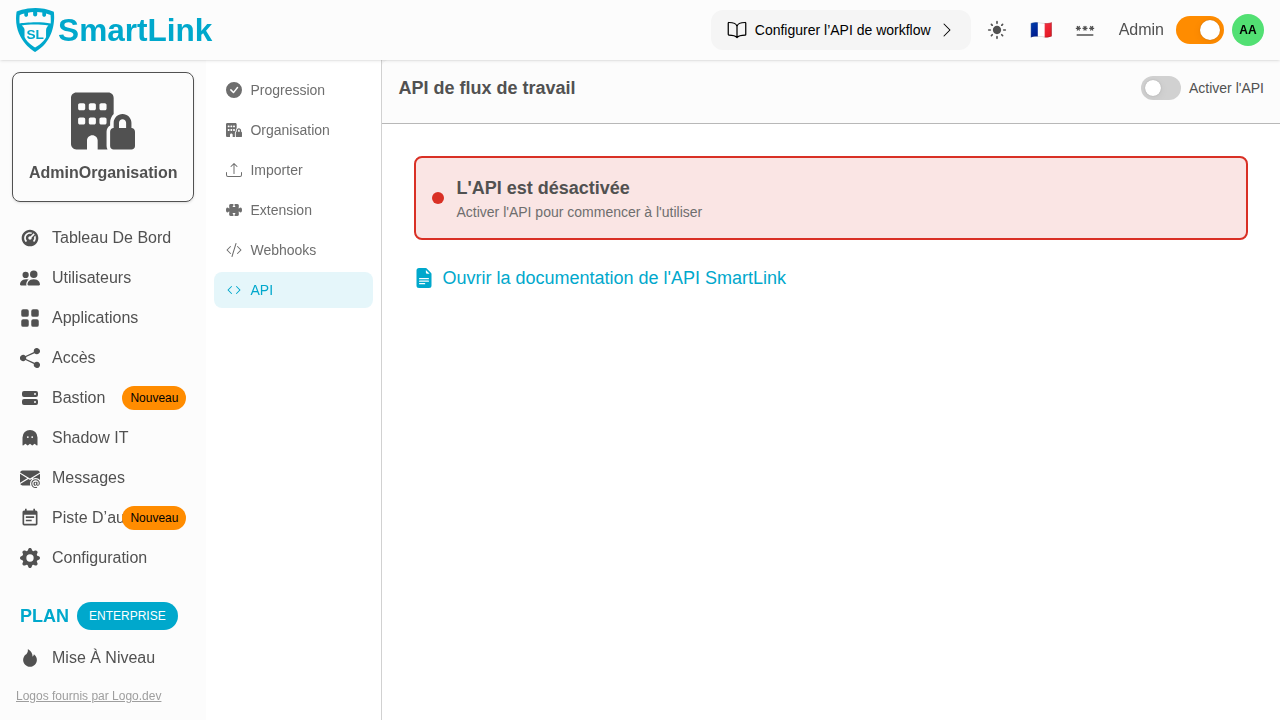
By default, the API is disabled.
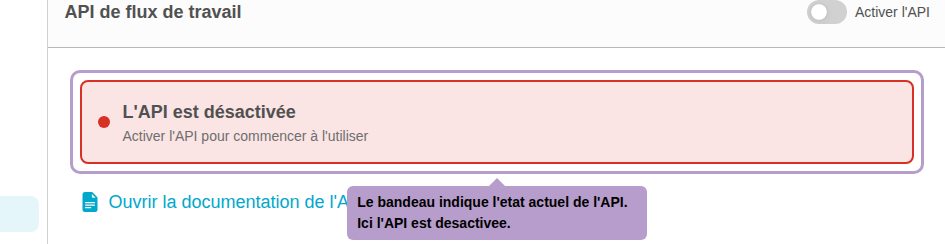
Enabling the API
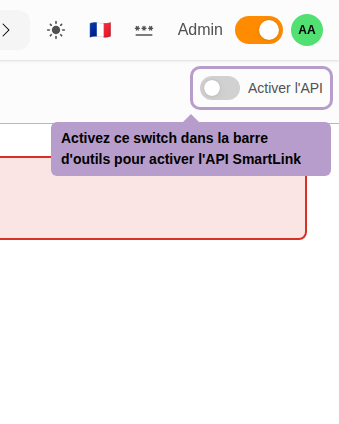
Toggle the Enable API switch in the toolbar to enable access to the API.
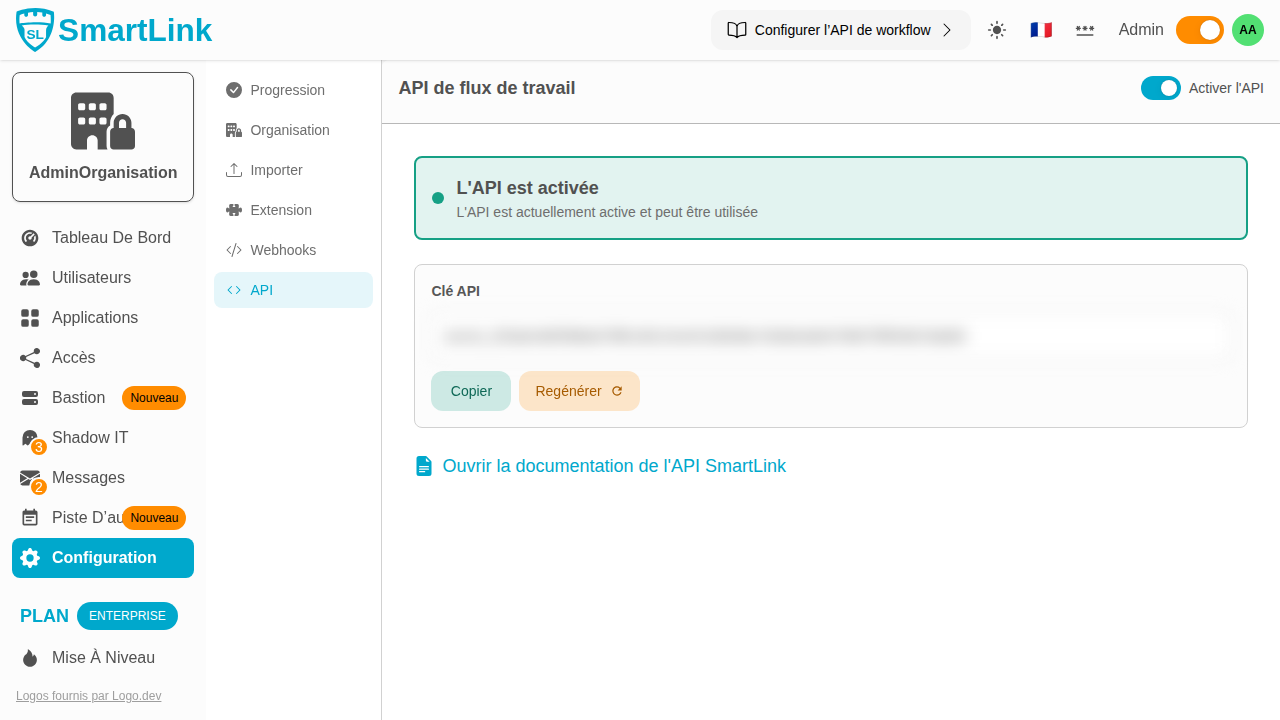
Once the API is enabled, your API key will be displayed.
API Key
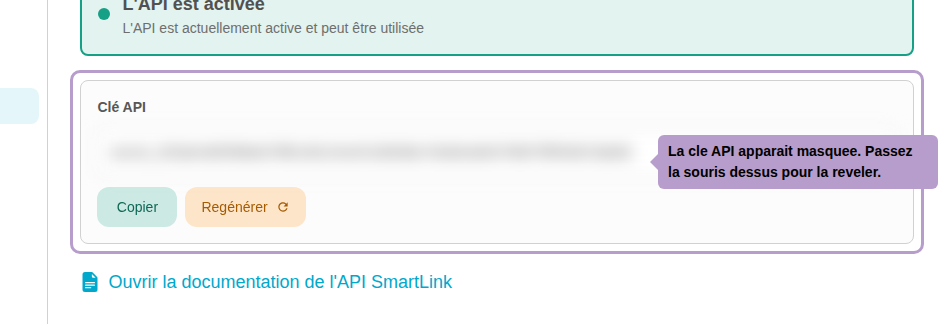
The API key is initially hidden. Hover over it to reveal.
Copying the Key
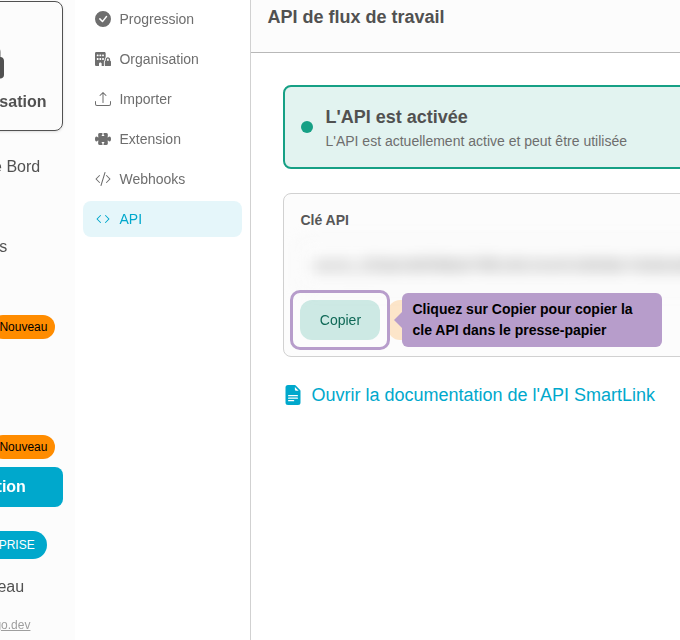
Click on Copy to copy the API key to the clipboard and use it in your integrations.
Regenerating the Key
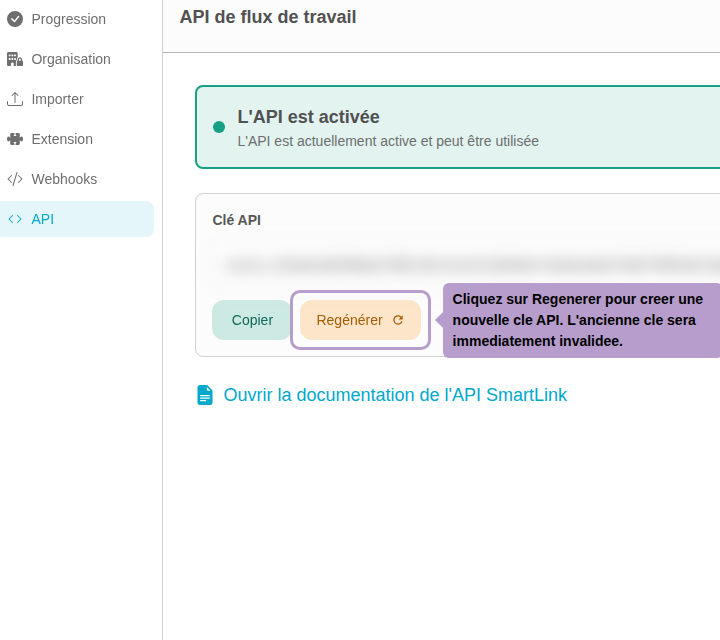
Click on Regenerate to create a new API key. The old key will be immediately invalidated — remember to update all your integrations.
API Documentation
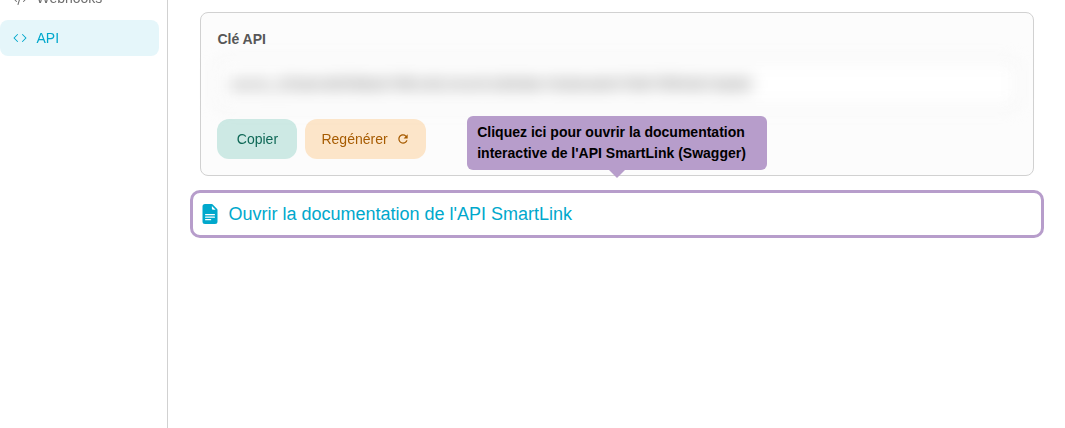
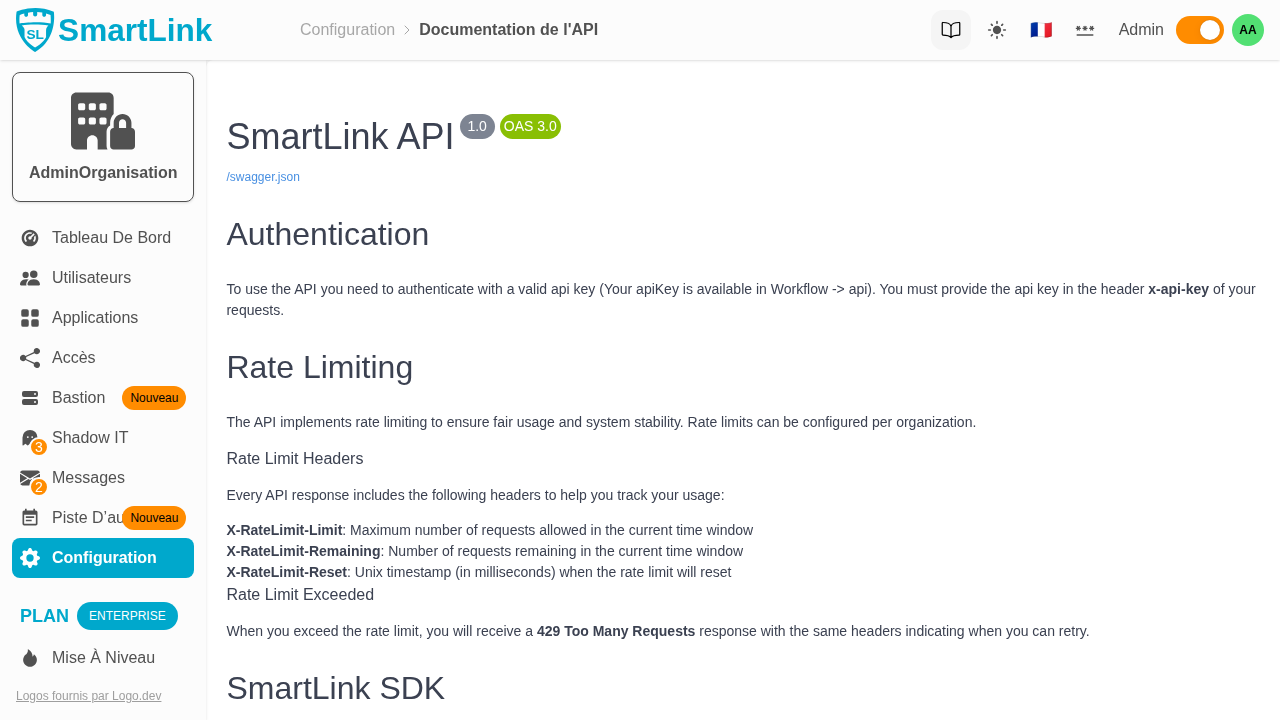
Click on Open SmartLink API documentation to access the interactive documentation (Swagger) listing all available endpoints.