Import Passwords
SmartLink allows you to import your existing passwords from a password manager or directly from your browser. The import process consists of three steps: choosing the source, downloading the file, and then validating the entries.
Choose the Source
Access the import page from the password manager.
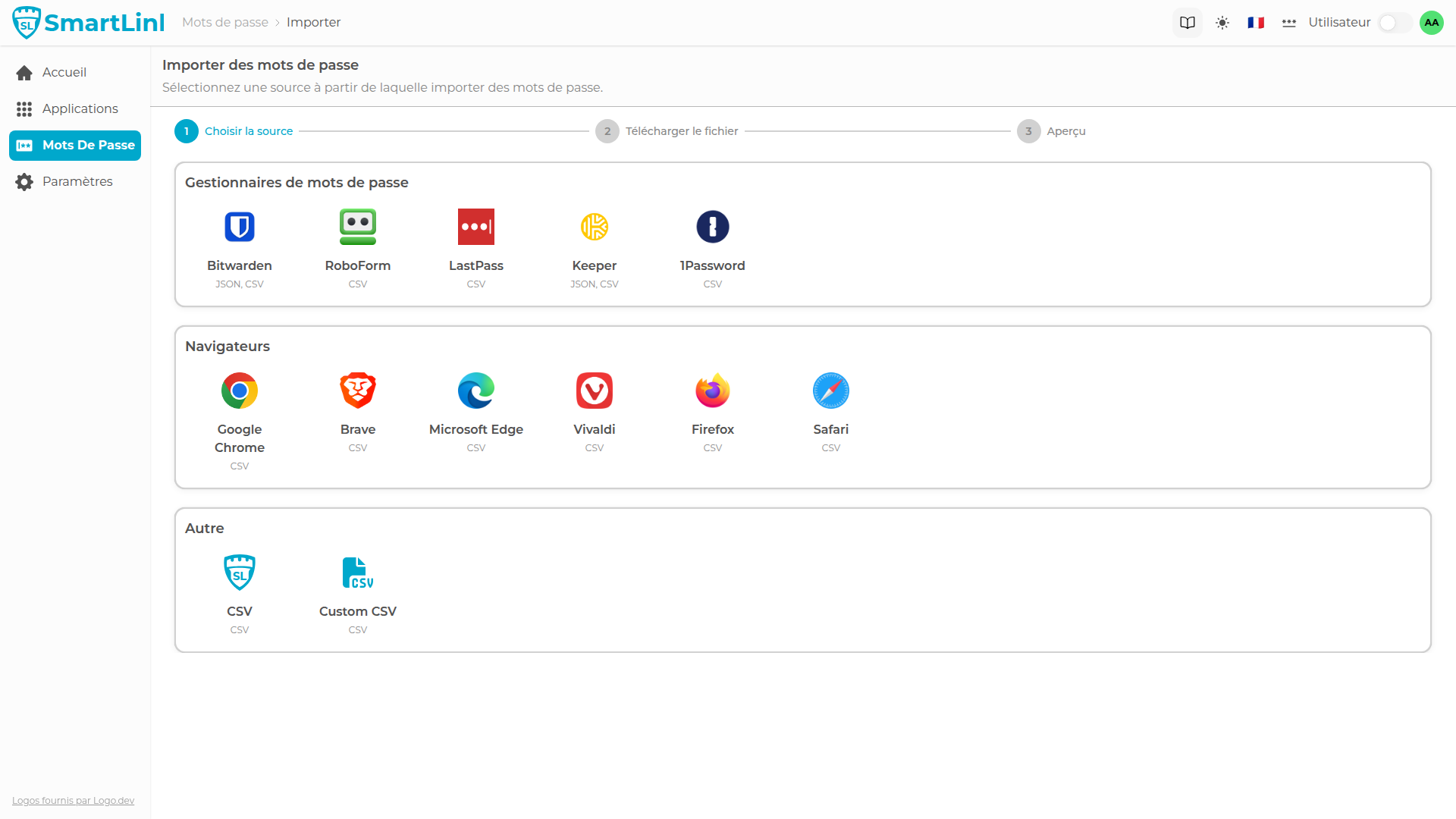
The available sources are grouped into three categories:
- Password Managers: Bitwarden, LastPass, 1Password, Keeper, RoboForm
- Browsers: Google Chrome, Brave, Edge, Firefox, Safari, Vivaldi
- Others: custom CSV import
Example with Google Chrome
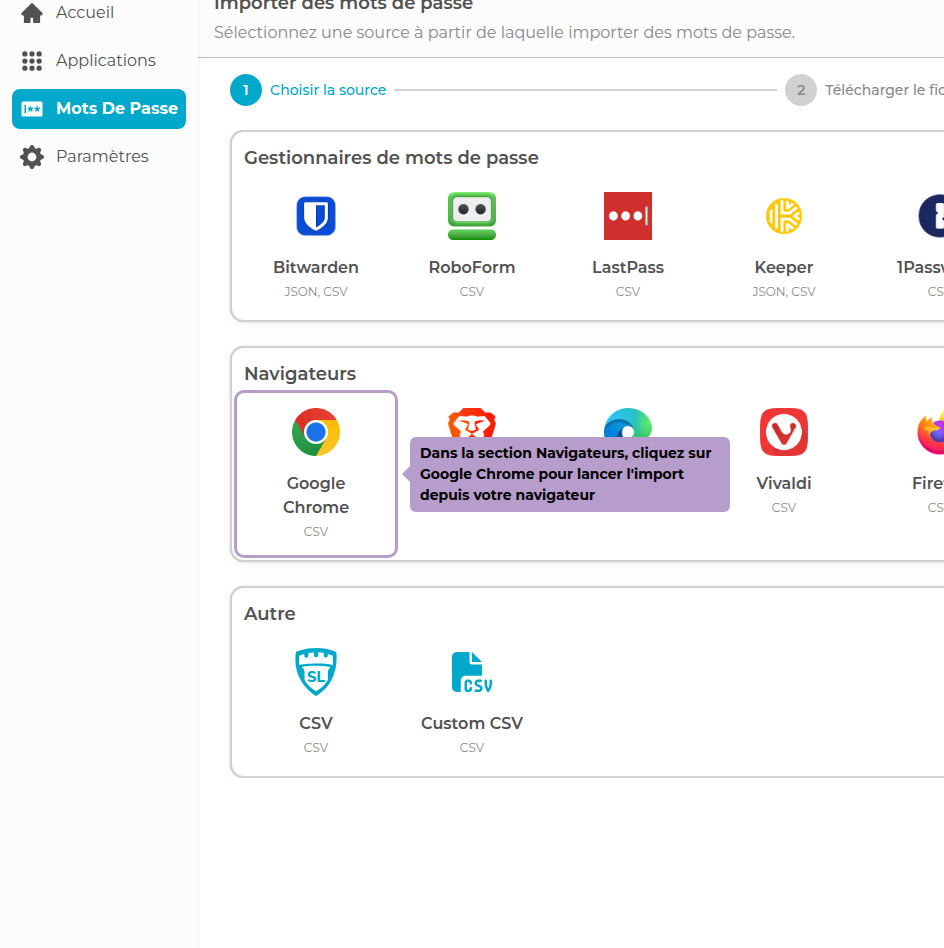
Click on Google Chrome in the Browsers section.
Export from Chrome
Step-by-step instructions guide you to export your vault from the browser. A drop zone allows you to upload the file once the export is done.
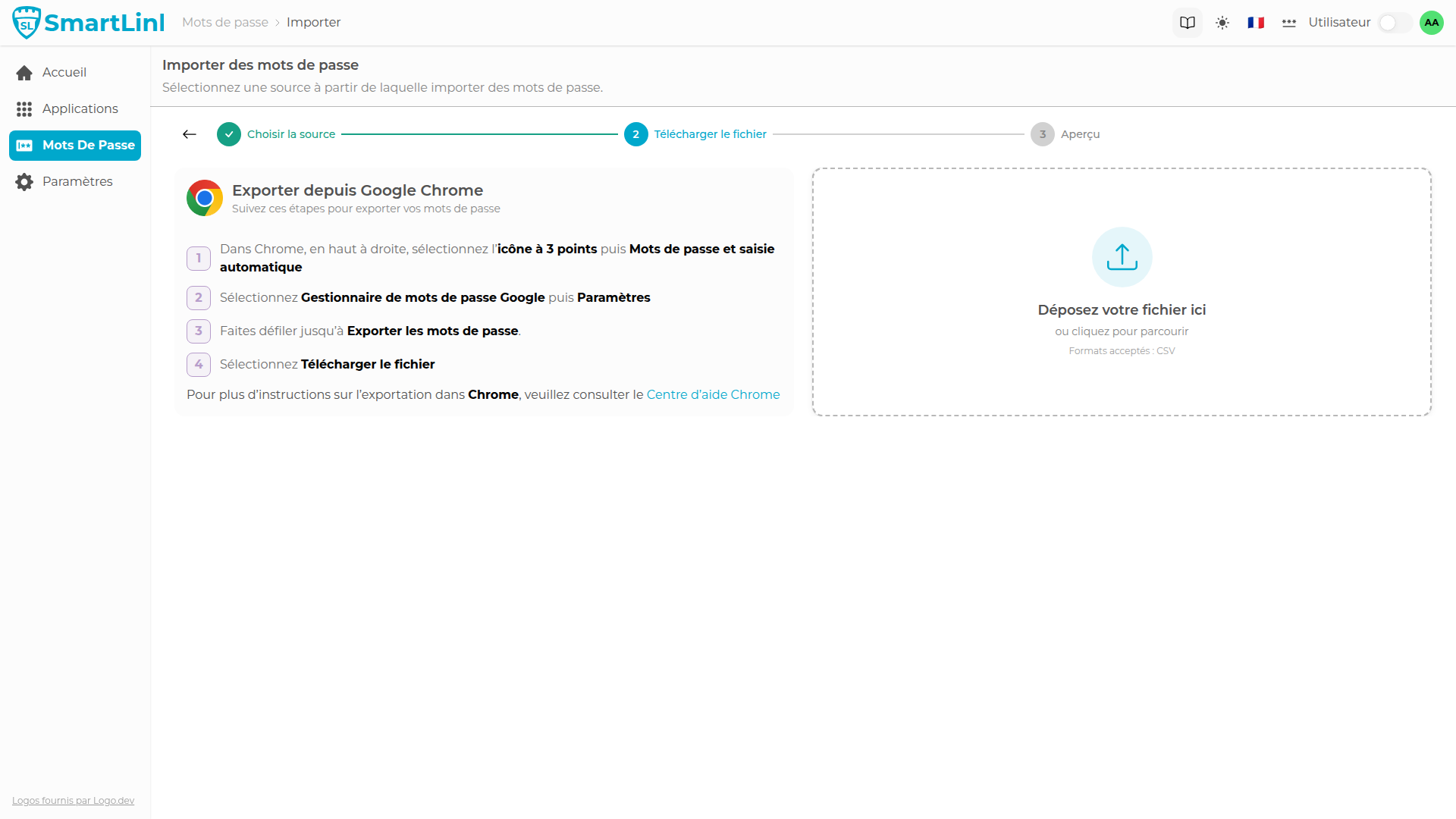
Drag and drop your CSV file or click on the zone to select it.
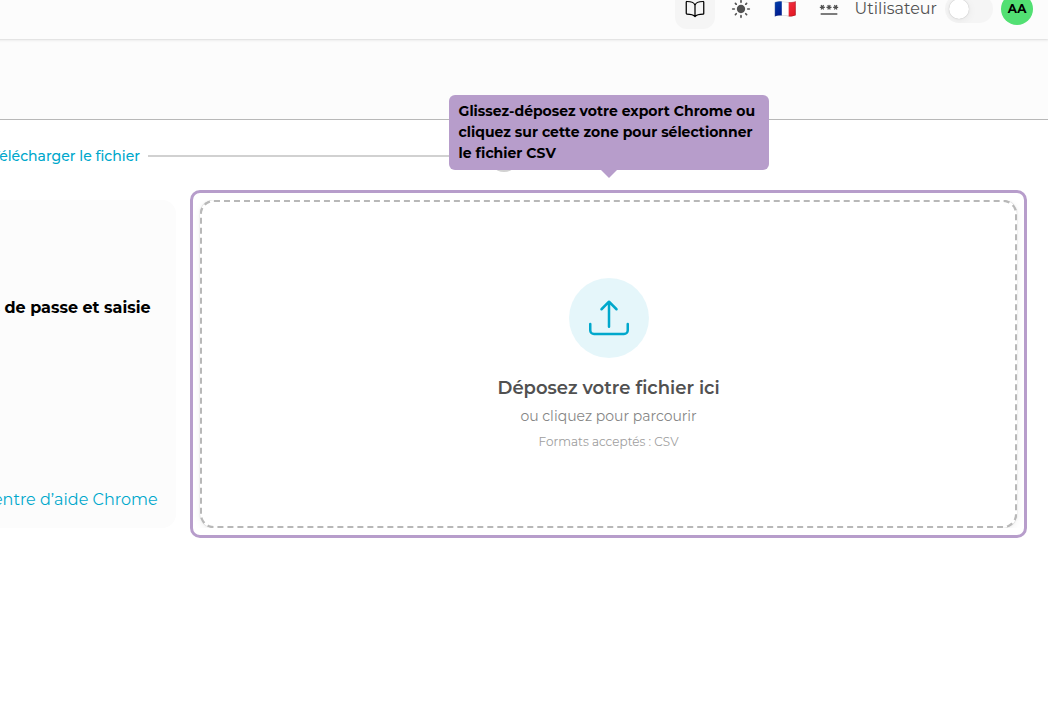
The Chrome export file is in CSV format with the columns name, url, username, password, and note. It does not contain any encrypted data.
Verify and Import
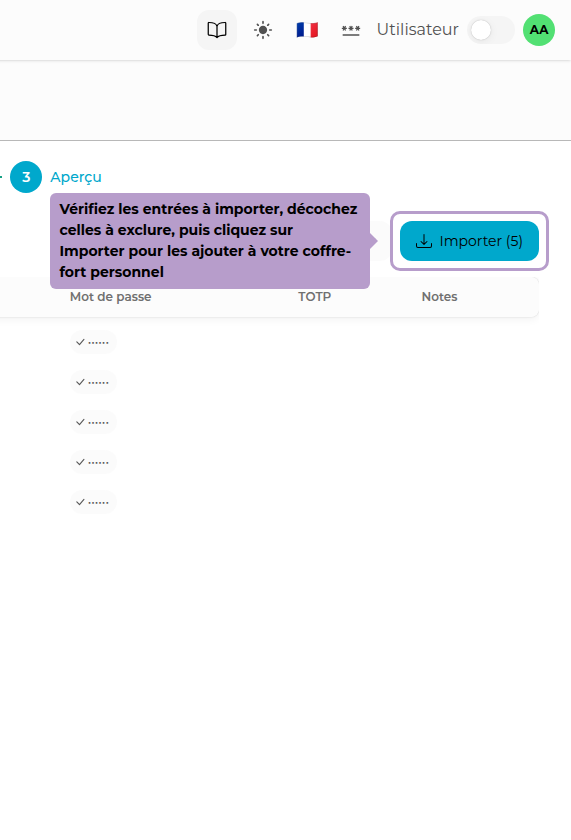
After selecting the file, all detected entries are displayed in a preview table. You can uncheck the entries you do not wish to import.
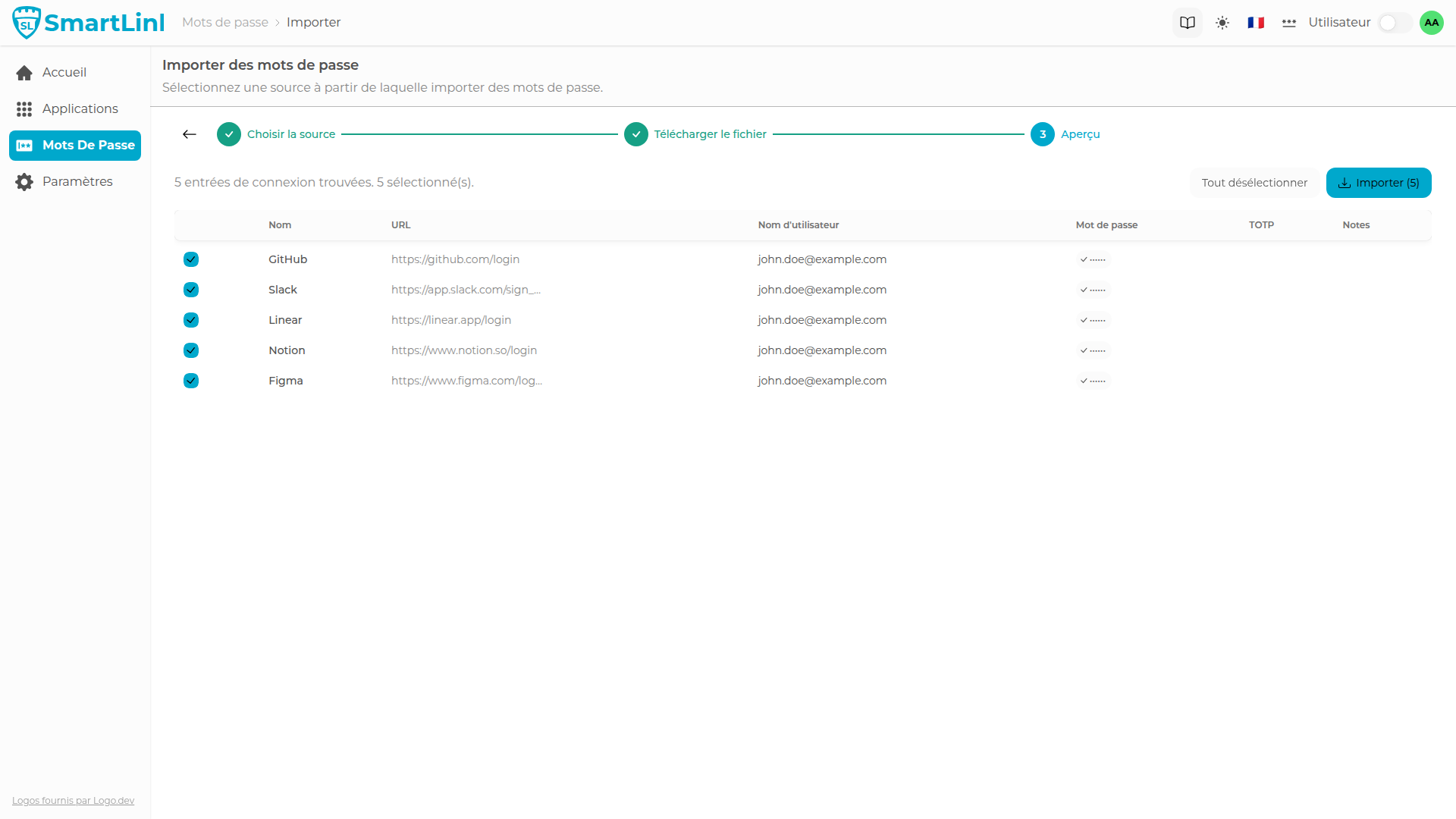
Click on the Import button to add the selected entries to your personal vault.