Folder Administrator
As a folder administrator, you can manage users, applications, and the security of folders delegated to you. The actions available to you depend on the rights granted by a global administrator.
The possible rights are as follows:
- Manage passwords — Always available, even without additional rights.
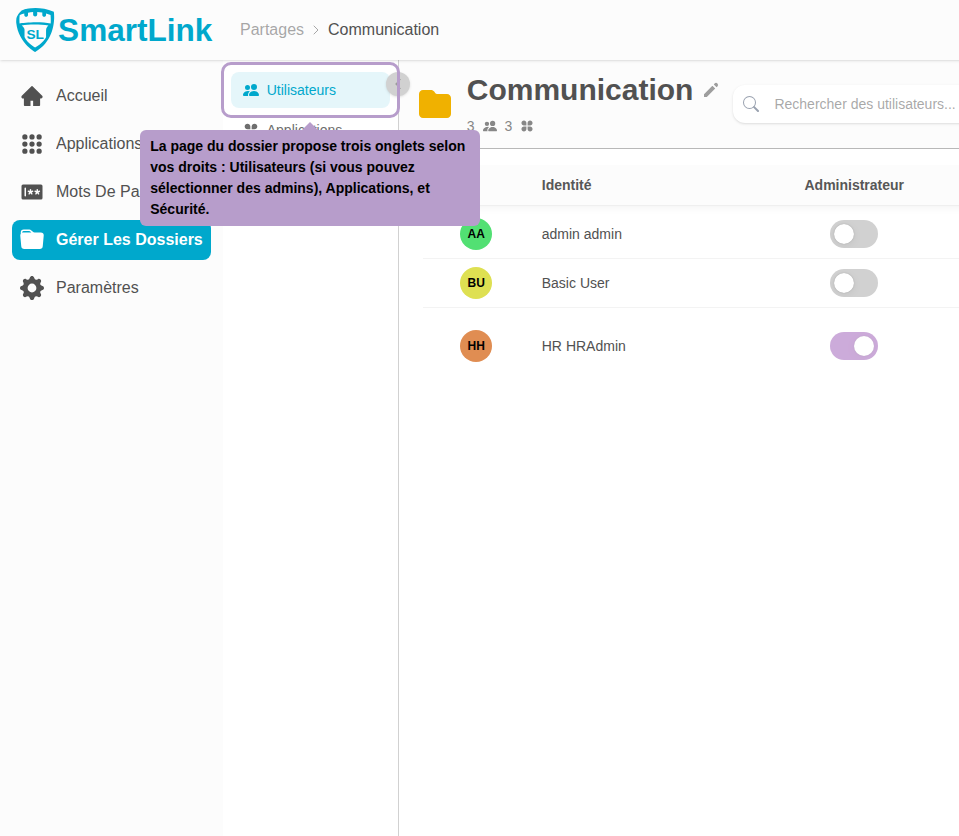
- Select admins — Allows you to view the Users tab and designate folder managers, as well as define their rights.
- Edit applications — Allows you to modify the folder's existing applications.
- Create applications — Allows you to add new applications to the folder.
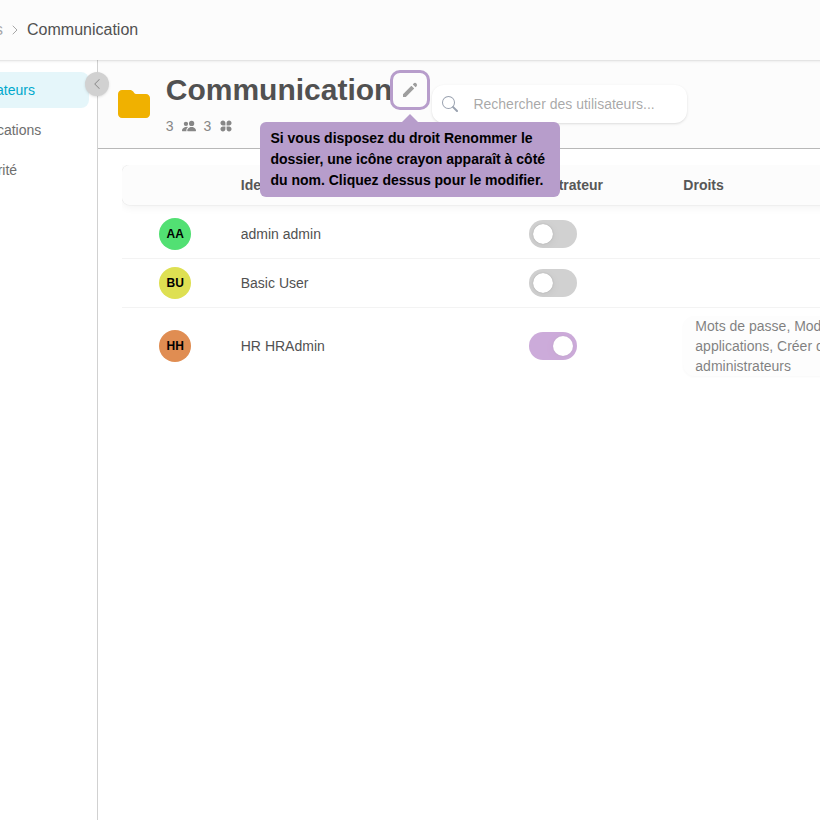
- Rename the folder — Allows you to change the folder's name.
Overview
The Folder Administrator page lists all the folders you are responsible for.
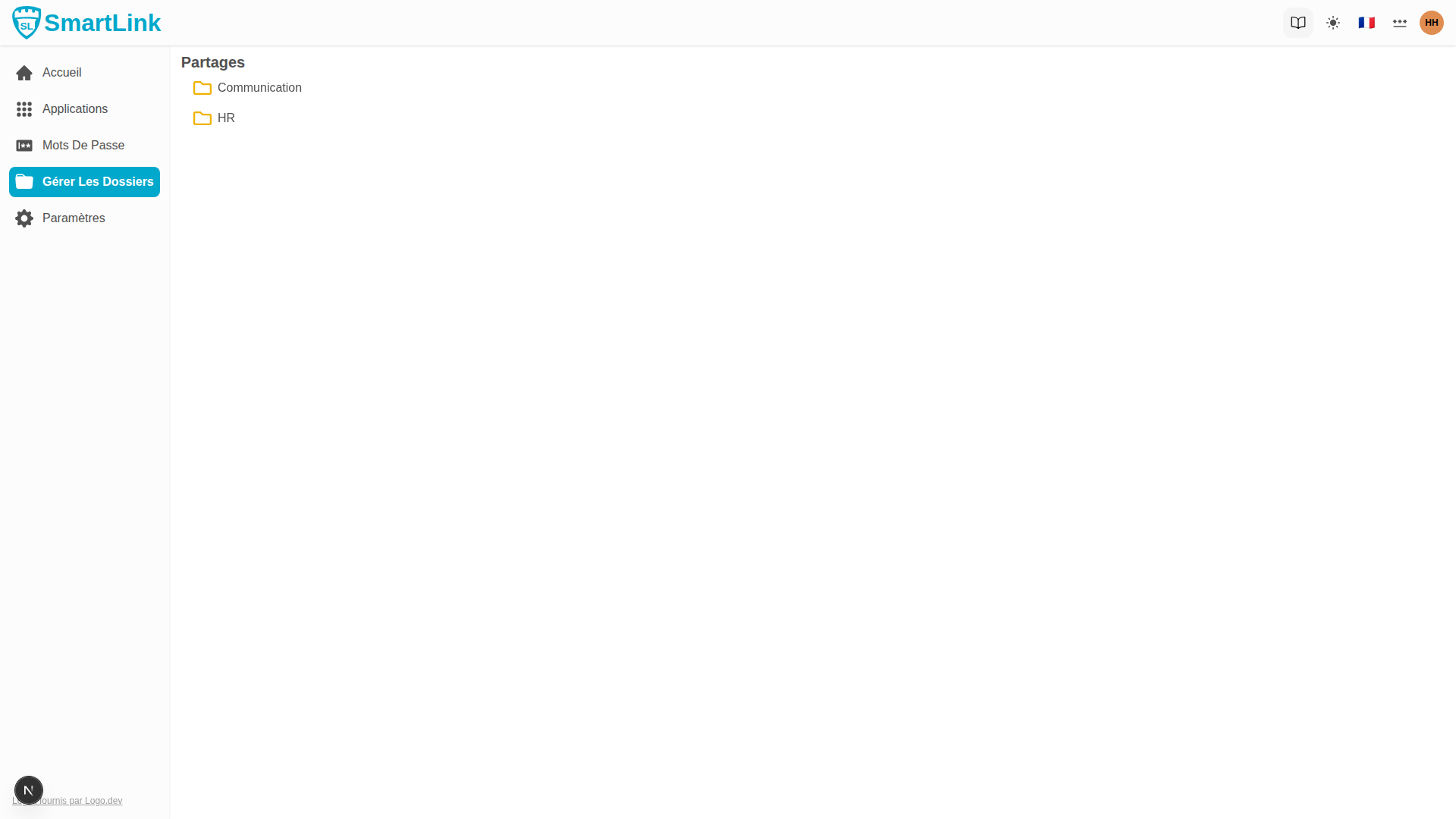
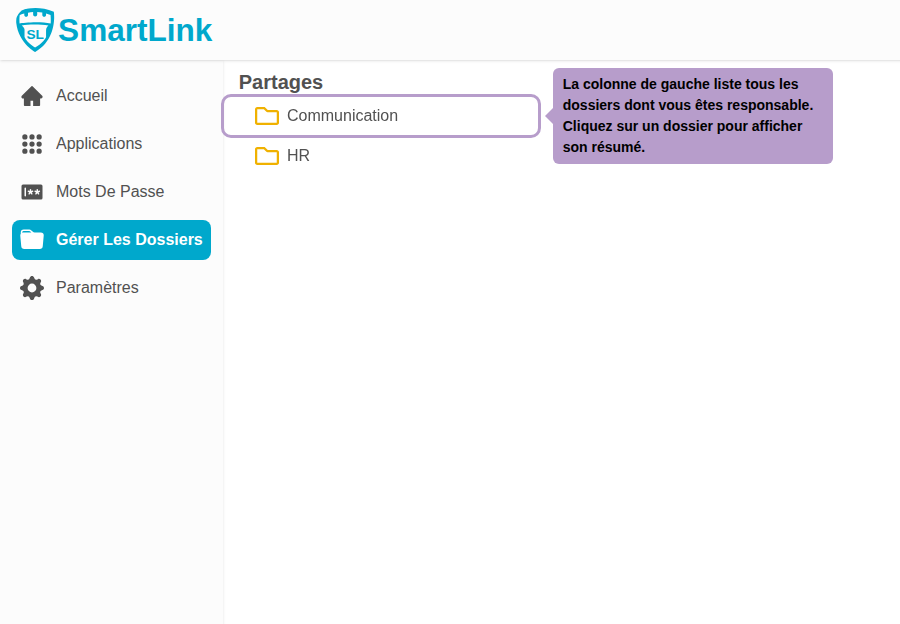
Click on a folder in the list on the left to display its summary.
Folder Summary
The summary panel gives you a quick overview of the folder's applications and members.
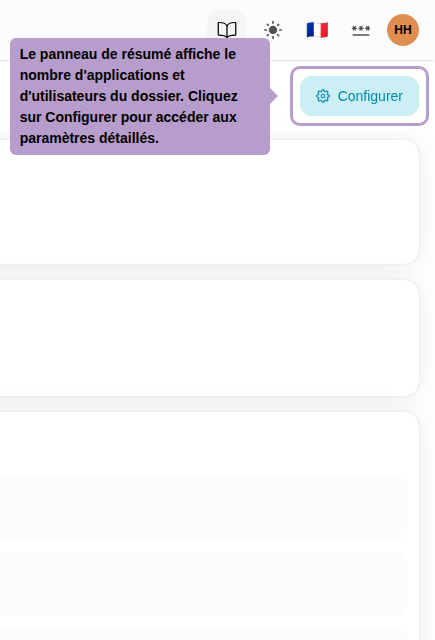
Click Configure to access the folder's detailed management page.
Folder Management Page
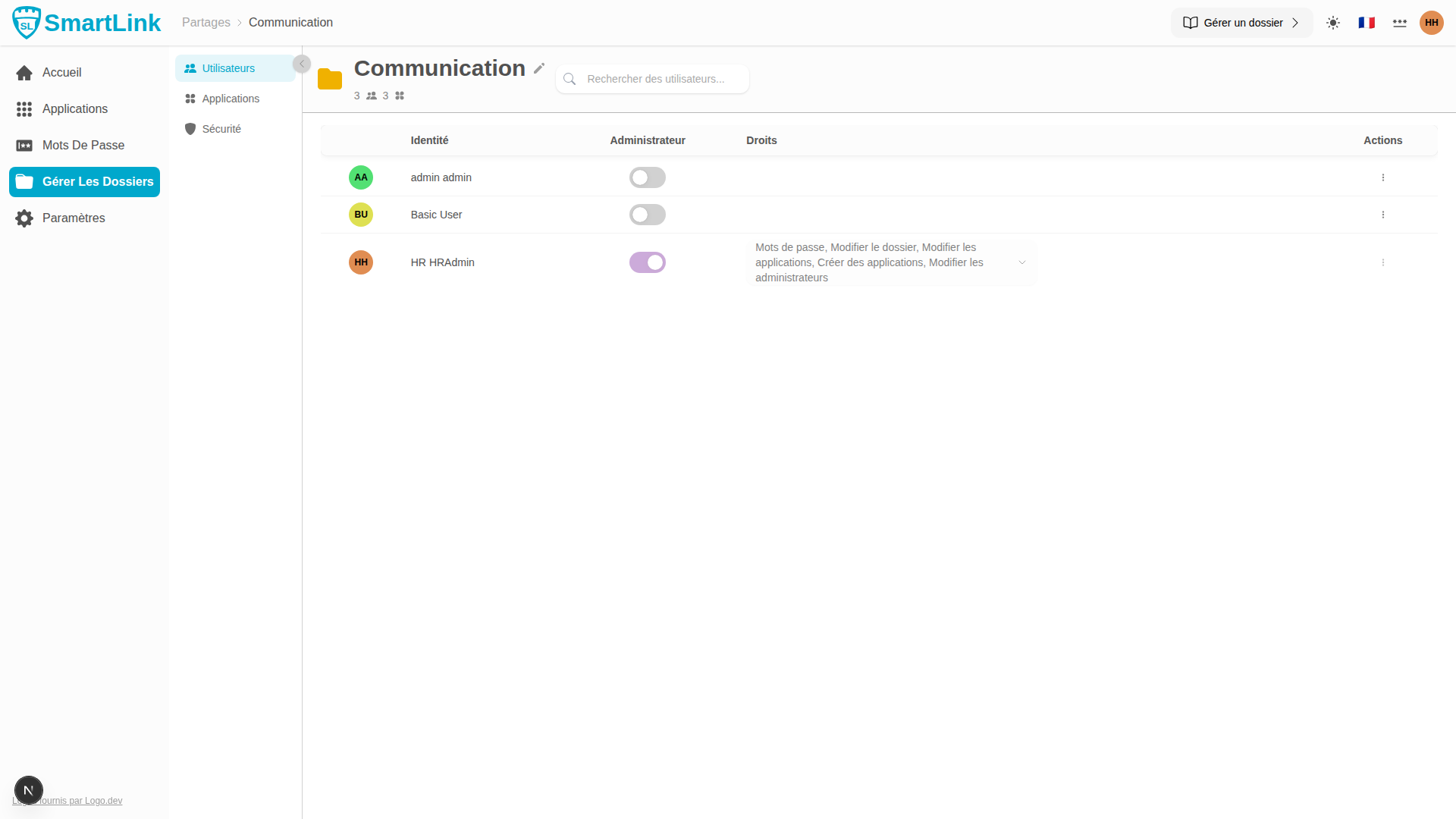
The management page is organized into tabs according to your rights: Users, Applications, and Security.
Rename the Folder
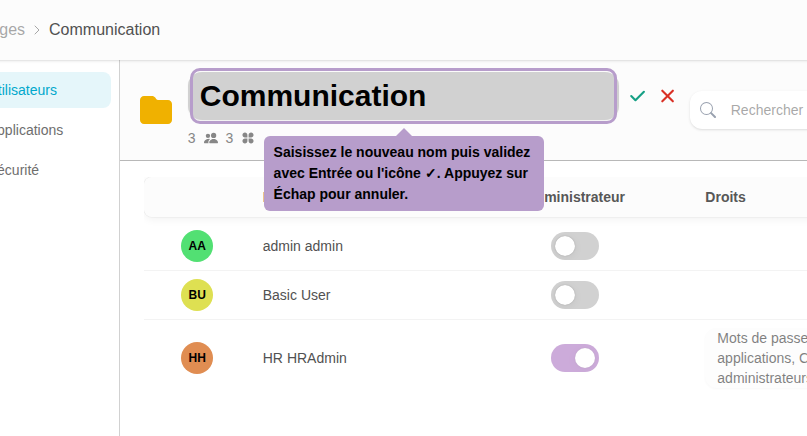
If you have the Rename the folder right, a pencil icon appears to the right of the name. Click it to edit.
This button only appears if you have been granted the Edit folder right.
Users Tab
The Users tab allows you to manage the folder's members and their roles.
This tab is only visible if you have been granted the Edit administrators right.
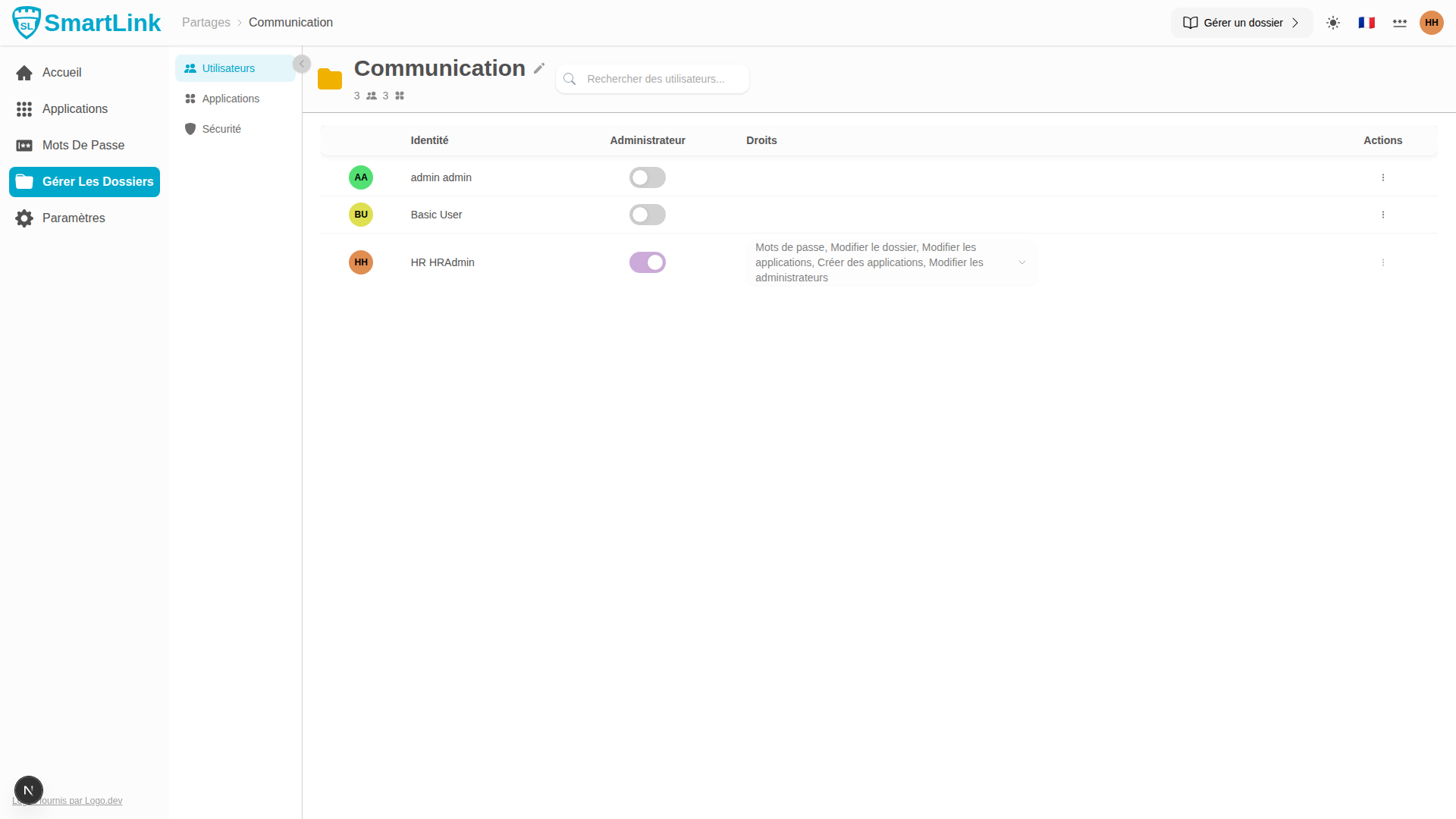
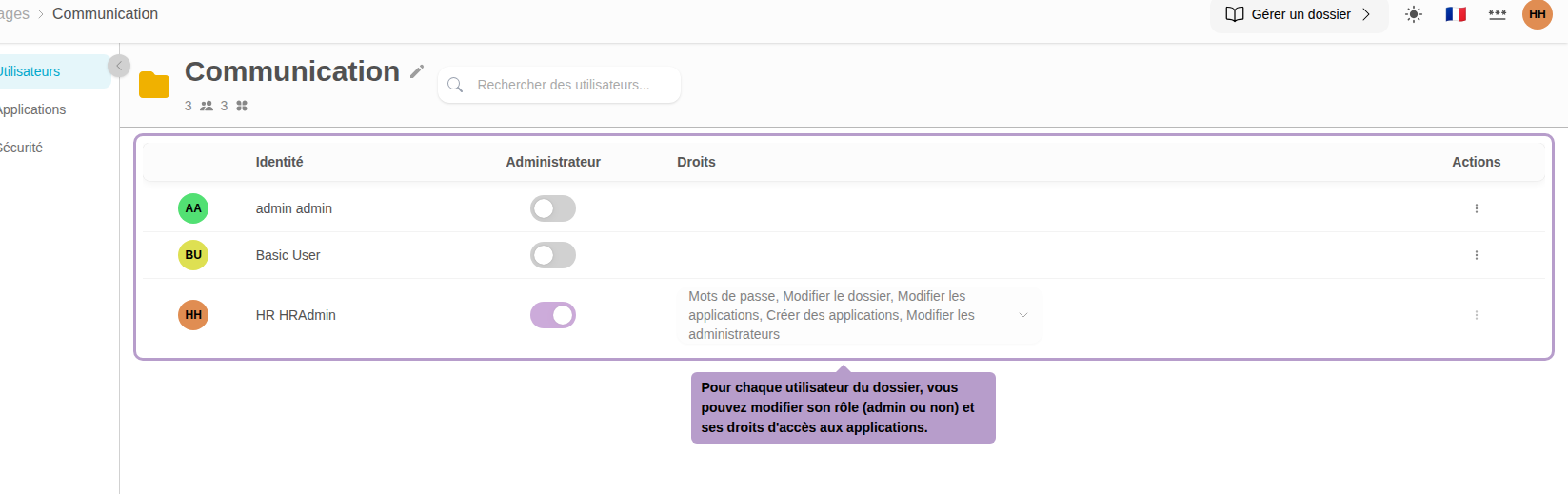
For each user, you can change their role (administrator or not) and their access rights.
Applications Tab
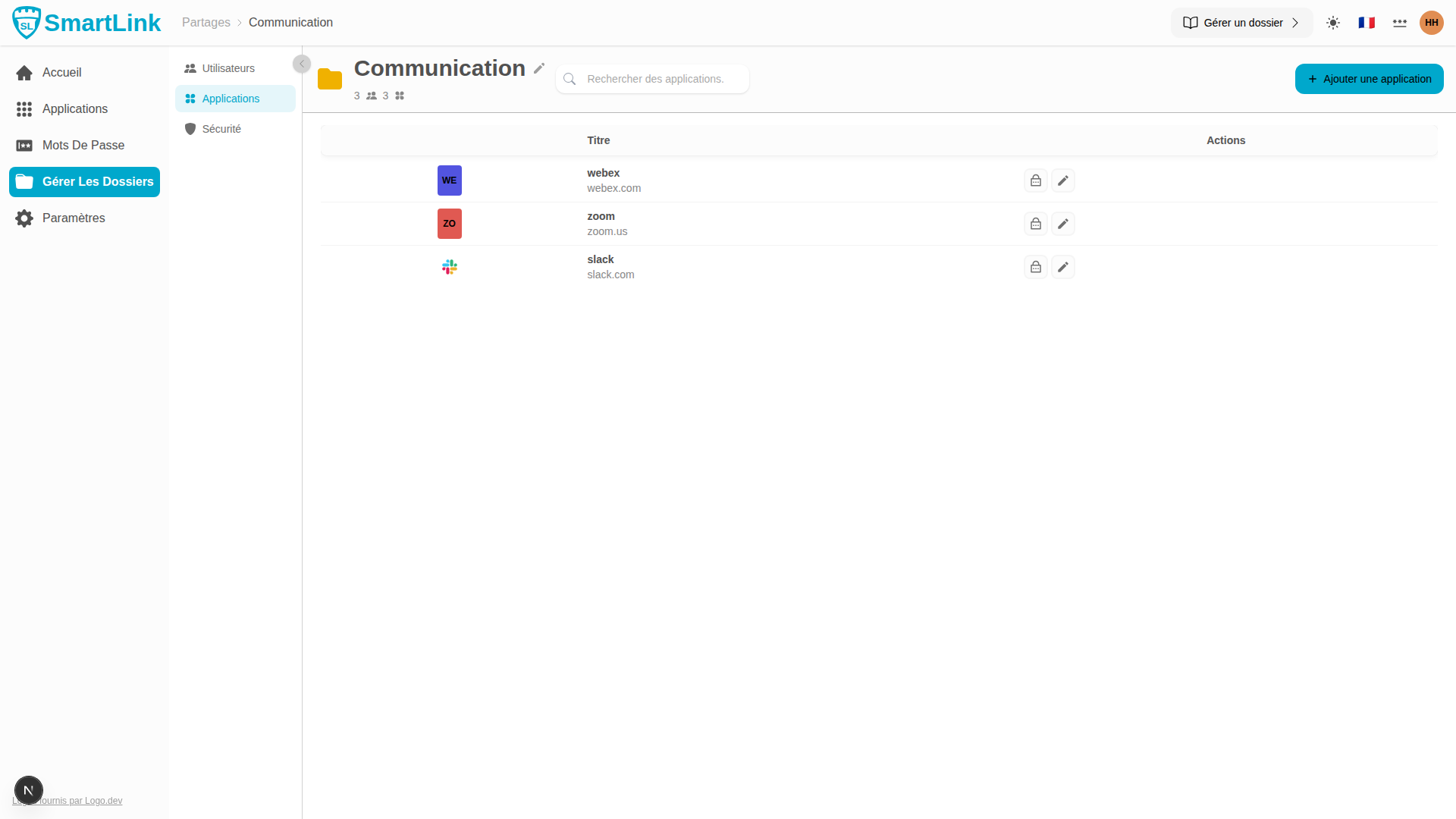
The Applications tab lists the applications present in the folder.
Create an Application
If you have the Create applications right, a create button is available in the toolbar.
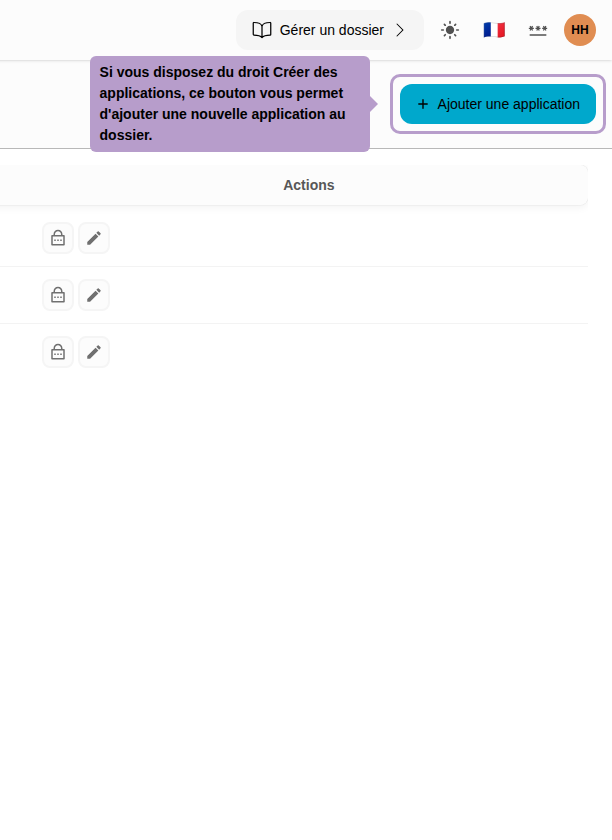
This button only appears if you have been granted the Create applications right.
Edit an Application
If you have the Edit applications right, each application has an edit button.
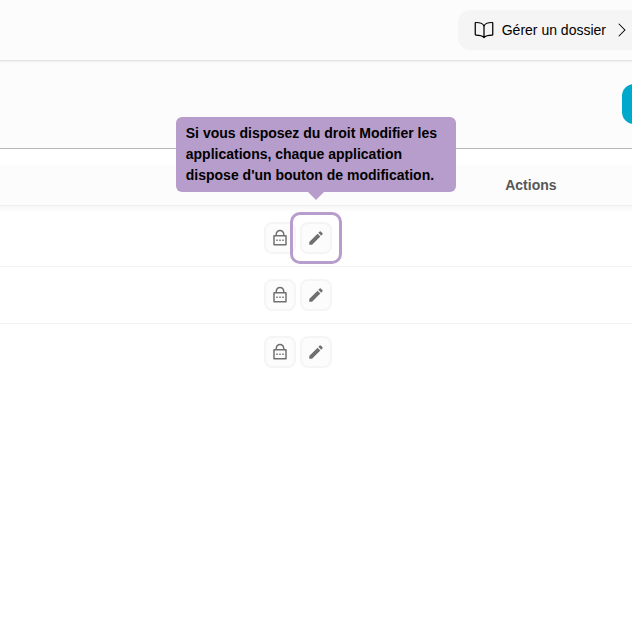
This action is only available with the Edit applications right.
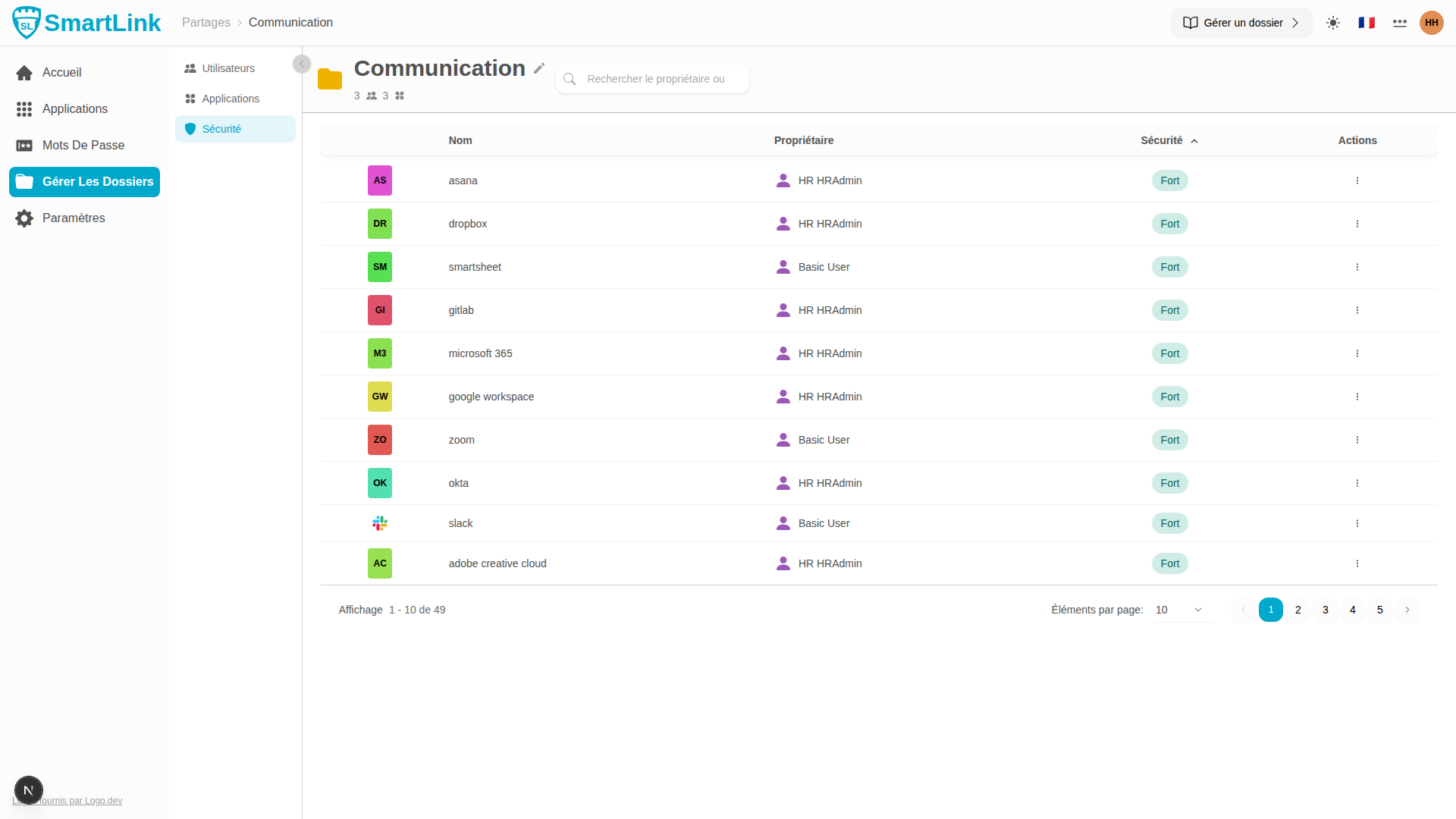
Security Tab
The Security tab allows you to view and manage passwords linked to the folder's applications.