Create your SmartLink
1. Go to go.vaultys.com/smartlink
To create your SmartLink, go to https://go.vaultys.com/smartlink.
You will be guided step by step to create your VaultysID identity and your SmartLink.
2. Create your VaultysID
VaultysID, your decentralized digital identity, can be installed on your smartphone (recommended) or on your computer, in your web browser.
Install VaultysID on smartphone
To install VaultysID on your smartphone, scan the QR code with your phone's camera. You will be redirected to the VaultysID application download page.
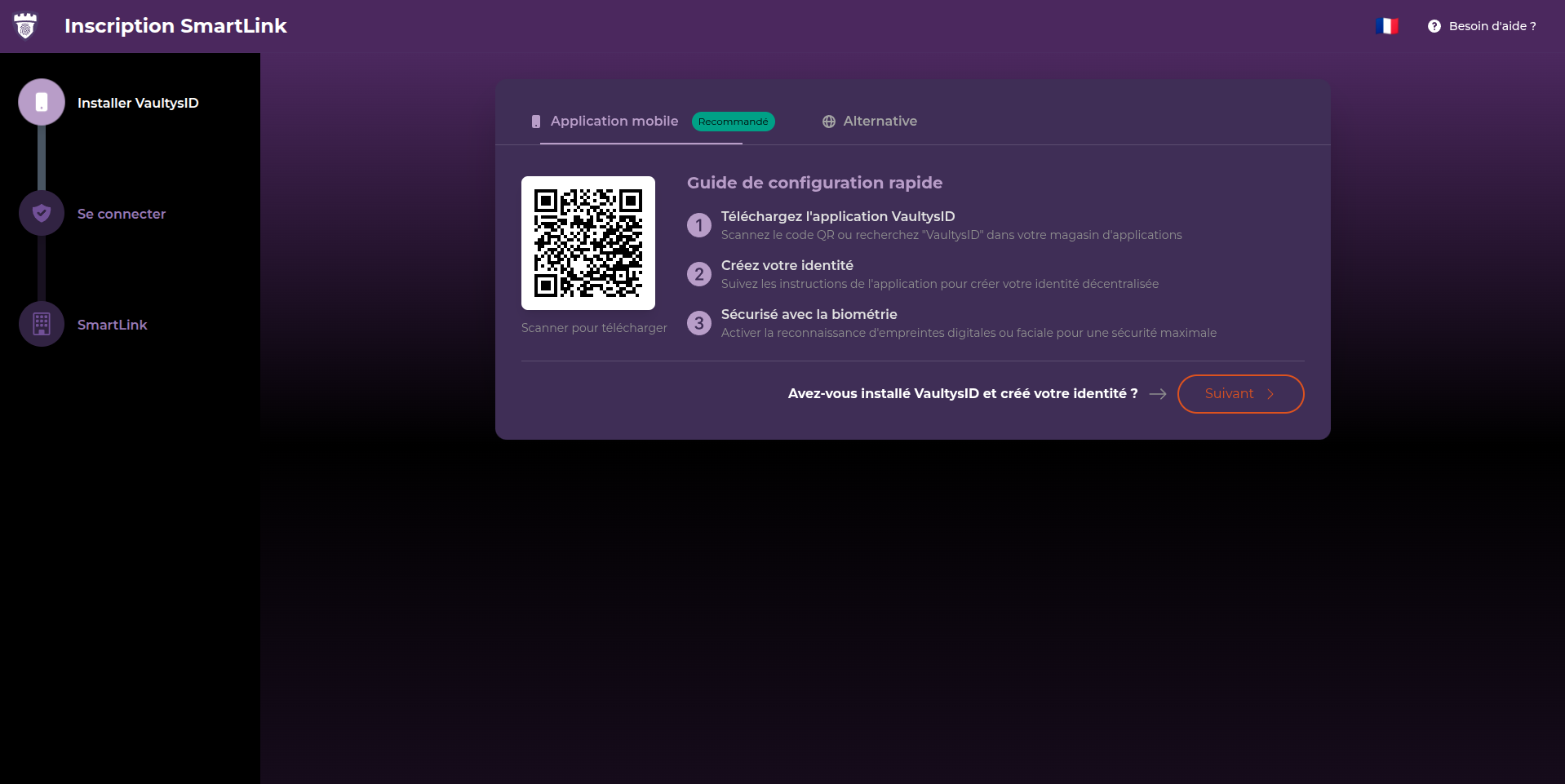
Then click "Next" to continue creating your SmartLink.
Install VaultysID in the web browser
If you prefer to install VaultysID in your web browser, click on the "Alternative" tab. Then click on the "Open in browser" button, or go to https://wallet.vaultys.net, to create your VaultysID identity directly in your web browser.
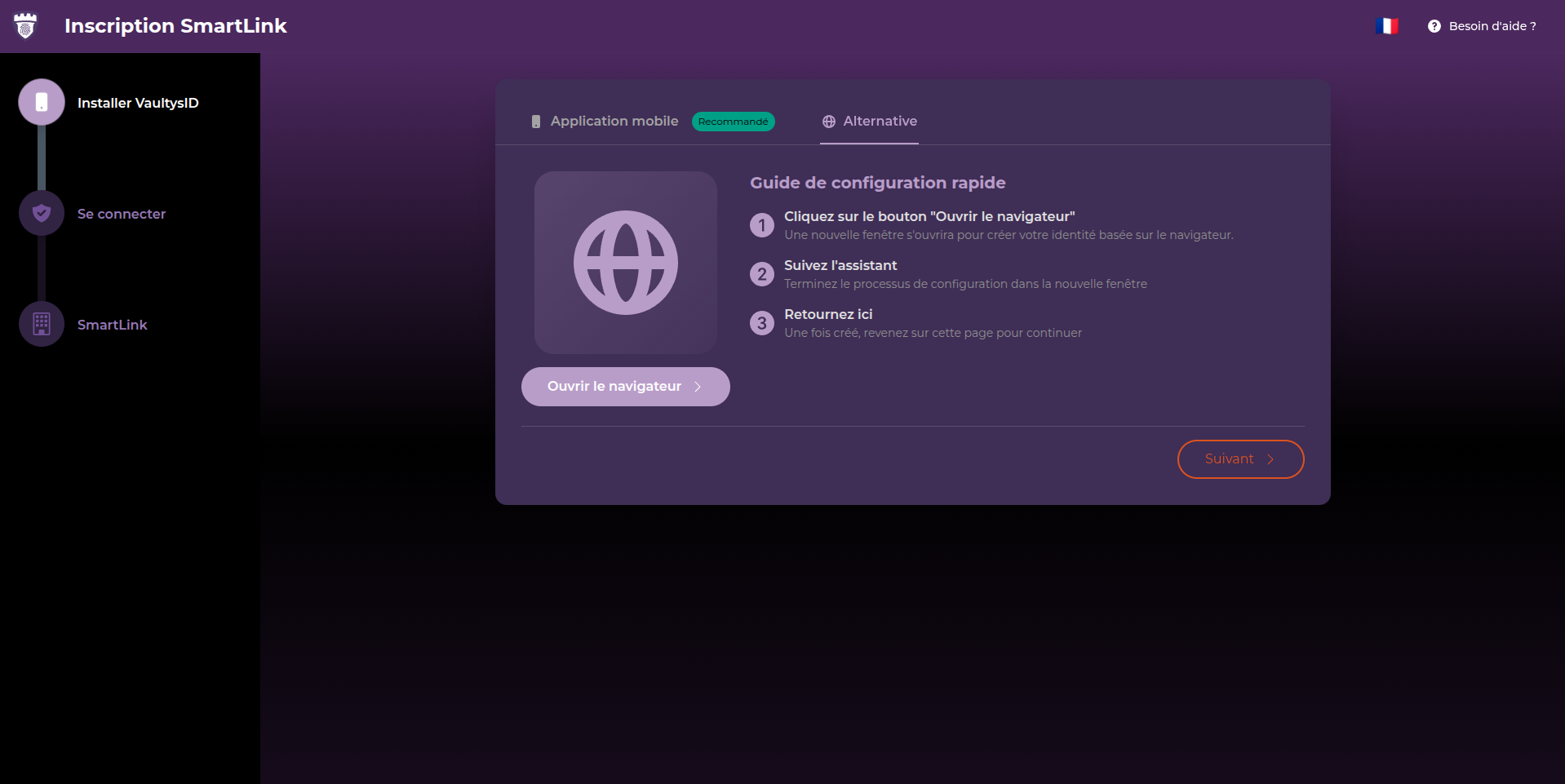
Then return to the go.vaultys.com tab and click "Next" to continue creating your SmartLink.
3. Test your decentralized identity VaultysID
Test VaultysID on smartphone
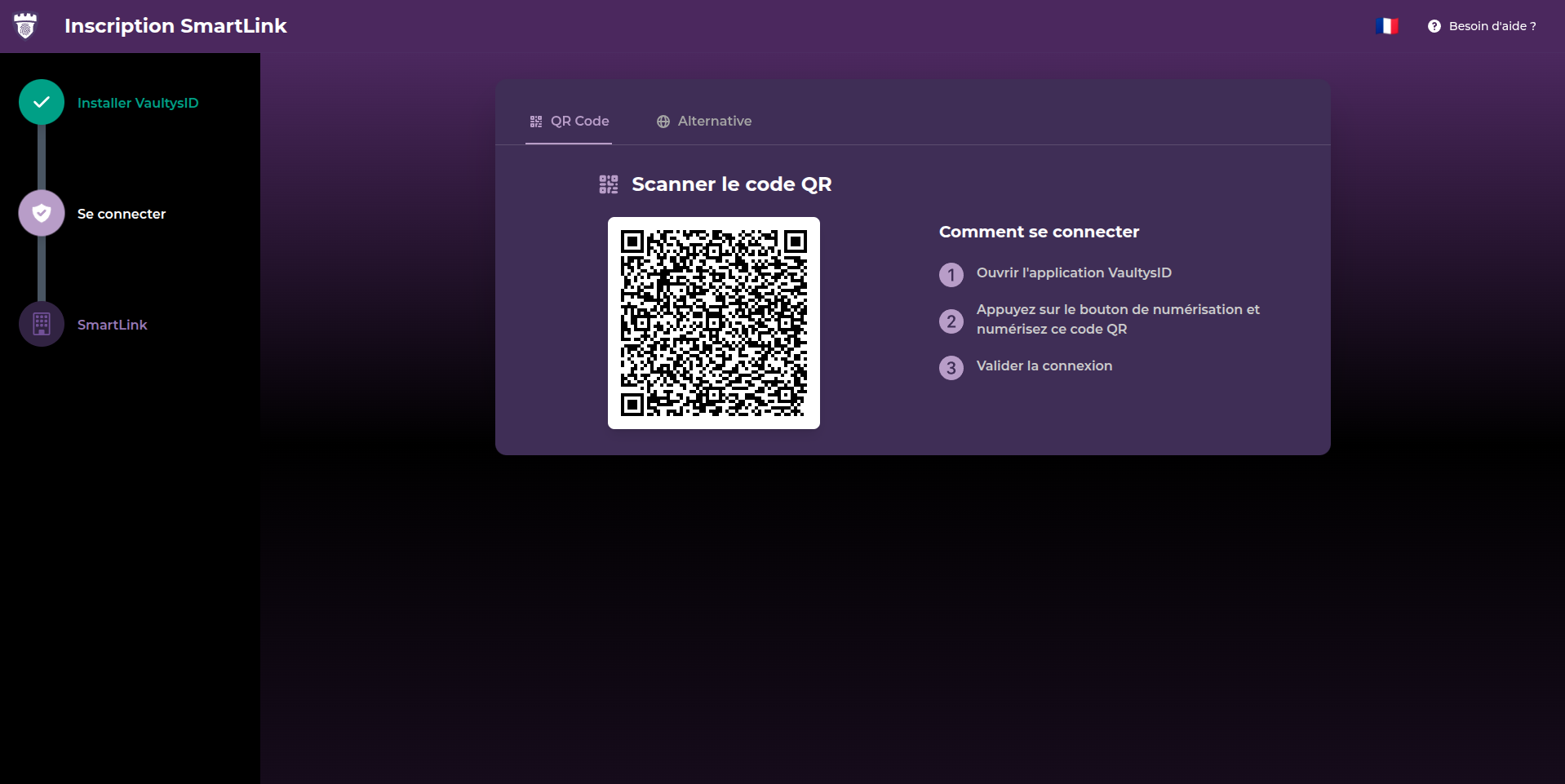
If you have installed VaultysID on your smartphone, open the VaultysID application and click on the QR code scan button. Then scan the QR code displayed on the go.vaultys.com page.
Test VaultysID in the web browser
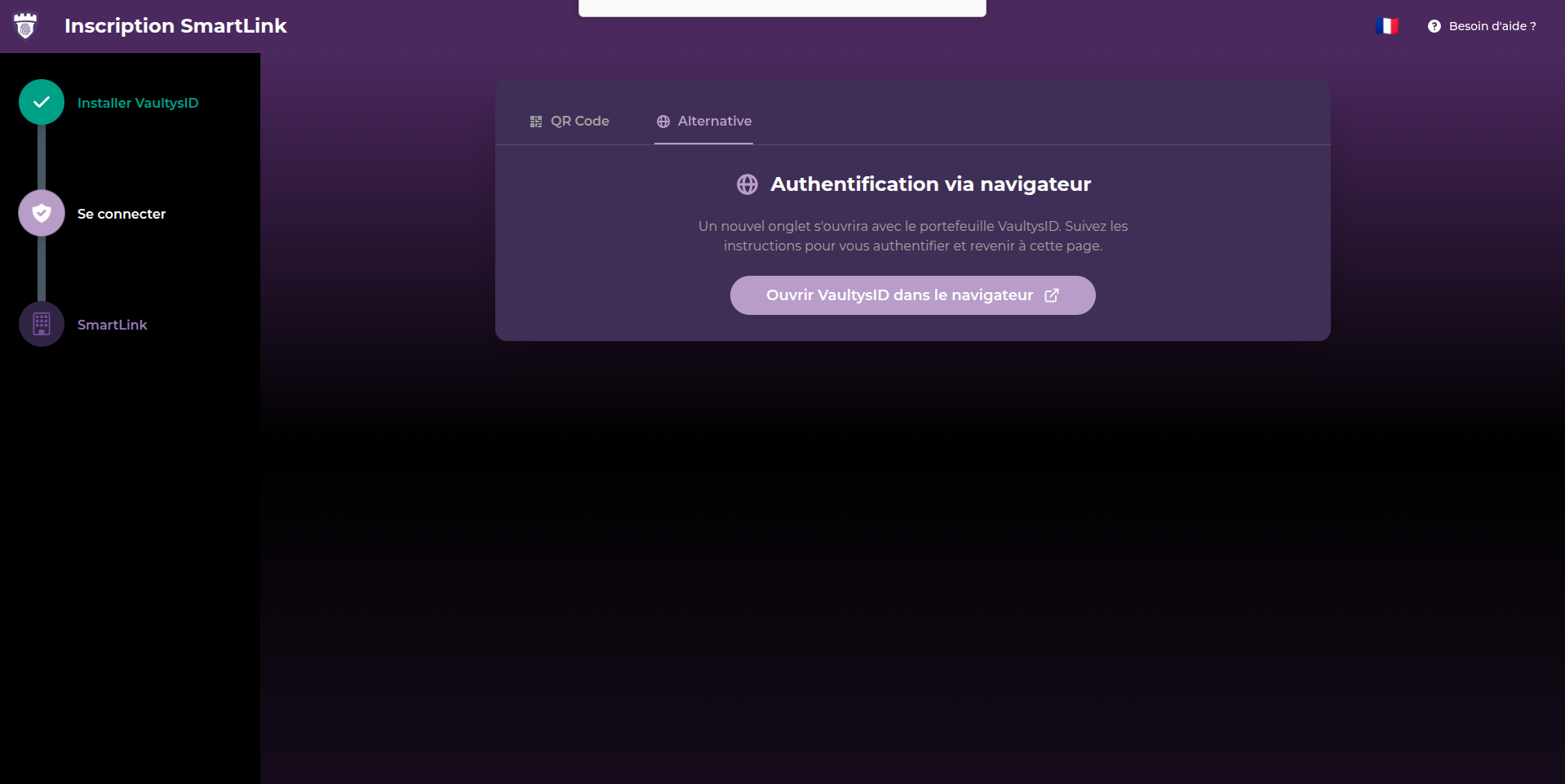
If you have installed VaultysID in your web browser, click on the "Open VaultysID in the browser" button. A new tab opens with your VaultysID identity, click on your profile to authenticate yourself.
4. Create your SmartLink
You are now authenticated on go.vaultys.com with your decentralized VaultysID identity, congratulations!
Fill out the SmartLink creation form
All you have to do now is create your SmartLink by filling out the form.
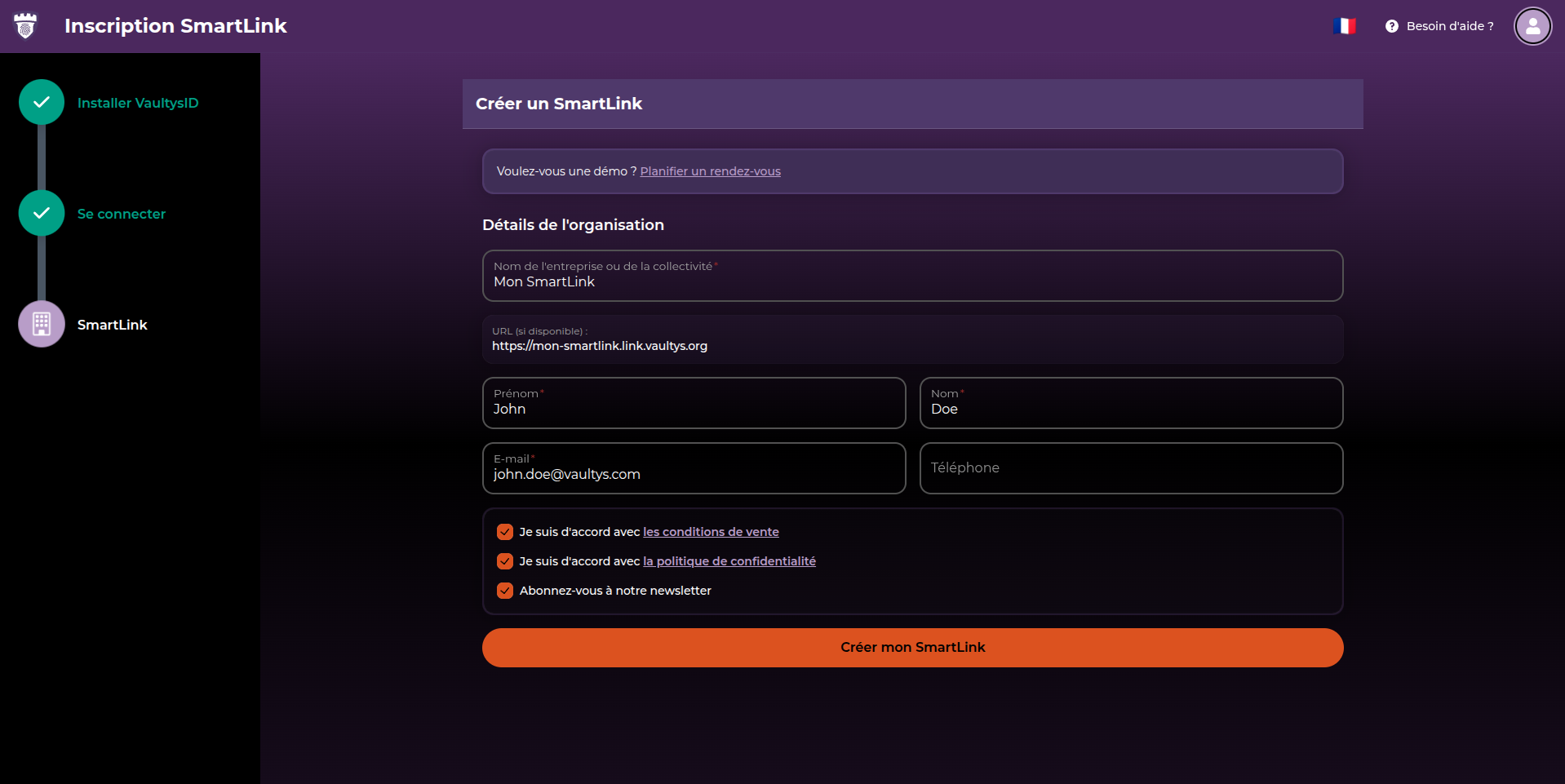
Verify your email address
A verification email has been sent to you to verify your email address.
Enter the verification code received by email here:
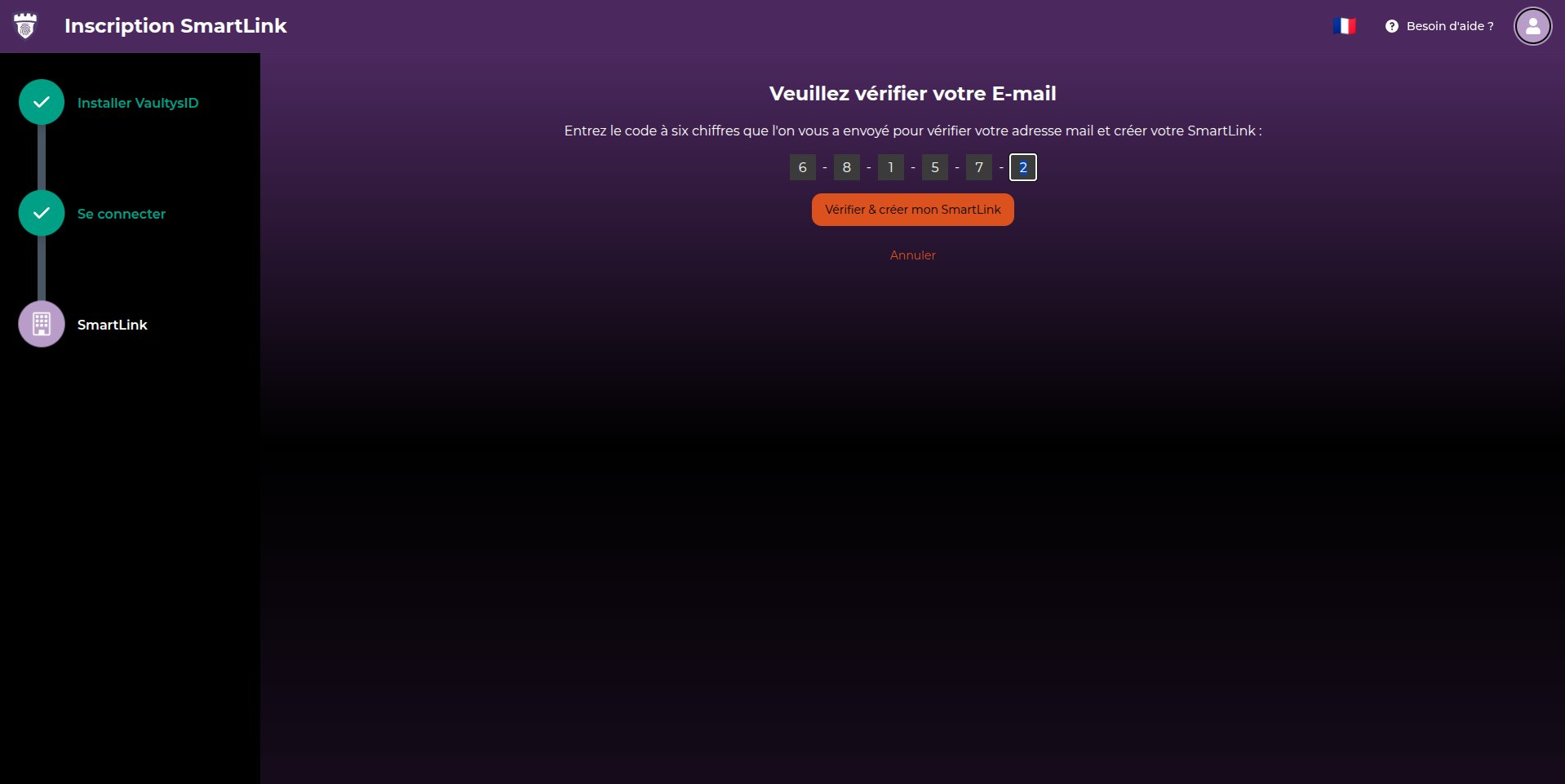
You will then be redirected to your newly created SmartLink!