Getting Started
Add Your First VaultysHub
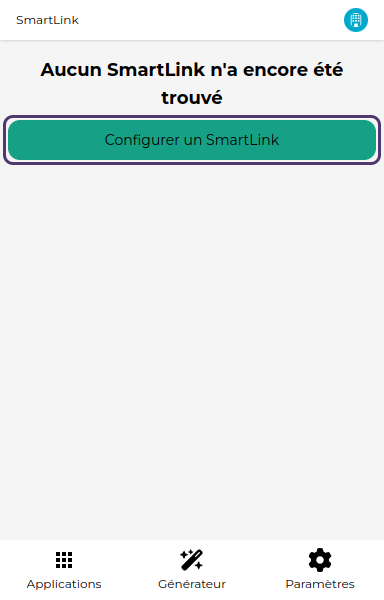
1. Click on Add VaultysHub
Upon first launch, no VaultysHub is configured. You will arrive at a page indicating this: click on the Add VaultysHub button to continue.
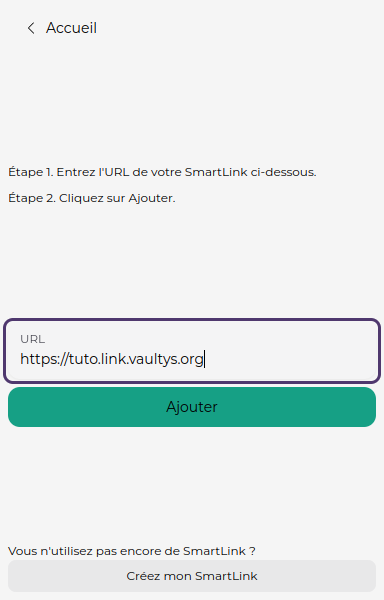
2. Enter the URL
You will arrive at the Add Your VaultysHub screen. Enter the URL of your VaultysHub (e.g., https://my-company.link.vaultys.org) in the corresponding field.
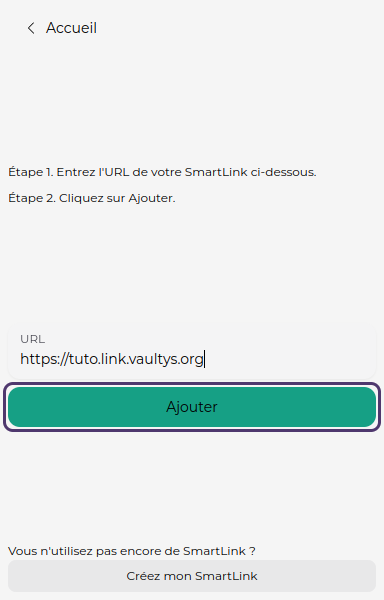
3. Click on Add
The extension will try to connect your VaultysHub to the URL you provided. If the URL is correct, your VaultysHub will be added (this may take a few seconds depending on network status). Click on Add to start the verification.
Connect for the First Time
1. Where is your VaultysID?
In most cases, you have installed the VaultysID application on your smartphone. In this case, click on the first button. You will then need to scan a QR code with VaultysID, just like you would to connect to VaultysHub in the web version (step 2).
However, if you opted to use VaultysID within your PC's browser, click on the second button. This will open VaultysID in a new window, where you can log in (without closing the extension).
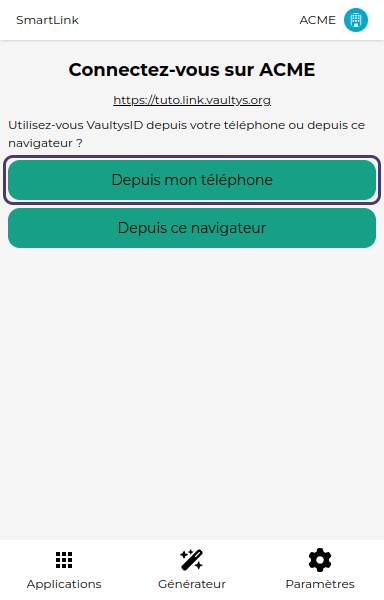
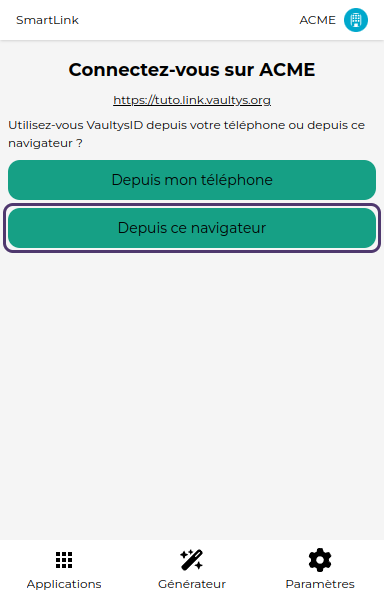
2. Log In
If you chose the first option, scan the QR code with VaultysID to connect your extension to VaultysHub.
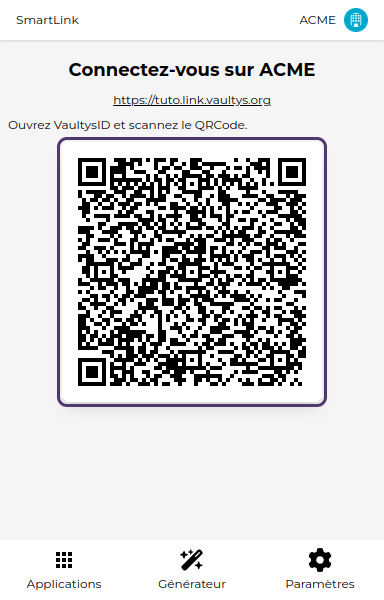
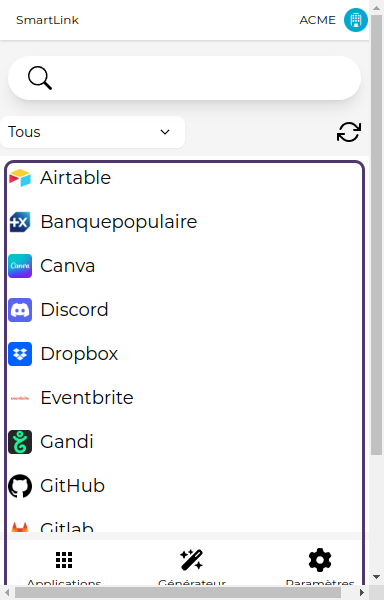
If the connection was successful, you should see your applications appear!